Understanding Auto Save
Every change you make in an editor is saved, signed in or not, with no button to press.
- In this browser, at once. Every change is written to this browser as you make it. That is all a draft or a project in this browser needs.
- In the cloud, a few seconds later. A cloud script is sent to your account about three seconds after you stop, or every 15 seconds while you keep working. A large script waits for a longer pause: 30 seconds, and at most a minute. If a save fails, it is tried again on its own.
- At once, when you ask. Ctrl+S (⌘S on macOS) sends a cloud script to the cloud straight away.
An empty script is never saved over the cloud's: if everything is deleted, the cloud keeps the last version that held something.
The status beside the title
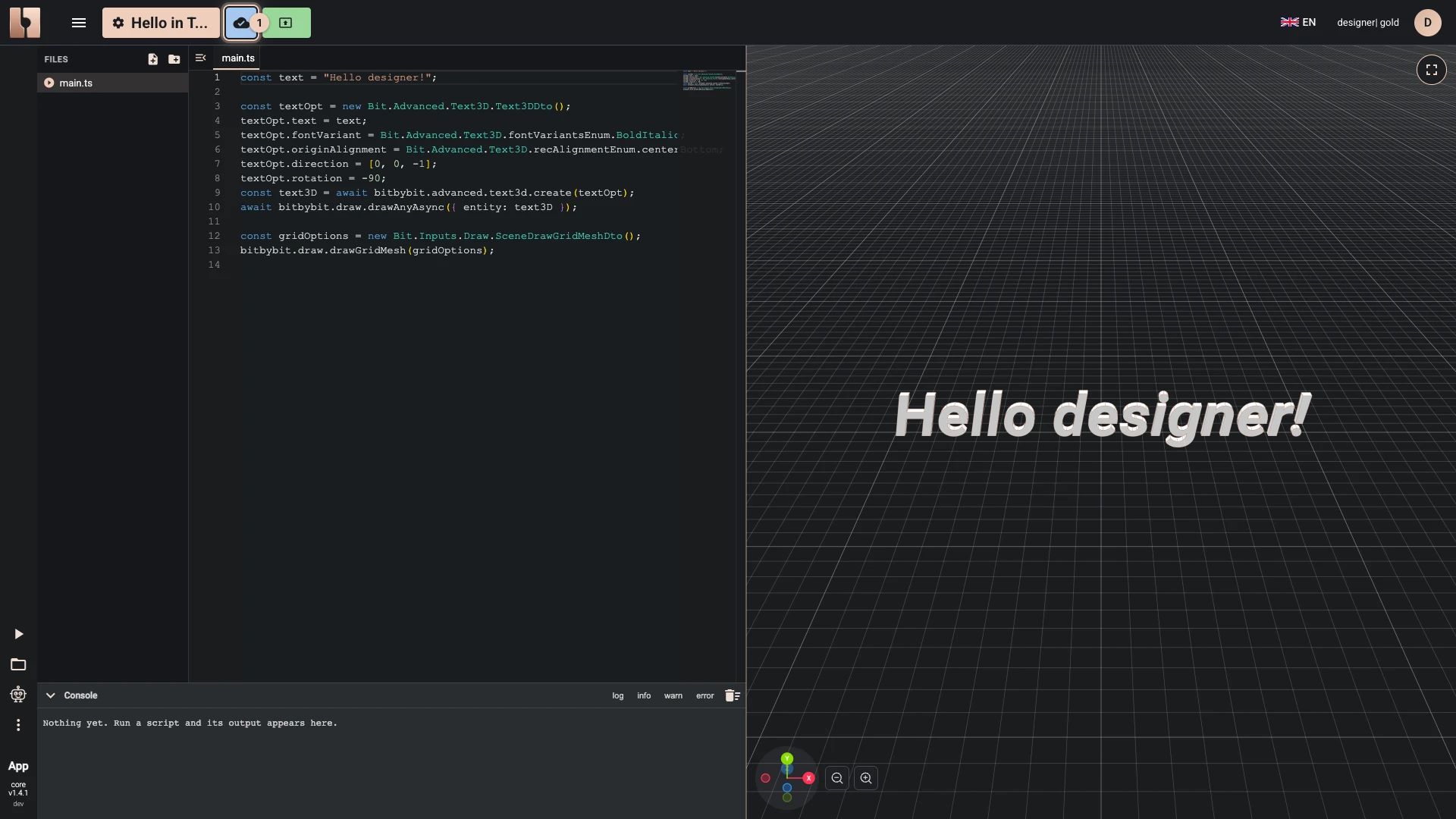
A mark beside the script's title, in the bitbybit.dev header, says where your work stands. Hover over it for its words; click it to open the history. On a small screen the same words are in the menu.
| Status | What it means |
|---|---|
| Saved | Saved to the cloud and in this browser. |
| Saving | Saved in this browser and on its way to the cloud. |
| Not synced | Saved in this browser, not yet in the cloud. It is tried again on its own. |
| Not saved | The script is empty, so the cloud keeps its last saved version. |
| Conflict | The script changed somewhere else since you opened it: choose which version to keep. |
| Read-only | The script is open in another tab, and changes here are not saved. |
| Saved in this browser | The script is kept in this browser only. Export it or move it to the cloud to keep a copy anywhere else. |
| Signed out | Changes to this cloud script are no longer saved. Sign in again to keep editing it. |
| Deleted in the cloud | The script no longer exists in the cloud. Changes are kept in this browser's history; export the script to keep a copy. |
| Not saved in this browser | This browser could not store the latest change. Export the script to keep a copy. |
History
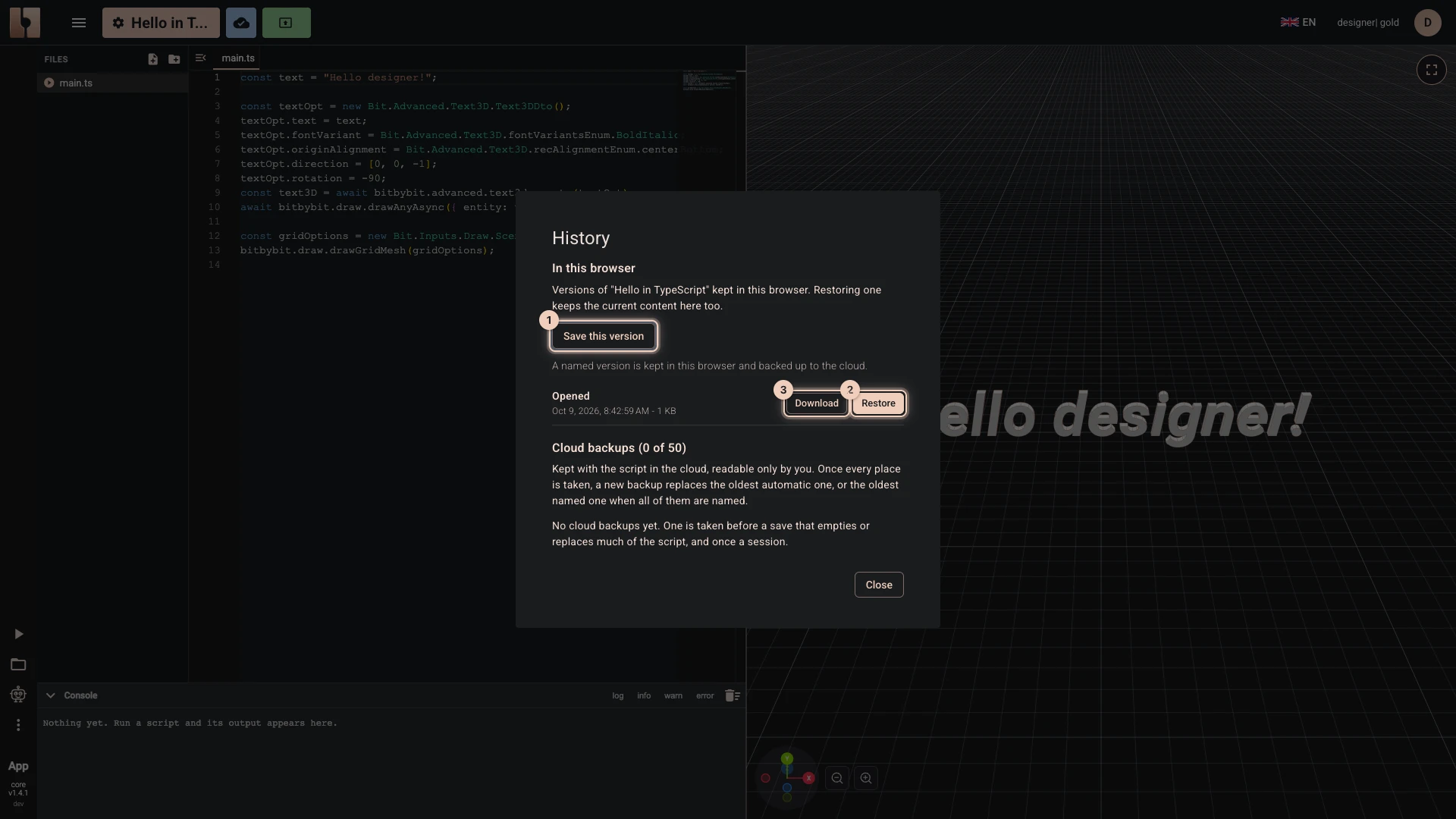
The history keeps earlier versions of the script in this browser. A version is kept:
- when the script is opened;
- every two minutes while you work;
- before a change that empties the script or removes more than half of it;
- before an import or a paste replaces it;
- when you choose Save this version and name it.
Restore brings a version back, and the state it replaces is kept too. Download saves a version as a file. When the history grows large, the oldest versions go first; the ones you named and the newest one are always kept.
Cloud backups
A cloud script also has backups in your account, which only you can read and which work from any device. They are listed in the same history: a script keeps up to 5 on the free plan, 20 on Silver and 50 on Gold. Each can be downloaded, restored or deleted.
When the script changed somewhere else
If the same script is open in two tabs, only one of them saves: the other says Read-only. If it was saved from another computer, bitbybit.dev asks which version to keep: Use the cloud version or Keep this browser's version. The one you do not keep is backed up first.
Move a script to the cloud
A script in this browser can move to your account once you are signed in: choose Save to cloud beside its title, or Move to the cloud on its row in My Projects. Its history comes along. The files of its project stay in this browser, so a script that loads files is better moved with its whole project: Move the project to the cloud.
To keep a copy outside bitbybit.dev, save the script to a file.
Verified against the product in October 2026