Understanding and handling errors
Mistakes are part of programming, and a computer never overlooks one: it stops, or it does something you did not mean. The editors on bitbybit.dev tell you what went wrong in the same few places.
The console says what failed
Every error a script meets at run time goes to the Console under the editor, in red, with a count beside the console's title. An error from the geometry kernels names the operation that failed and the values it was given, which is usually enough to find the cause. The Rete and Blockly examples below both ask for a box of width 0, and the kernel answers that every size must be more than 1e-7.
Rete: the node turns red
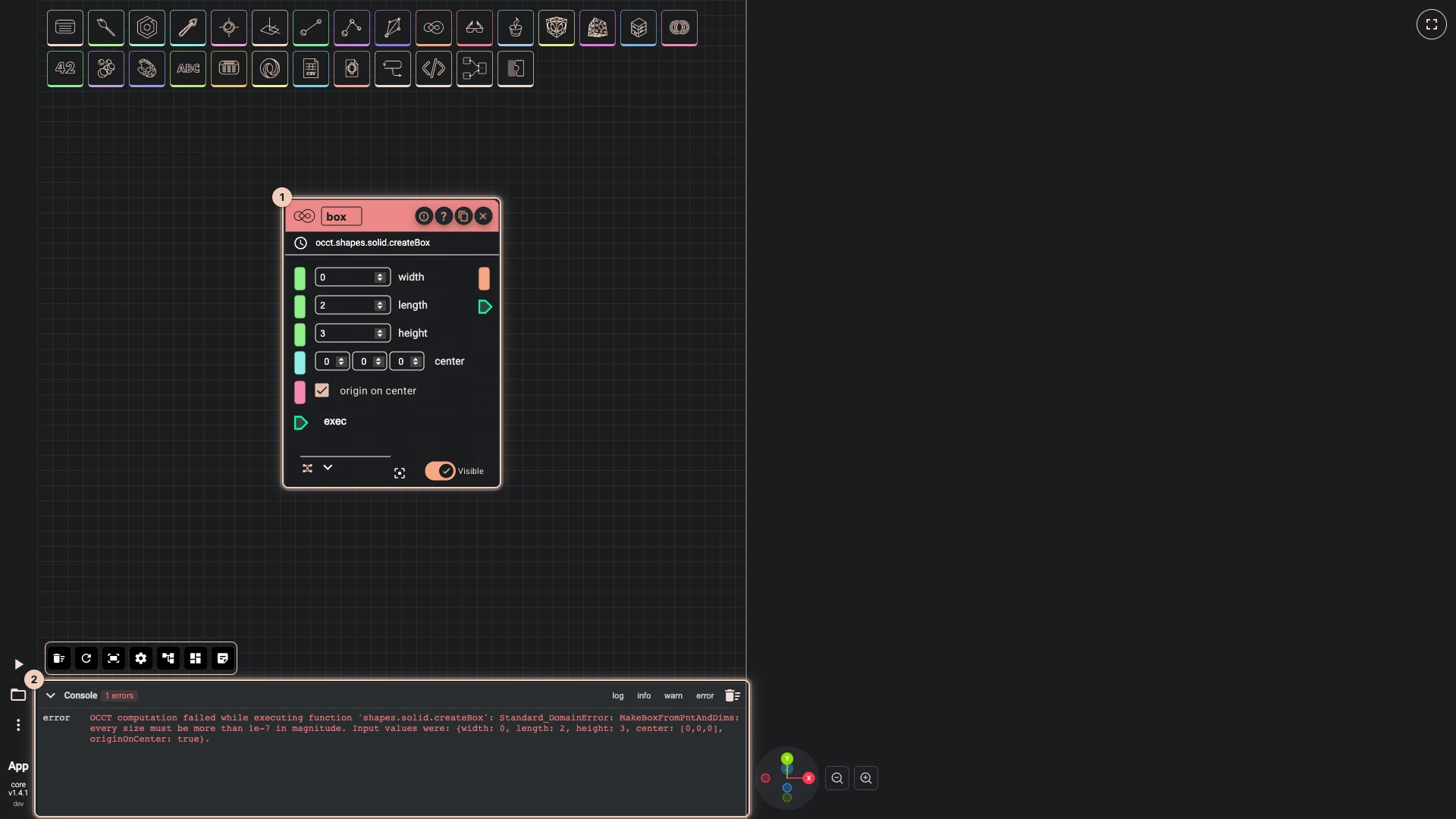
Rete runs as you change the graph, so an error shows as soon as you make it: the node that failed turns red, and the console says why. Change the input that caused it, and the node runs again at once; when it succeeds, it takes its normal colour back.
Blockly: after you run it
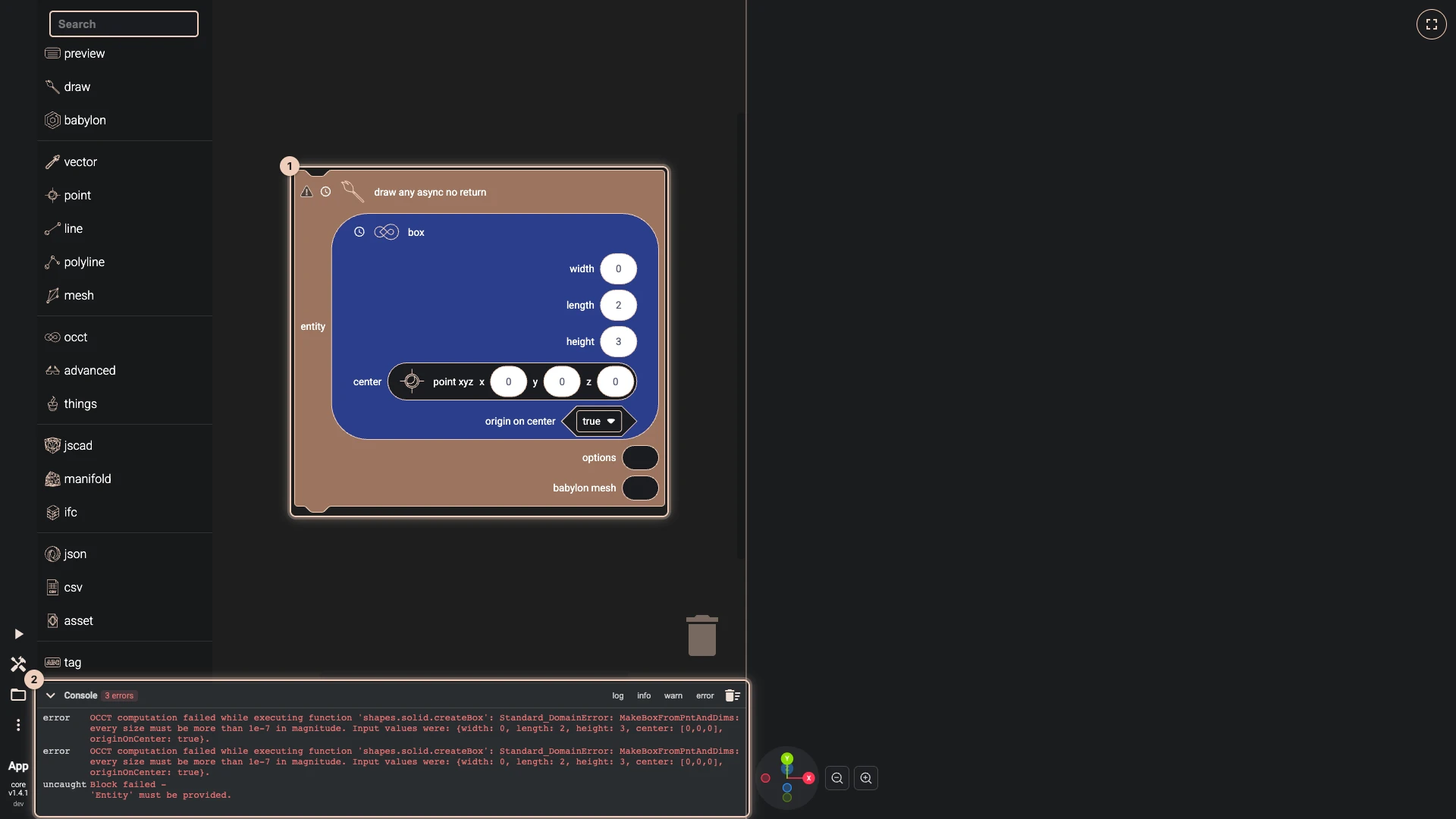
Blockly shows errors after you press Run The Code. The block that failed is marked, and the console lists every error of the run, often several: the box that could not be made, then the draw block that had nothing to draw.
TypeScript: before you run it
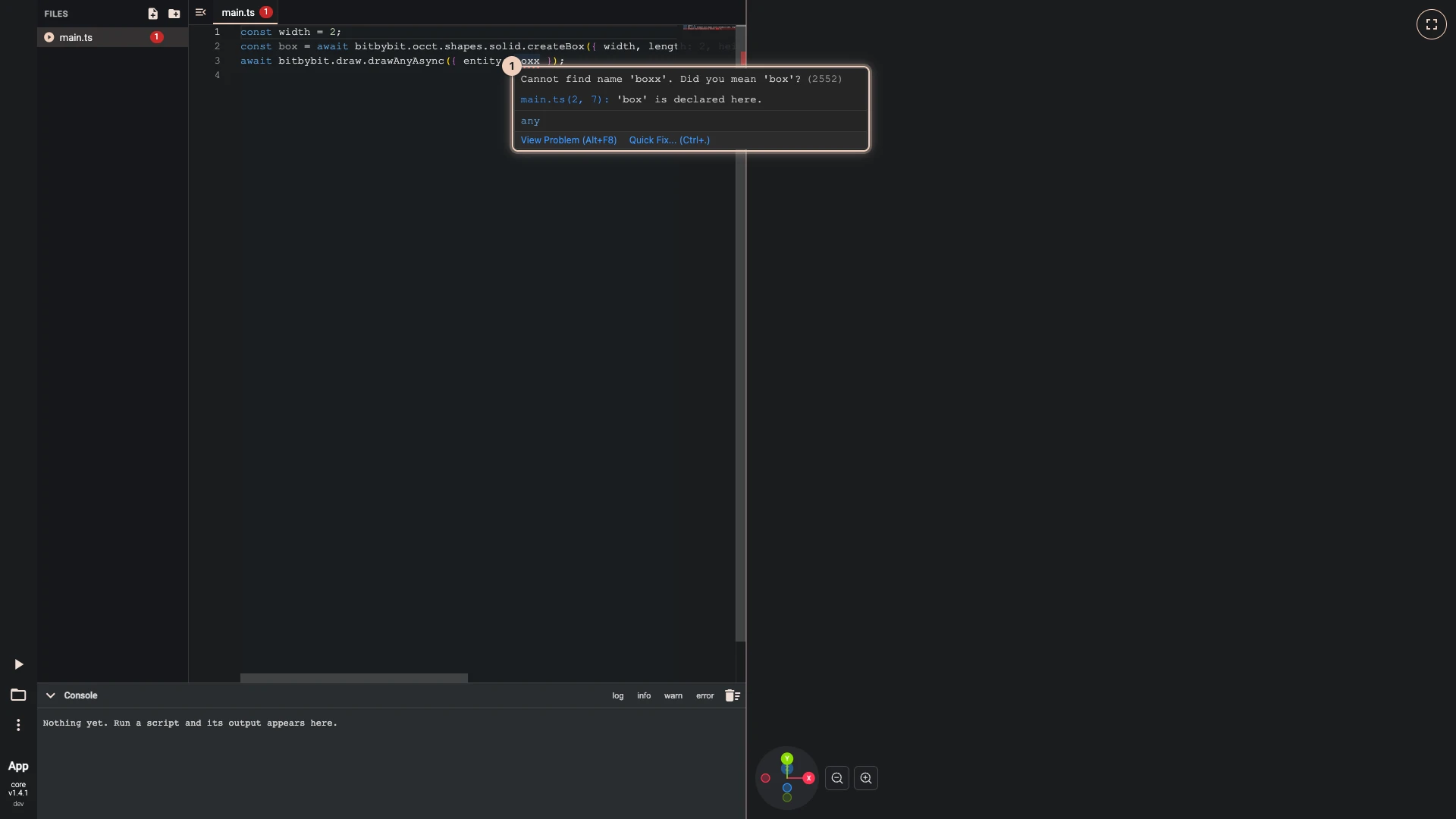
TypeScript checks your code as you type. A mistake it can see, such as a name that does not exist or text where a number belongs, is underlined in red; point at it to read what is wrong. In the picture, a misspelled box is caught before anything runs. Fix those first: they are the cheapest errors to find.
Code with underlines still runs, and what it gets wrong at run time goes to the console like any other error.
When nothing tells you
If a script does not do what you expect and no error appears, check its result step by step: draw what a step makes, or print a value with console.log in TypeScript. As a last resort, the browser's own developer tools (F12 in most browsers) show messages from the page that the editor's console does not.
Verified against the product in October 2026