Running your code
Whether you type TypeScript, snap Blockly blocks or connect Rete nodes, you are writing a program, and a program does nothing until it runs.
Run the code
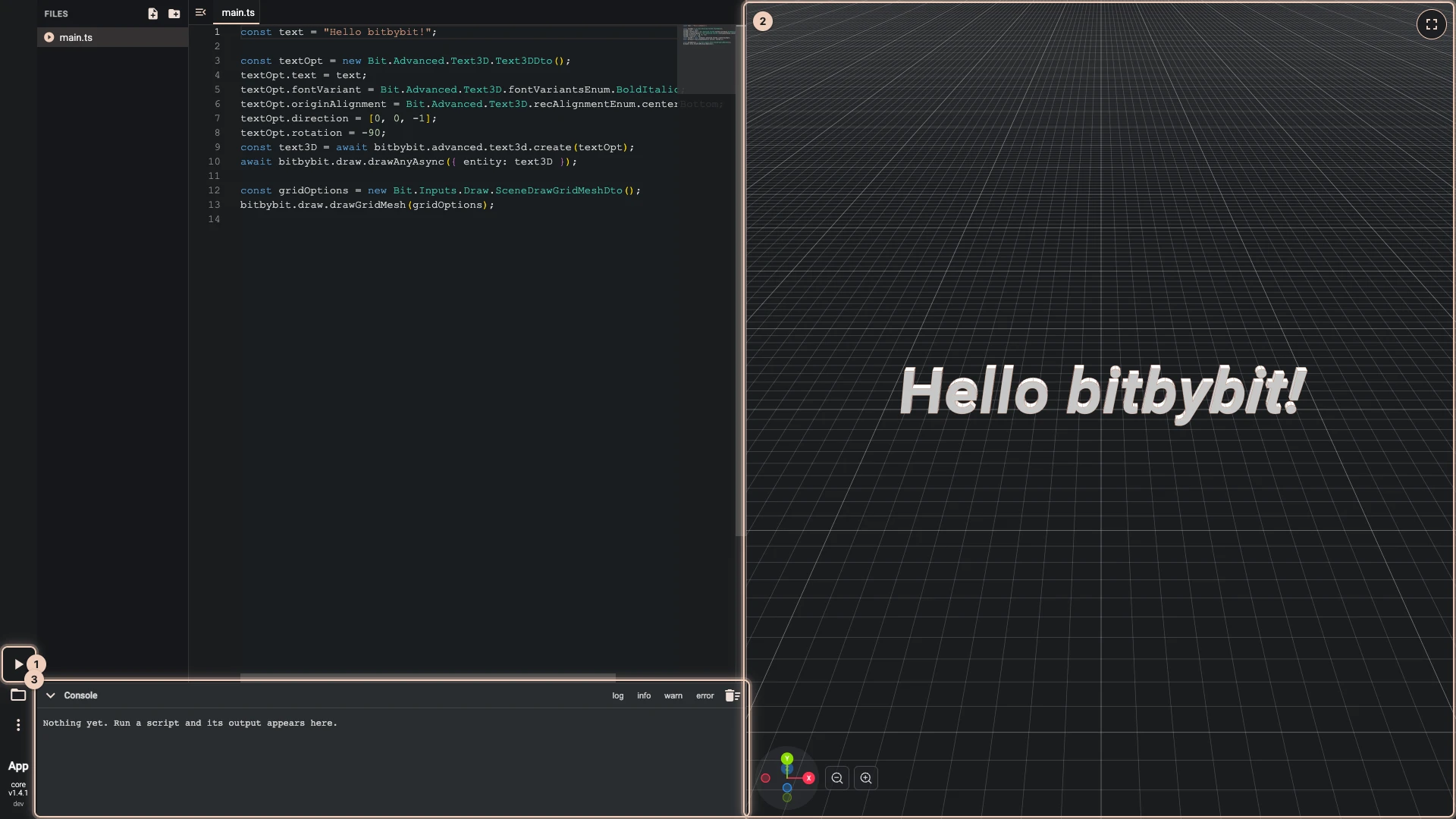
Run The Code, the play button at the lower left of the editor, runs the script. On a small screen the same buttons sit in a bar along the bottom.
- TypeScript and Blockly run only when you press it, so press it after every change you want to see.
- Rete runs again by itself whenever you change a node or a connection. It does not run when a script opens, so that a heavy script never keeps you waiting just to look at it: press Run The Code once to see its result, and from then on it follows your changes.
There is no message when a script succeeds. Look at the result, and at the console.
Where the result appears
On a computer the editor and the 3D view sit side by side, and the line between them can be dragged to give either one more room.
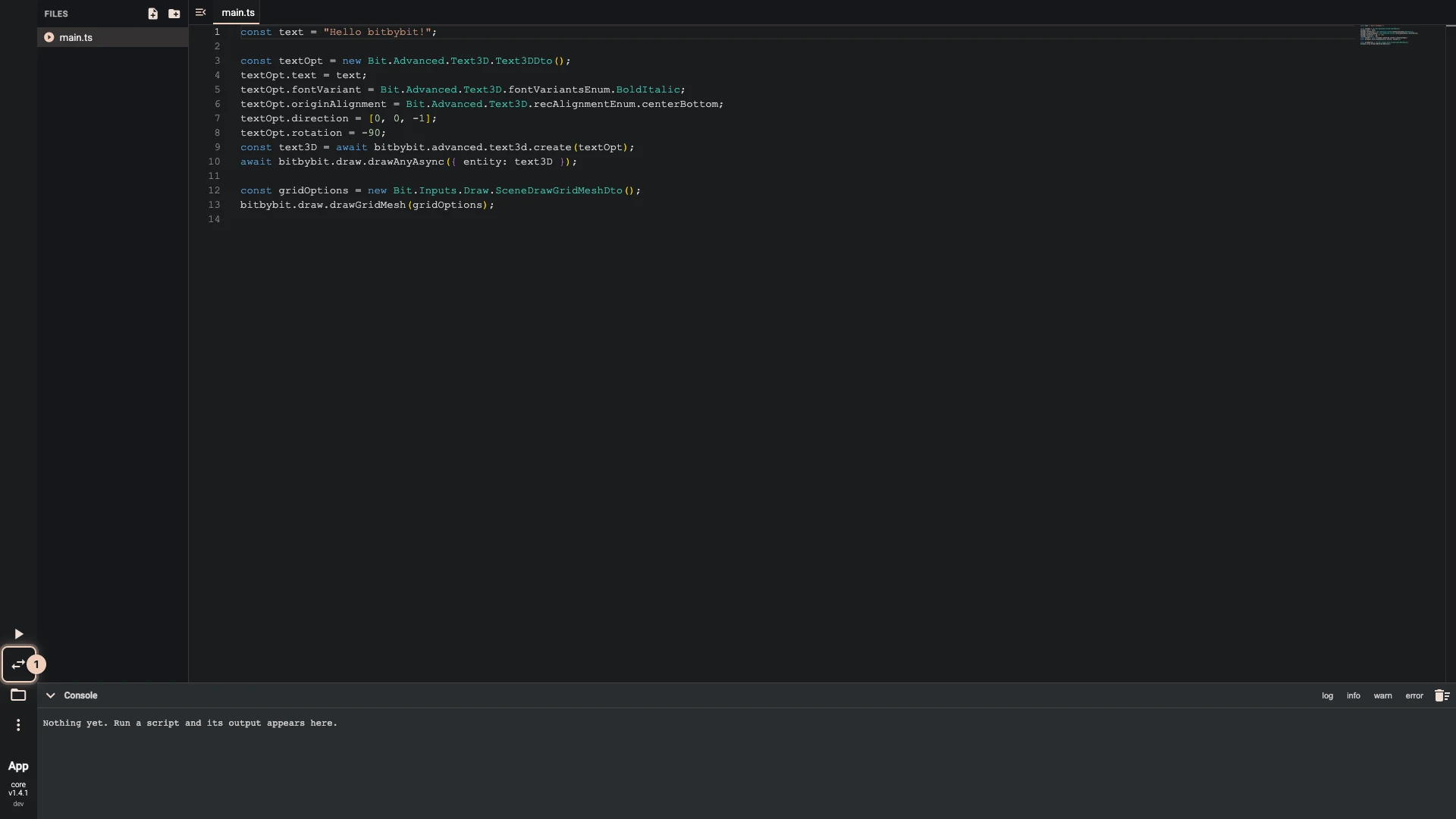
To give each the whole window instead, turn off Split-screen mode in More > Settings. Swap Canvas then switches between the editor and the 3D view. On a phone the editor always works this way.
The console
The Console under the editor shows what a script prints, such as console.log in TypeScript, and every error, each with what failed and the values it was given. A count beside its title says how many errors the last run had. The filters choose which lines show, and Clear the console empties it. Errors explains how to read them.
While it works
The geometry kernels run beside the page, so the editor stays usable while they work. A spinner in place of Run The Code (its tip says Worker busy) shows they are busy: the kernels starting when the editor opens, or a script that takes a while to compute. Some CAD operations, such as booleans or fillets on large solids, take seconds even when the script is right.
A script can also ask for something that never ends, such as a loop with no way out. The browser tab may then stop answering and need closing, so keep your work saved: a cloud script saves itself as you work, and Saving explains how.
Verified against the product in October 2026