Parameters and expressions
A parameter is a named value, such as length or width. Any number in a feature, a sketch or a joint can be an expression of the document's parameters, so changing one parameter changes everything written in it.
Add a parameter
Choose Insert > Parameter, or click Add parameter at the foot of the Parameters group in the Features panel. The new parameter is selected, and Properties shows it:
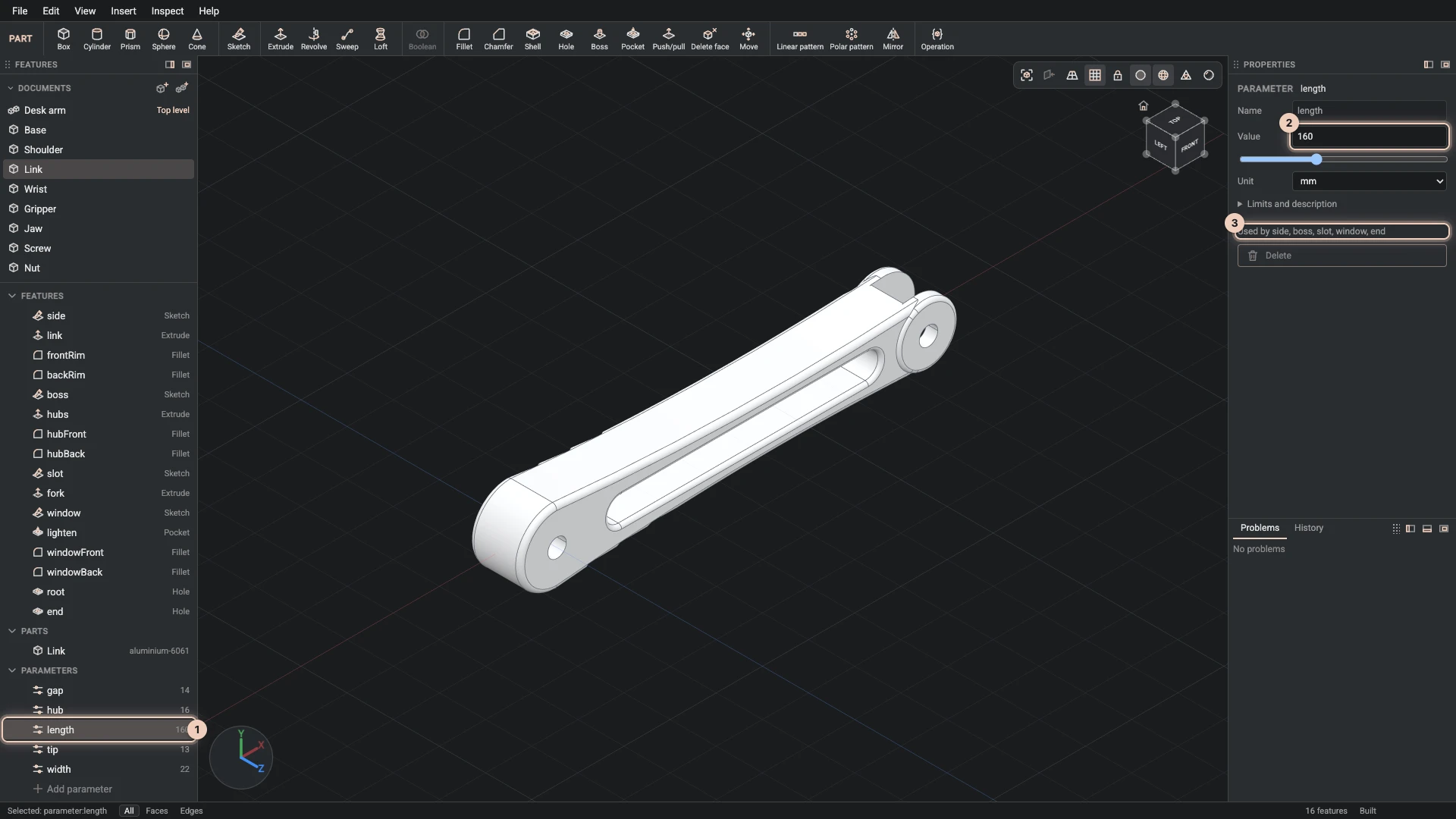
- Name: what expressions call it. Rename it while nothing uses it yet.
- Value: a number, or an expression of other parameters, such as
length / 2. - Unit: mm, cm, m, in, deg, or none for a plain number such as a count.
- Limits and description: the least and the most it may be, the step of its slider, and a line on what it is for.
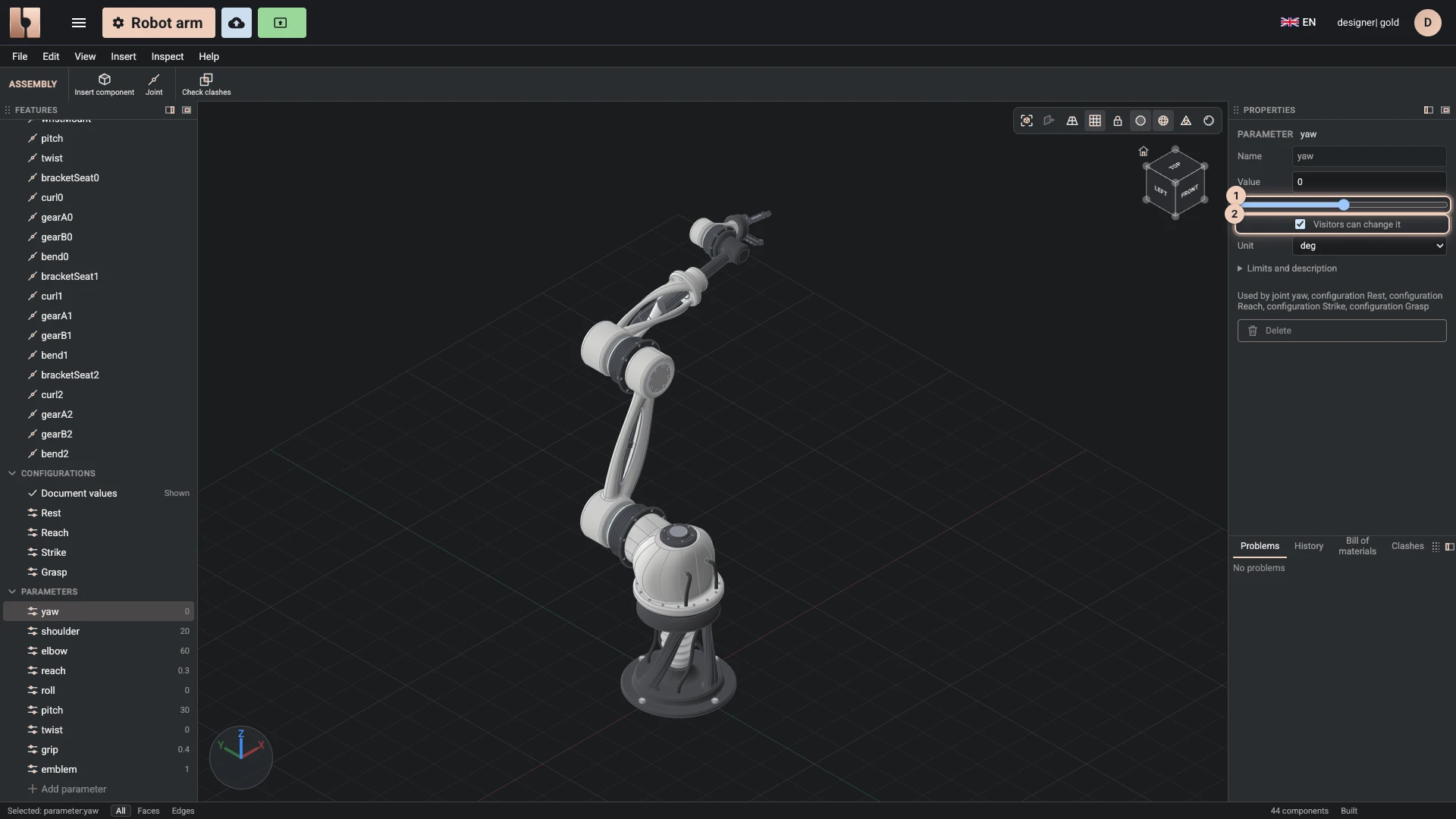
- Visitors can change it: gives the people you share the design with a slider for it (see below).
- Under them, the features that use it. A parameter something uses cannot be deleted.
The picture shows the desk arm link's length, which its sketches and its end hole are written in.
Drag and watch
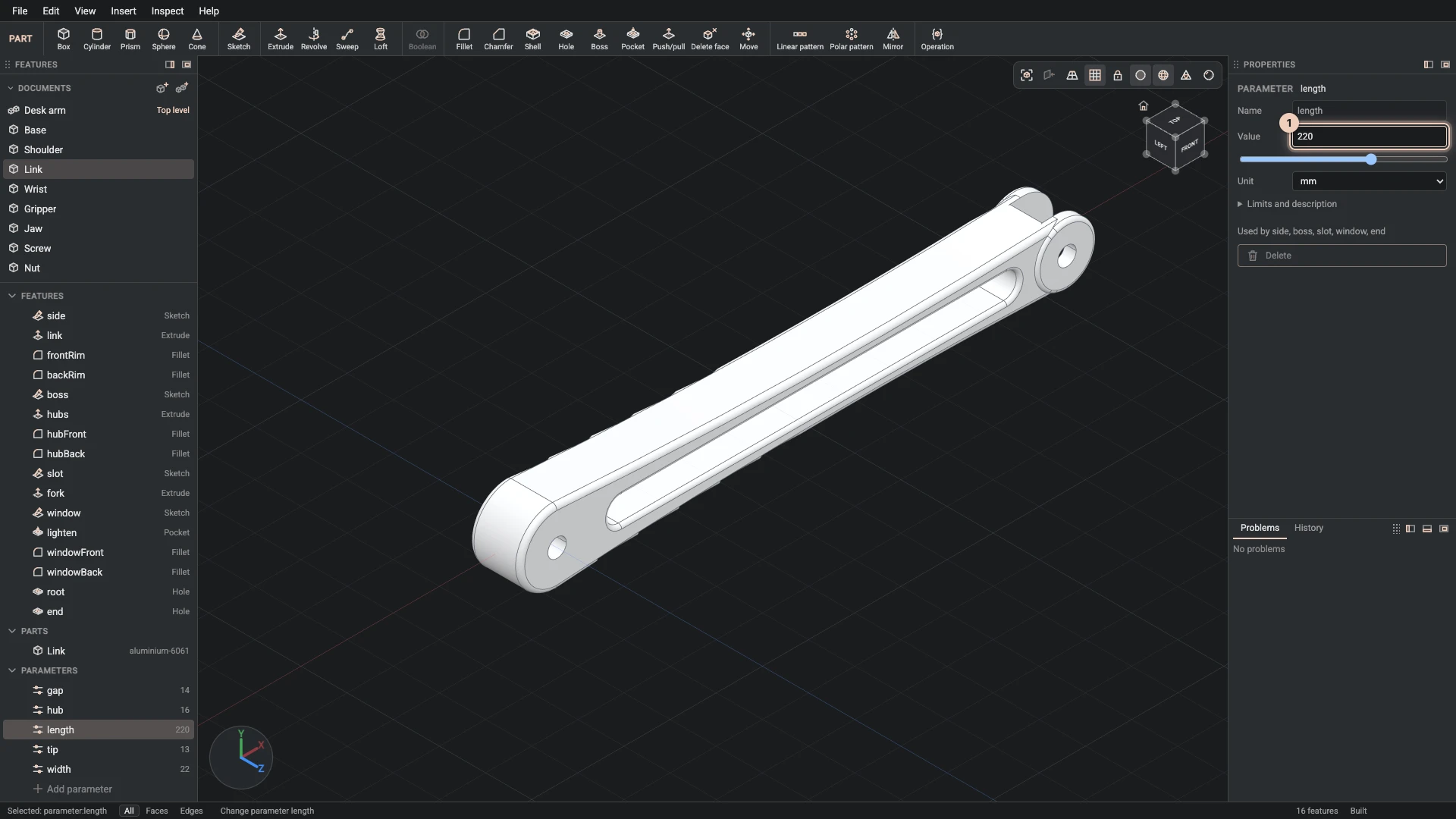
Type a new value, or drag the slider, and the part rebuilds as you go: every feature that reads the parameter, and everything built after it. Here the link's length went from 160 to 220, and its outline, its slot and the hole at its end followed. Undo puts the old value back.
Writing expressions
An expression is arithmetic over the parameters' names:
+,-,*,/,^for a power, and brackets;min,max,abs,sqrt,round,floorandceil;sin,cosandtan, with angles in degrees, andasin,acos,atanandatan2, which give degrees;- comparisons and
if(condition, then, otherwise), such asif(length > 200, 3, 2); pi,tauande.
A field shows the expression as you wrote it. A name that is not a parameter is reported in the Problems tab with the field it is in.
Good names make a part easy to change later, by you or by an agent: name the sizes someone would ask for (length, width, wall), and write the rest from them.
A component's own values
When a part document is placed in an assembly, each placement can have its own values for the part's parameters. The desk arm uses one link document twice, at two lengths. Components shows where to set them, and an assembly's own parameters can drive them.
Let visitors try values
When you share a design, you can let its visitors try other values of some parameters, such as the pose of an arm or the width of a shelf. They get a slider for each, and the design rebuilds in their browser as they drag it.
- Give the parameter a min and a max under Limits and description. The slider runs between them, by the step you set there.
- Tick Visitors can change it.
Visitors see the parameters you chose in Try other values, at the top left of the view, whether they open the design to view or open its preview. A parameter's label names its slider, and its description is the slider's tip.
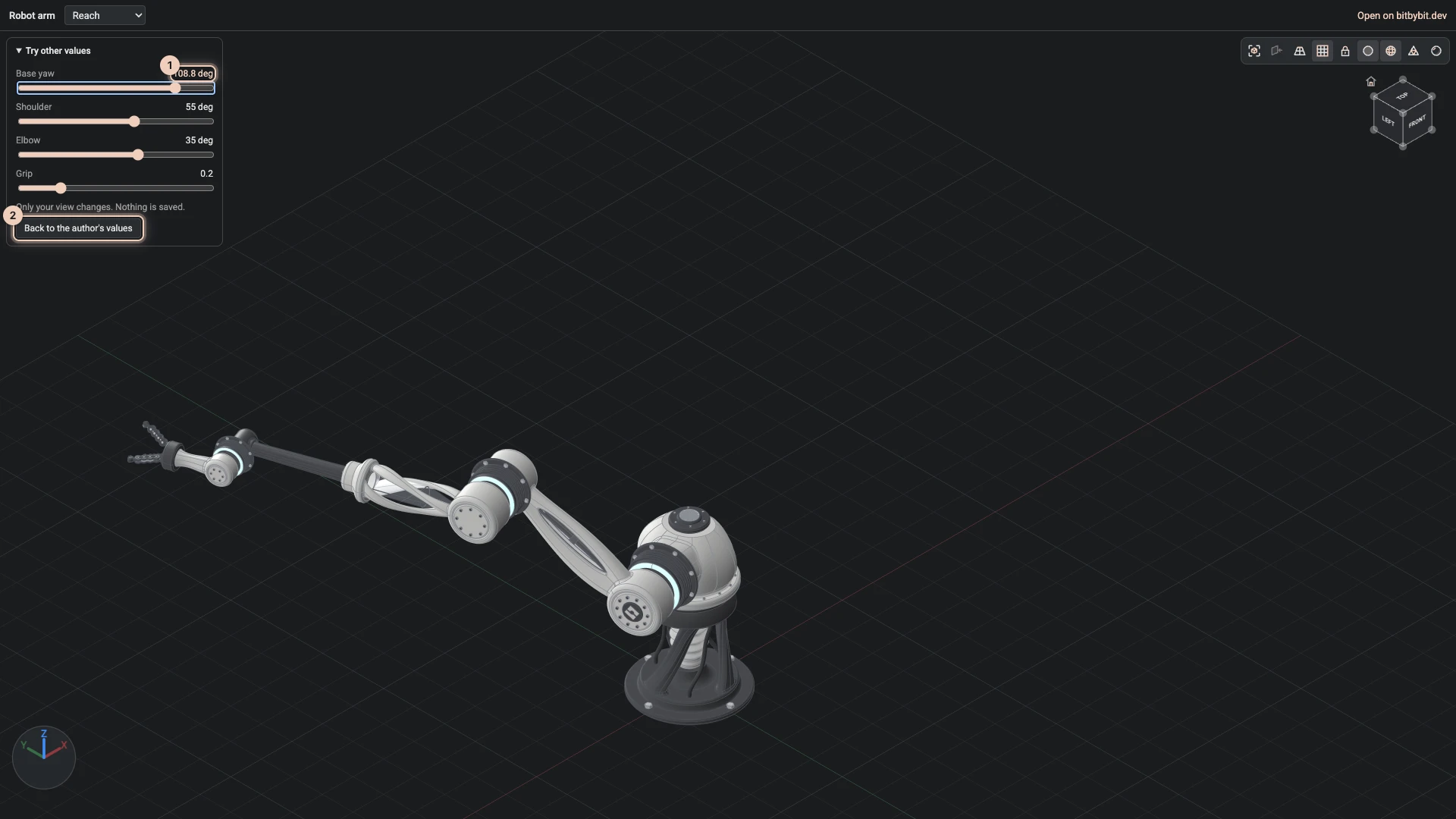
Nothing a visitor tries is saved, and Back to the author's values returns to yours. You keep editing as usual: the sliders are for visitors only.
The choice is kept in the project, beside its documents, not in the design document itself, so exporting a design document leaves it out.
Configurations
An assembly can keep configurations: named sets of its parameters' values, such as a pose of an arm. The Configurations group of the Features panel lists them; click one to build the assembly with its values, and Document values to go back to the parameters' own. The robot arm keeps four poses this way.
Verified against the product in October 2026