Features and their dialogs
A part is a list of features, built in order. You add one from Insert or the toolbar, fill in its dialog, and OK adds it after the features already there.
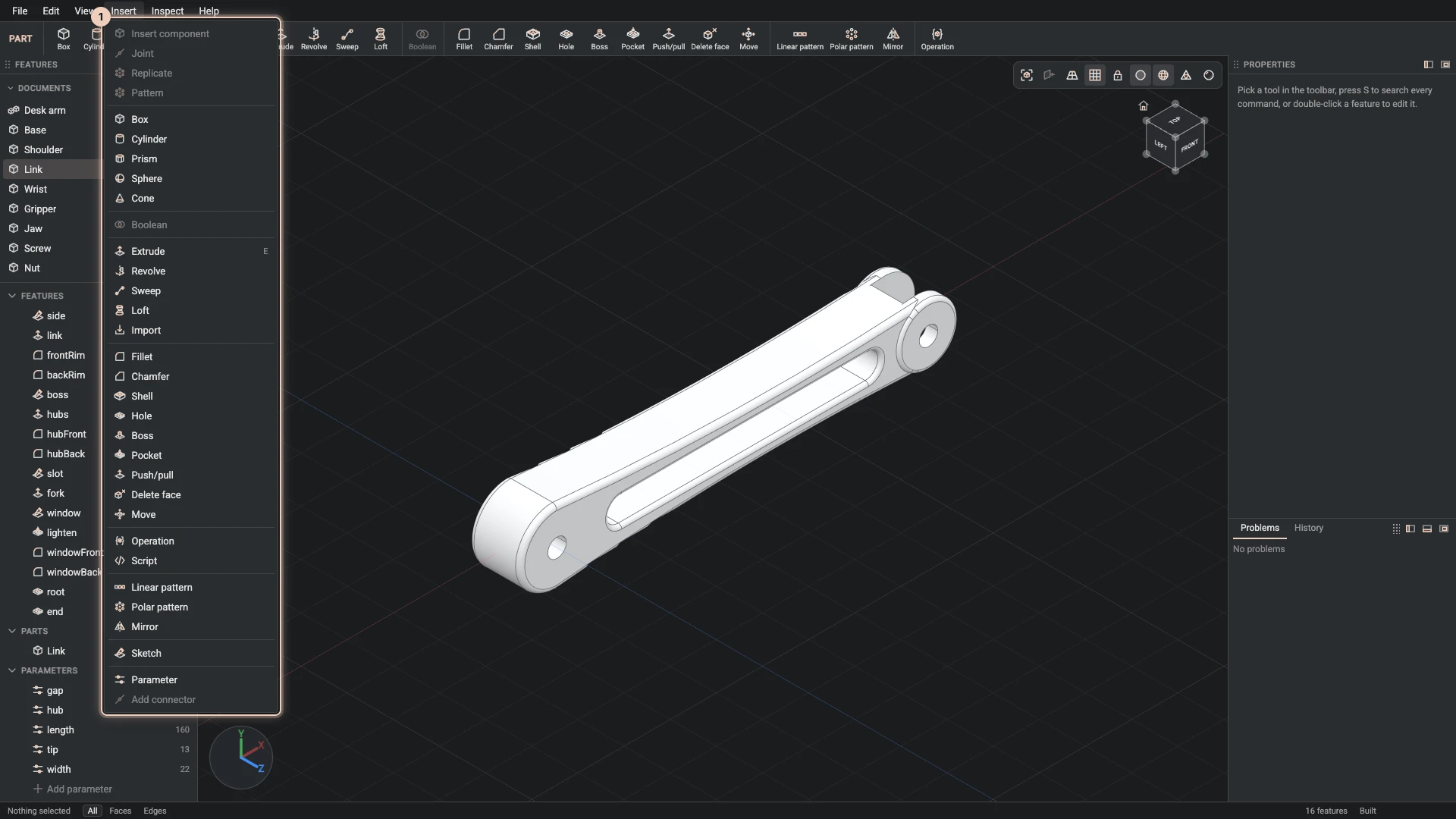
How a dialog works
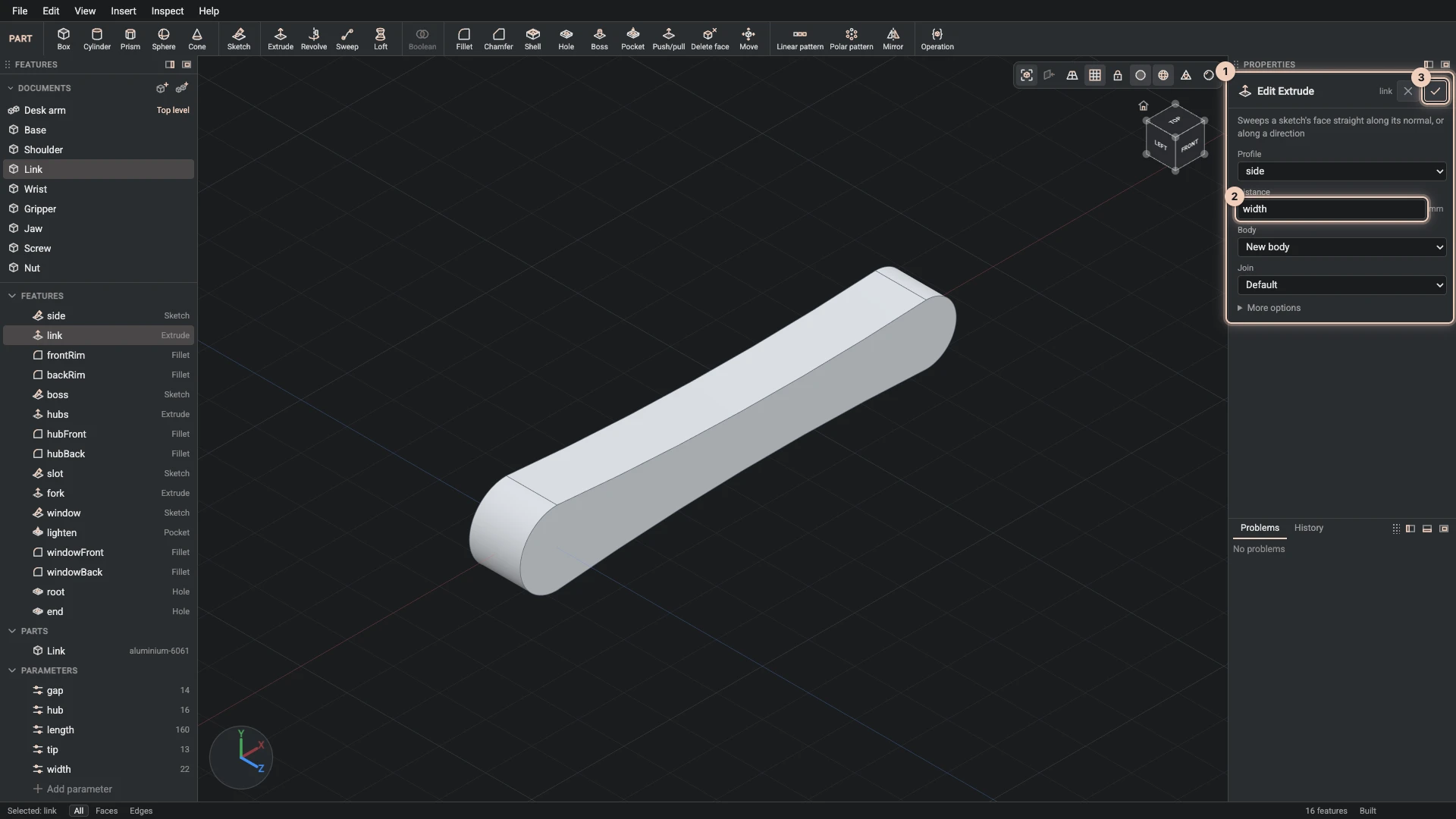
A feature's dialog opens in Properties, with a line on what the feature does and its fields under it. The picture shows the desk arm link's extrude.
- Numbers take expressions. Type a number, or an expression of the part's parameters such as
widthorlength / 2 - 8. The field keeps the expression, so the feature follows the parameter. - Picks come from the view. A field that needs faces or edges, such as a fillet's Edges, asks you to click them in the view, then says how many are picked; Clear starts again. You can also pick first: the Selection panel then offers the commands that take what you picked, and their dialogs start with it.
- What it still needs is written in the dialog in orange, and OK waits until nothing is missing.
- The view previews the feature as you change it, and shows handles you can drag where a value is a distance or a position.
- More options holds the fields most features leave as they are.
- OK (Enter) adds the feature; Cancel drops it.
To change a feature later, right-click it in the Features panel and choose Edit feature. The same dialog opens as you left it, and OK rebuilds everything after it.
Bodies
The features that make shape start a new body, named after the feature, unless you choose one in Body. With a body chosen, Join says what happens to it: the new shape is added to it (Add), cut from it (Cut) or intersected with it (Intersect). The features that change shape, such as a fillet, always work on the body you name.
Solids
Box, Cylinder, Prism, Sphere and Cone make a whole solid from one dialog, standing on a plane or rising from a flat face you picked. Each is a sketch and an extrude or a revolve underneath, so its faces have the same names as if you had drawn it.
Features that make shape
| Feature | What it does |
|---|---|
| Extrude | sweeps a sketch's face straight out by a Distance; E |
| Revolve | turns a sketch's face about an axis, a whole turn or by an Angle |
| Sweep | sweeps a closed sketch along an open one, its Path |
| Loft | skins a solid through two or more sketches, in order |
| Import | starts a body from a STEP, IGES or BREP file the document carries |
Features that change shape
| Feature | What it does |
|---|---|
| Fillet | rounds the Edges you pick to a Radius |
| Chamfer | bevels the edges you pick by a Distance |
| Shell | hollows a body to a wall Thickness, leaving the faces you pick open |
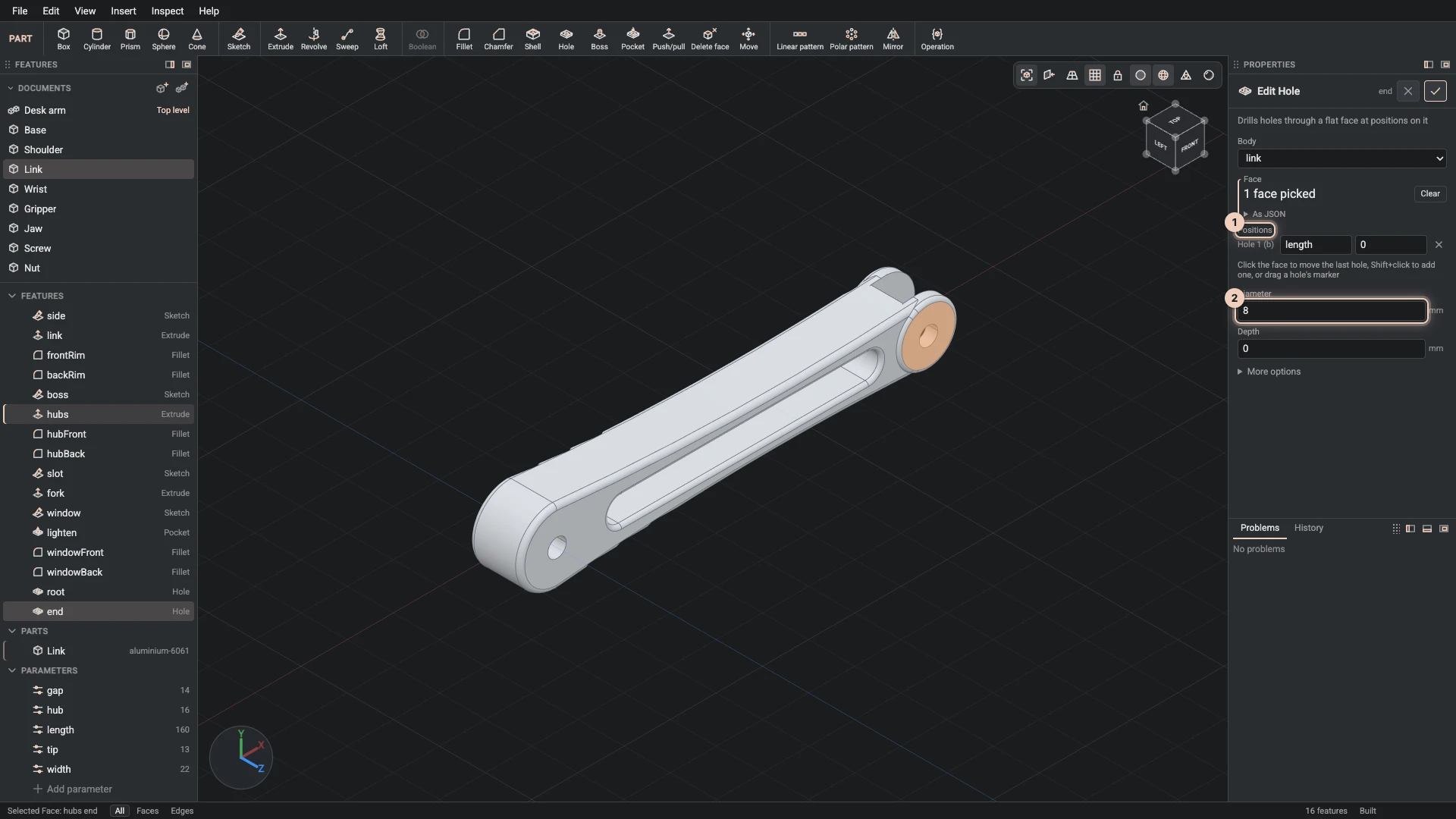
| Hole | drills holes into a flat Face at Positions on it, through or to a Depth, with a counterbore or a countersink if you like |
| Boss | raises a sketch drawn on a face out of it |
| sinks a sketch drawn on a face into the body, by a depth or through it | |
| Push/pull | moves a face out or in, the faces around it following |
| Delete face | removes faces, such as a round or a hole, and closes the gap |
| Move | moves and turns a body as one piece |
A hole shows a marker for each position. Click the face to move the last hole there, Shift+click to add another, or drag a marker; the picture shows the hole at the end of the desk arm's link, whose position is written in its length parameter.
Combining bodies and patterns
- Boolean combines a body with others, its Tools, by Union, Difference or Intersection. The tools are used up.
- Linear pattern repeats a body in a row, Polar pattern around an axis, and Mirror across a plane; the copies are fused with it. To repeat whole parts in an assembly instead, see component patterns.
Anything else the kernel can do
Operation runs any operation of the CAD API by its dotted path, such as occt.operations.offset, with its inputs, and keeps the result as a feature. Script runs a script the document carries on the part's geometry. Both are rebuilt like any other feature.
Verified against the product in October 2026