The view, picking and panels
Move around
- Turn with the left mouse button, pan with the right one, and zoom with the wheel. With Lock rotation on, the left button no longer turns the view.
- The view cube in the corner: click a face, an edge or a corner to look from there; the arrows around it turn the view a step.
- Fit all brings the whole model into view, and Zoom to selection just what you picked.
- Look at turns the view to face a picked flat face straight on.
- Perspective switches between perspective and a flat, measured-drawing look, Lock rotation stops a drag from turning the view, and Show or hide the grid does what it says.
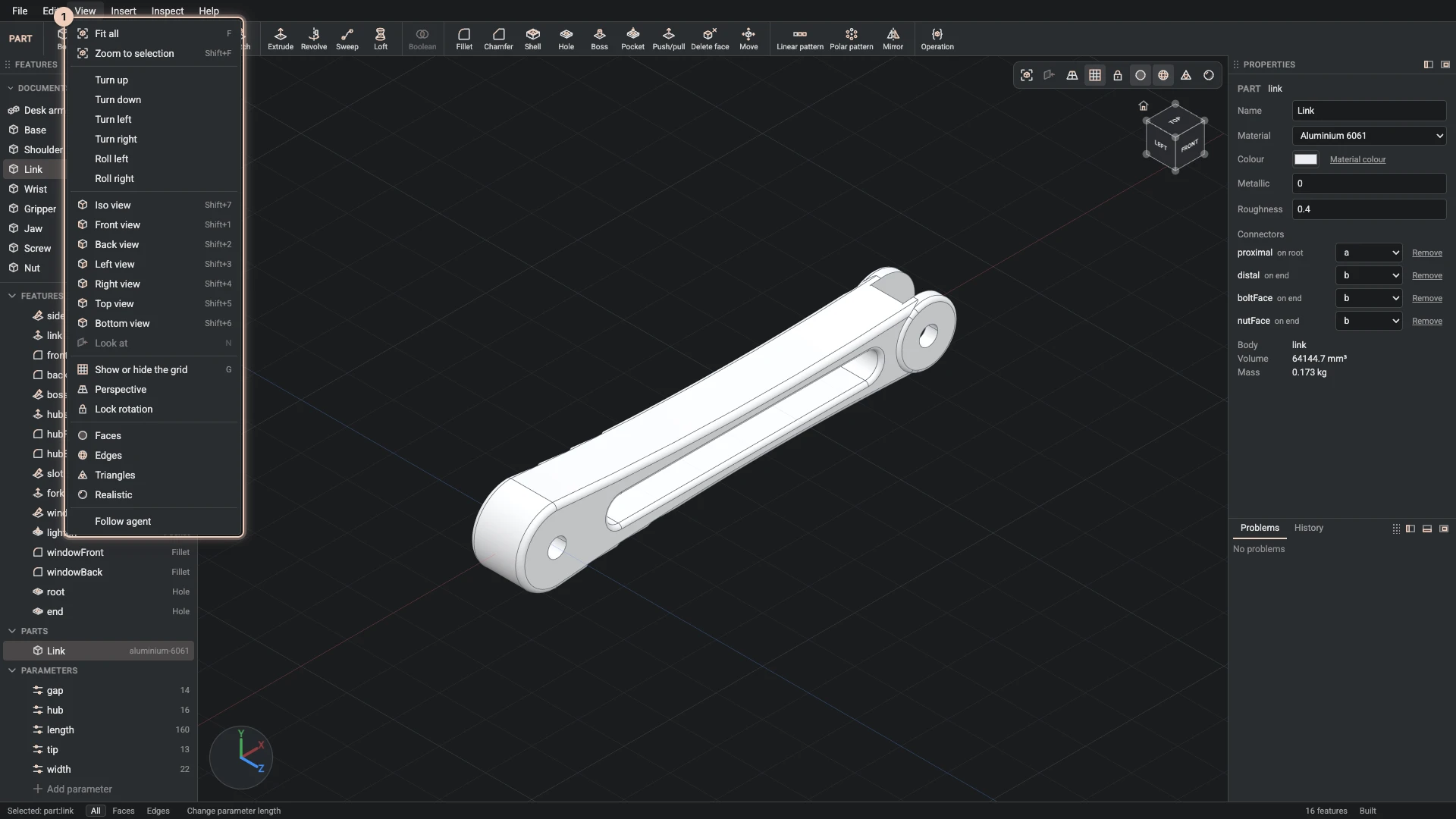
View holds all of them with their keys, and the named views: Iso view, Front view, Back view, Left view, Right view, Top view and Bottom view, and Turn up, Turn down, Turn left, Turn right, Roll left and Roll right to step around.
How the model is drawn
The view bar's last buttons choose the look: Faces and Edges on or off, Triangles to see the mesh the kernel made, and Realistic for materials, reflections and soft shadows.
Pick faces and edges
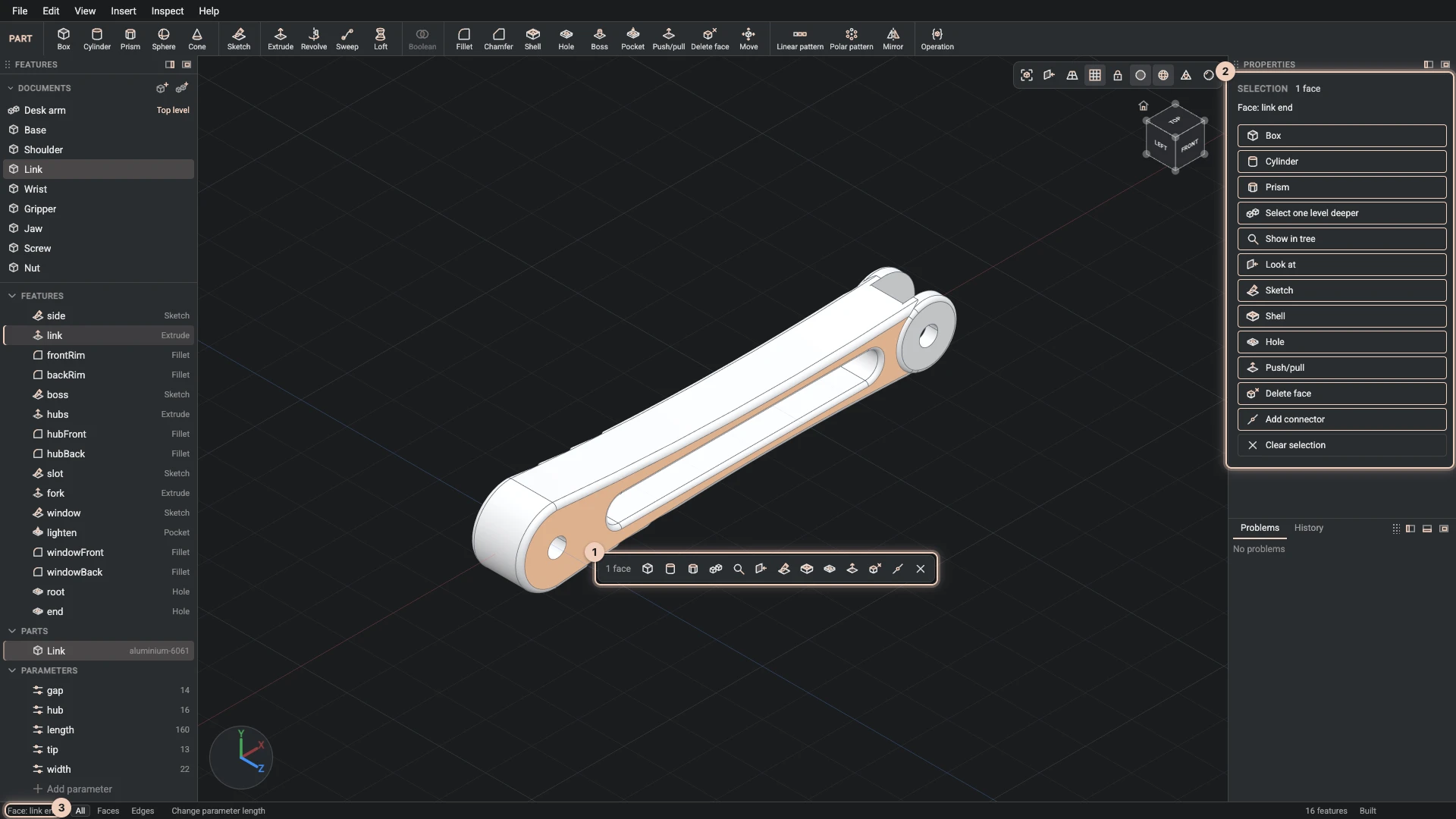
Click a face or an edge in the view to pick it, and Shift+click to add more. What the pointer is over is named in the status bar before you click, such as "Face: link end".
- Pick modes. Pick faces and edges (1) picks whichever is under the pointer, Pick faces only (2) passes over the edges, and Pick edges only (3) passes over the faces, which helps when a fillet needs many small edges. The status bar shows the mode and switches it.
- What to do with it. The Selection panel lists the commands that take what you picked, such as Hole or Push/pull on a flat face, and a small bar beside the pick offers the same. A command chosen there starts with your picks.
- Where it came from. Show in tree selects the feature that made the picked face or edge.
- In an assembly, a click picks a whole component. Select one level deeper goes from the component to each sub-assembly in turn, then to the part.
- Clear selection (Esc) unpicks everything.
Arrange the panels
The Features panel, Properties and the dock can each dock on the left or the right, or float over the view: use the buttons at a panel's top, or drag it by its grip. Drag the edge between a panel and the view to make it wider. The Designer keeps the layout in this browser.
Verified against the product in October 2026