Working with agents in the Designer
An AI agent can work in the Designer beside you, in the same document. It runs the same commands you do, so it can sketch, extrude, add joints or change a parameter, and you see each change in the view as it is made. Nothing it does is final until you keep it.
How an agent connects
While the Designer is open, it offers its tools for agents:
- to the browser's agent, through WebMCP, in browsers that support it;
- to scripts on the page, as
window.bitbybitDesigner:tools()lists the tools andcall(name, input)runs one. Test tools such as Playwright reach the Designer this way.
An agent that works outside the browser, such as a coding agent in your terminal, can instead write a design document with the help of the Bitbybit CAD MCP, and you bring it in with Import design documents.
See it working
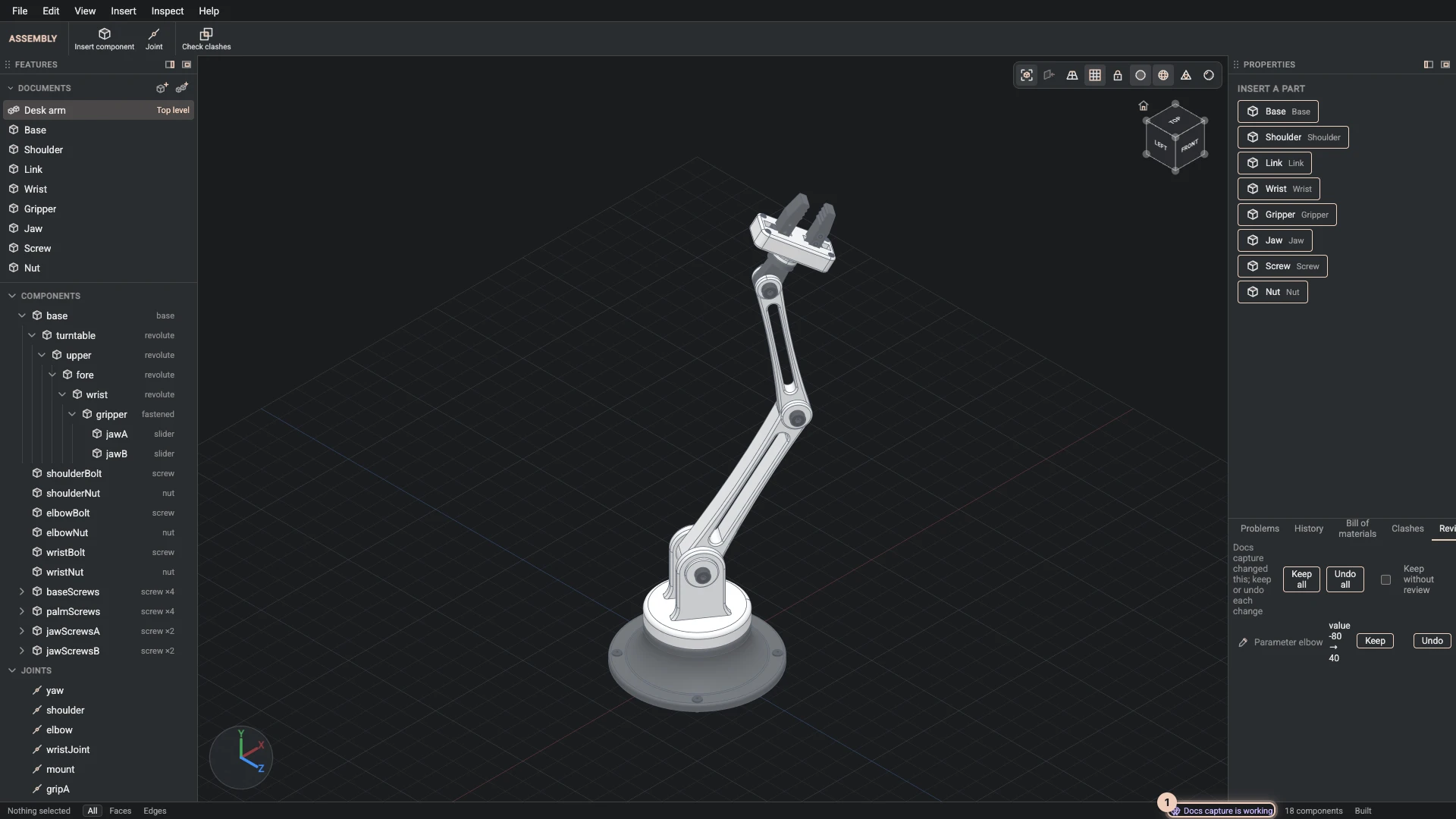
- While one of its tools runs, the status bar says which agent is working.
- Faces and edges an agent picks are drawn in an agent colour, so you can tell its picks from yours.
- Features it added or changed carry a mark in the Features panel until you review them.
Review
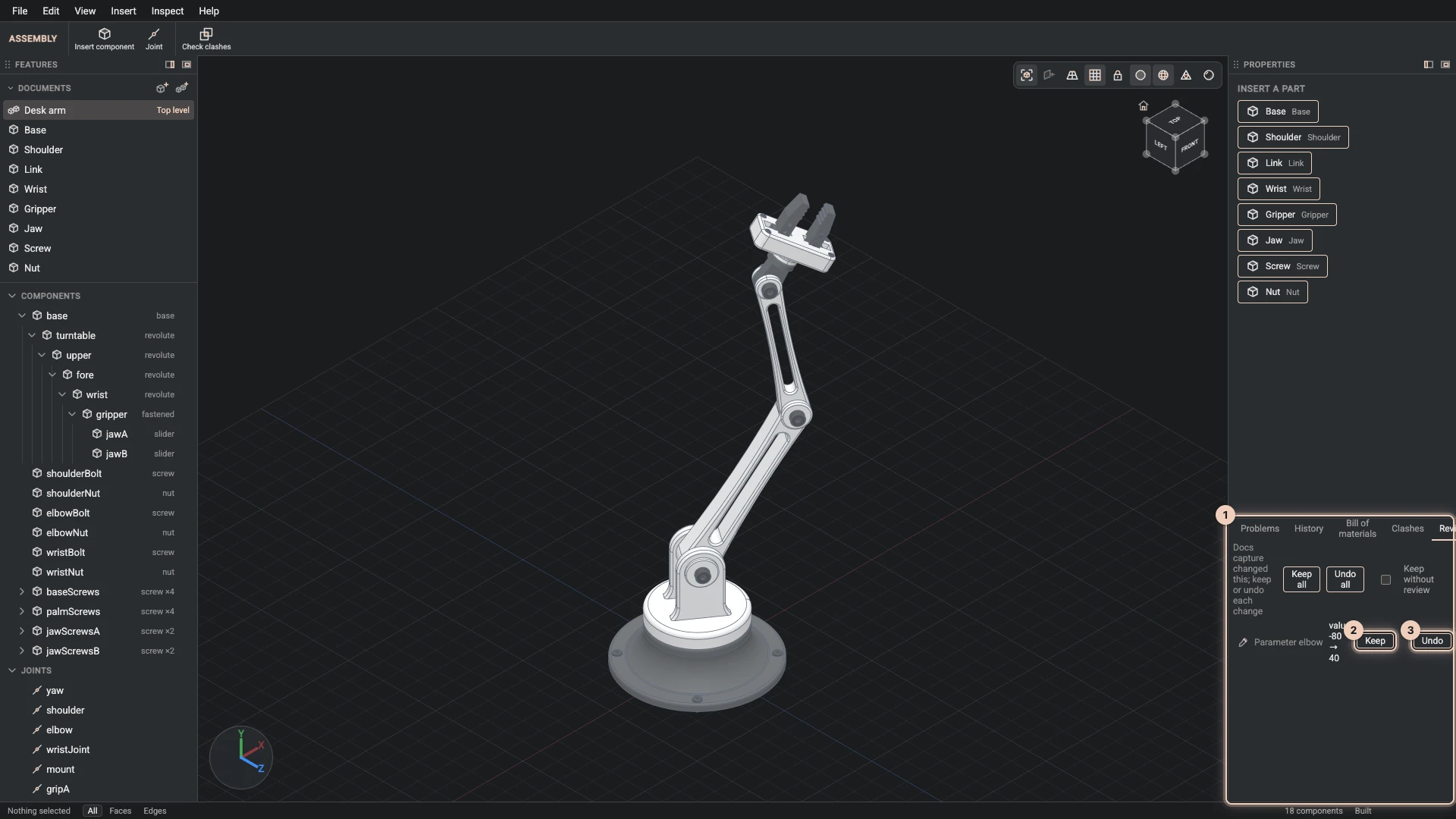
An agent's change is applied at once, because its next step needs the last one built. It also waits for you in the dock's Review tab, which opens when the change arrives. The tab lists each change by what it touched (a feature, a part, a component, a joint, a configuration, a material or a parameter) as added, removed or changed, with what changed.
- Keep the agent's change keeps one entry, or all of them.
- Undo the agent's change takes one entry back, or all of them. A feature it removed comes back in its old place. When something you kept uses what the undo would take away, it refuses and names that thing.
- Keep agents' changes without review lets changes through unwatched until the page loads again.
Both are in the Edit menu as well as the tab. An agent cannot review its own changes, and every tool that changes the design tells the agent how many changes wait for you.
Whose camera it moves
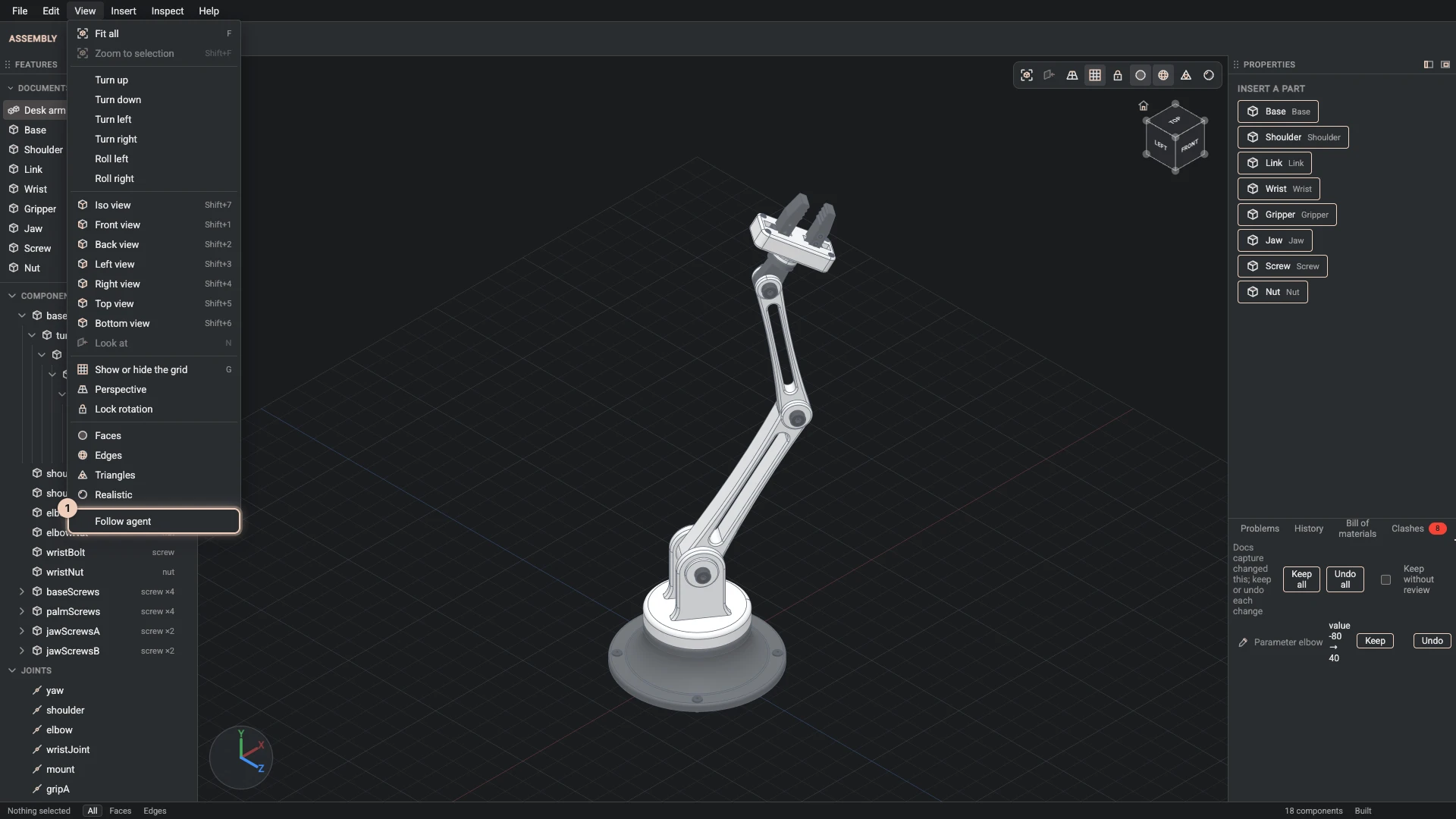
An agent often needs to look at the model from another side. View > Follow agent decides whose camera that moves, and it is off each time the page loads.
- Off: your camera stays where you left it. A named view or a zoom the agent asks for becomes its own view, which its captures use, and a turn or a look-at is refused with a note on how to ask you instead.
- On: the agent's views move your camera, so you watch the model as the agent sees it.
What stays with you
Some things only a person can do, and agents see these commands as unavailable: deleting documents, letting the design load files from another site, imports and exports, keeping geometry for fast opening, the clipboard, following an agent, and reviewing changes. The command reference marks each one.
Save the steps
Save the steps (find it with Help > Find a command) saves what was done in the session as a step file: the commands, in order, that make the project's documents again. The Designer's own tutorials are written in this format, and an agent can read the same steps with designer-read-steps.
Verified against the product in October 2026