Components and sub-assemblies
An assembly document has no geometry of its own. It places parts from part documents as components, and other assemblies as sub-assemblies, then holds them together with joints. Start one with File > New assembly.
Insert a component
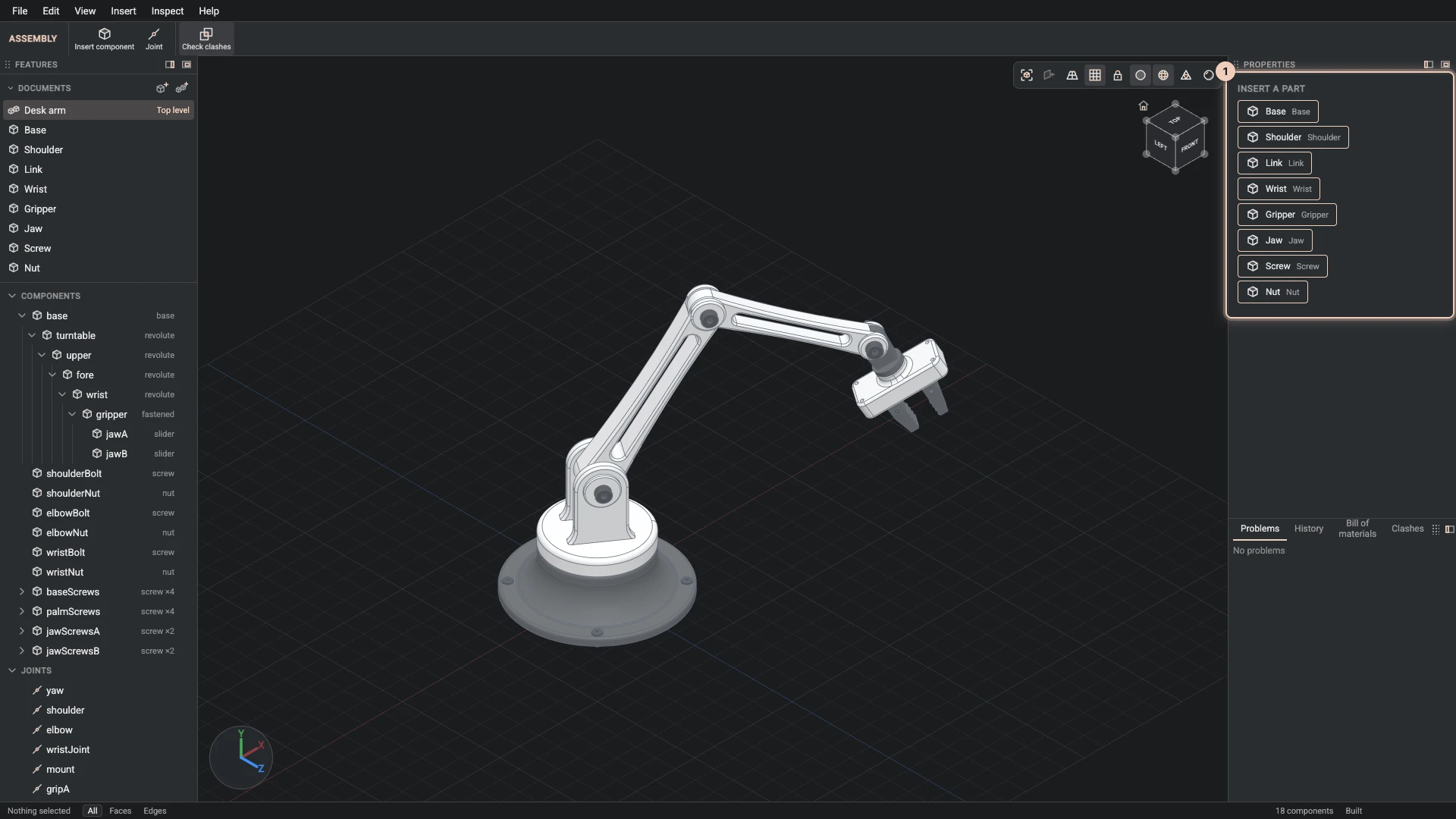
Choose Insert > Insert component, or the toolbar button. Insert a part in Properties lists every part of the project's part documents, and every other assembly; click one to place it. It lands beside what is already there, ready to be joined.
One part document can be placed many times, and in many assemblies. The bill of materials counts each placement.
A component's own sizes
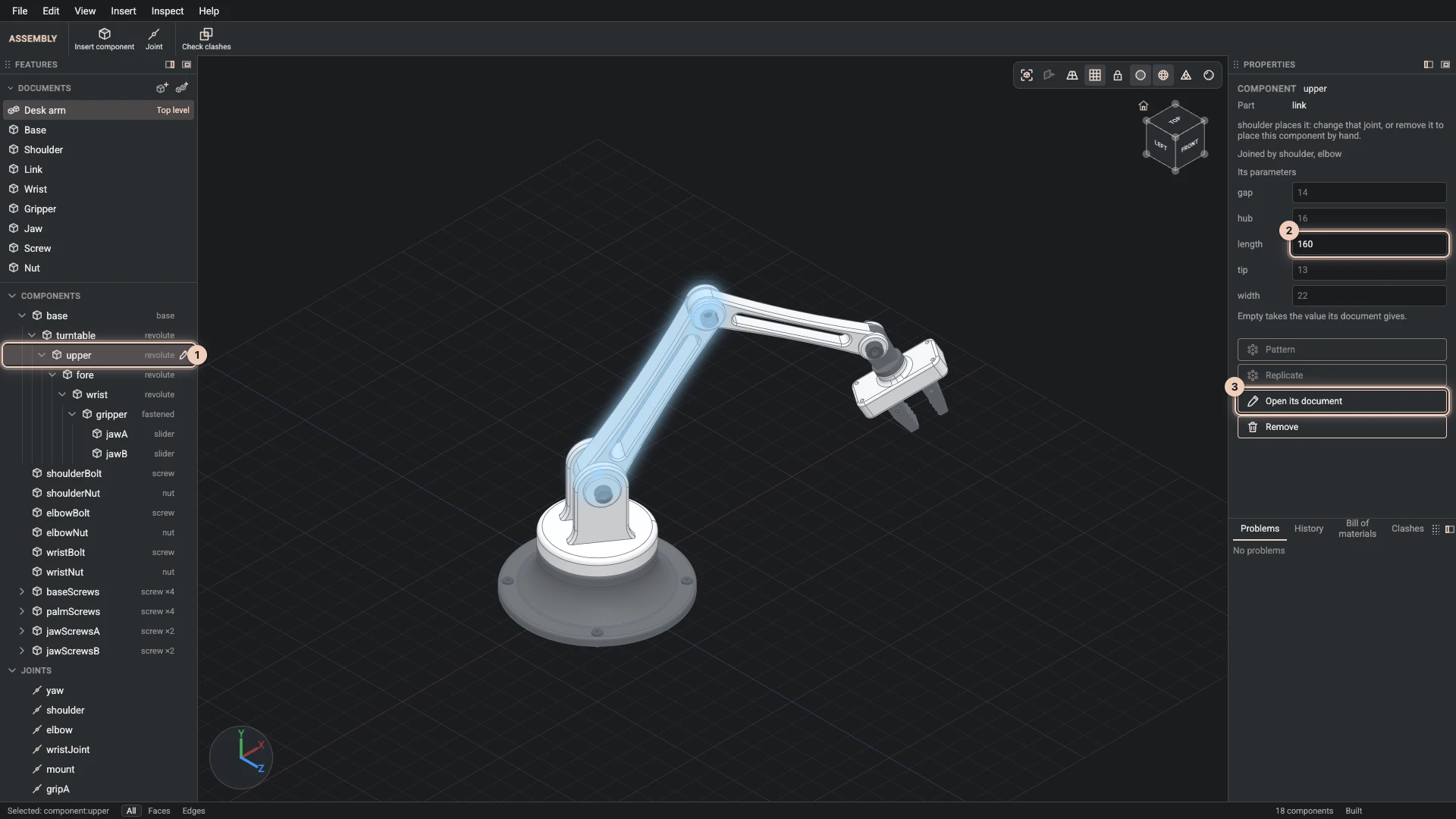
The Components group nests each component under the one a joint holds it to, with the joint's type beside it, so the tree reads like the assembly's chain. Select a component there, or click it in the view, and Properties shows it:
- the part it places, and the joints that hold it;
- Its parameters: the part document's parameters, each left empty to take the document's value or given this component's own. The value can be an expression of the assembly's parameters, so one assembly parameter can size several parts.
The picture shows the desk arm's upper arm: a component of the link document with its own length, 160. The forearm places the same document shorter and slimmer, at a length of 130 and a width of 14.
Move a component
A component that no joint places can be moved: the gizmo in the view moves and turns it, and At in Properties takes its position exactly. A component a joint places says so, and moves when the joint does; change the joint, or remove it, to move it by hand.
Sub-assemblies
Place an assembly document the same way, and it becomes a sub-assembly: one component that carries its own components and joints, and moves as one. The jet engine is built this way: its two spools, the two halves of its casing and its stand are sub-assemblies of the top one. A sub-assembly's rows fold open in the Components group.
In the view, a click picks the top-level component; Select one level deeper goes down through each sub-assembly to the part.
Change the part itself
Open its document opens the part document a component comes from, with that part selected, to change its features. Every component of that document follows when you come back.
Remove takes the component out of the assembly with the joints that hold it.
Verified against the product in October 2026