Replicate: a part on every hole
A flange with eight bolt holes needs eight bolts. Rather than eight components and eight joints, Replicate places one component on every connector of a connector set: its own connector is fastened to each member of the set.
Replicate a component
- Insert the component once, such as a screw.
- Select it, and choose Replicate in Properties, or Insert > Replicate.
- Choose its connector, the one that sits on each hole, such as the underside of a screw's head.
- Choose the component and the connector set to place it on.
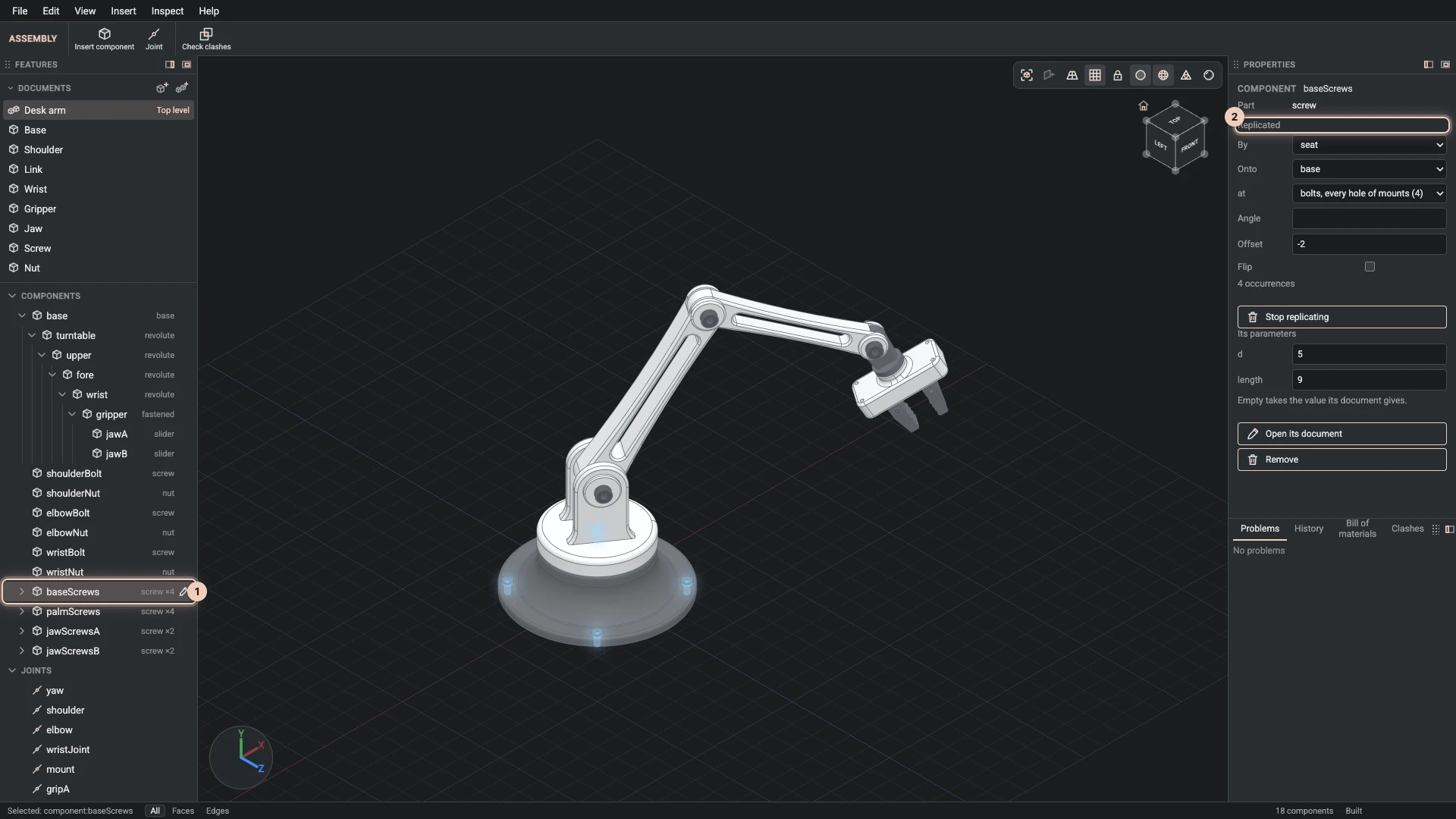
The component now stands on every hole. The Components group shows it once, with how many it places, such as "×4", and its occurrences fold open under it. The picture shows the desk arm's base screws: one screw component on the four holes of the base's bolts set, each set two millimetres down its hole by an Offset of -2.
Adjust the copies
Under Replicated, Properties keeps what you chose, with Angle, Offset and Flip applied to every copy on its own hole's axis. The copies share the component's own parameters, so a longer screw is longer in every hole.
Because the copies follow the set, a hole added to the flange gets its screw, and a hole taken away loses it, without a change to the assembly.
Stop replicating
Stop replicating places the component once again, where its part document has it, so you can join it by hand.
A component is placed by replicate or by a pattern, not both. A replicated component has no one place, so no joint can move it or be joined to it, and it is replicated onto a component placed once.
Verified against the product in October 2026