Three Sizes
The boat comes in three lengths, and each length is a file of its own. They are three of the 25 sizes of one parametric design. Everything you have built so far sits on the 20 m boat, so the job here is to carry it over to the other two and let a Length control pick one. Everything in this chapter works on every plan.
You need catamaran-15m.glb and catamaran-25m.glb from the download.
Starting here? On Composer's start screen press Have a saved configuration? Load a scene config or project file (.json) and pick this file. It holds everything the earlier chapters built. Then open the model's Parse Structure and, if it asks, press Re-parse & Preserve, as this chapter works in the model's tree.
Download the file this chapter starts from (14 KB)-
Open GUI and add a control with the key
boat_length, the label Length and the type Radio. Its options 1 are 15 m15_m, 20 m20_mand 25 m25_m, with 20 m as the default 2.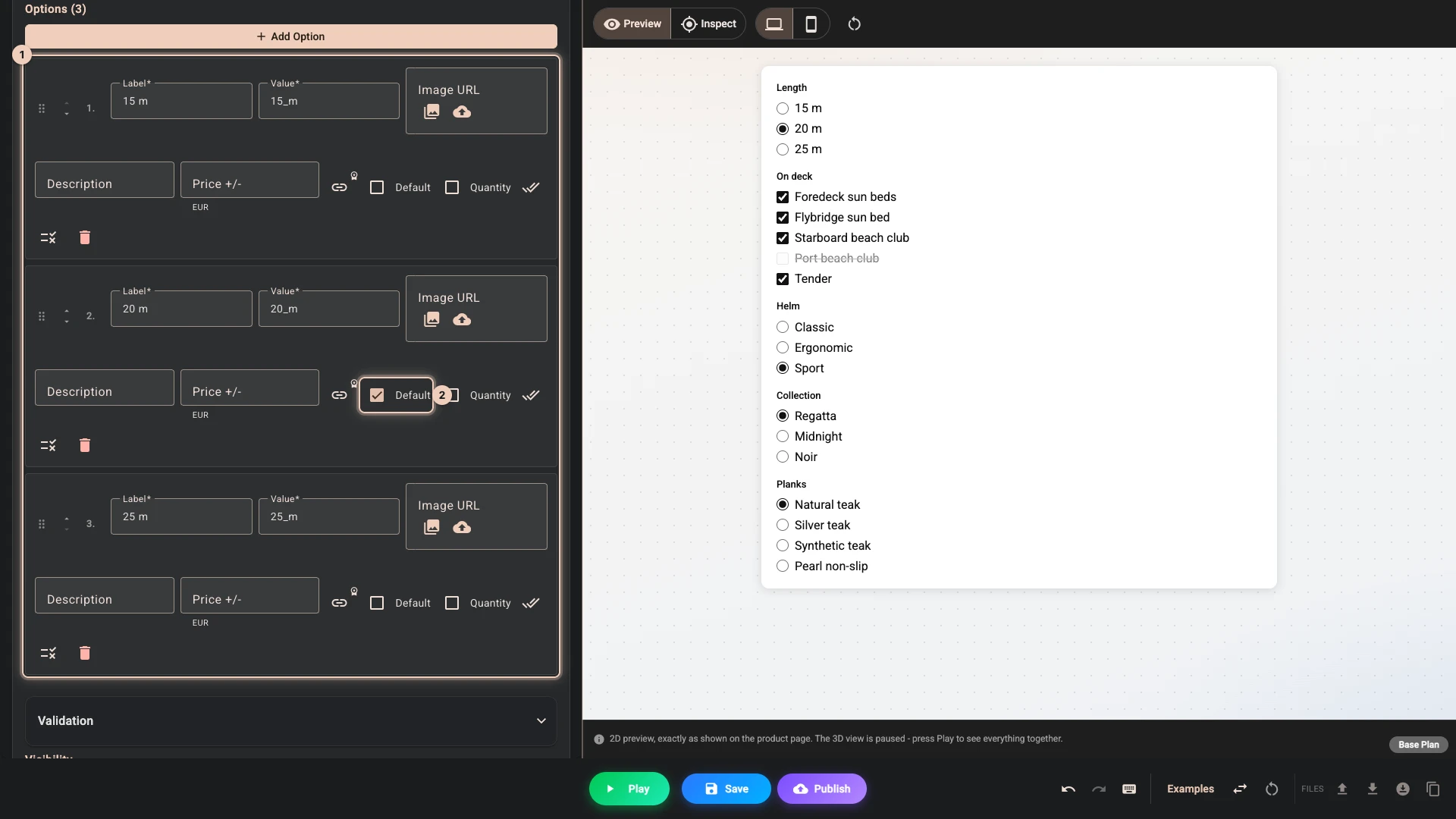
-
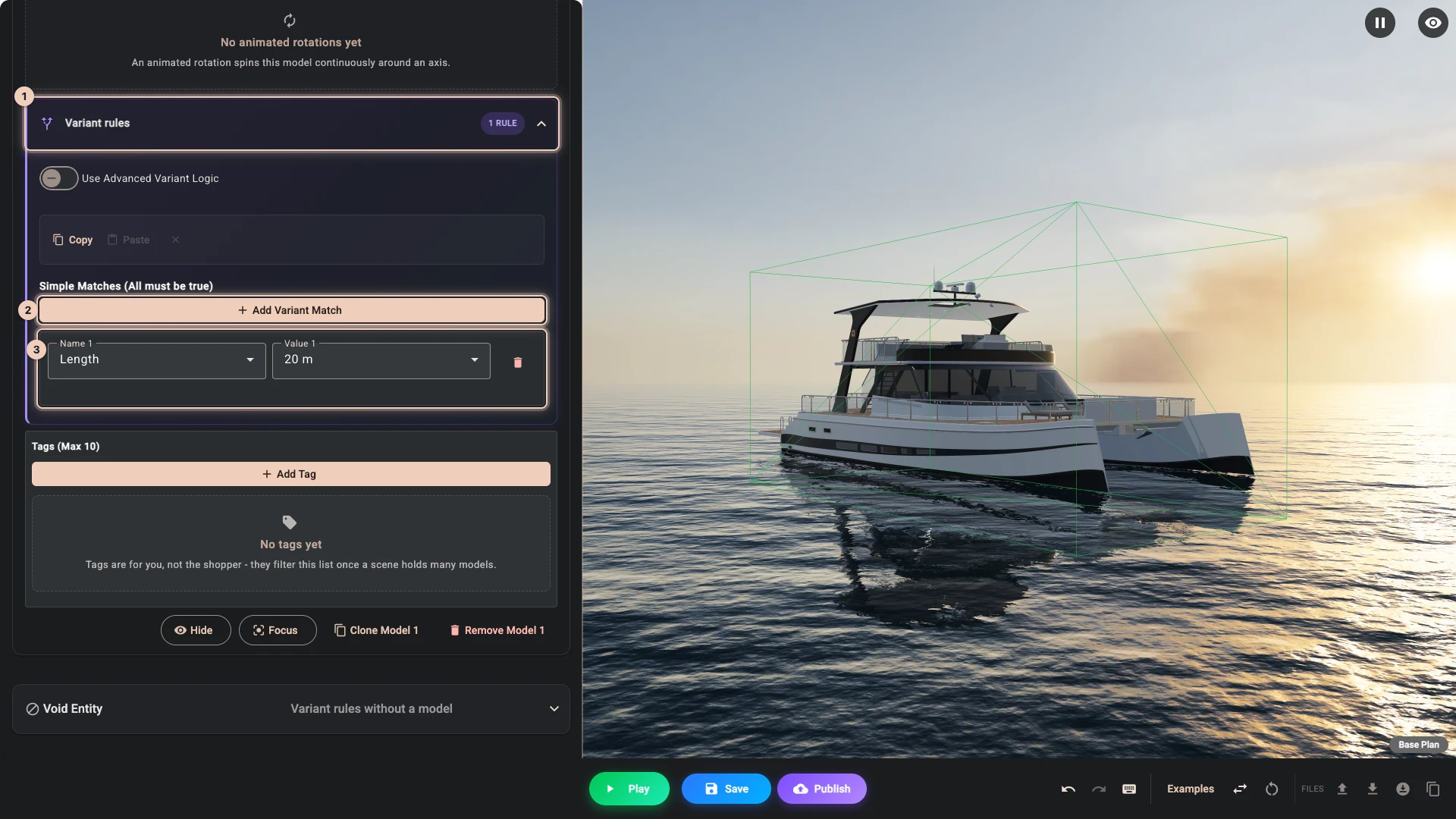
Open Models and the boat's row. Near the end of the row open Variant rules 1, press Add Variant Match 2, set Name to Length and Value to 20 m 3. This condition belongs to the whole model.
-
At the bottom of the row press Clone Model 1. The copy appears below it. Open its row: it has every rule, variant and colour the boat has. In its Model URL press the button with the two arrows 1, which replaces the file with an upload, and pick
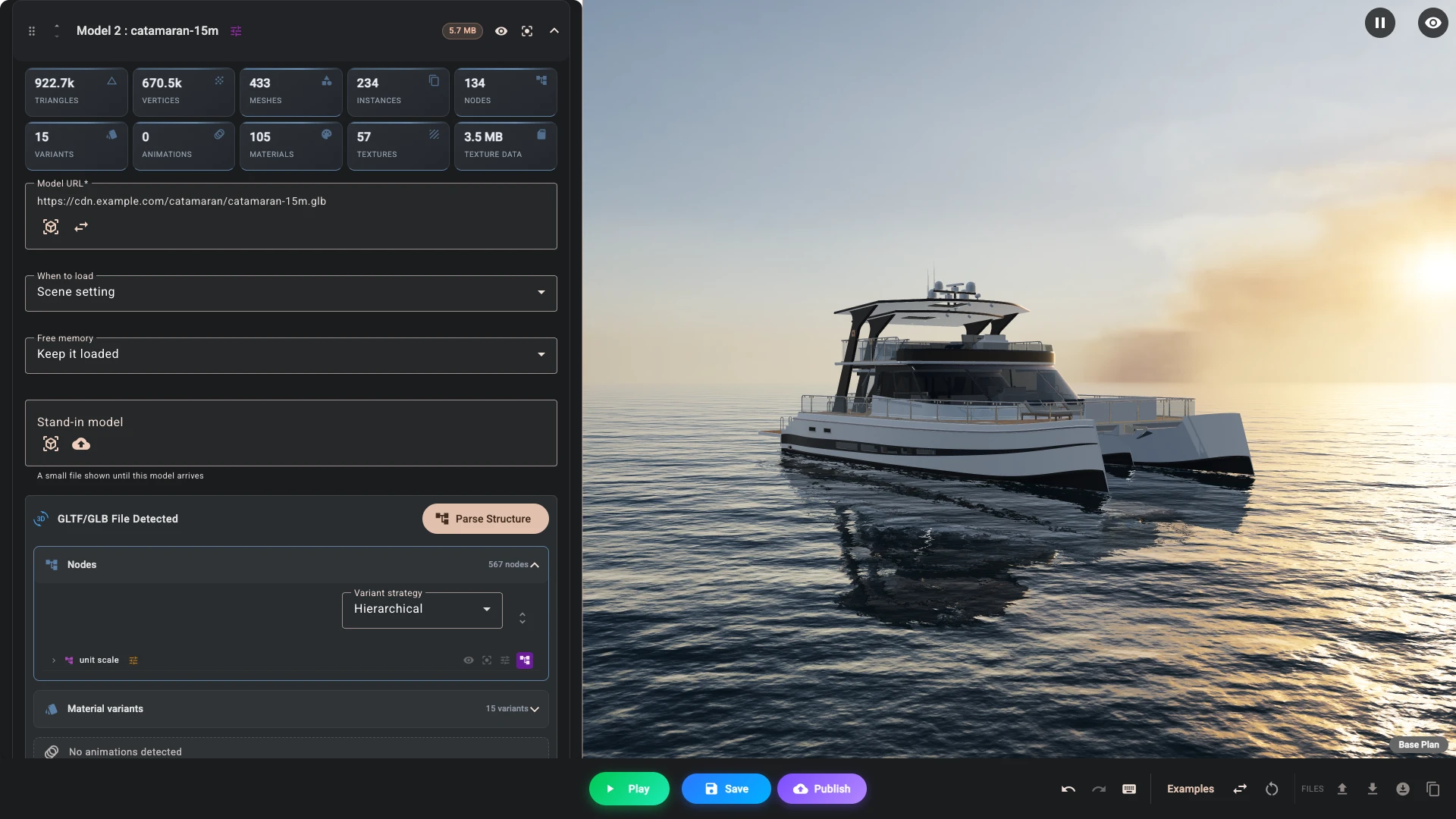
catamaran-15m.glb. Set Model name to catamaran-15m and change the condition's Value to 15 m. Press Parse Structure, then Re-parse & Preserve 2: Composer reads the new file and keeps each rule whose part sits at the same place in it.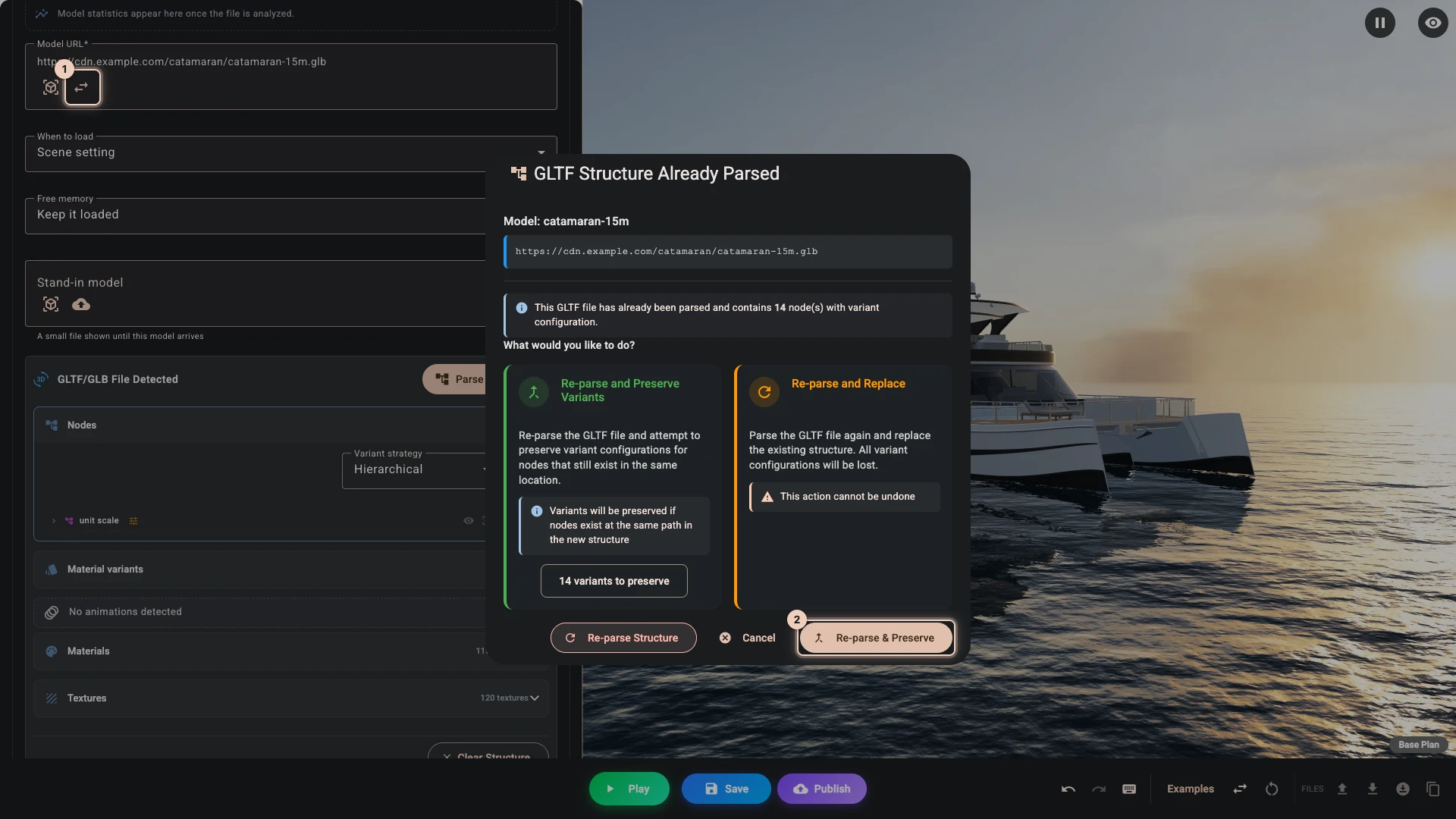
-
Clone the 20 m boat again in the same way for
catamaran-25m.glb1, with the name catamaran-25m 2 and the value 25 m. The editor shows every model, so the three boats now stand inside each other, sterns together.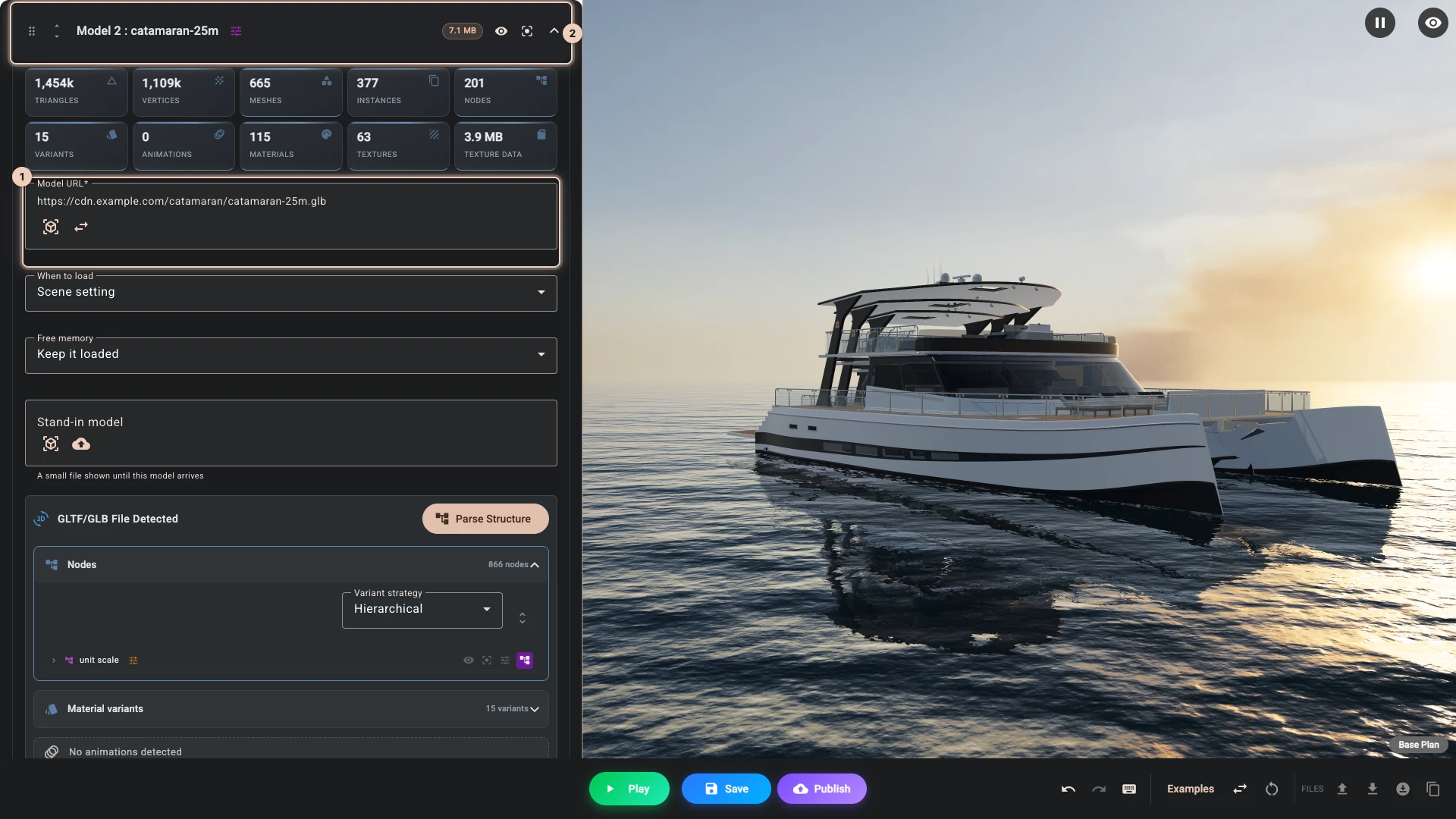
-
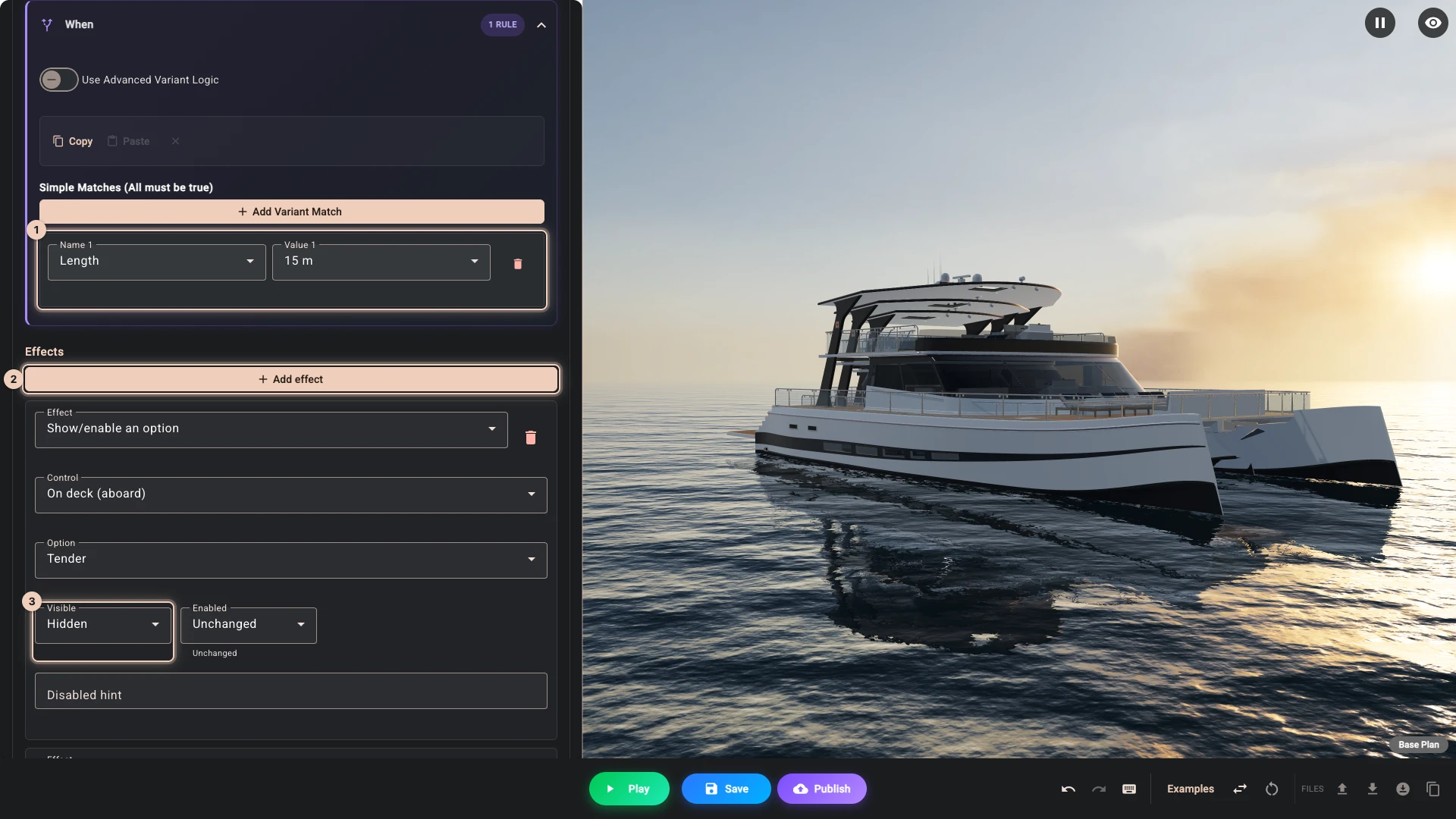
The 15 m boat has no foredeck sun beds and no tender, so those two options would do nothing on it. Open Logic, press Add rule and call it No foredeck beds or tender at 15 m. Under When add a match 1: Length, 15 m. Press Add effect 2, set Effect to Show/enable an option, Control to On deck, Option to Foredeck sun beds and Visible to Hidden 3. Add a second effect the same way for Tender.
-
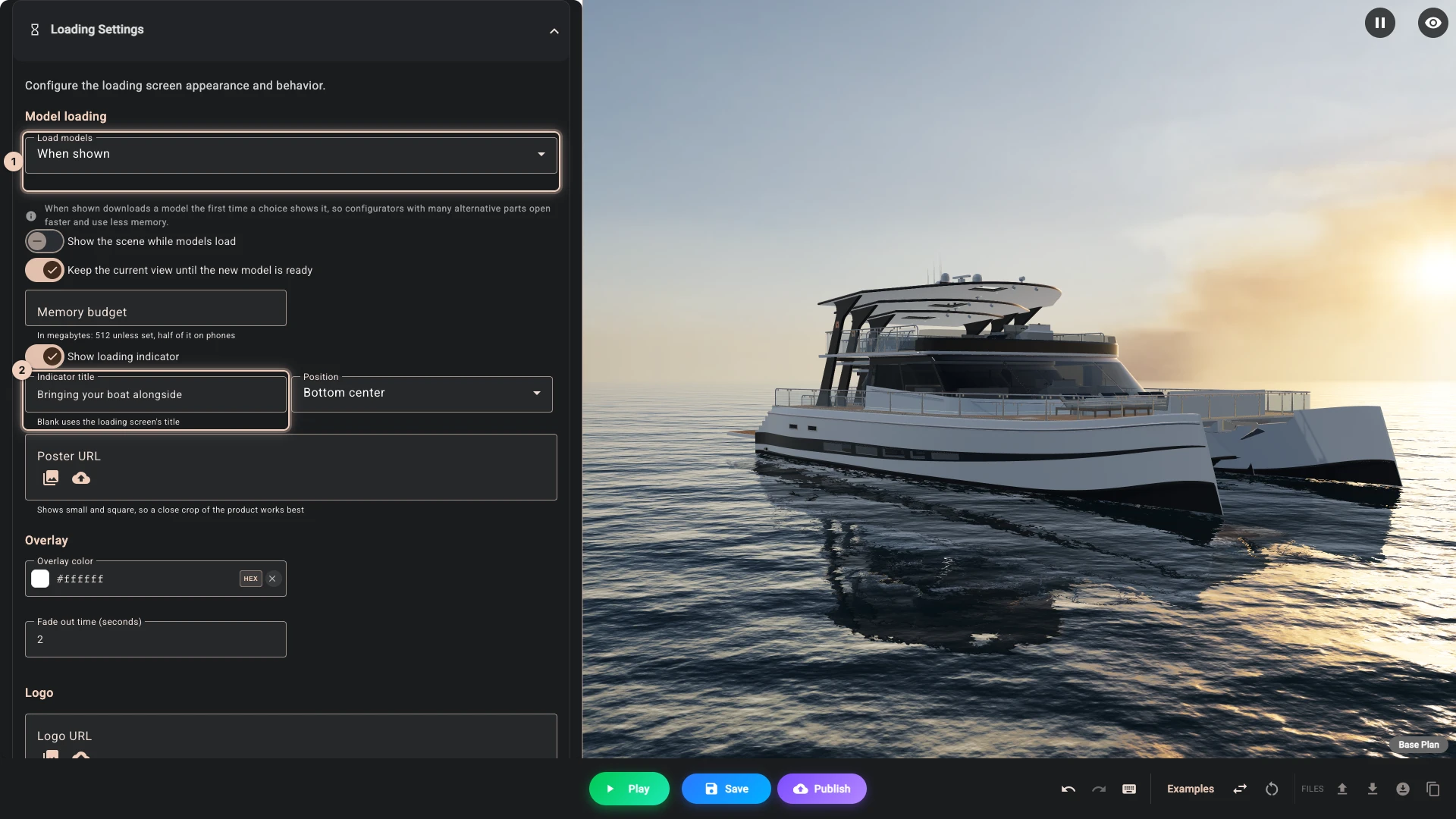
Open Scene, then Loading Settings, and press Add Loading Settings. Composer notices that each boat only shows for one choice of Length: press Use When shown 1. The loading bar is on already, so give it some words in Indicator title 2: Bringing your boat alongside.
-
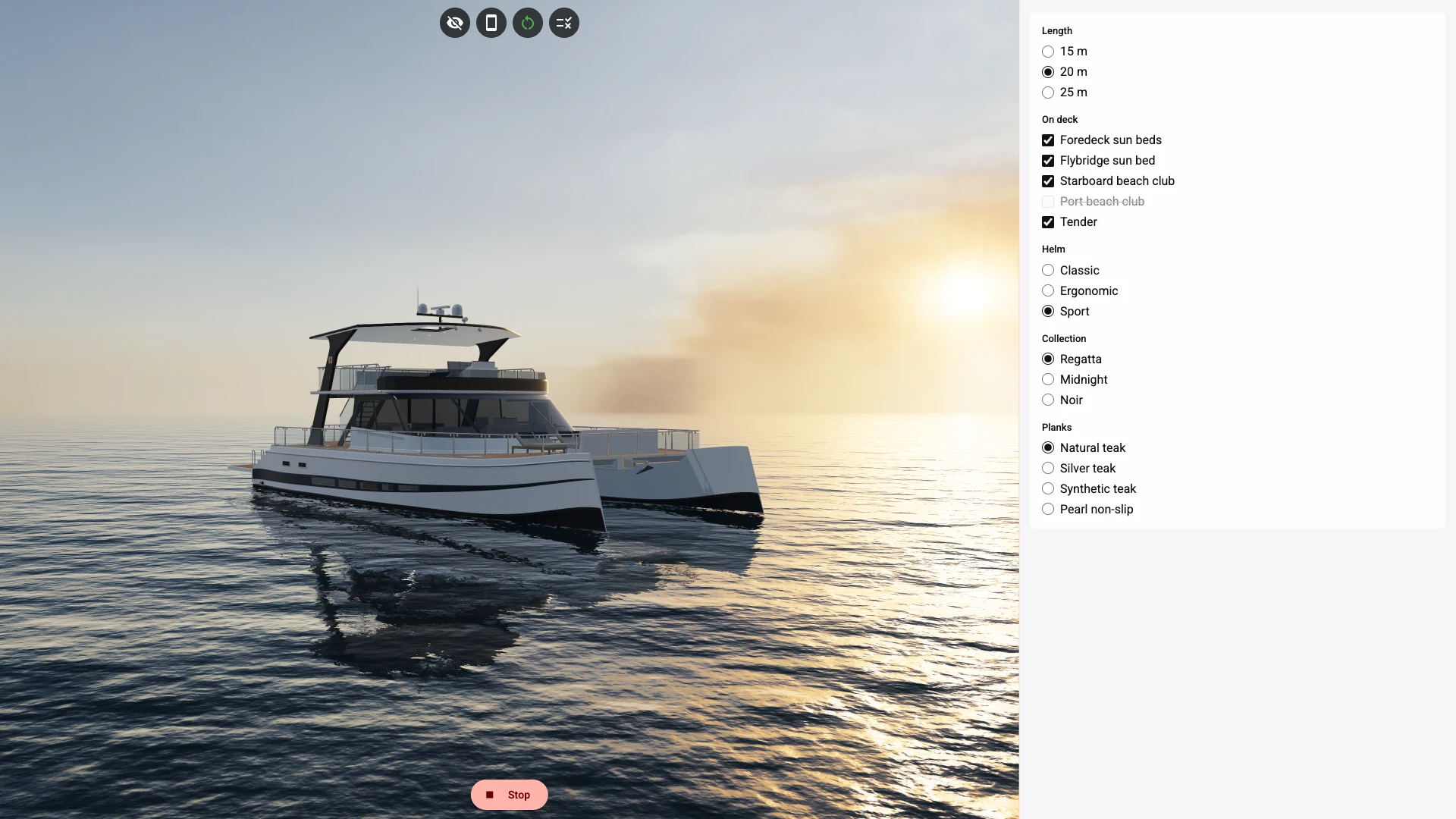
Press Play. The scene opens on the 20 m boat, the only one it downloads.
-
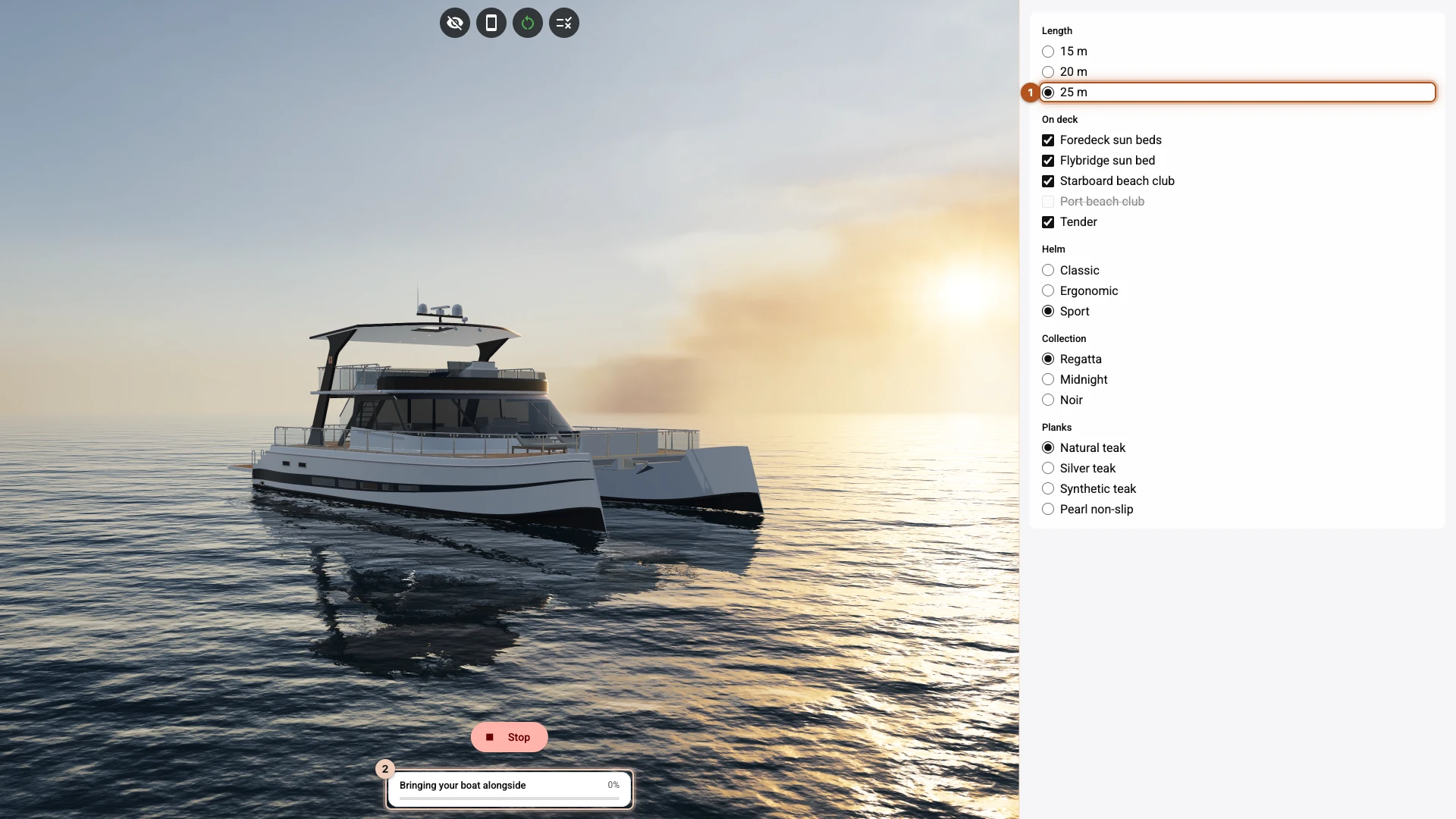
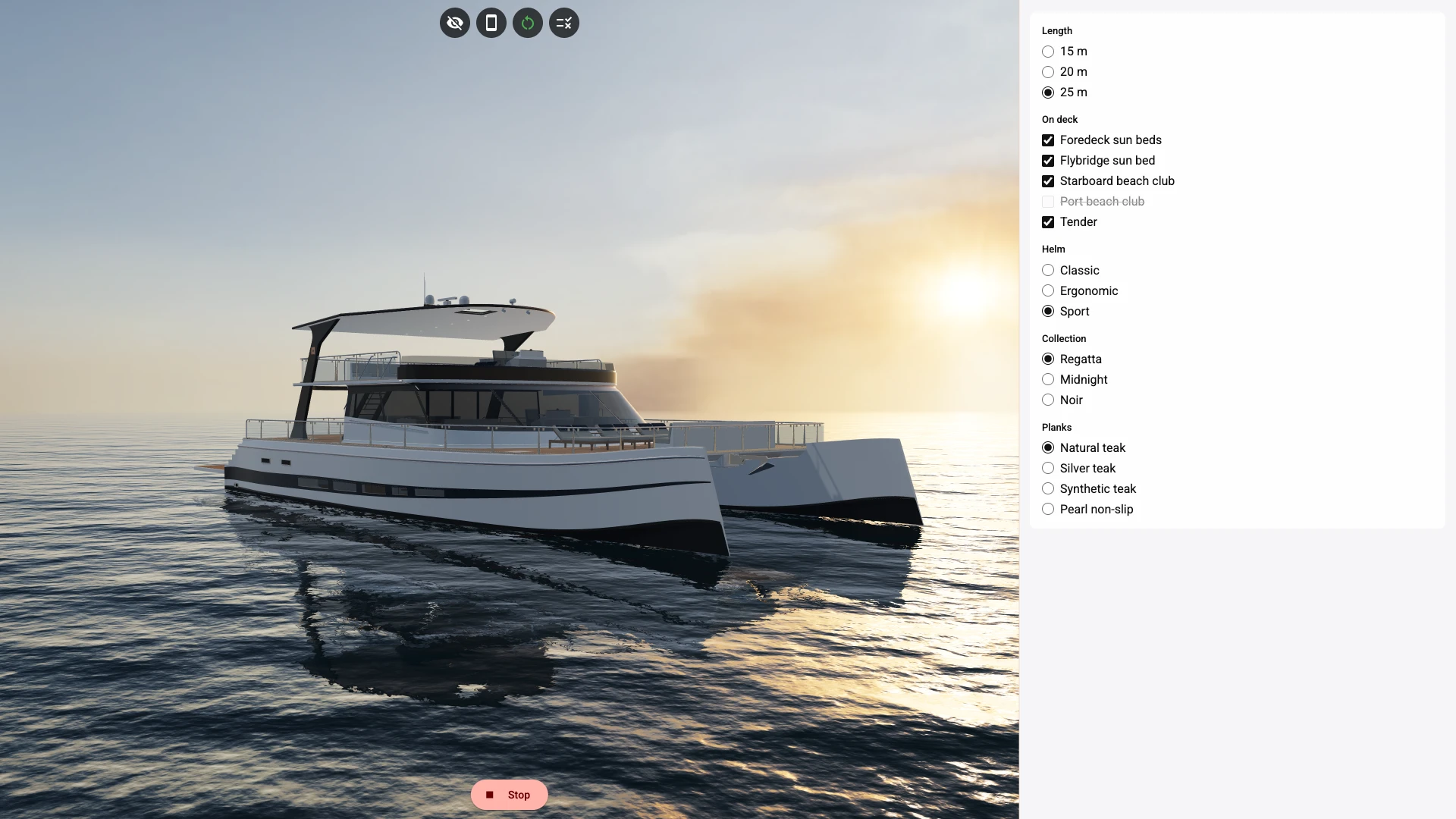
Pick 25 m 1. The 20 m boat stays in view above the loading bar 2, then the longer boat takes its place.
-
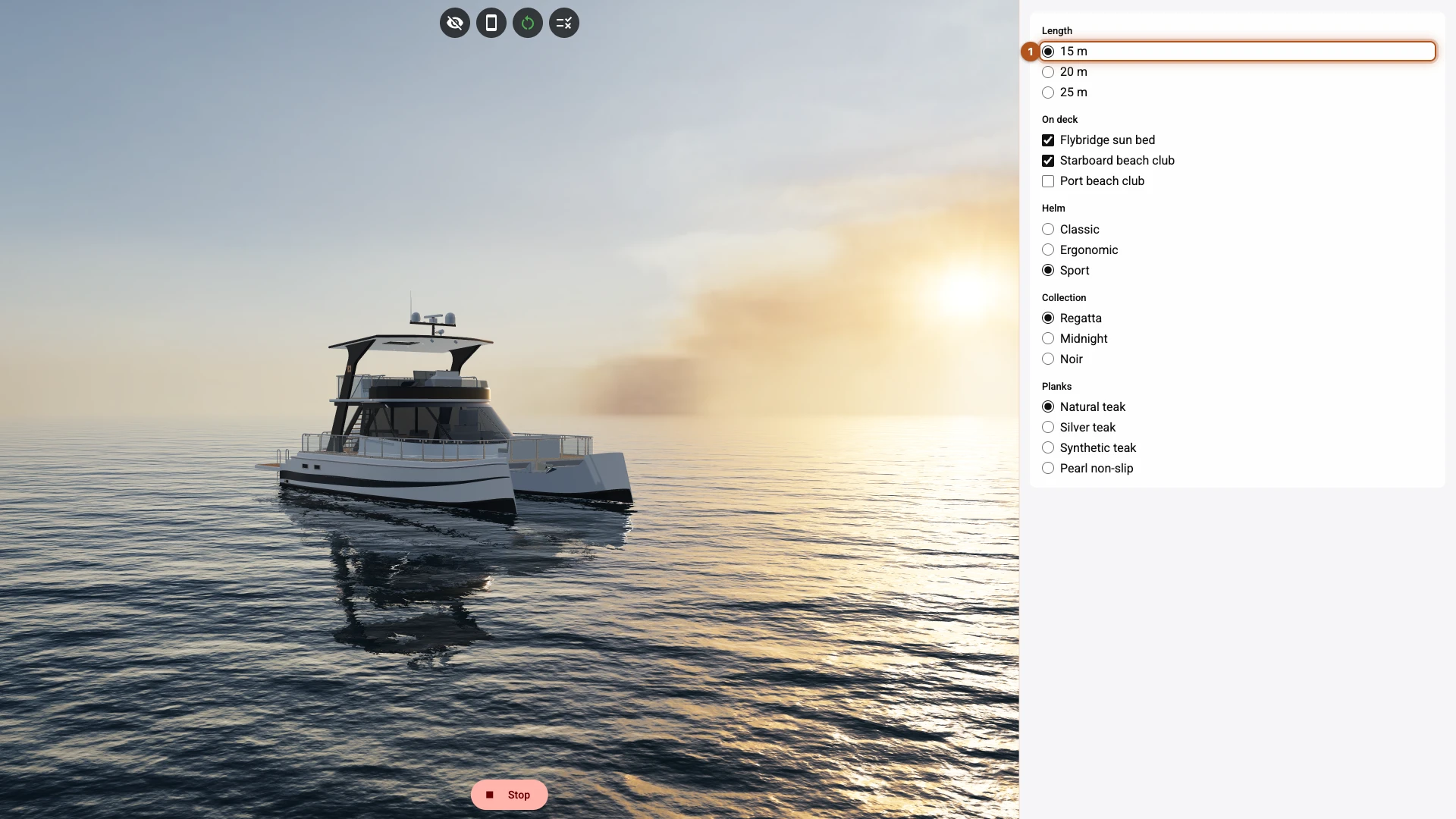
Pick 15 m 1. The smallest boat arrives, and Foredeck sun beds and Tender leave the panel.
-
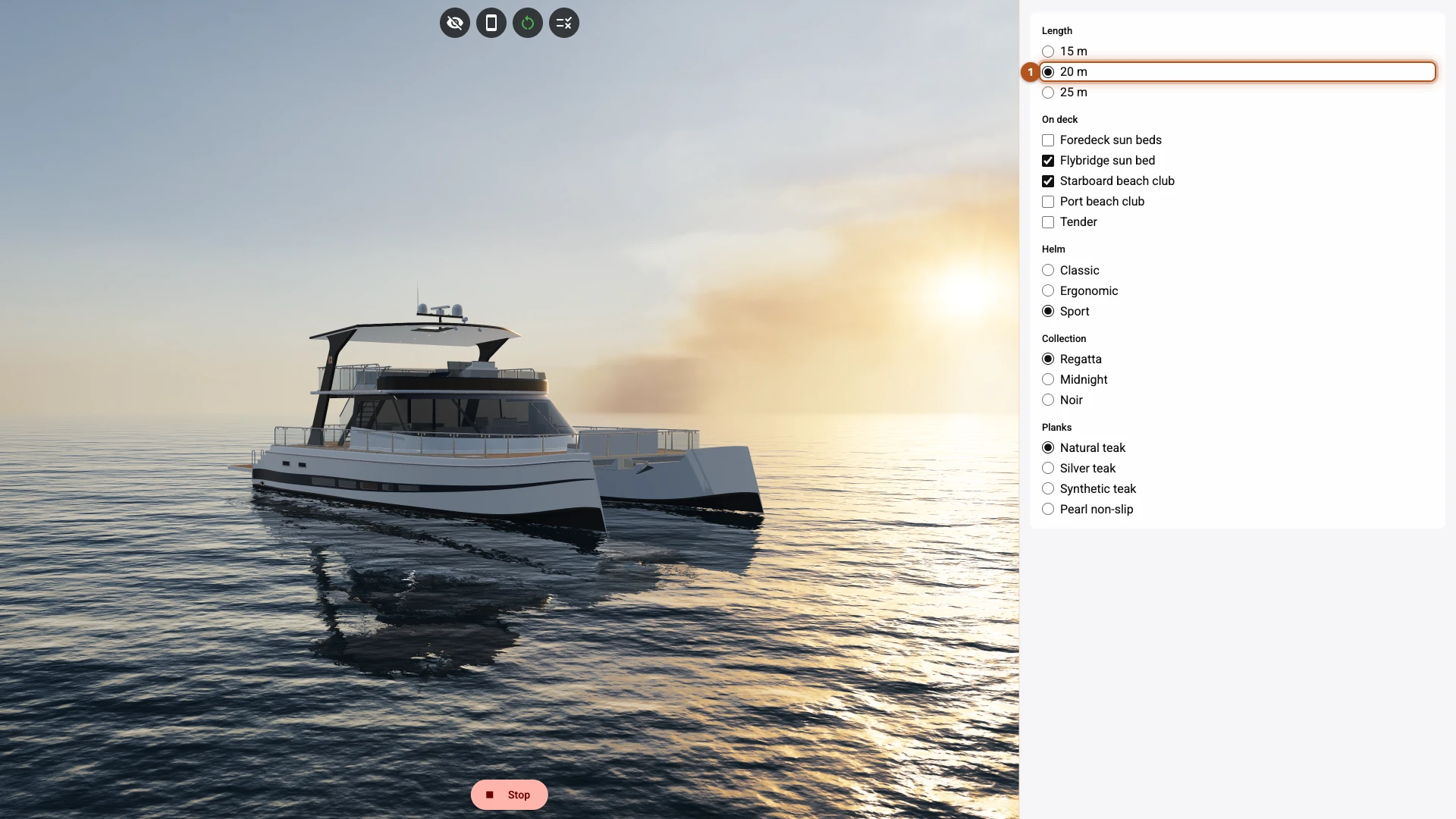
Pick 20 m 1. The two options come back, unticked. A shopper ticks them again.
What you just did
Rules live on the model. The conditions on parts, the variant rules and the colours all sit on the 20 m boat's row. Add Model would bring a new file in with none of them. Clone Model copies them all, and Re-parse & Preserve fits them to the new file by where each part sits, which is why the three files use the same names. From here on each boat has its own copy, so a rule you change later has to change on all three.
A rule goes when its part does. The 15 m file has no foredeck beds and no tender, so their rules were dropped when you read it. Hiding the two options keeps the panel honest. A hidden option is also unticked, and it stays unticked when it comes back.
Only the boat on screen downloads. With When shown the scene opens on one boat, and each of the others downloads the first time a shopper picks it. With All at start a shopper would wait for all three first. The editor always loads every model, so use Play to see this.
The bar was already on. Show loading indicator starts switched on, and Keep the current view until the new model is ready is what keeps the 20 m boat in view while the next one arrives, for up to ten seconds.
One opening view serves all three boats. The 25 m boat stands large in the frame and the 15 m boat small. A view of its own for each size takes Navigation, which needs the Standard plan.
Scene lists the other loading settings.
Next
The panel gives the panel its cards and pictures.
Verified against the product in November 2026