Price It
The boat has its look, its choices and its panel. Now it gets a price: what the smallest boat costs, what each better choice adds, the paid extras tied to real products in your store, a parts list for the yard, and a total that stays in view.
Starting here? On Composer's start screen press Have a saved configuration? Load a scene config or project file (.json) and pick this file. It holds everything the earlier chapters built.
Download the file this chapter starts from (50 KB)Every figure here is invented for this tutorial, in the range new boats of these sizes sell for, and in euros because the pictures come from a store that sells in euros. Your store's currency shows in their place.
Each part needs a different plan, and the steps do not depend on one another, so skip what your plan leaves out:
| Part | Where it lives | Plan it needs |
|---|---|---|
| Base price and option charges | Pricing and Controls | Base |
| The total in the panel | Layout | Base |
| The card in the cart | Cart Overview | Base |
| Options linked to your products | Controls | Pro |
| Parts | Parts | Pro |
| The PDF | PDF Reports | Pro |
Before you start
Two things happen in Shopify, not in Composer:
- Give your product the base price. The steps use 1490000. With Product lines charging, the default, Shopify charges the product the configurator sits on at its own price, so that price and the base price have to be the same, and publishing is refused if no variant costs the base price. If 3D Bits made a draft product for you it costs 0.00, and the project's page offers to set the price once you have saved a base price.
- Create the two paid extras as products, if you are following the linked part: Beach club loungers at 4800 and Tender, 4 m at 24000. Both have to be Active or Unlisted and on your Online Store, or publishing stops and names them.
Build it
-
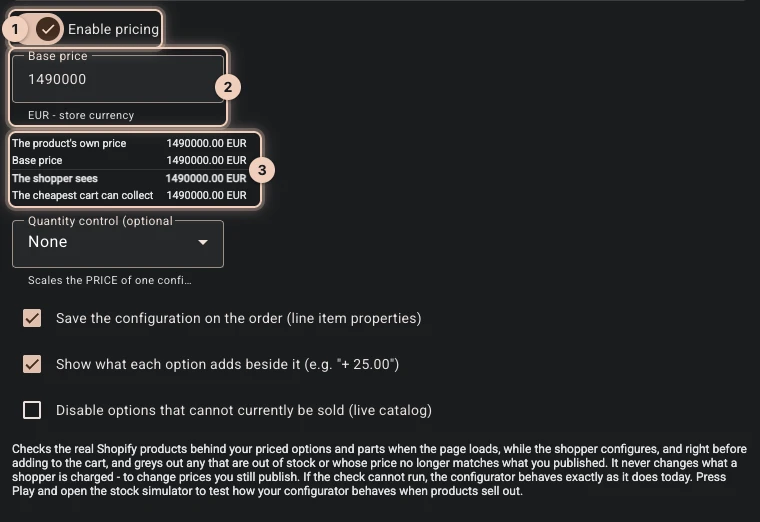
Open GUI, then Pricing. Turn on Enable pricing 1 and set Base price to 1490000 2. The table underneath sets it beside your product's own price, and the two match 3.
-
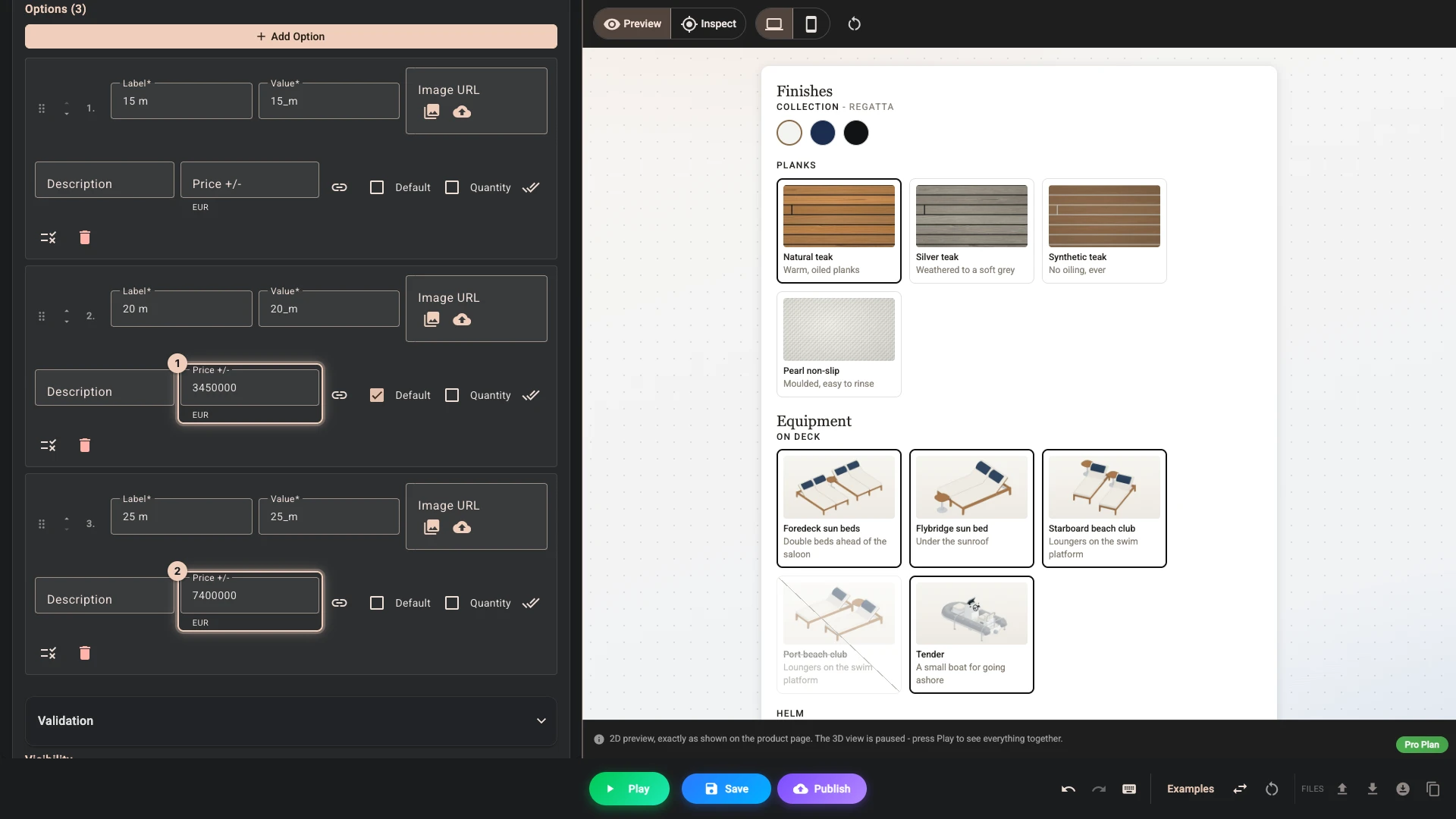
Open Controls and the Length control. Set Price +/- on 20 m to 3450000 1 and on 25 m to 7400000 2. Leave 15 m empty: the base price buys the smallest boat.
-
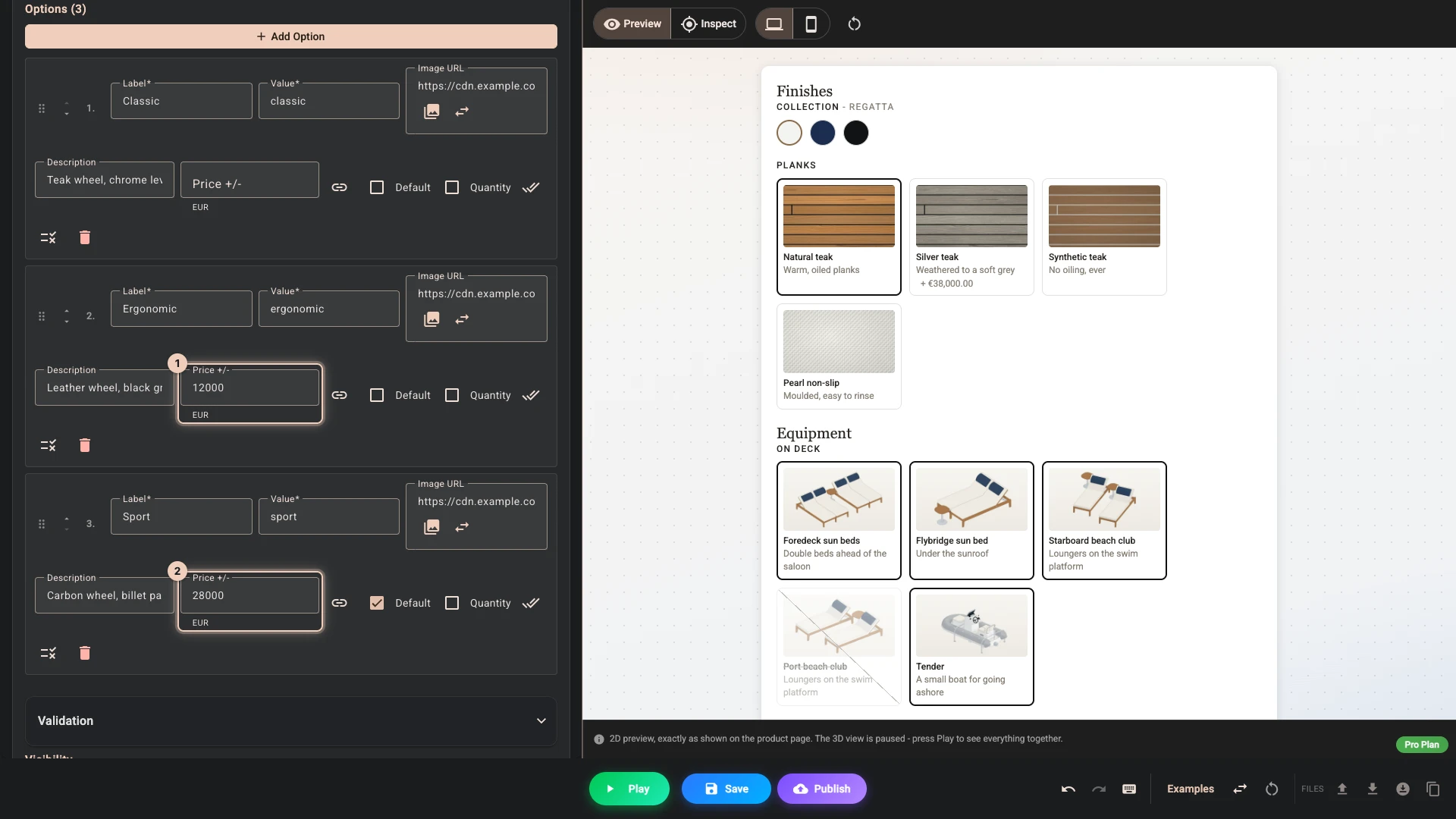
Do the same for the other choices that cost more. In Collection, Midnight 65000 and Noir 95000. In Planks, Silver teak 38000. In Helm, Ergonomic 12000 1 and Sport 28000 2. An option left empty adds nothing, so Regatta, Classic and the other three decks come with the boat.
-
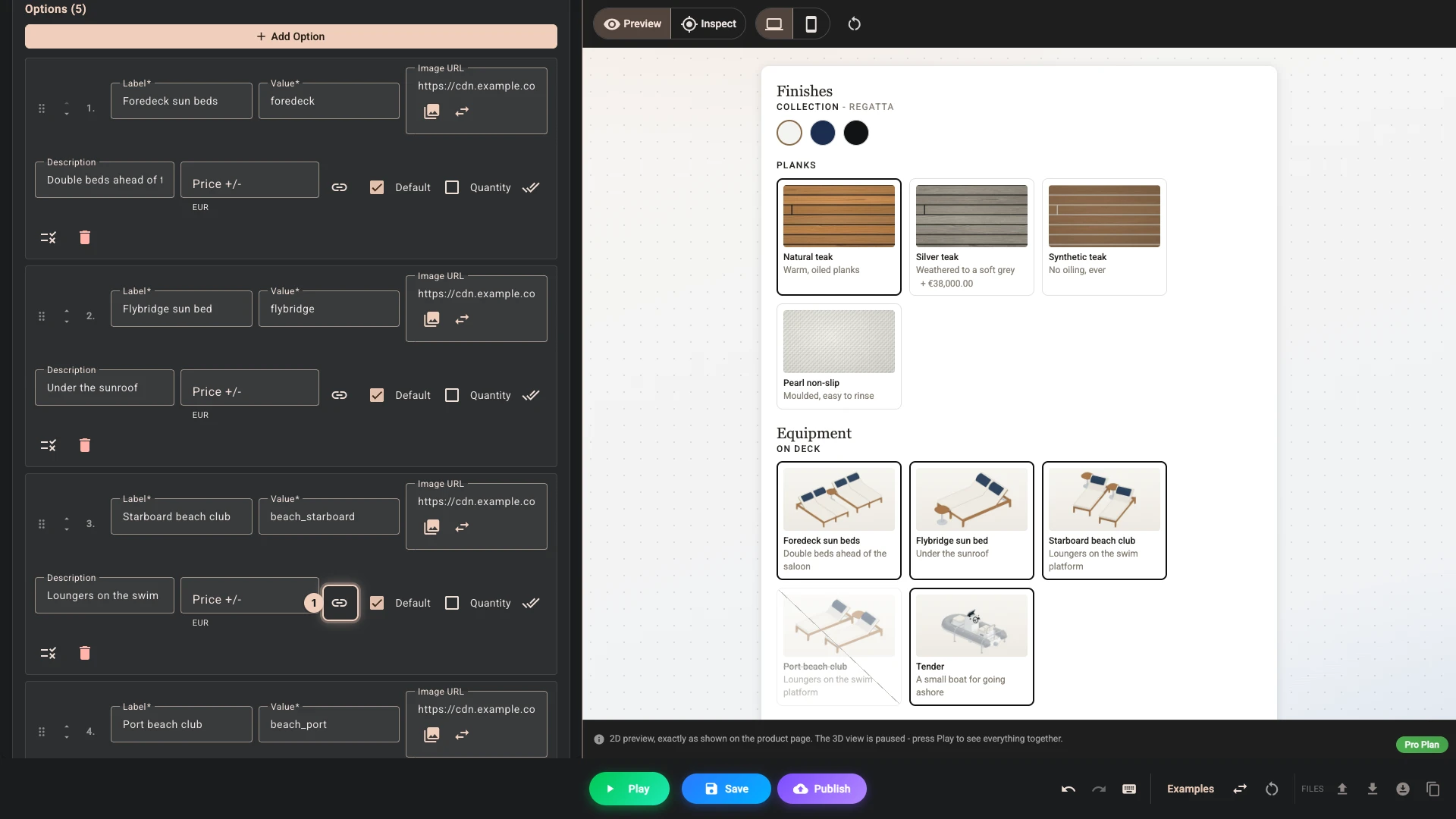
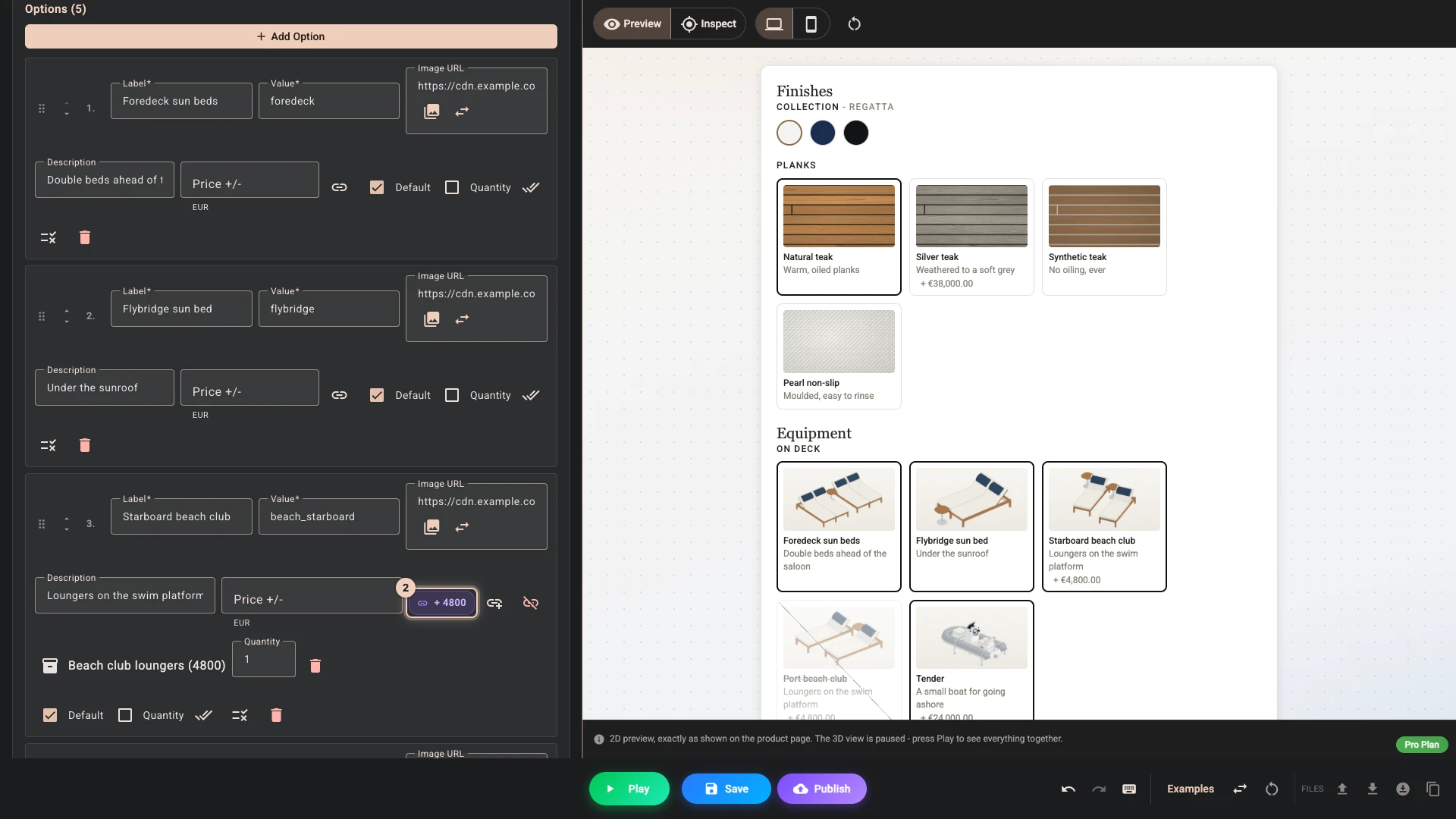
Open the On deck control. On Starboard beach club press the link button 1 and, in Shopify's product picker, pick Beach club loungers. Do the same on Port beach club, then pick Tender, 4 m for Tender. Each row now shows its product's price 2. Leave Price +/- empty on all three: a figure typed there would be charged in place of the product's price.
-
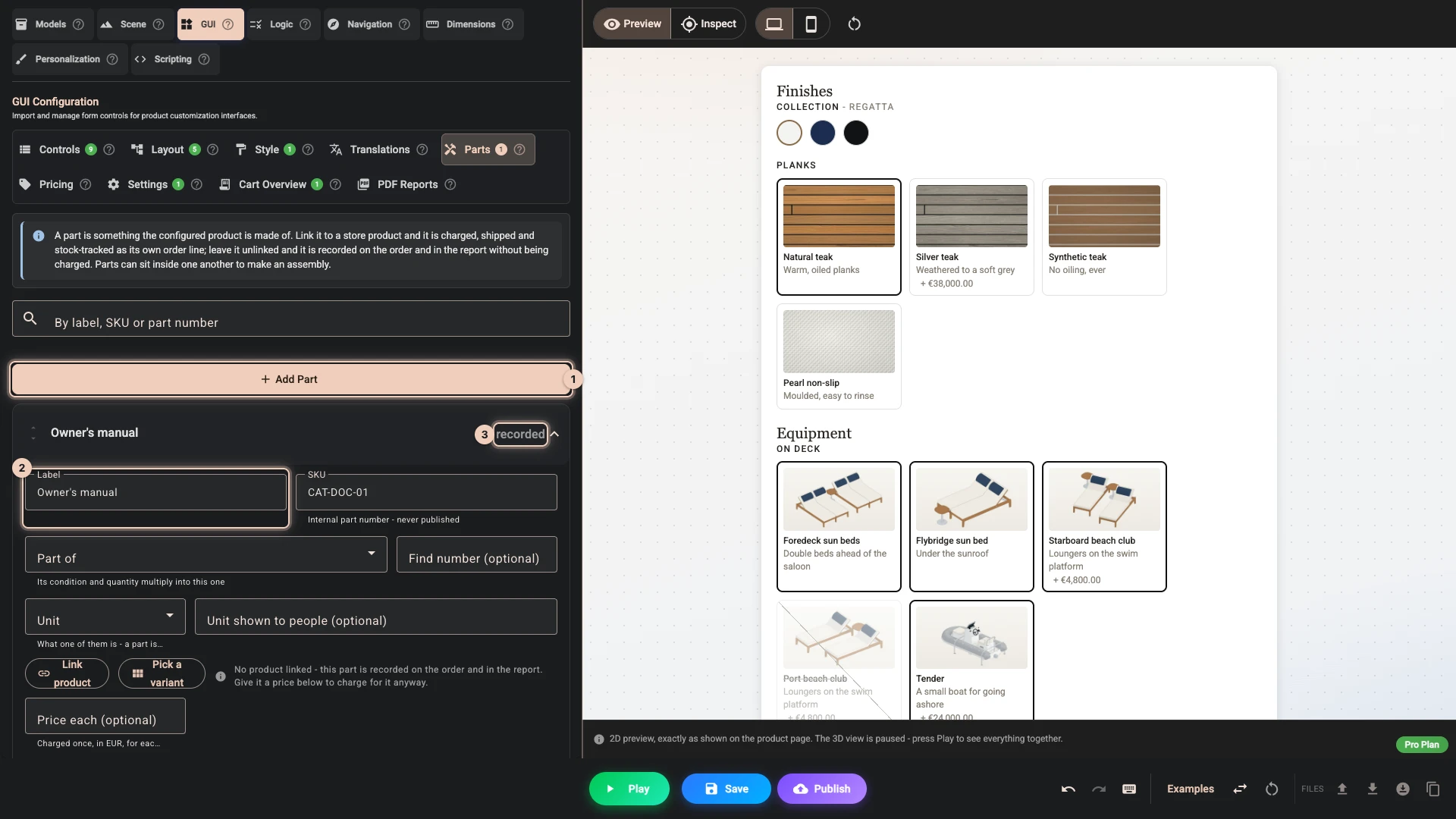
Open Parts and press Add Part 1. Set Label to Owner's manual and SKU to CAT-DOC-01 2. With no product and no price the row reads recorded 3: it costs nothing and never reaches the cart, and it is there for the people who build the boat.
-
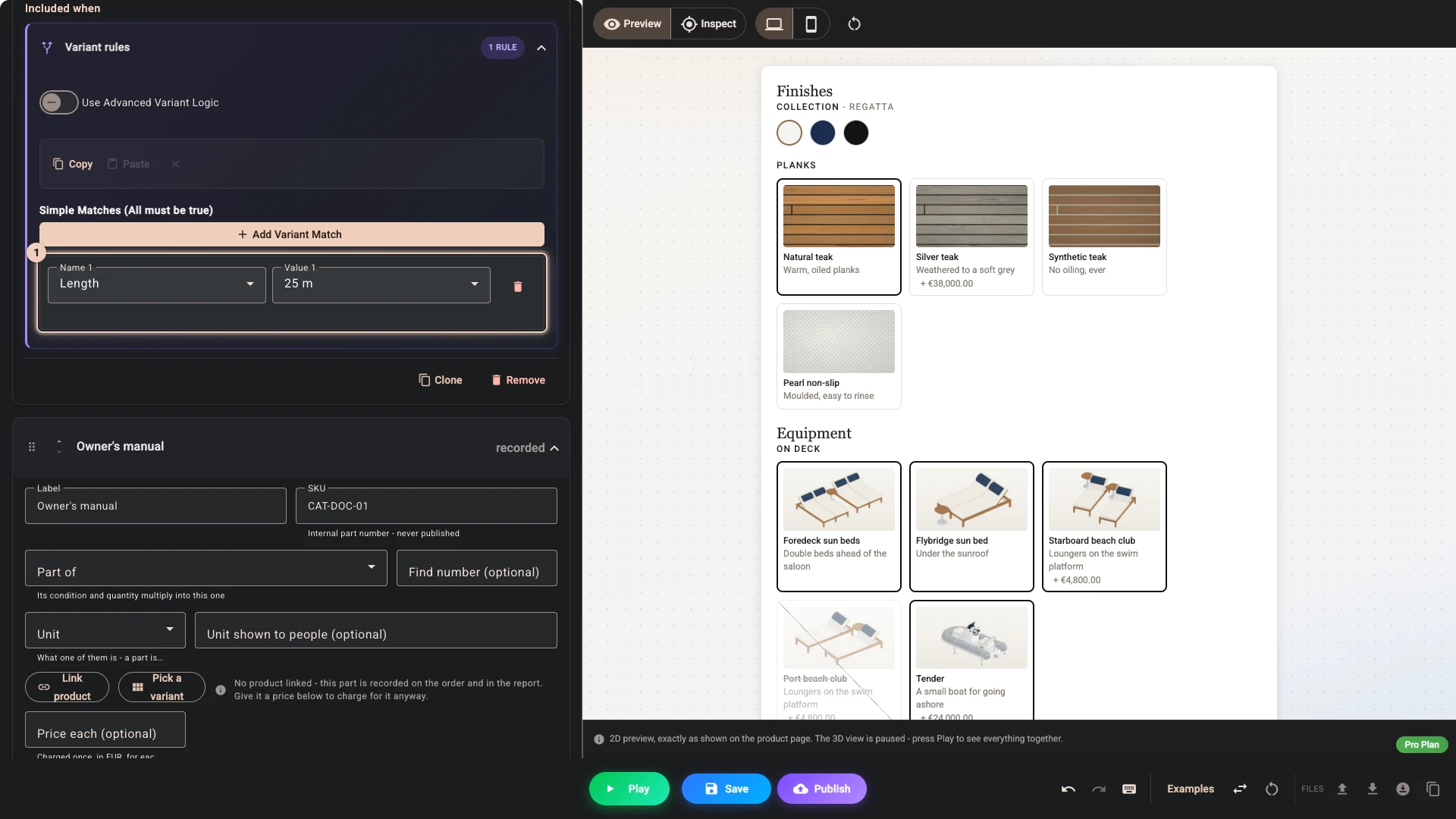
Press Add Part again, with the label Anchor, 40 kg and the SKU CAT-ANC-40. Under Included when add a match 1: Length, 25 m. Only the largest boat carries this anchor.
-
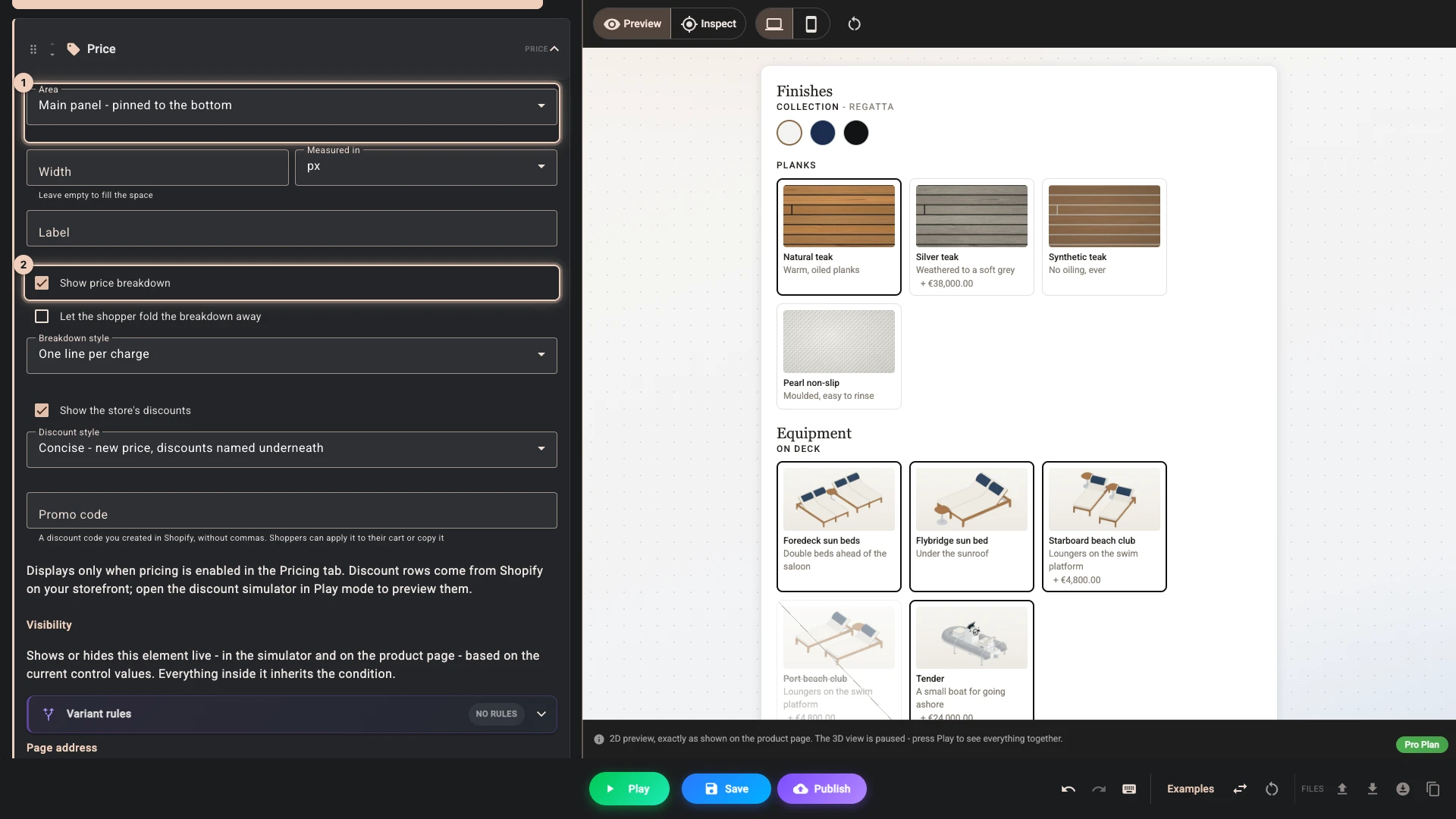
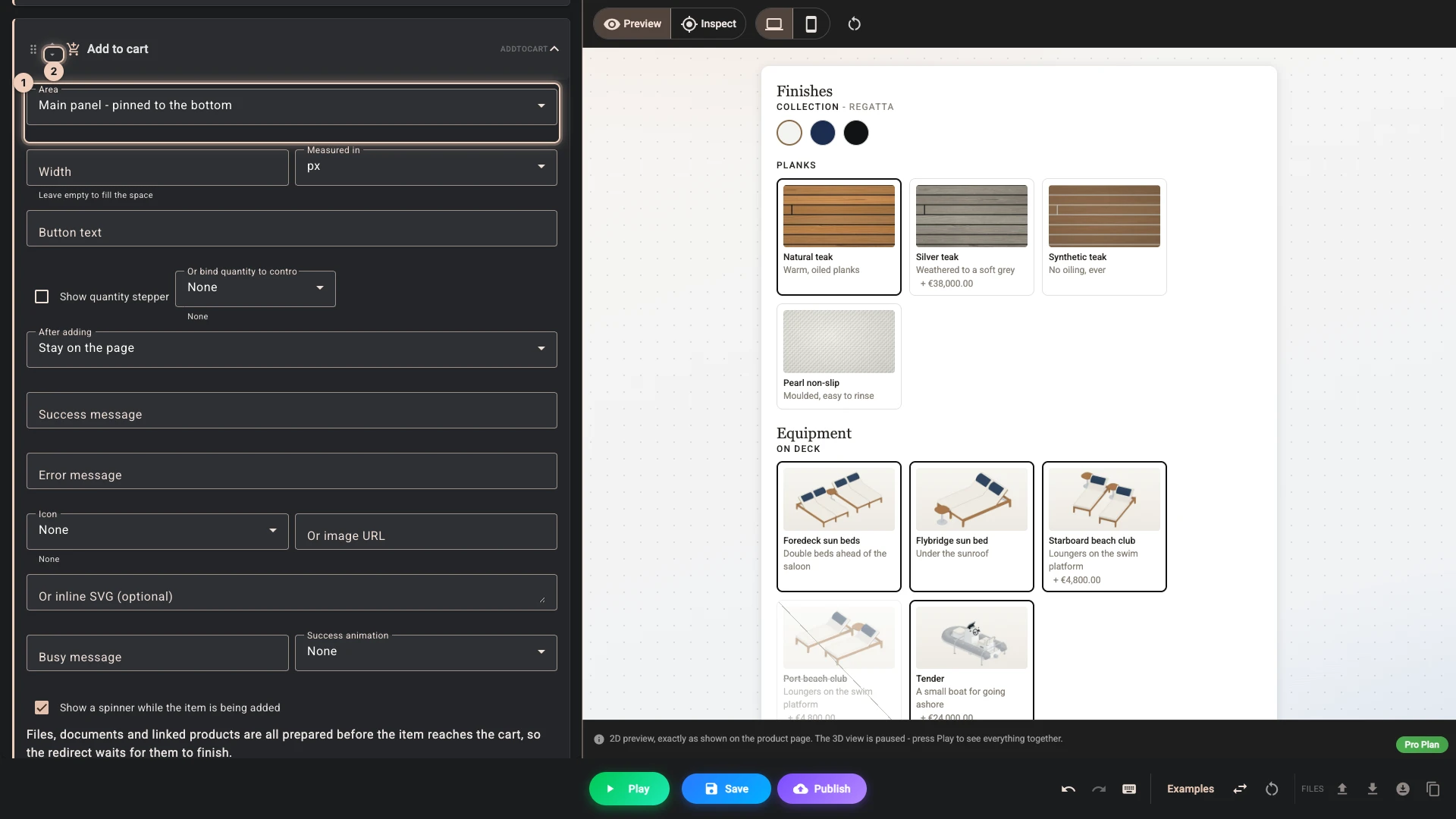
Open Layout, press Add Element and pick Price. Set Area to Main panel - pinned to the bottom 1, which keeps the total in view while a shopper scrolls through the choices, and tick Show price breakdown 2.
-
A shopper buys from the panel too. Press Add Element again, pick Add to cart, set Area to Main panel - pinned to the bottom 1 and press the down arrow on its row 2 so that it sits under the total. With Product lines charging, only this button puts the boat in the cart together with what its choices are charged through. Your theme's own Add to cart adds the boat alone, and the cart refuses it.
-
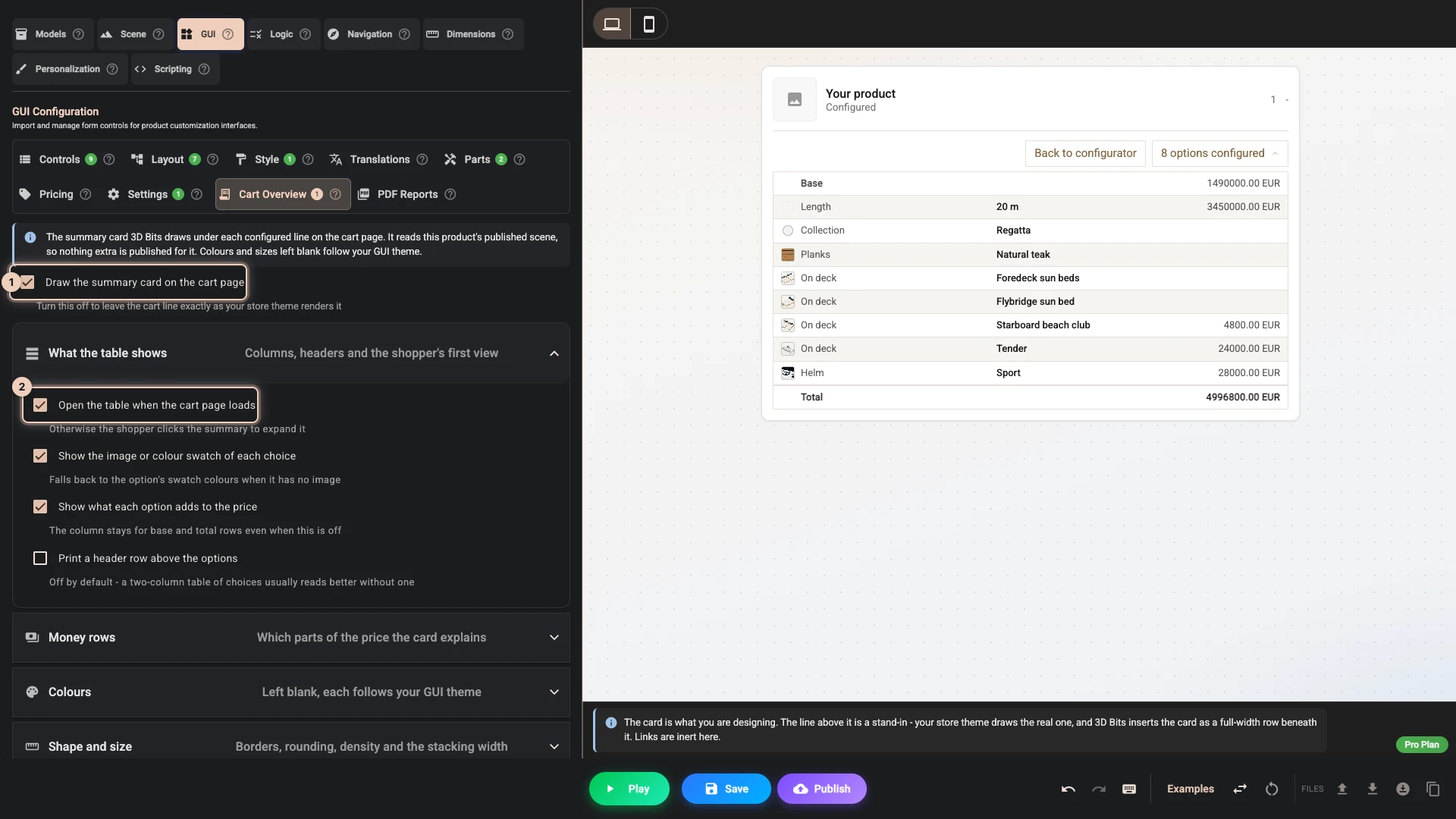
Open Cart Overview. This is the card 3D Bits draws under the boat in the cart, and it is on already 1. Tick Open the table when the cart page loads 2, so a shopper sees their choices without a click. The picture beside it updates as you go.
-
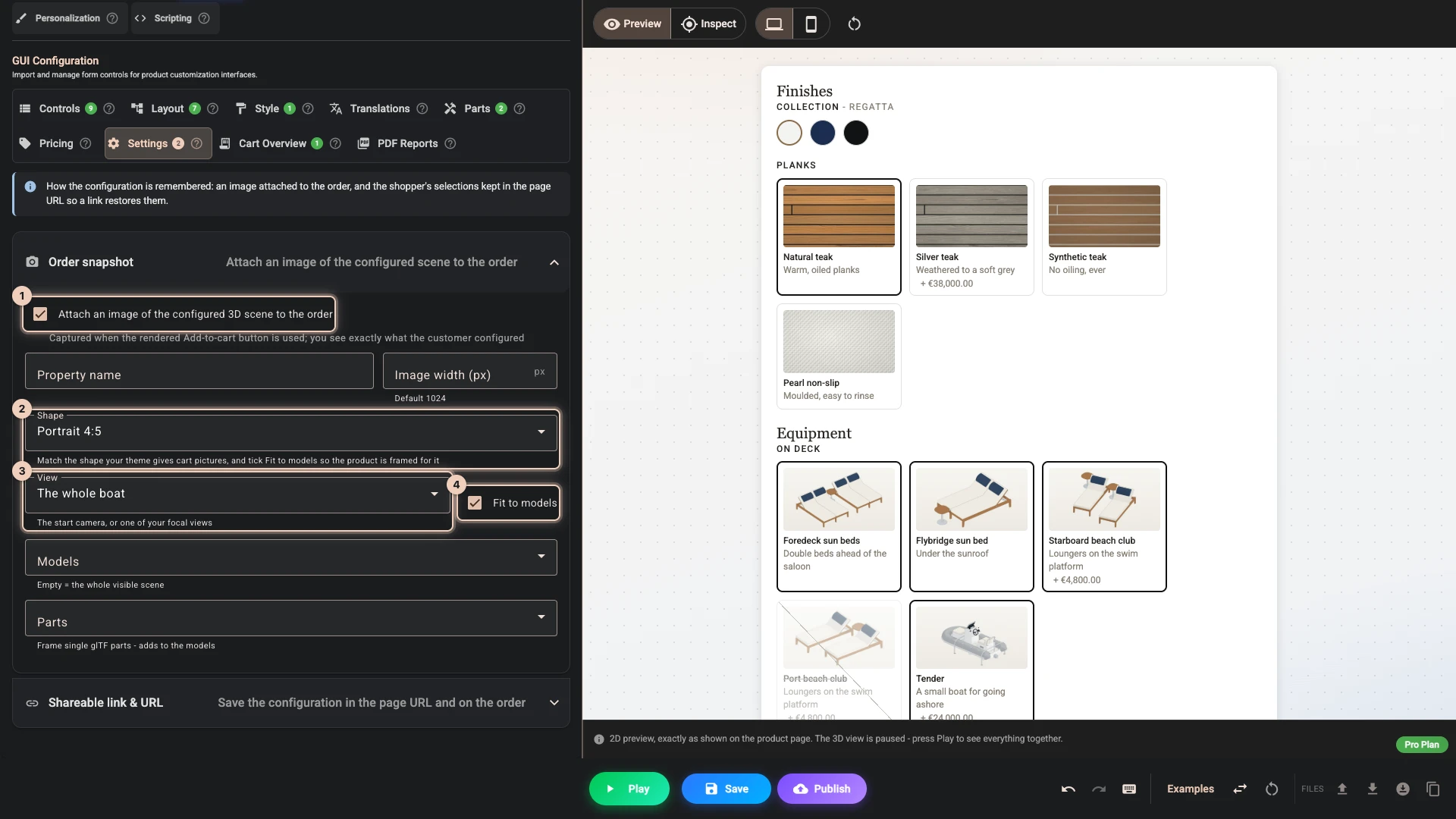
Open Settings and then Order snapshot. Tick Attach an image of the configured 3D scene to the order 1. When a shopper presses Add to cart, a picture of the boat they configured goes with it: in the cart it takes the place of the product's own picture and heads the card, and on the order it shows the yard what to build. Set Shape 2 to the shape your theme gives cart pictures, so the boat fills it rather than losing its ends to the crop. Ours are portrait, so Portrait 4:5. Set View to The whole boat 3 and tick Fit to models 4, which frames every size for that shape.
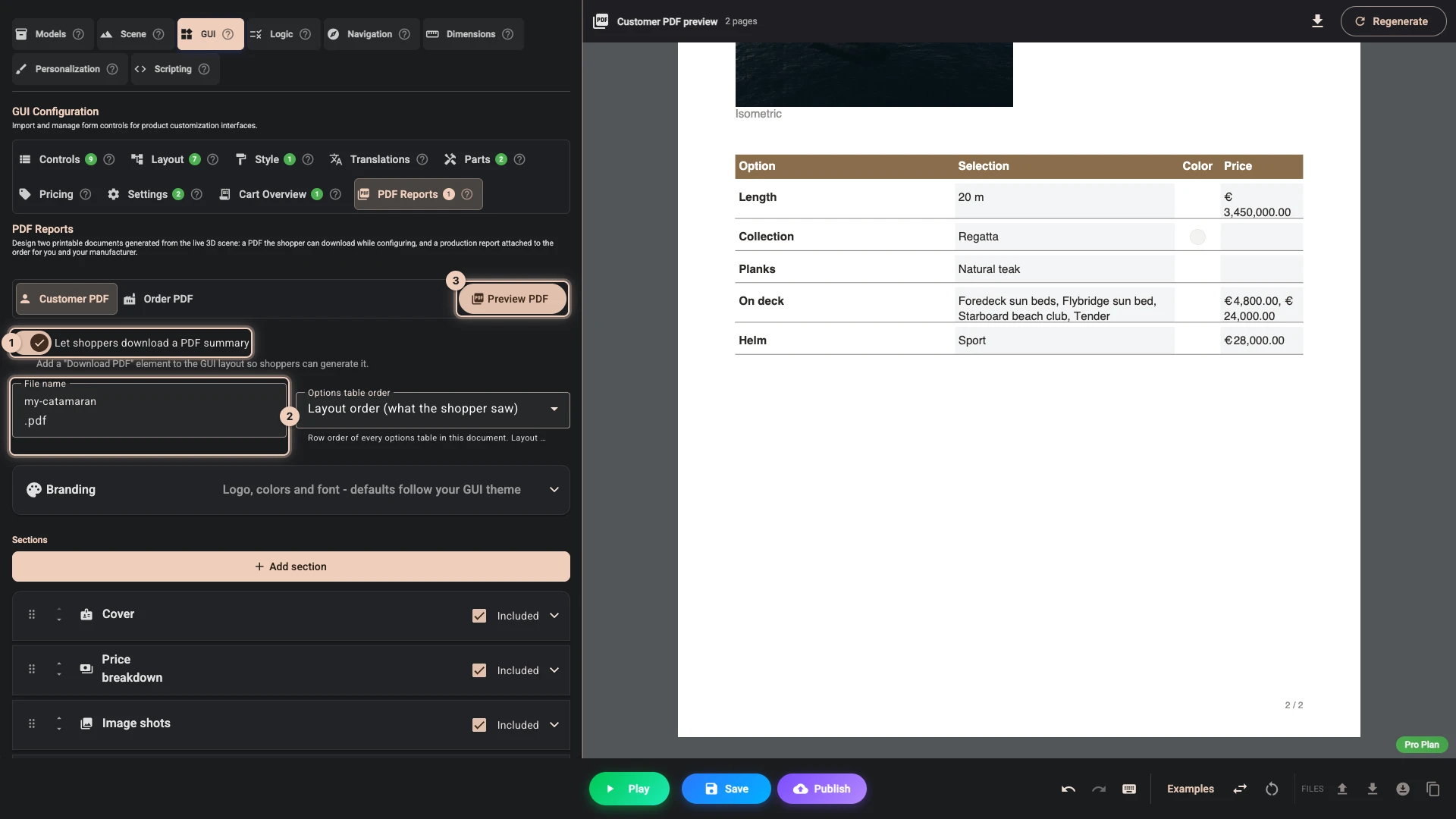
- Open PDF Reports. On Customer PDF turn on Let shoppers download a PDF summary 1 and set File name to my-catamaran 2. The document starts with a cover, the price breakdown, two pictures of the boat and a table of the shopper's choices. Press Preview PDF 3 to read it where the 3D view was.
- A shopper needs a way to ask for it. Back in Layout, add a Download PDF element, set Area to Main panel - pinned to the bottom and Button text to Download a summary 1. Press the down arrow on its row 2 so that it sits under the total.
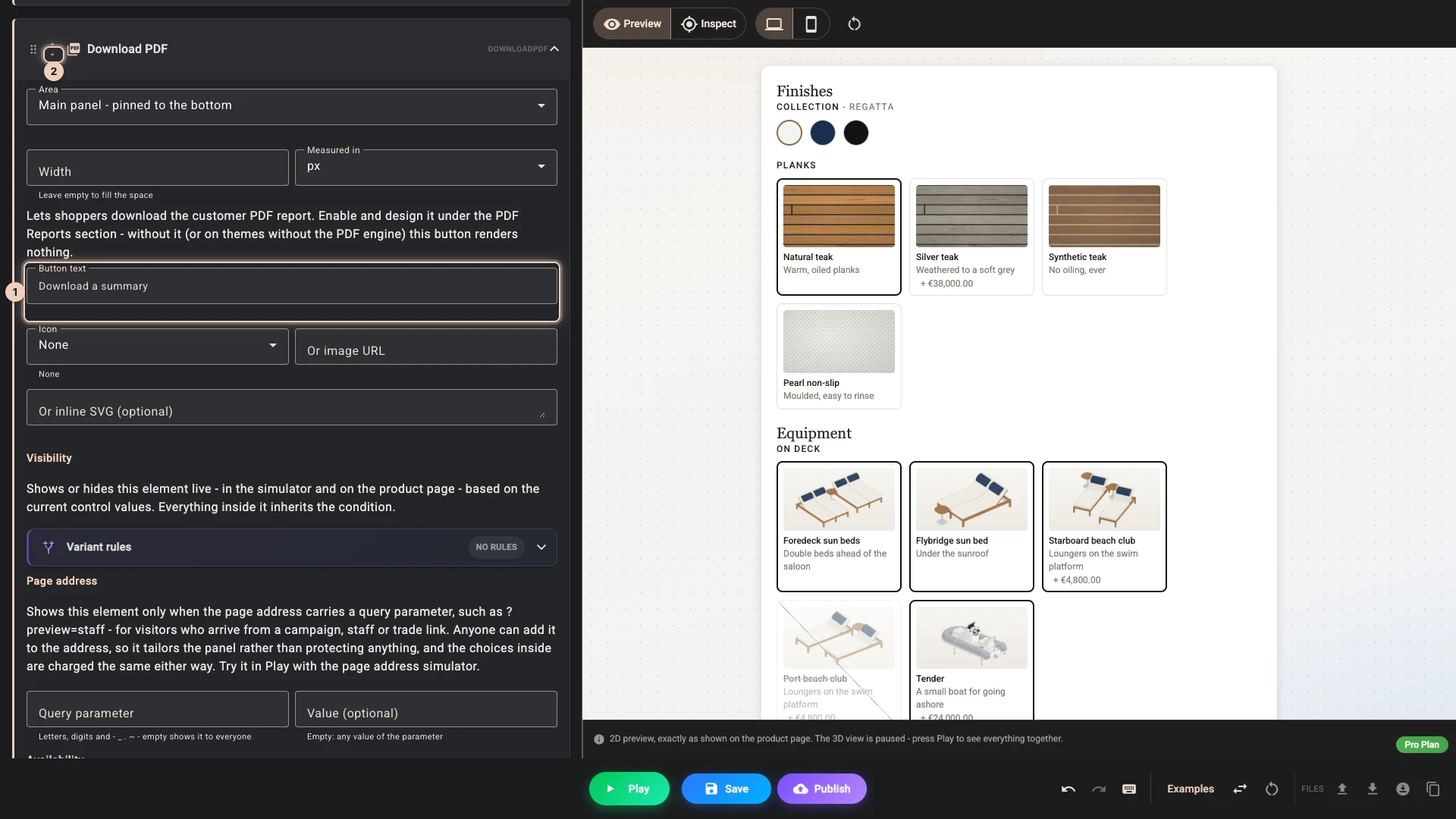
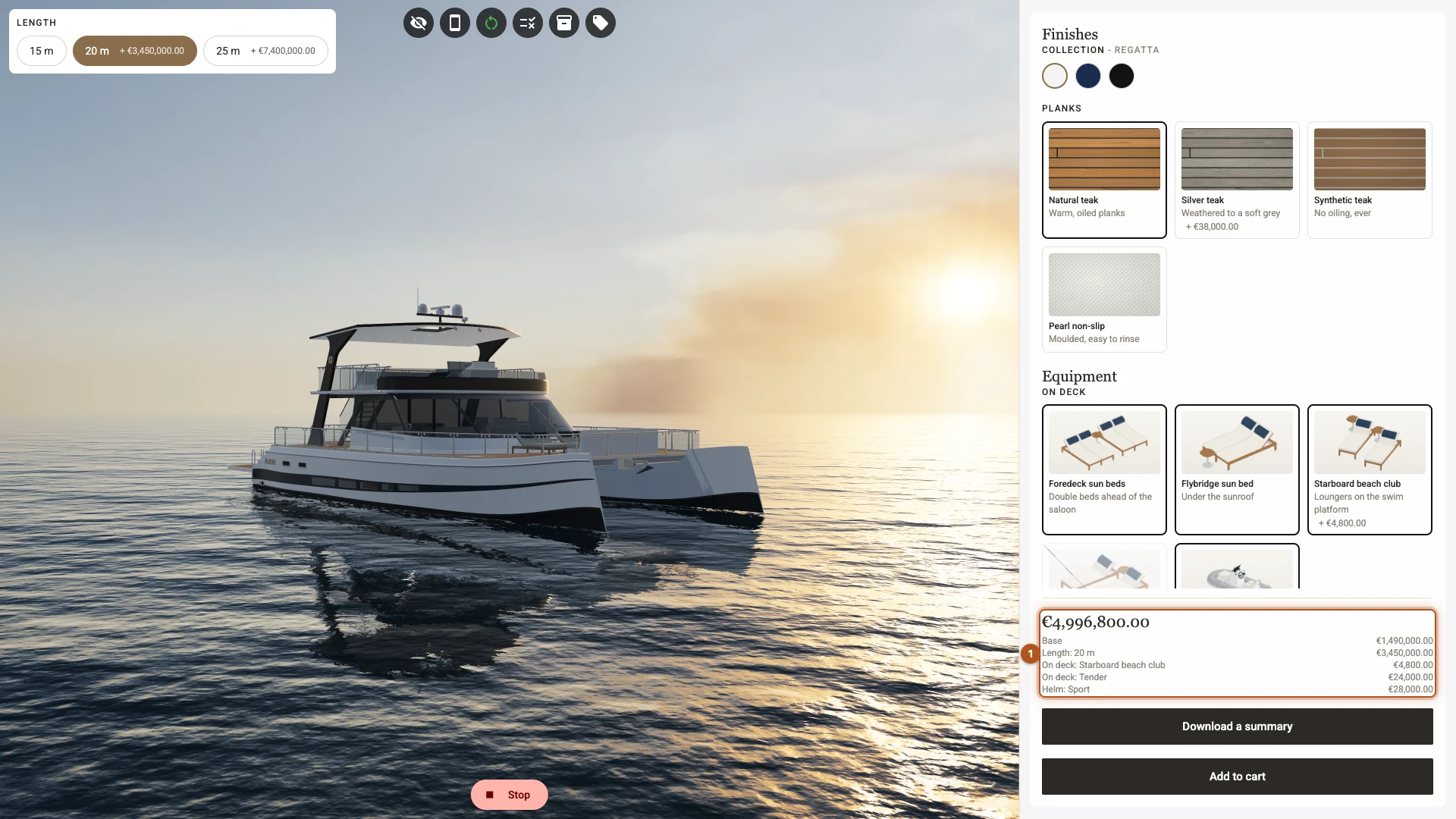
- Press Play. The total stays at the foot of the panel while the choices scroll above it, with what makes it up beneath it 1.
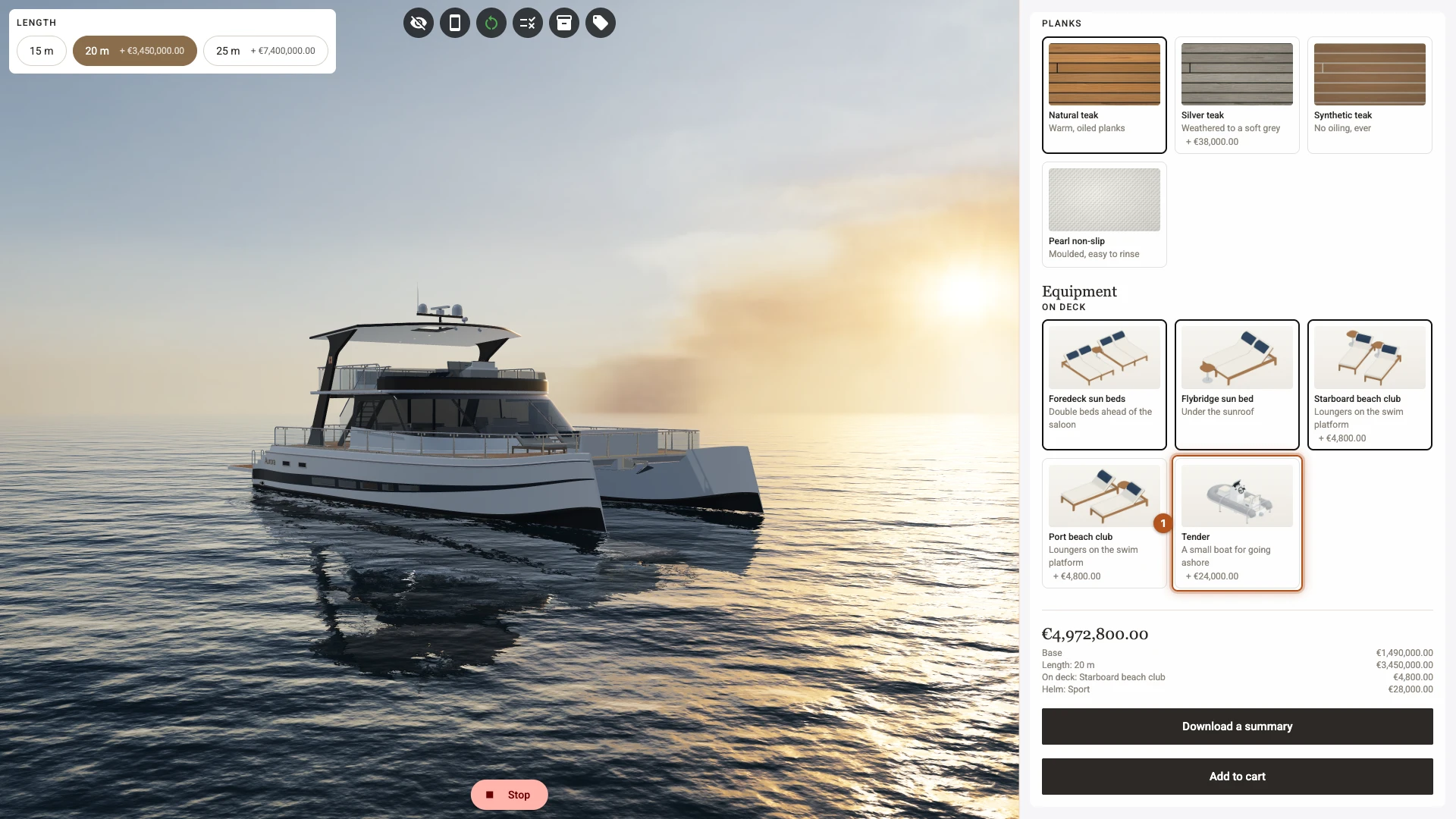
- Untick Tender 1. The tender leaves the boat, its 24000 leaves the total, and Port beach club can be picked again.
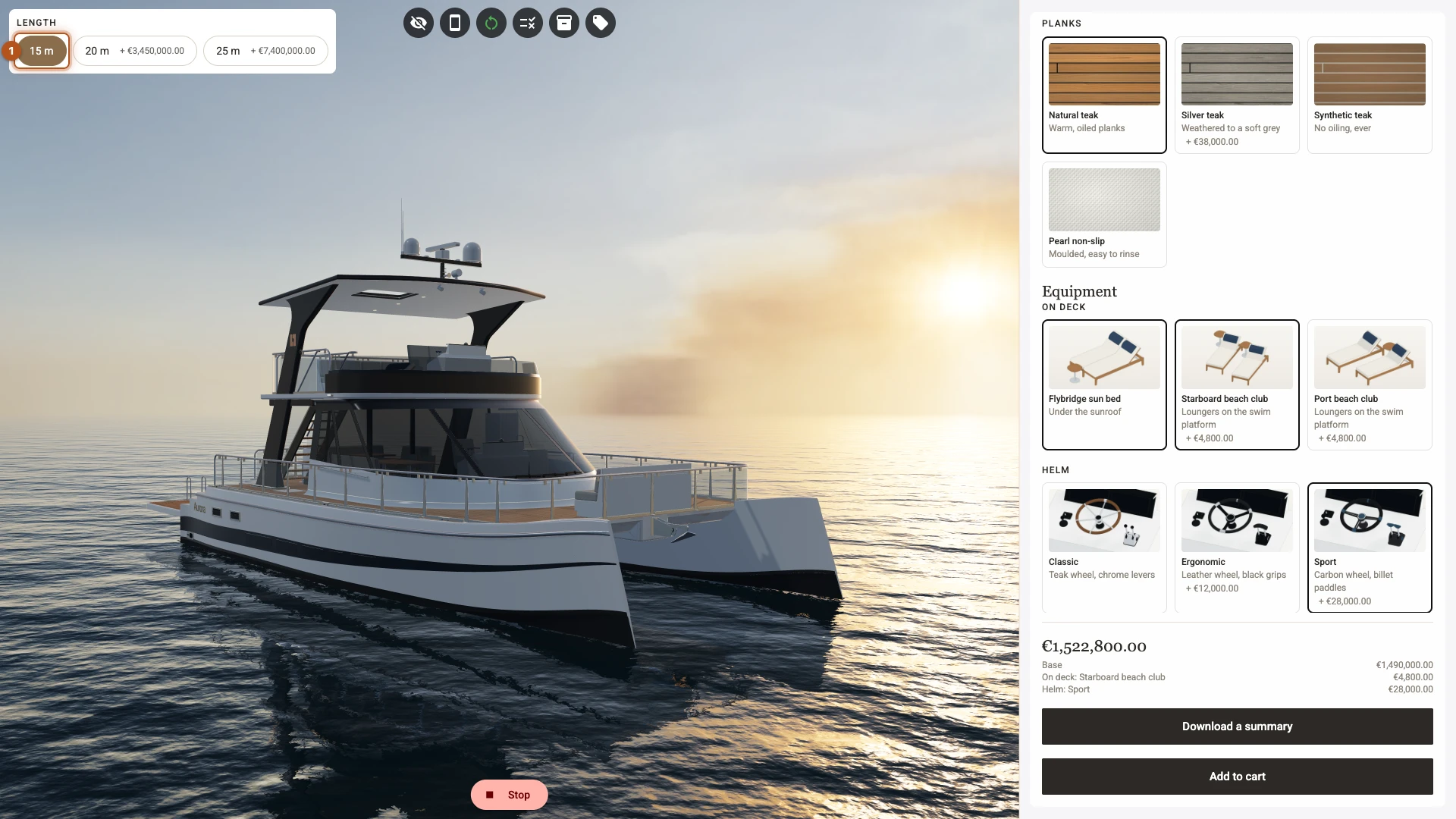
- Pick 15 m 1. The smallest boat arrives and the total drops by 3450000, as it adds nothing to the base price.
What you built
The total is a sum. It starts at the base price and adds each chosen option and each charged part, and a quantity control or a formula would come in here too if you had one. A choice that adds nothing prints no line, which is why Natural teak is missing from the breakdown.
A hidden choice costs nothing. Your rule from Three sizes takes Tender off the panel at 15 m, and with it goes the 24000. Pricing follows the choices the shopper actually has.
A linked option is your product. The loungers and the tender reach the order as the products you created, so your stock and your picking list stay right. In Product lines charging a shopper pays the price Shopify holds for them now, and Linked products covers what happens when that price changes.
A part is a fact, an option is a question. The owner's manual is on every boat and the shopper is never asked about it. A recorded part never reaches the total or the cart. It reaches the people who build the boat through the parts download on the order's page, and you can show parts to anyone with a Parts list element or a PDF section. Your SKUs stay private: publishing removes them from what shoppers can read, and Composer asks before a downloaded file keeps them.
Pricing is the place to read before you sell, and Parts, Cart Overview and PDF Reports cover each of these in full.
Next
Chapter 9, Publish it, checks the work, puts the boat on its product page and reads the first order.
Verified against the product in November 2026