Load the Boat
Everything in a configurator starts from the model, so the first job is to get it in and see what it holds. You need a project: in the 3D Bits app open Projects, press New project, give it a title and create it. Composer opens on the start screen. Everything in this chapter works on every plan.
-
Drop
catamaran-20m.glbon the start screen. Composer uploads it, frames it, lights it and opens Models.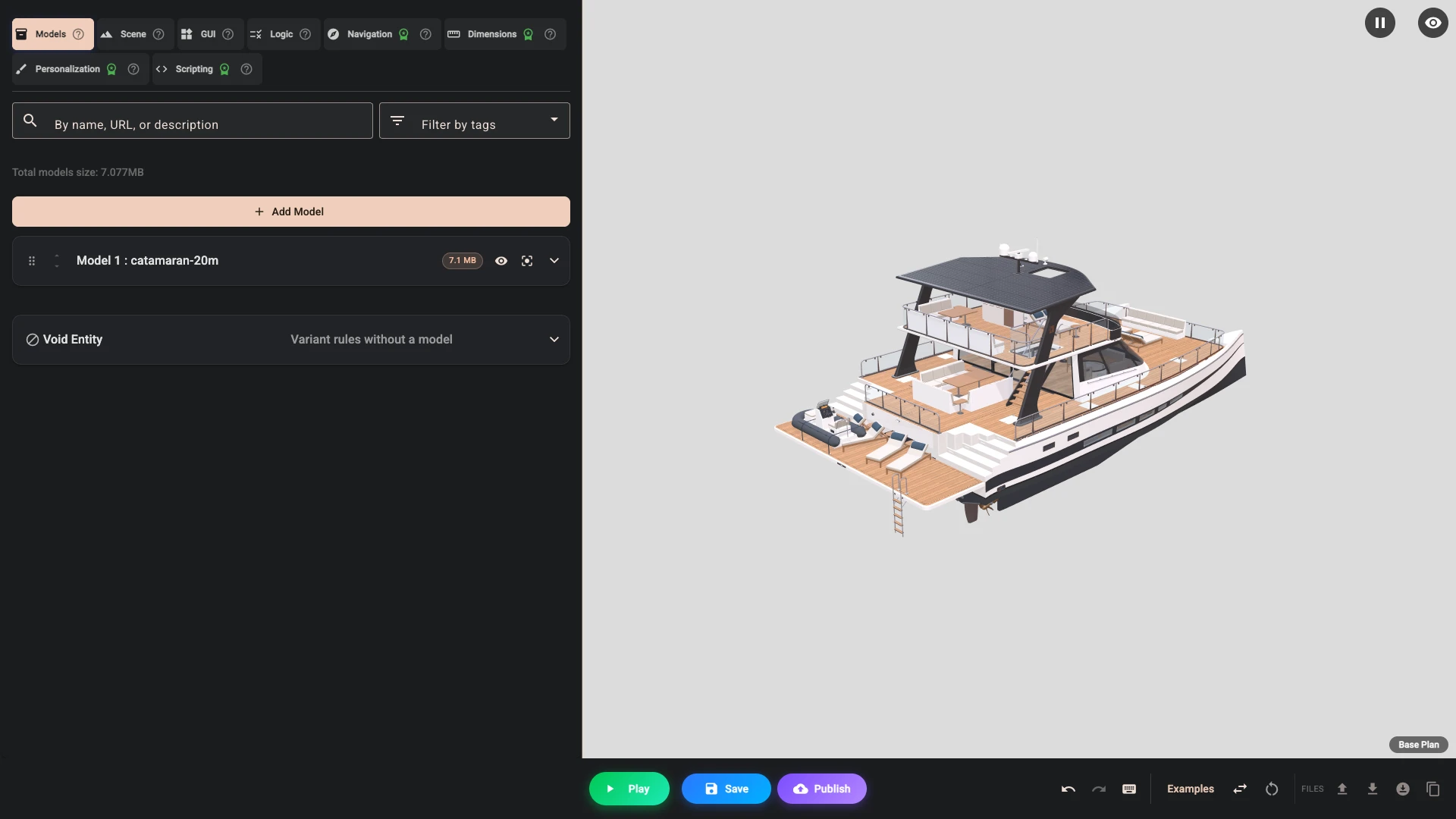
-
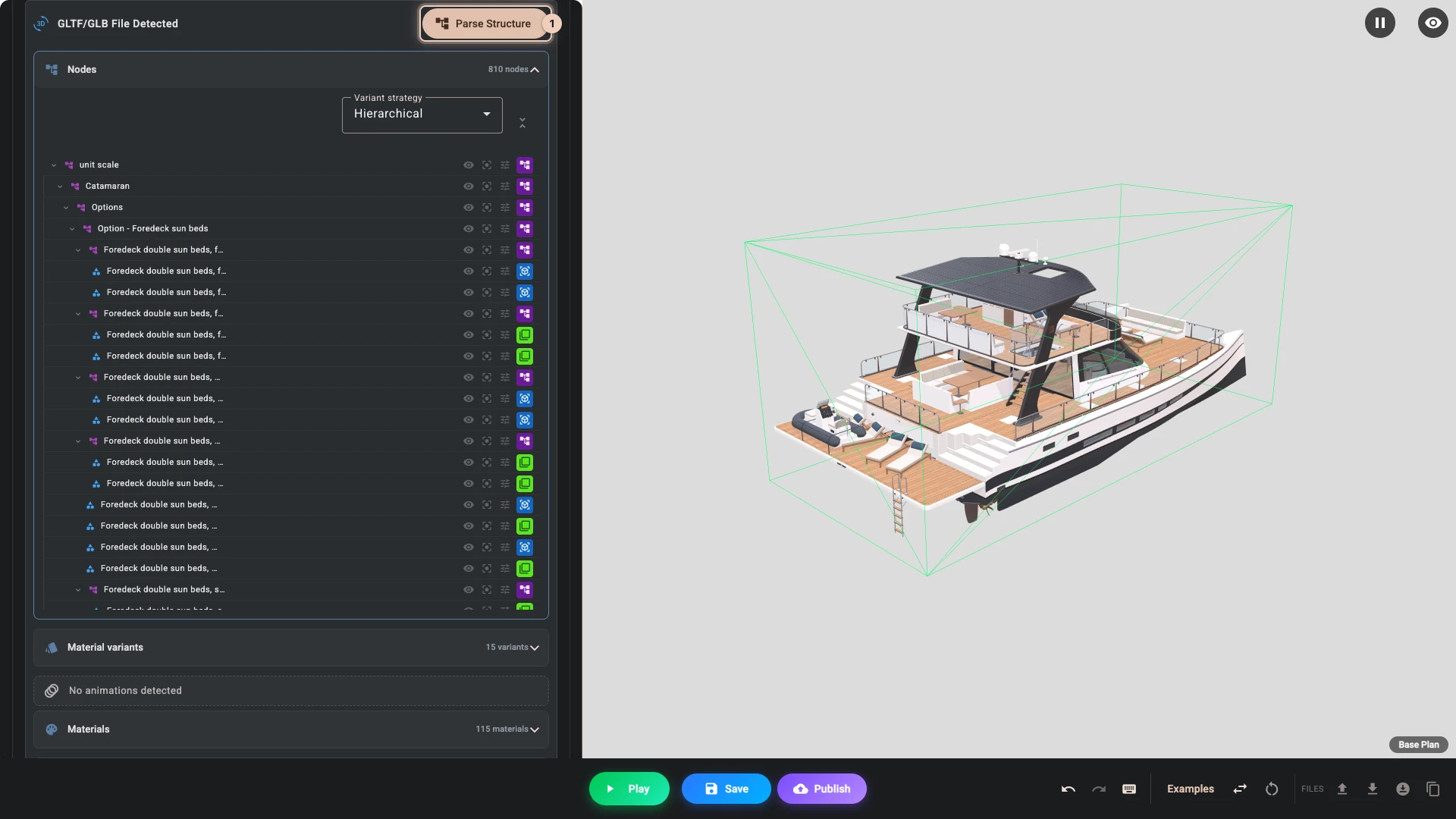
Open the model's row and press Parse Structure 1. Composer reads the file and lists every part, material and material variant in it.
What you just saw
Composer fitted the scene for you. An upload sets the camera, two lights and a background from the model's size, so a 20 metre boat and a 20 centimetre ring both open well framed. You do not need Fit scene to model after an upload. It is there for later, when you have changed the models and want to start the framing again.
Options need parts. The tree shows the groups a configurator can switch, such as Option - Upper helm, sport. The boat has three helms in the file at once, and in Composer they overlap, because the editor shows every part so that you can work on it. A shopper only ever sees the ones your conditions allow, which is what chapter 4 is about.
Finishes are in the file too. The Material variants list holds the deck and interior finishes the model carries.
When you prepare your own model, this tree is where you find out whether it is ready. If everything is one object, no option can change it. Preparing GLTF assets explains how to split a model.
Next
The surroundings puts the boat on open water.
Verified against the product in November 2026