Options and Rules
The file holds three helms, every sun bed and the tender, all at once. A part with no condition always shows, so a shopper would see the lot, with three wheels in one place. Here each option gets a condition, and one rule sorts out two options that cannot share the deck. Everything in this chapter works on every plan.
Starting here? On Composer's start screen press Have a saved configuration? Load a scene config or project file (.json) and pick this file. It holds everything the earlier chapters built. Then open the model's Parse Structure and, if it asks, press Re-parse & Preserve, as this chapter works in the model's tree.
Download the file this chapter starts from (6 KB)-
Open Models, the boat's row and Nodes, then open
unit scale,CatamaranandOptions. The three helms are all here, and nothing chooses between them yet, so they stand in the same place, one inside the other.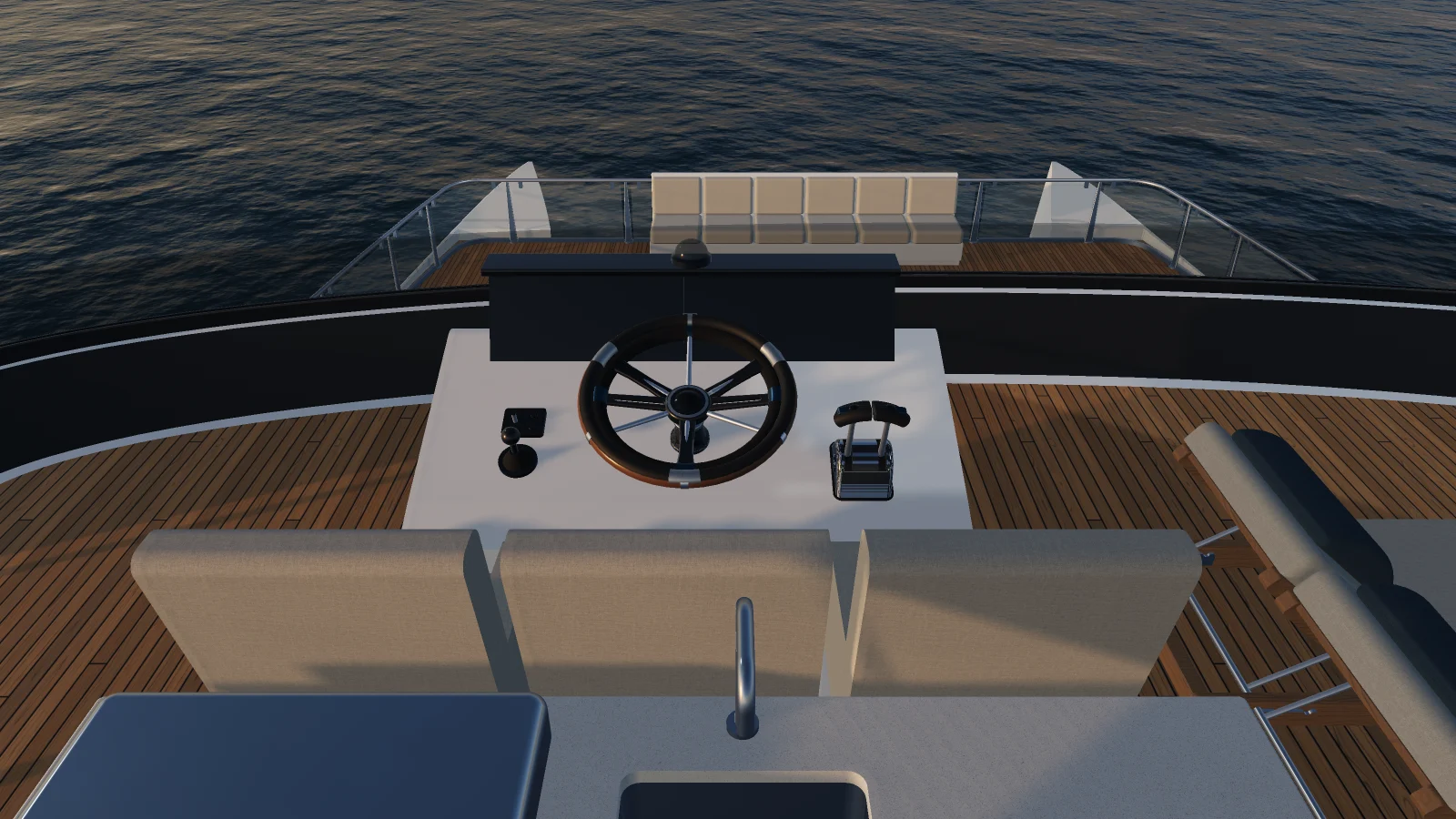
-
Open GUI and add a control with the key
helm_style, the label Helm and the type Radio. Its options 1 are Classicclassic, Ergonomicergonomicand Sportsport, with Sport as the default 2.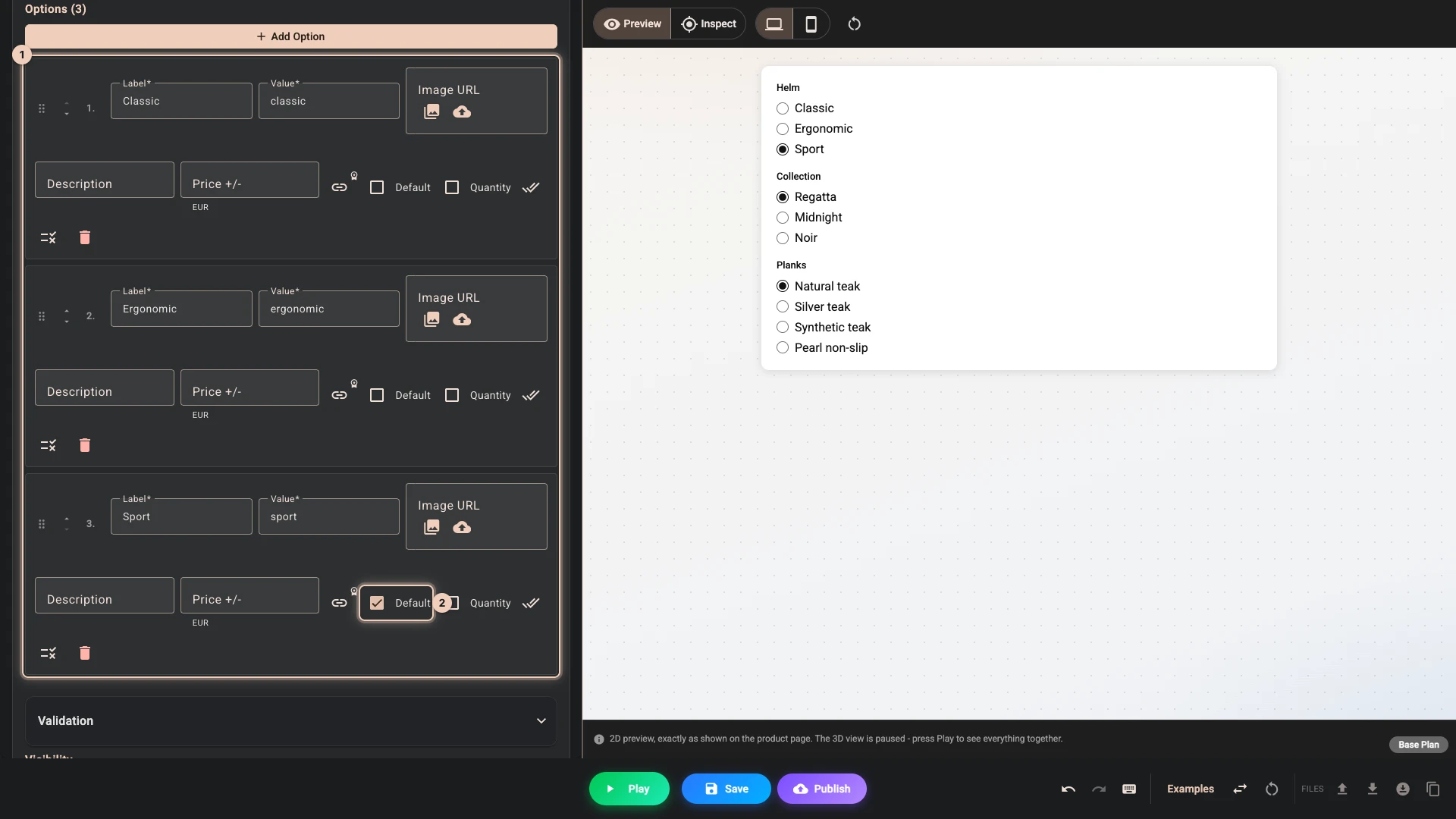
-
Back in Nodes, point at
Option - Lower helm, classicand press its tune button at the end of the row. Open Variant rules 1, press Add Variant Match 2, set Name to Helm and Value to Classic 3, and press Save 4. Do the same forOption - Upper helm, classic, then for the ergonomic and sport groups with their own values. That makes six parts.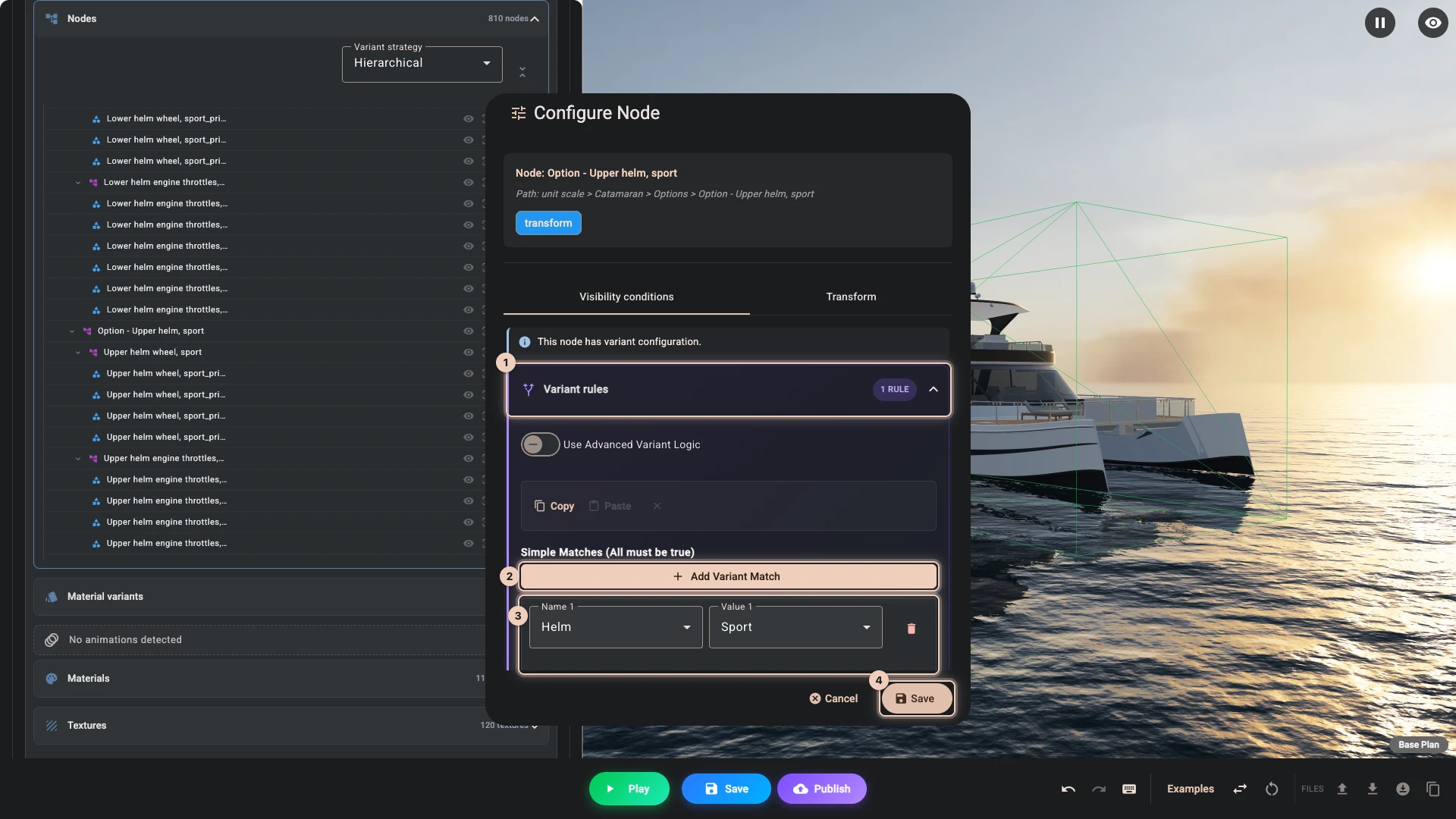
-
Back in GUI, add a control with the key
aboard, the label On deck and the type Checkbox, which lets a shopper tick several. Its options 1 are Foredeck sun bedsforedeck, Flybridge sun bedflybridge, Starboard beach clubbeach_starboard, Port beach clubbeach_portand Tendertender. Tick Default 2 on all of them except Port beach club.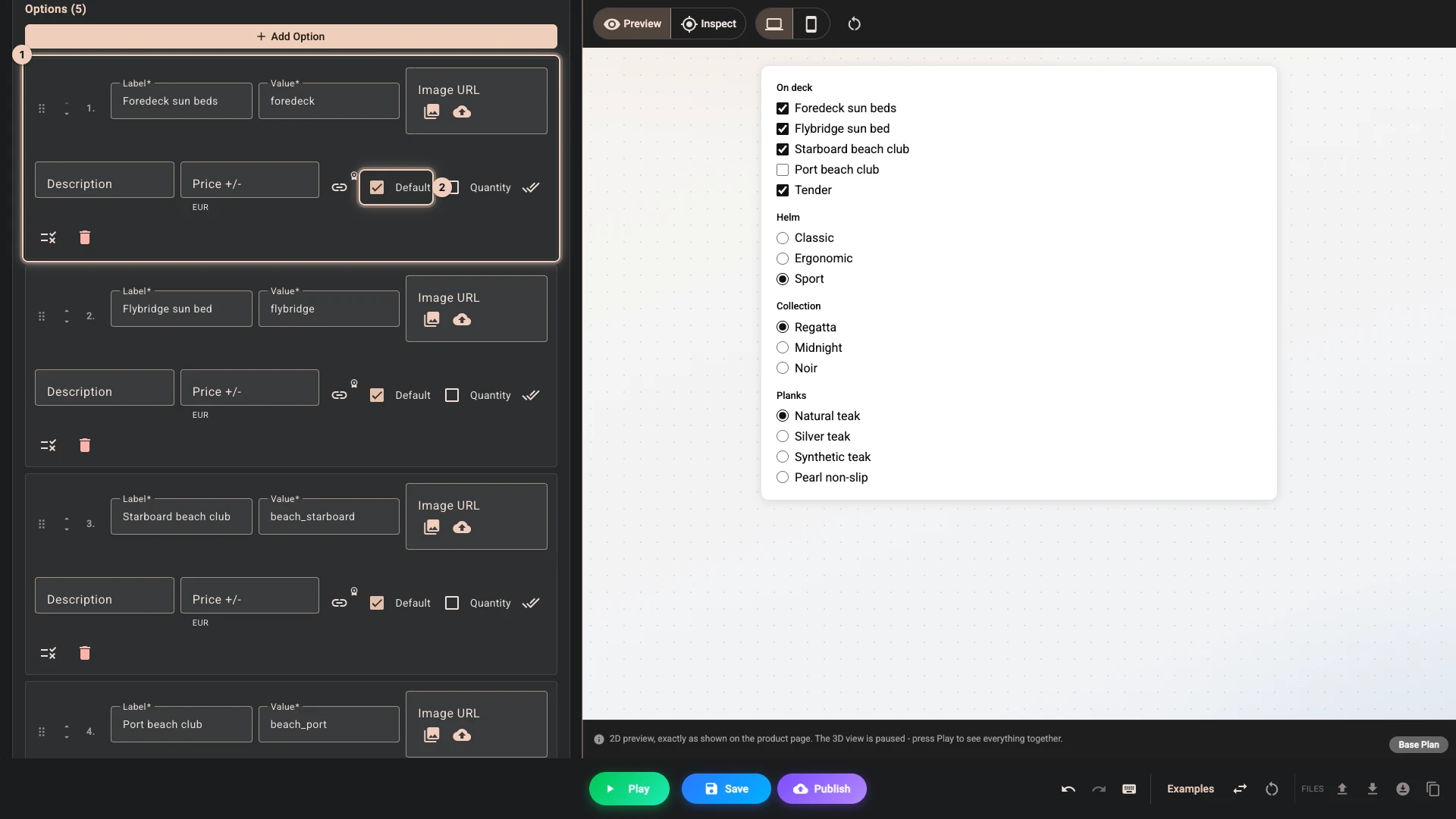
-
Back in Nodes, give each deck group one match. A checkbox control offers each of its options as a name of its own, so
Option - Foredeck sun bedstakes On deck - Foredeck sun beds, Checked. Do the same forOption - Flybridge sun bed,Option - Beach club, starboard,Option - Beach club, portandOption - Tender. The tender's helm needs two matches, as it rides on the tender and follows the Helm control:Option - Tender helm, classictakes On deck - Tender, Checked 1 and Helm, Classic 2, and the ergonomic and sport groups follow.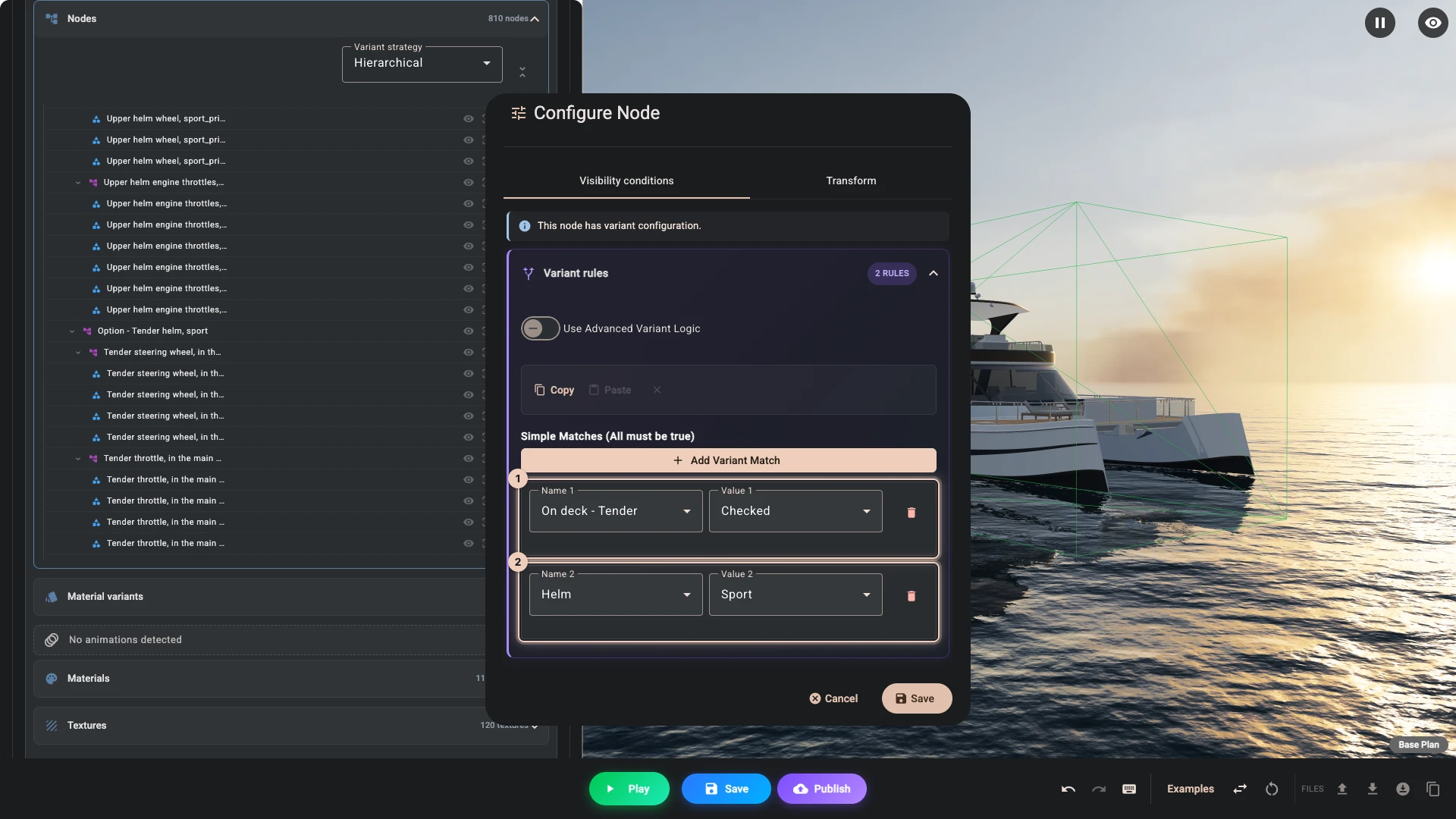
-
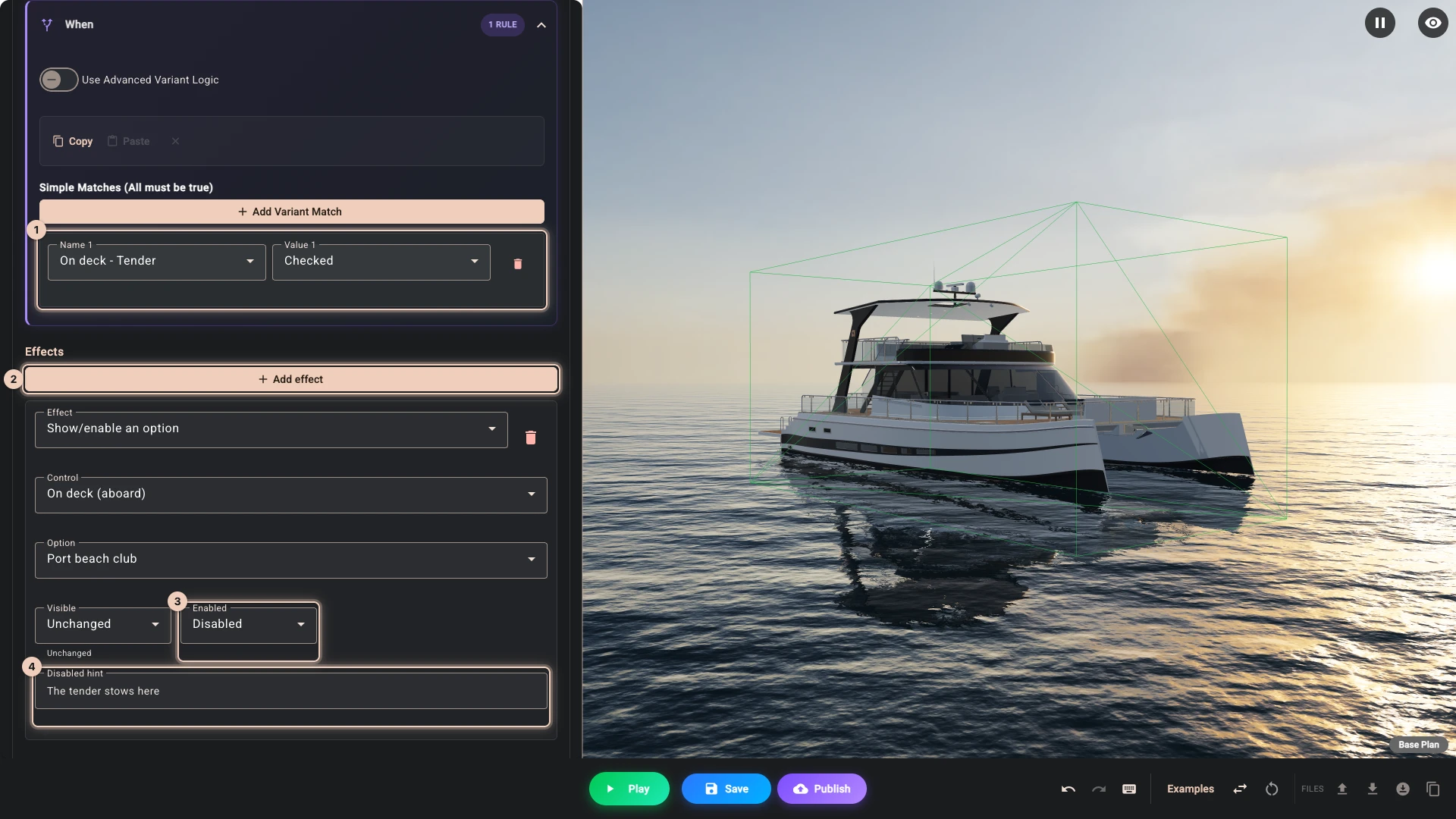
The tender and the port loungers stand on the same part of the deck. Open Logic, press Add rule and set Rule name to The tender takes the port side. Leave Trigger on While matching. Open When and add a match 1: On deck - Tender, Checked. Press Add effect 2, set Effect to Show/enable an option, Control to On deck, Option to Port beach club and Enabled to Disabled 3, and write The tender stows here in Disabled hint 4.
-
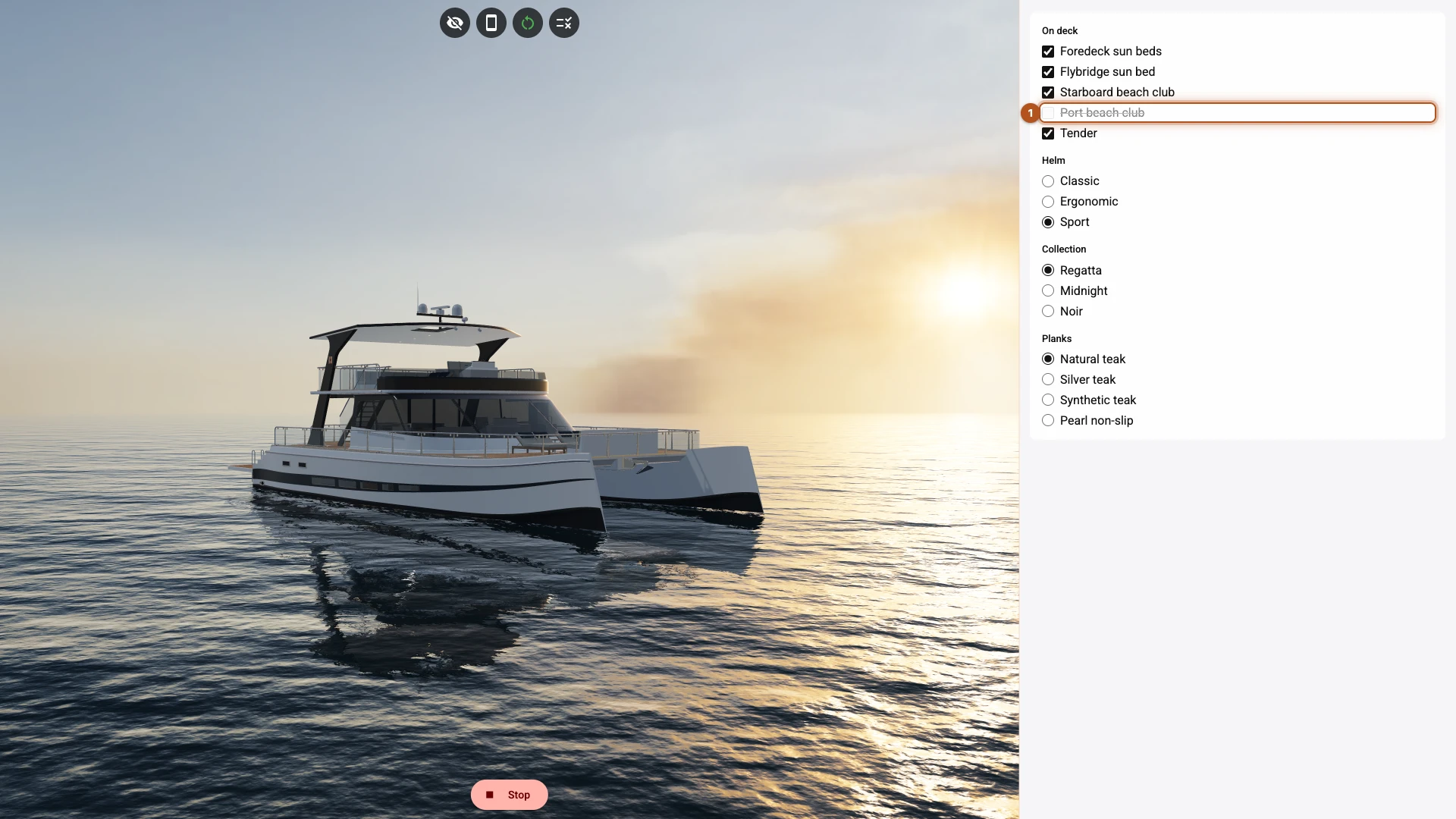
Press Play. One helm stands at each station, and Port beach club 1 is greyed out because Tender is ticked.
-
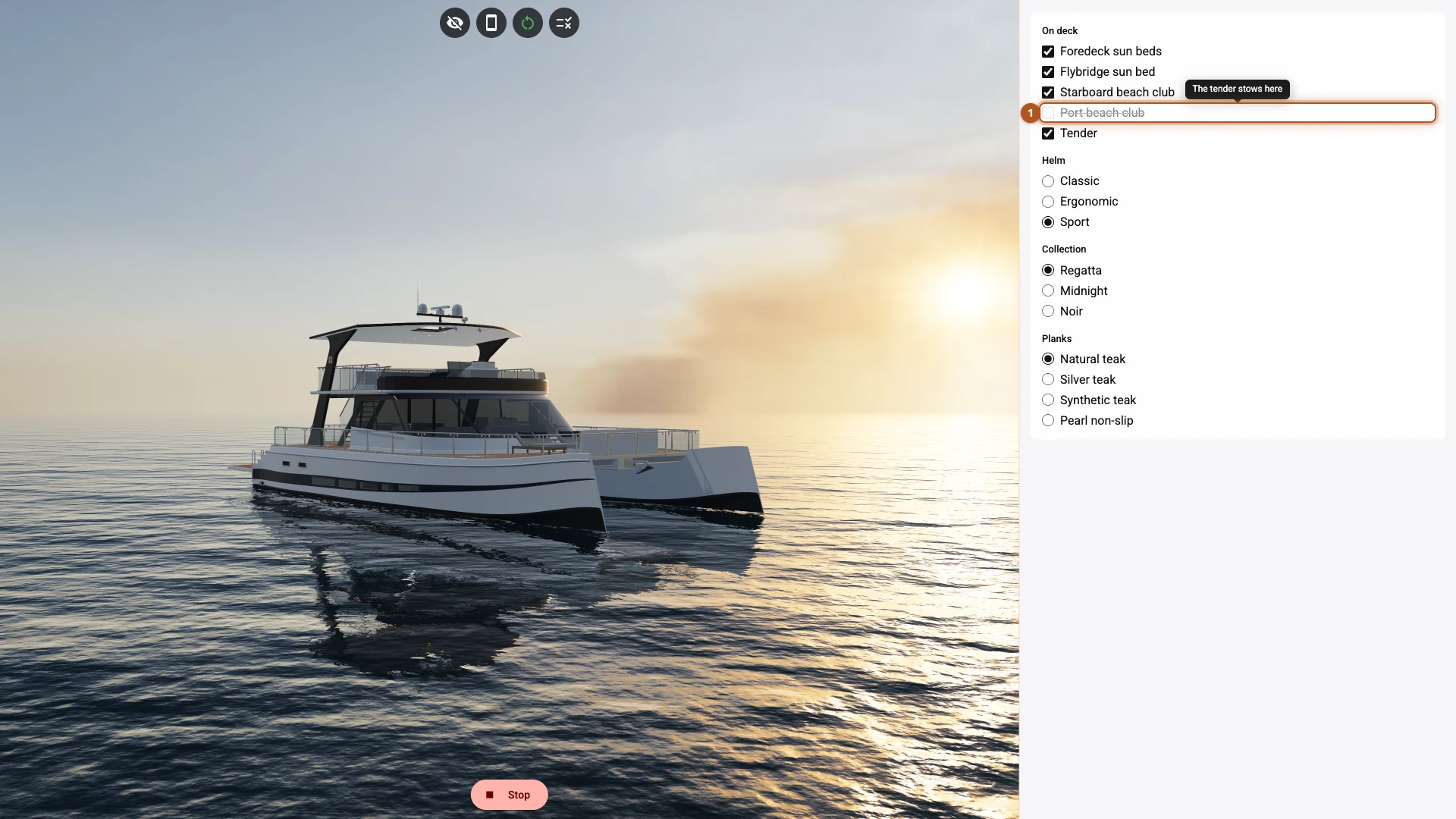
Point at Port beach club 1. The hint says why it cannot be picked.
-
Pick Classic. The wheel and the levers change together, as the whole group is one part.
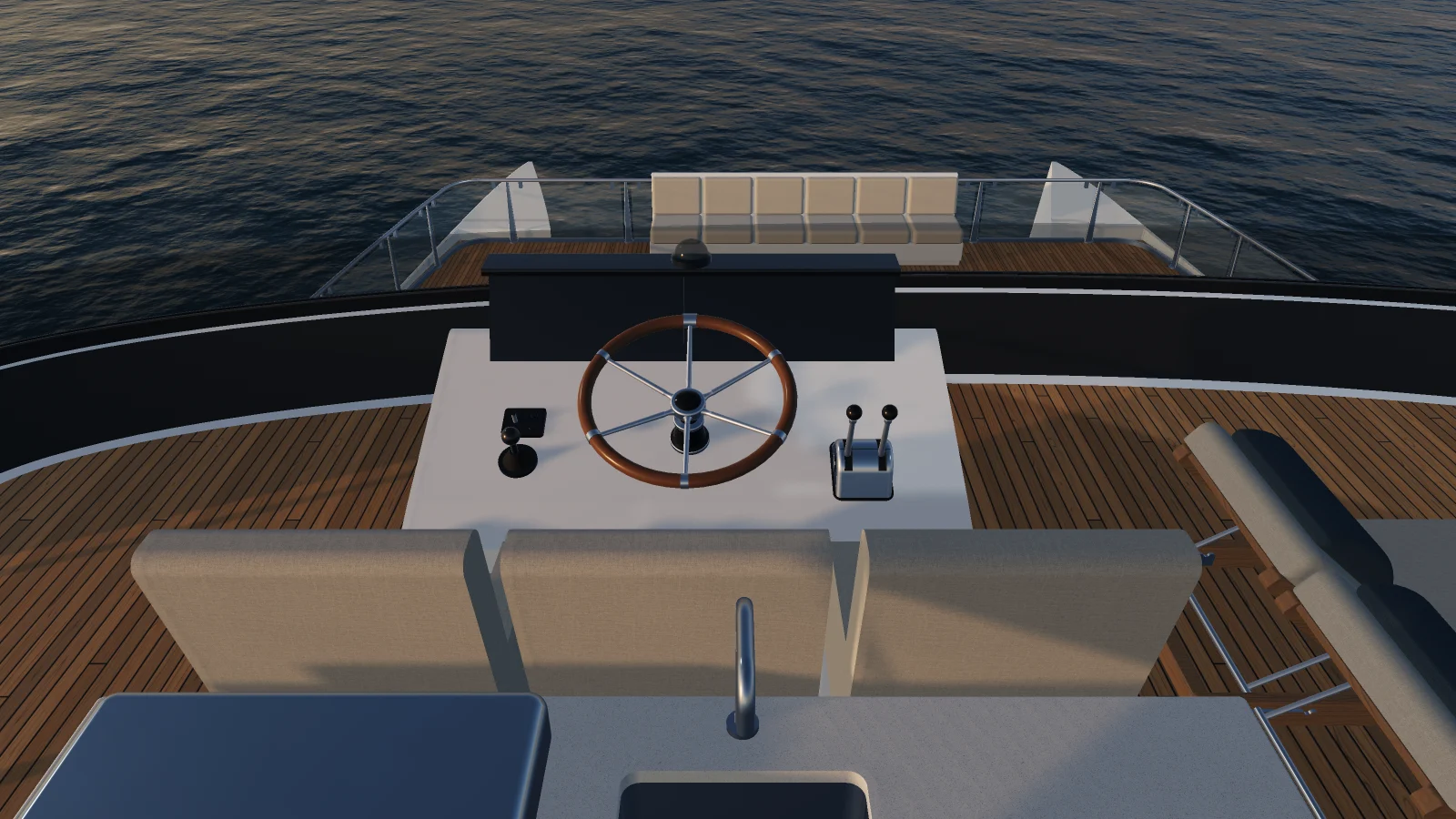
-
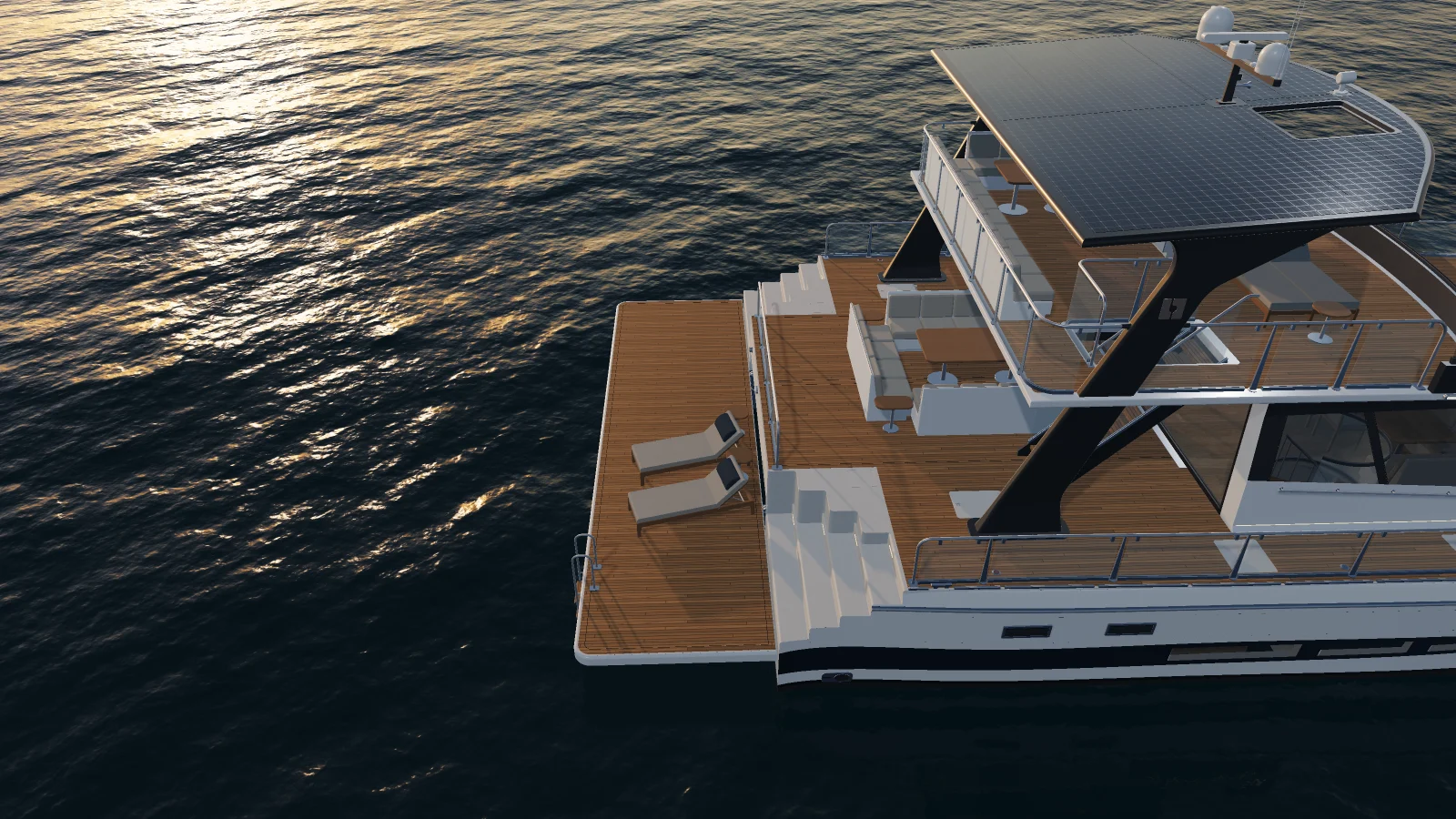
Drag the view round to the stern, as the opening view looks at the bow. Untick Tender. The tender and its helm leave the swim platform, and Port beach club can be picked again.
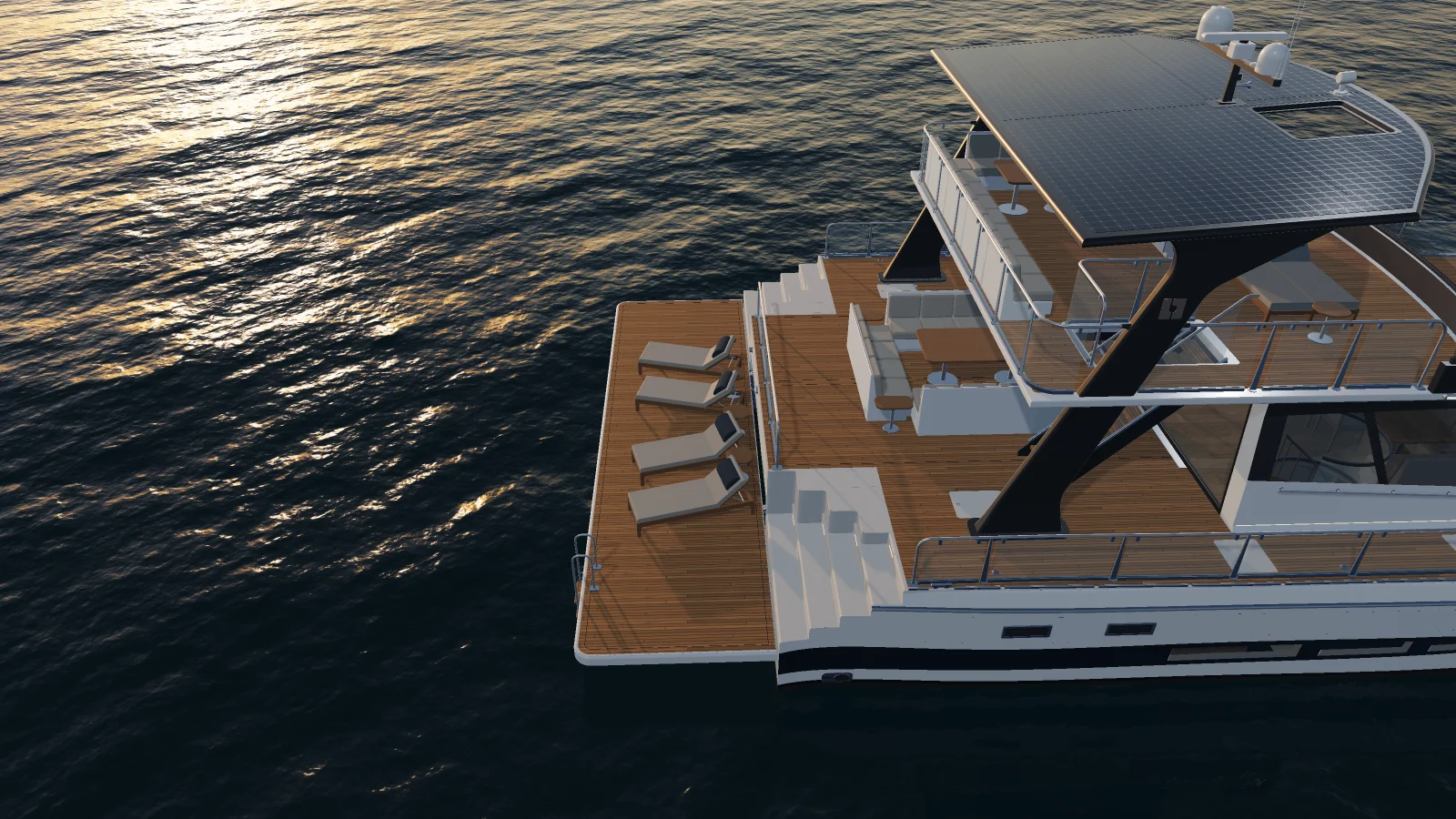
- Tick Port beach club. Its loungers stand where the tender was.
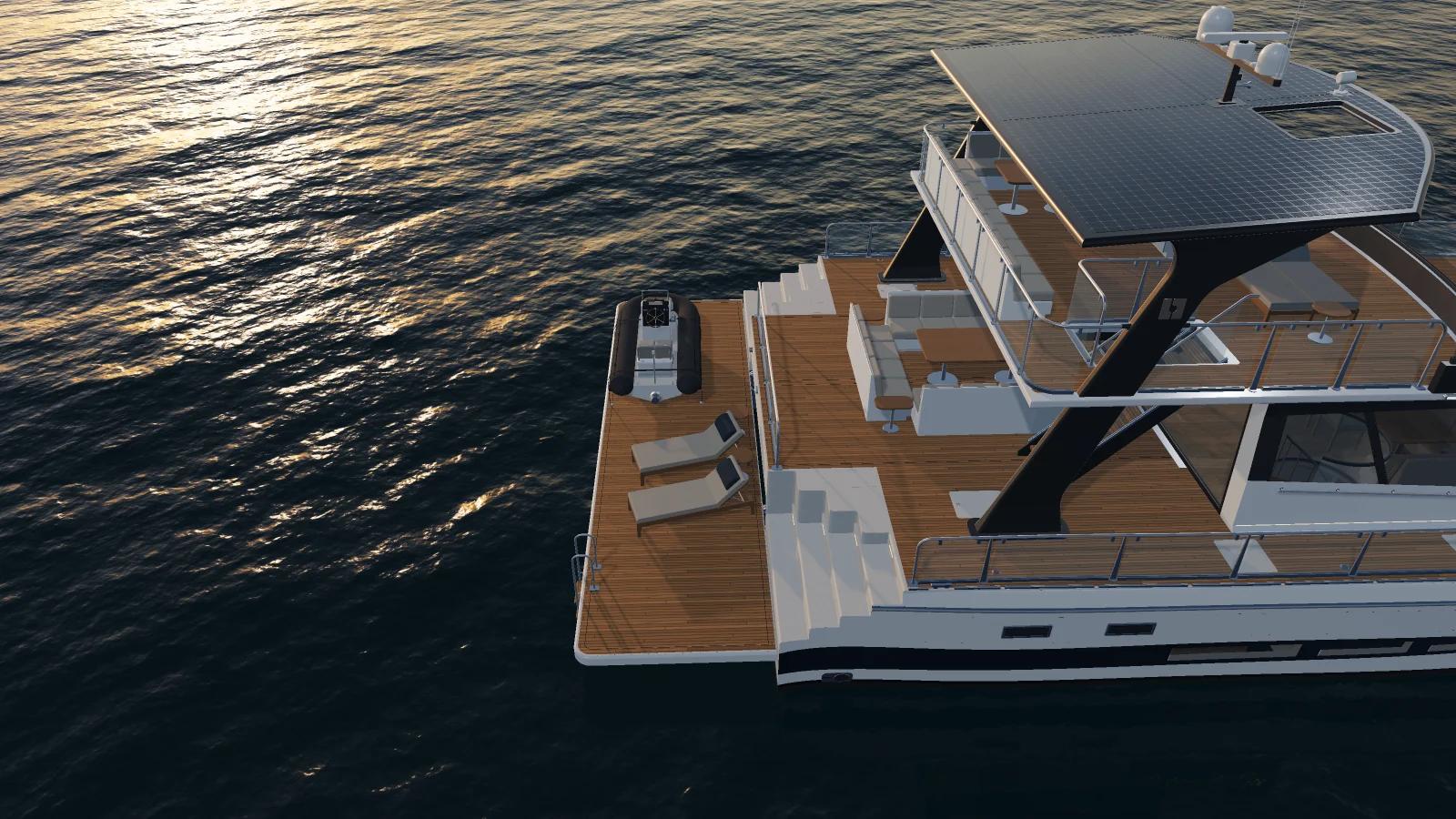
- Tick Tender again. The rule unticks Port beach club and greys it out, so the two never share the deck.
What you just did
A part with no condition always shows. That is why the helms overlapped, and why every option in the file needs a condition before the boat looks right.
A condition on a group covers everything inside it. The wheel and the levers are several parts, and they sit in one Option - ... group. If you prepare your own model, group the parts of each option the same way.
Every match on a part must hold. That is how the tender's helm follows two controls. For either-or conditions, switch on Use Advanced Variant Logic.
A condition reaches the boat. A rule can reach the panel too. Two matches on Option - Beach club, port could have hidden the loungers under the tender, but the panel would still say they were ticked. The rule greys the option out, unticks it and says why. A While matching rule lasts as long as its condition holds, and lets go on its own.
Logic explains the triggers and everything else a rule can do.
Next
Three sizes adds the 15 m and 25 m boats.
Verified against the product in November 2026