The Panel
So far the panel is a plain list. Here it becomes something a shopper enjoys: pictures for what they have to see, swatches for colours, pills for short choices, then sections, a theme and a layout that works on a phone. Everything in this chapter works on the Base plan.
The cards use the .jpg pictures from the download. Each option's Image URL has an upload button, which puts the picture in your Assets and fills in its address.
Starting here? On Composer's start screen press Have a saved configuration? Load a scene config or project file (.json) and pick this file. It holds everything the earlier chapters built.
Download the file this chapter starts from (32 KB)-
Open GUI and the Planks control. Set Option display 1 to Cards - roomy tiles with an image and Card shape 2 to Wide (16:9). On each option press the upload button in Image URL 3, pick its picture and write a line in Description 4:
planks-natural-teak.jpgWarm, oiled planks,planks-silver-teak.jpgWeathered to a soft grey,planks-synthetic-teak.jpgNo oiling, ever, andplanks-pearl-non-slip.jpgMoulded, easy to rinse.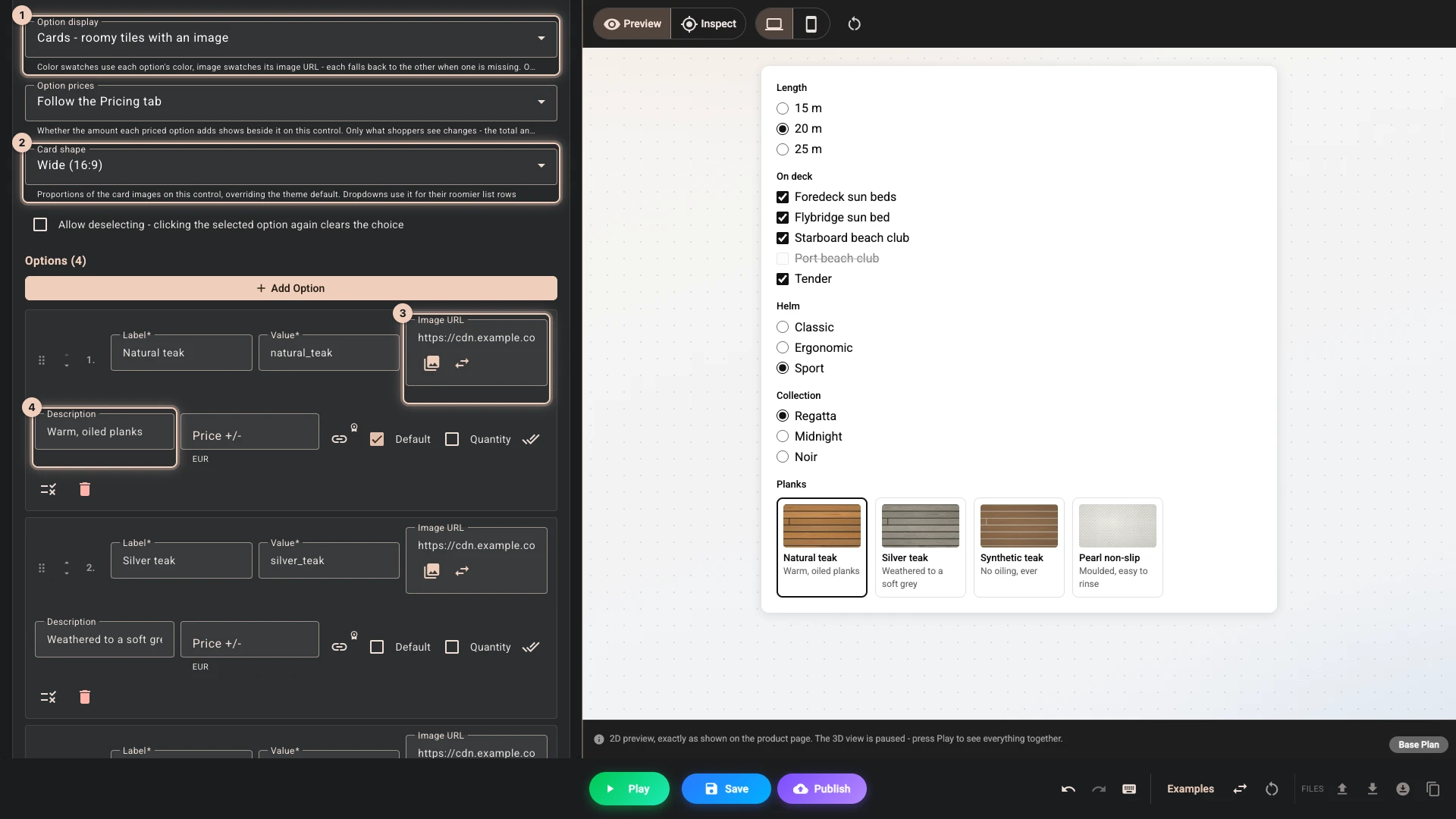
-
Do the same for Helm:
helm-classic.jpgTeak wheel, chrome levers,helm-ergonomic.jpgLeather wheel, black grips, andhelm-sport.jpgCarbon wheel, billet paddles. -
And for On deck 1:
deck-foredeck.jpgDouble beds ahead of the saloon,deck-flybridge.jpgUnder the sunroof,deck-beach-starboard.jpganddeck-beach-port.jpgLoungers on the swim platform, anddeck-tender.jpgA small boat for going ashore.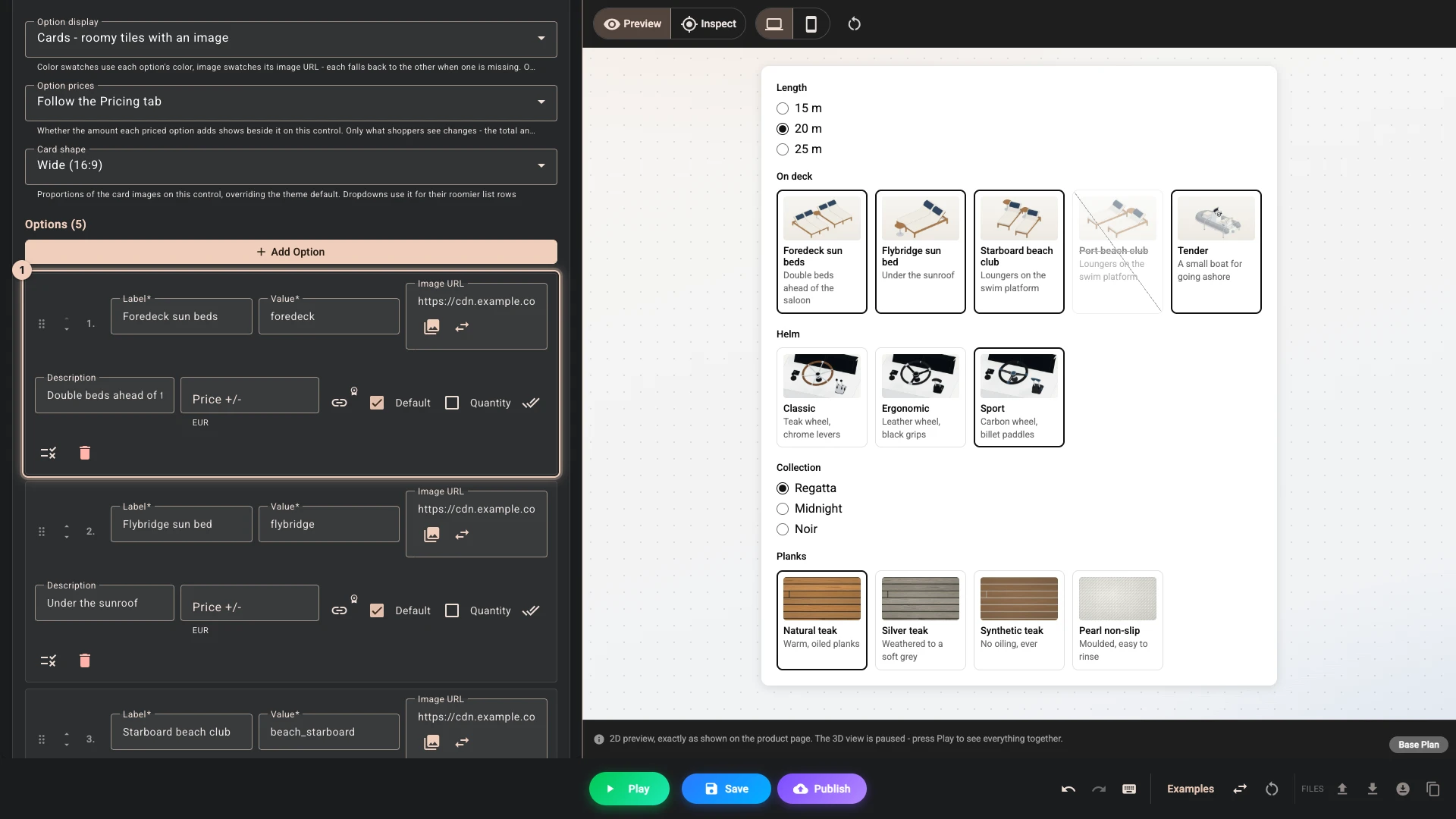
-
Collection is a colour, so it needs no picture. Set its Option display 1 to Color swatches and give each option the hull's colour in Swatch 2: Regatta
#f3f3f0, Midnight#1a2c4eand Noir#121316.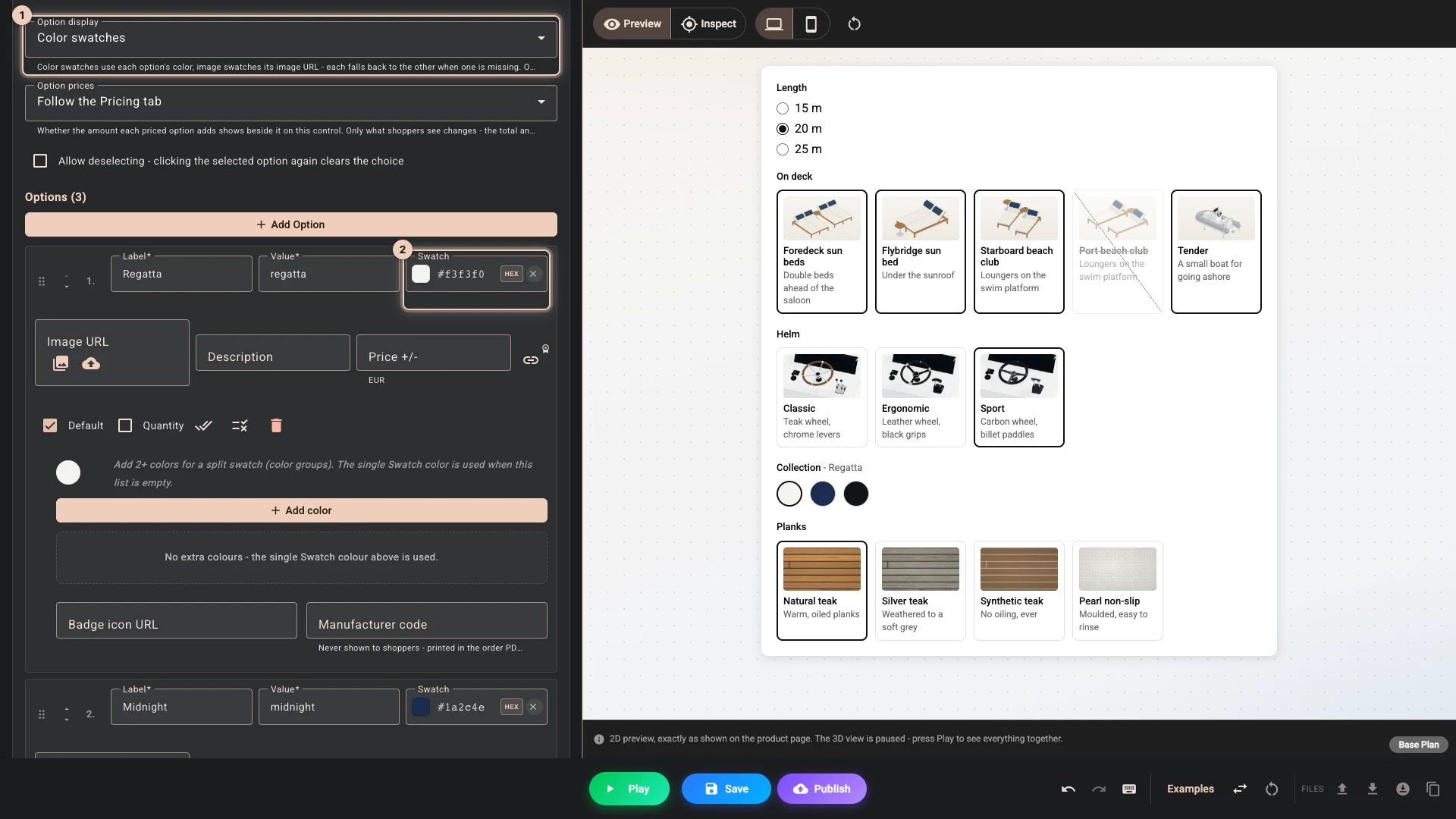
-
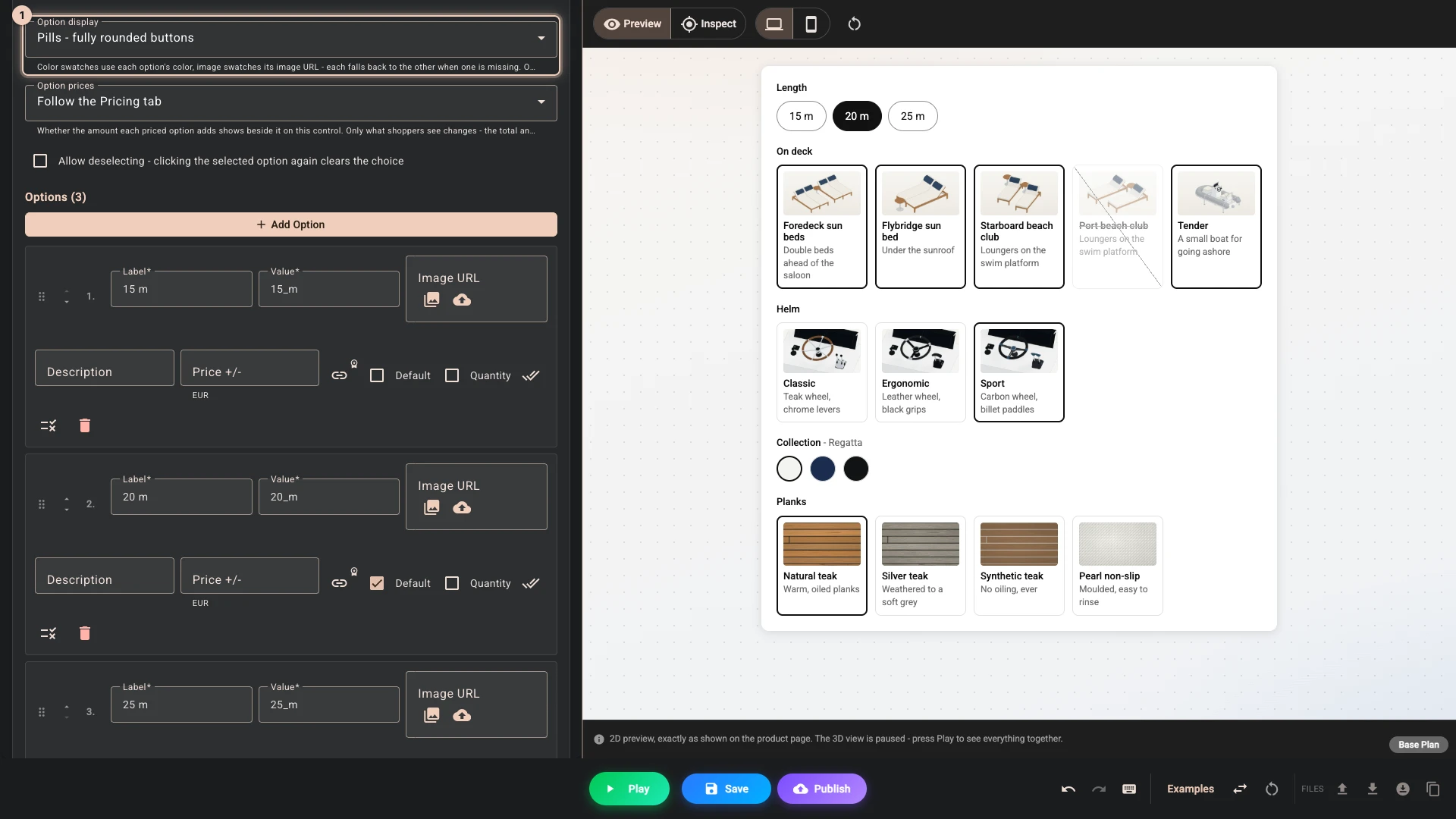
Three short words suit pills. Set Length's Option display 1 to Pills - fully rounded buttons.
-
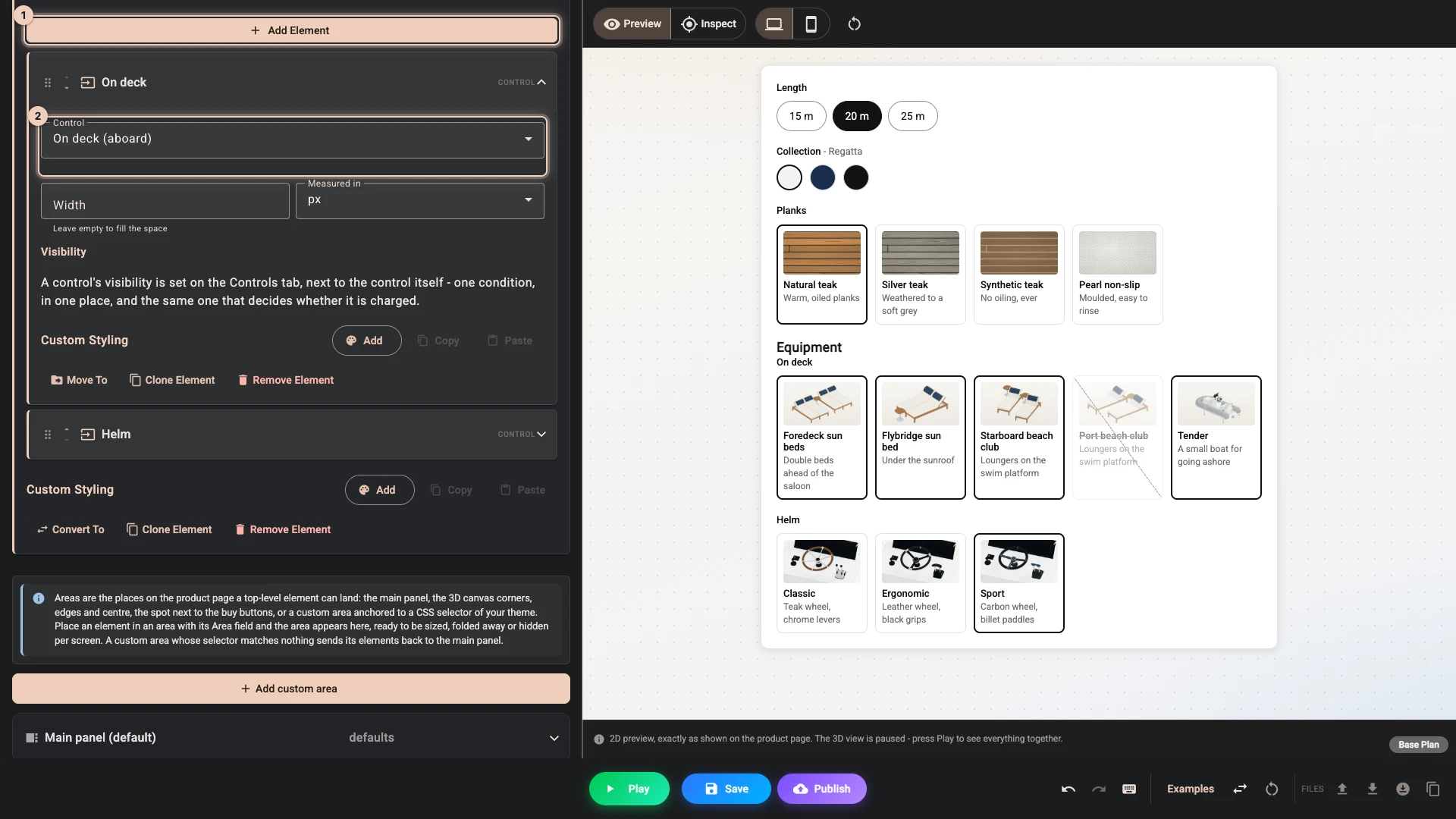
Open Layout. Press Add Element, pick Section and set Title to Equipment. Inside it press Add Element 1, pick Control and set Control to Helm. Add a second Control for On deck 2, which lands above Helm, as a new element lands at the top of its list.
-
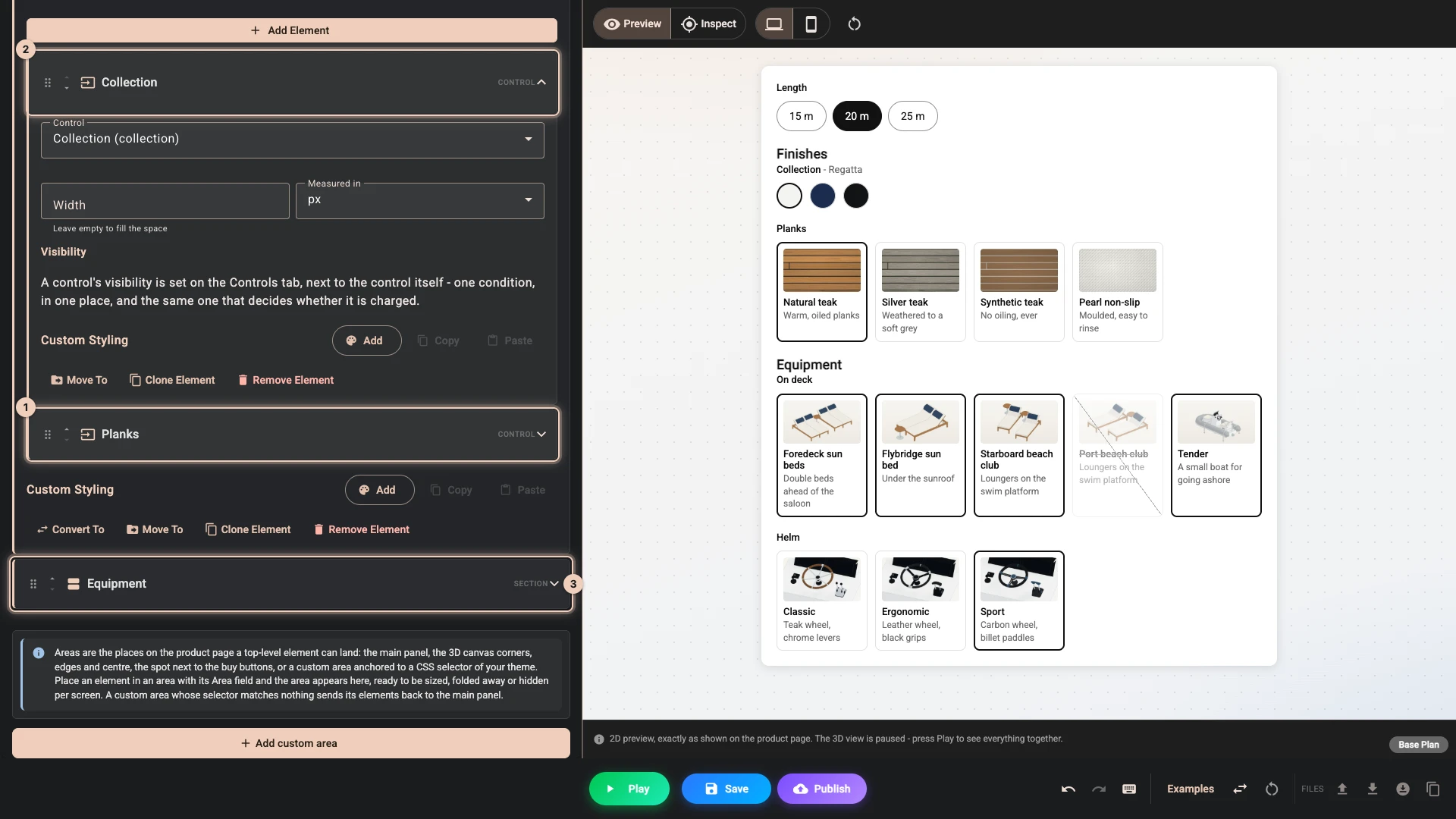
Add a second Section the same way, called Finishes, with Planks 1 and then Collection 2 in it. It lands above Equipment 3.
-
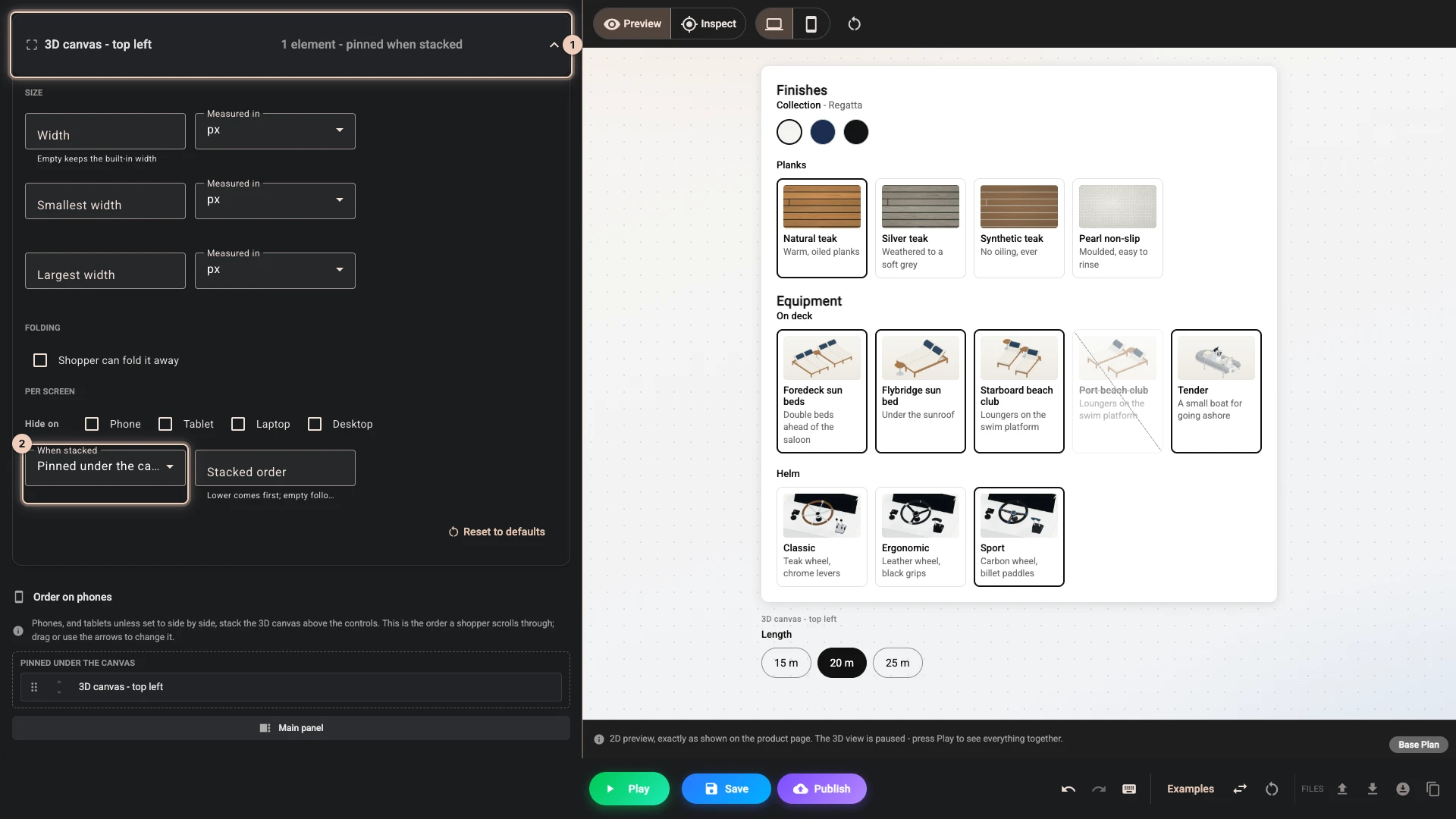
Length is the first choice a shopper makes, so it goes on the boat's picture. Press Add Element once more, pick Control, set Control to Length and Area to 3D canvas - top left. Under the elements a row for that area appears 1. Open it, press Configure and set When stacked 2 to Pinned under the canvas.
-
Open Style and press Create Theme. Press the preset Elegant. Under Area cards set Card color to
#ffffff, Card padding to 10 and Corner radius to 8, which gives Length a card of its own. Under Option cards set Card width 1 to 165, and press Save 2.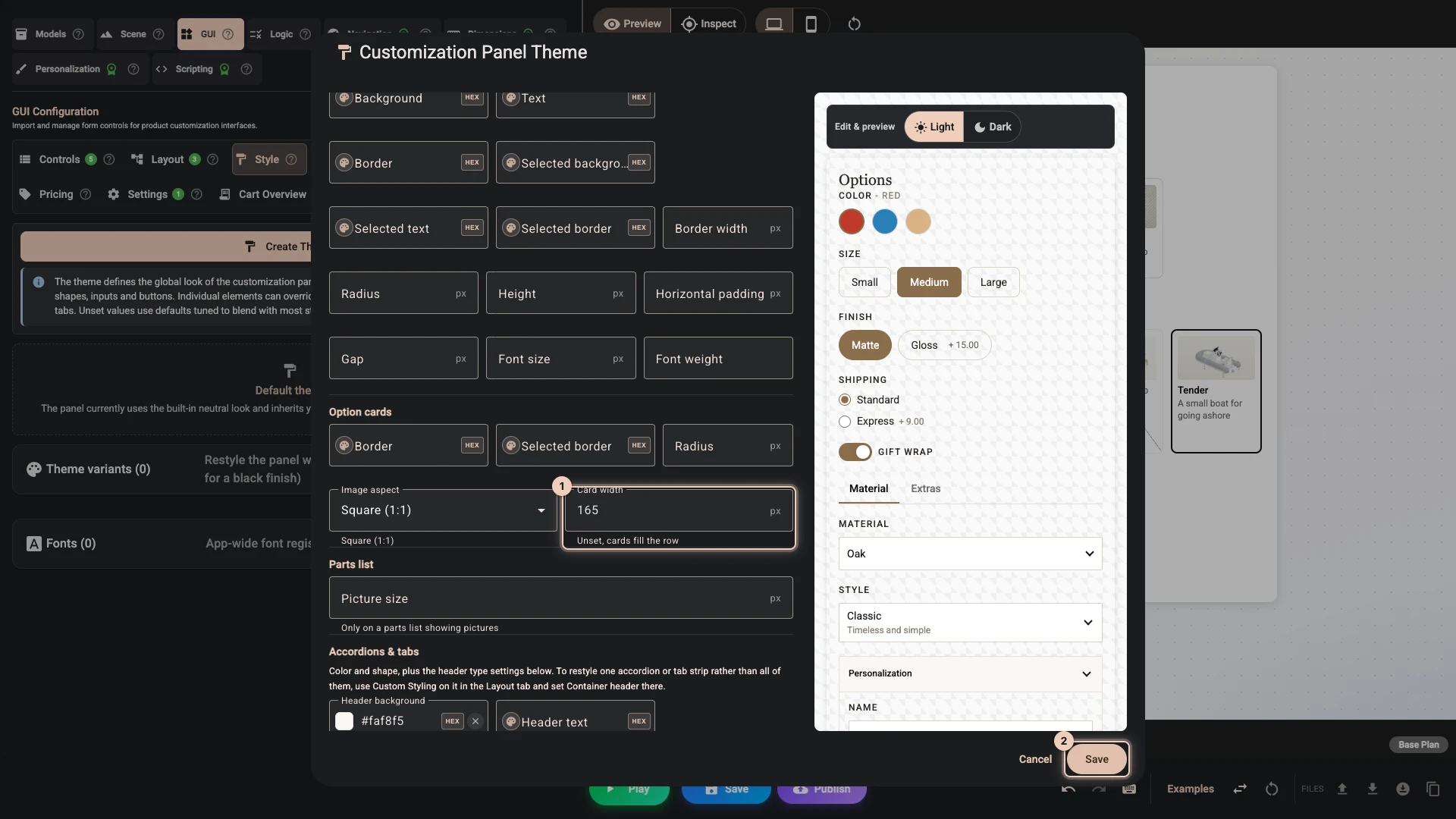
-
Press Play. Length 1 sits on the view, and the two sections fill the panel with pictures.
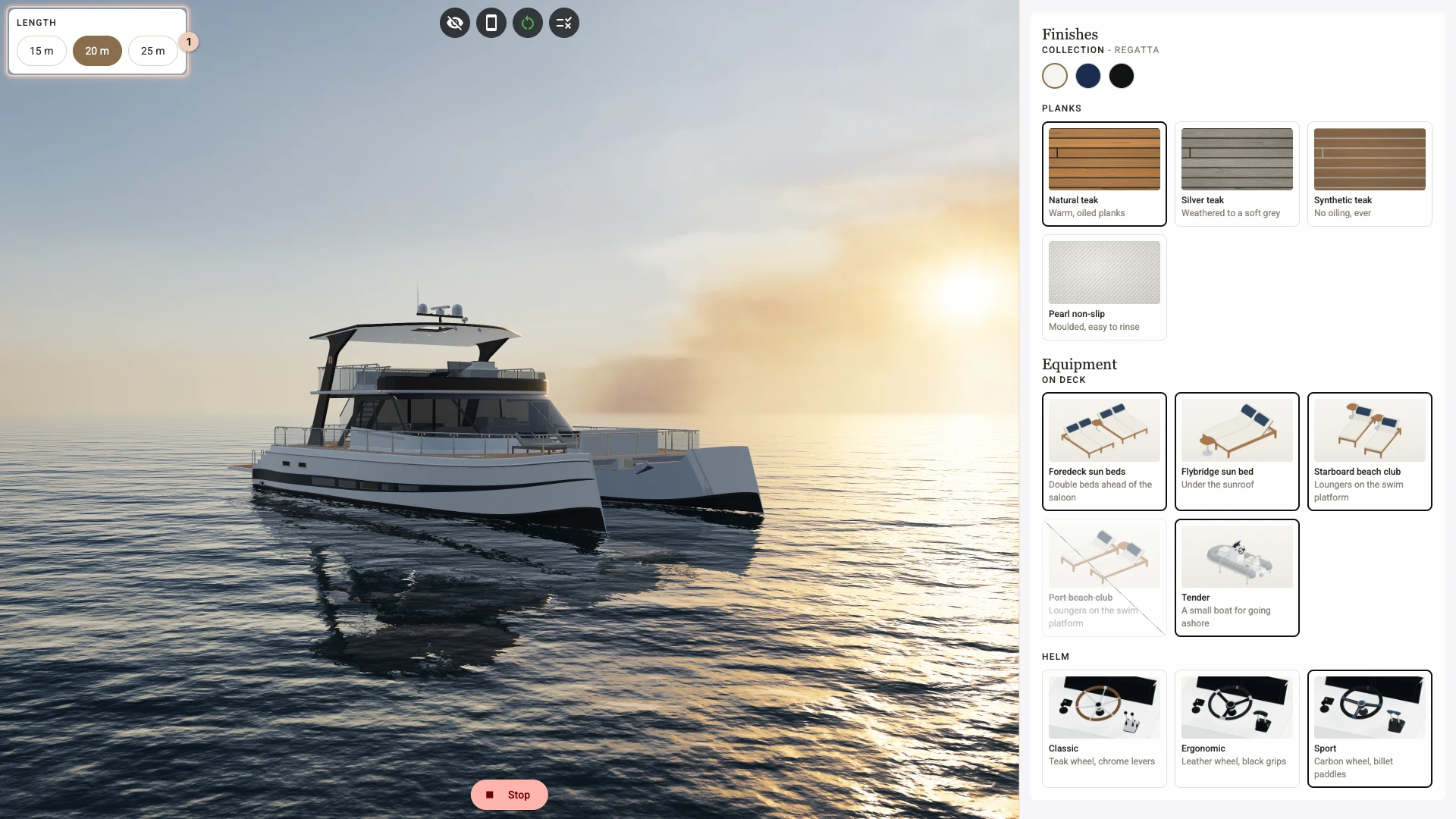
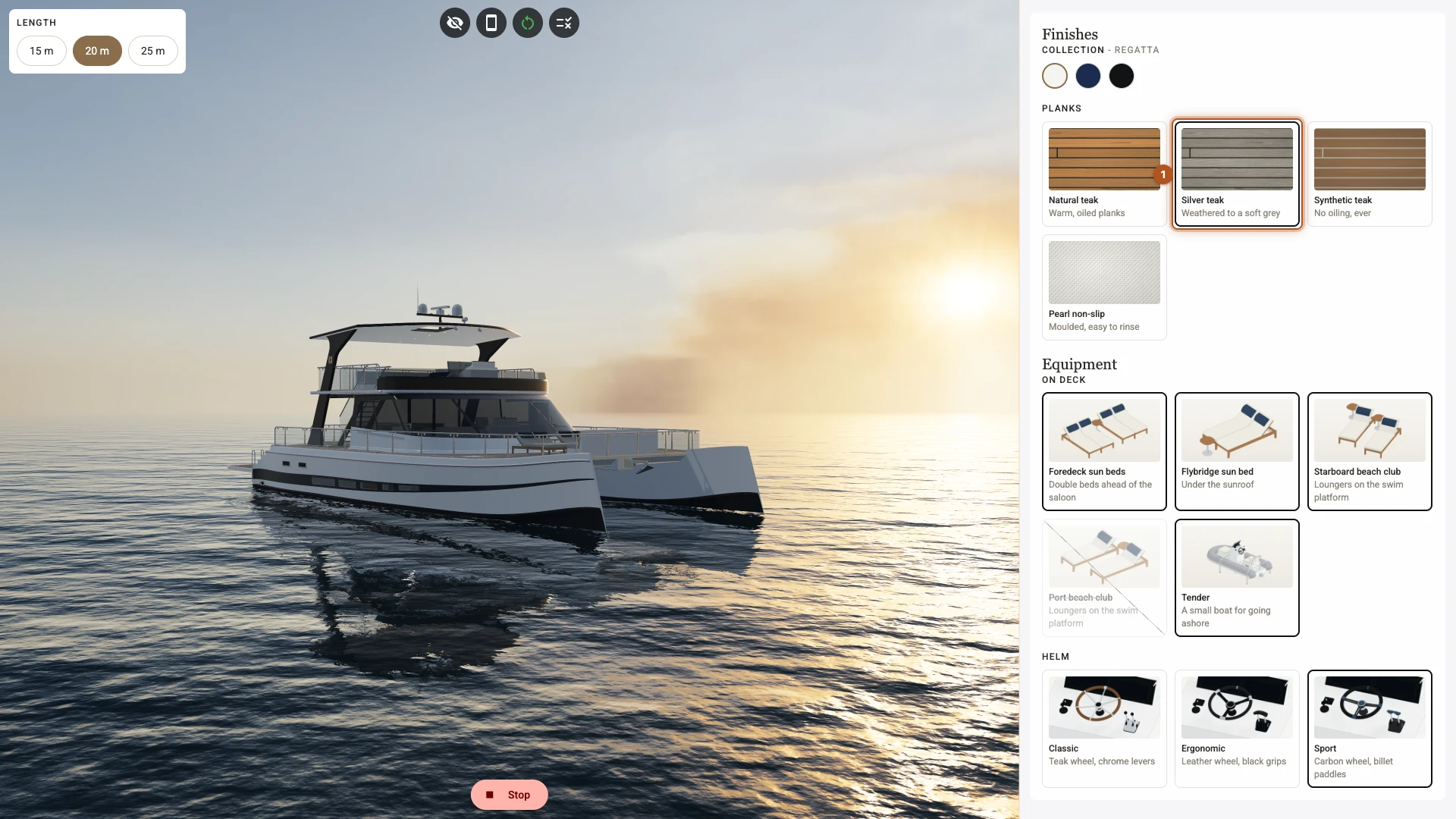
- Pick Silver teak 1. The dark outline moves to its card, and the deck changes as it did before.
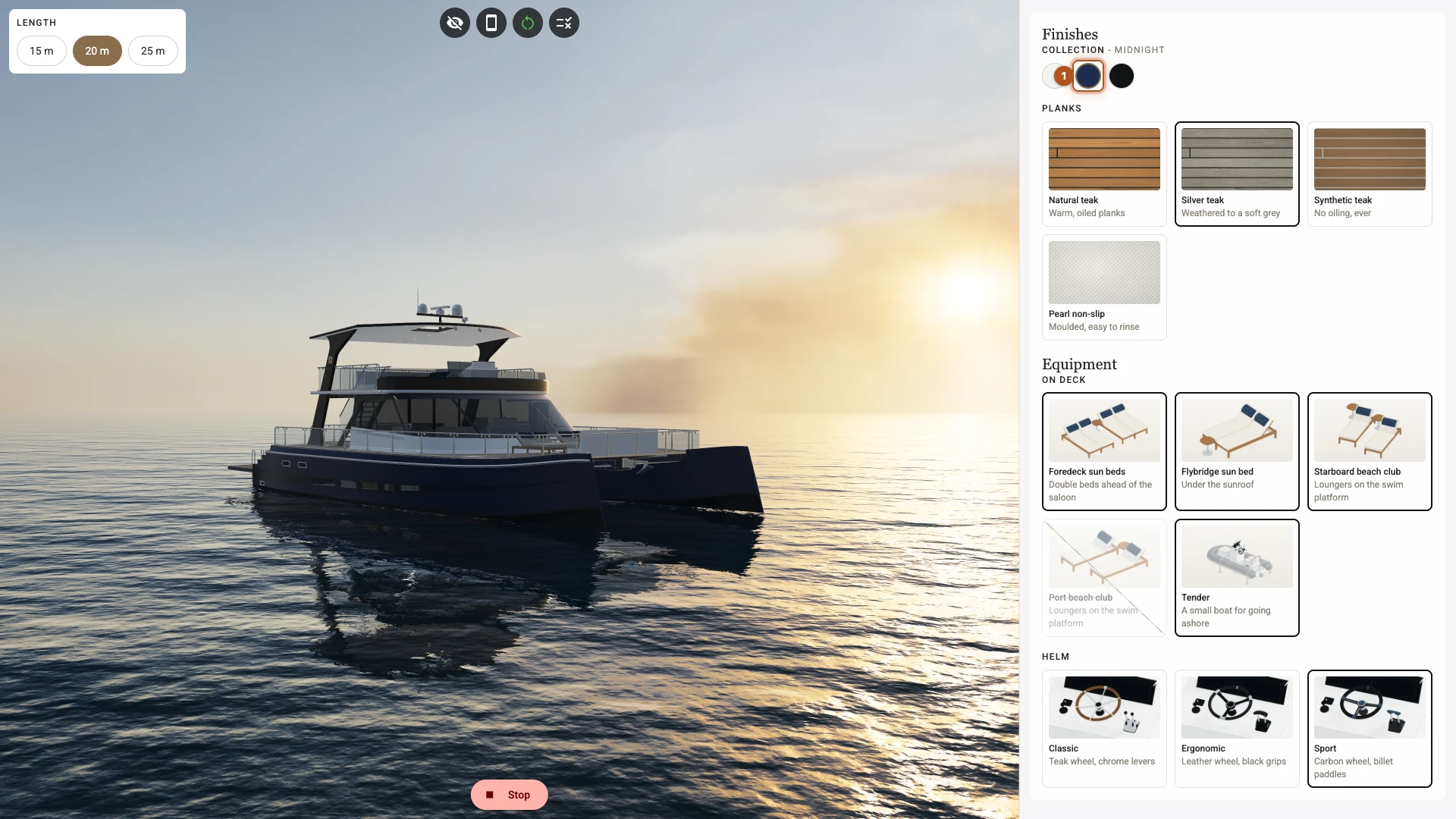
- Pick the Midnight swatch 1. Its name appears beside the label, as a swatch has no room for words.
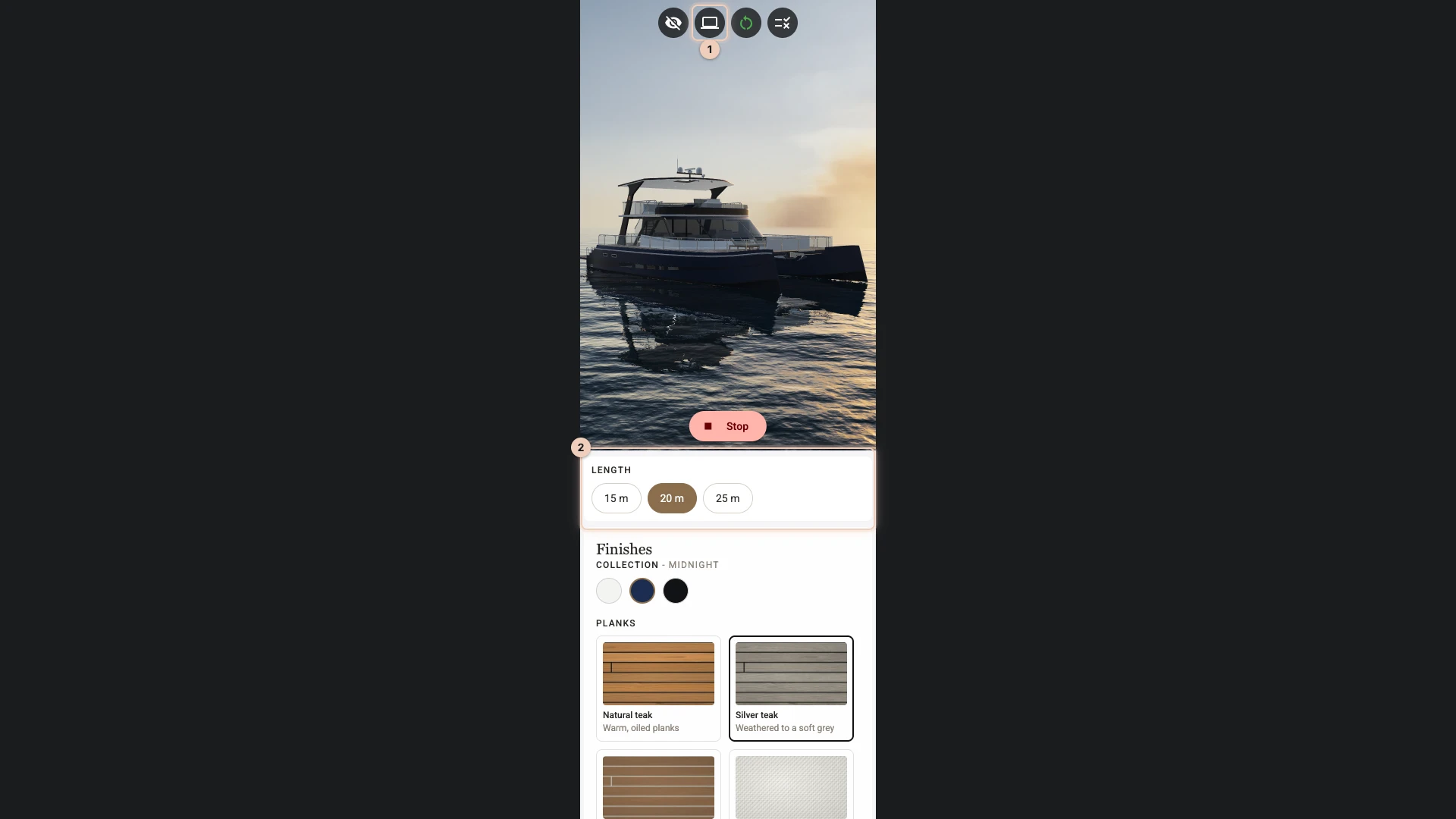
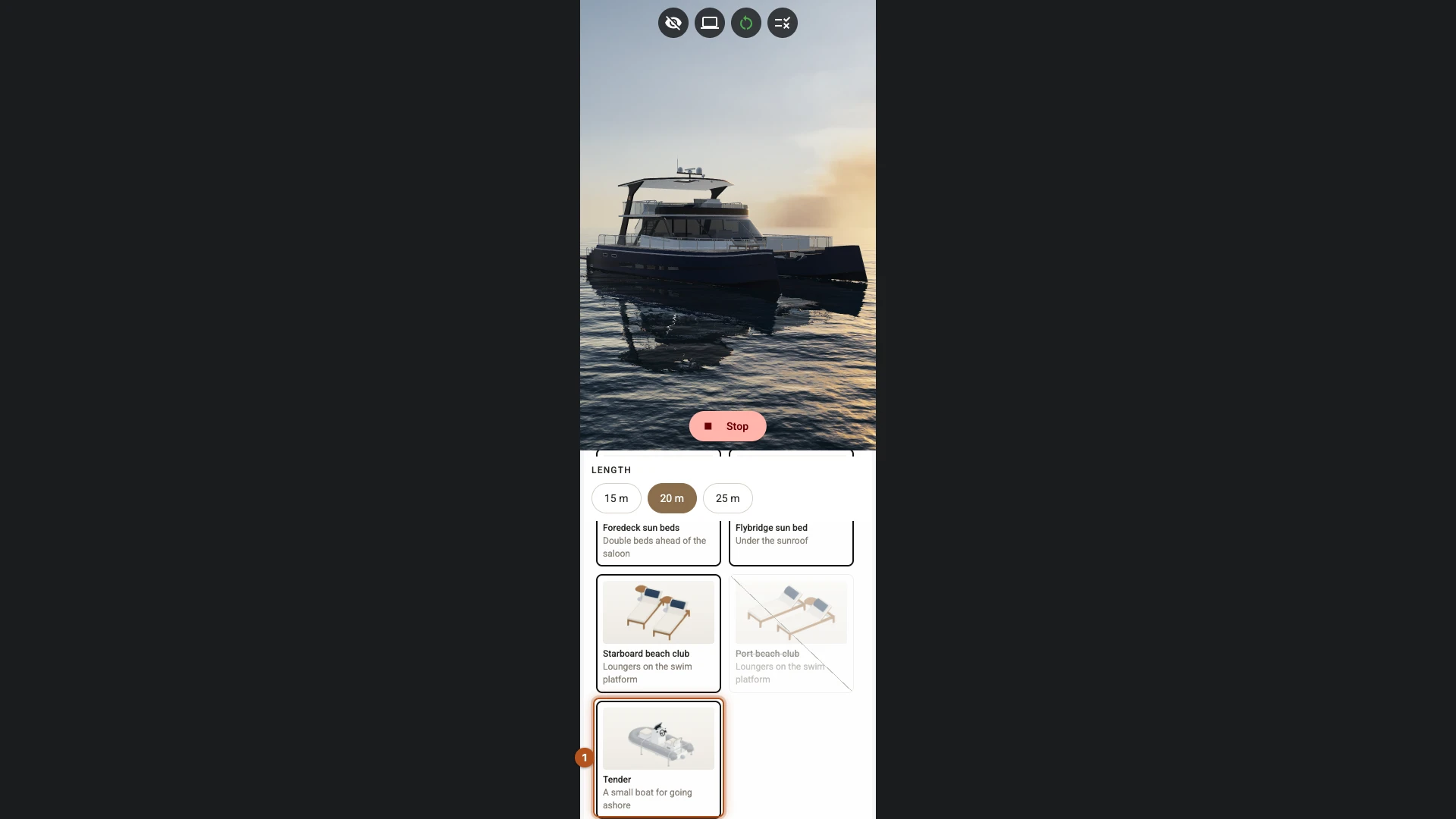
- Press the phone button at the top of the view 1. The view takes the top of the screen and the panel runs below it. Length has moved under the view 2.
- Scroll the panel down to Tender 1. The boat and Length stay where they are.
What you just did
A display changes the look of a choice and nothing else. The values stay as they were, so every rule from the earlier chapters still works. Pick the display by what the shopper has to judge: a picture for a thing, a colour for a colour, a short word for a size.
A card takes its picture from an address. The file is not part of the scene, and the panel loads it from where it is hosted. The pictures here are drawn from the boat itself, which keeps them honest: what a card shows is what the boat gets.
A control you have not placed still shows. It sits at the top of the panel, which is where Length stayed until you gave it a place.
A section groups and does nothing more. Conditions stay on the controls, so a control behaves the same inside a section as outside one. Only an element at the top of the list has an Area.
A preset fills the whole theme. Pressing one clears what the dialog held, so press it first and change things afterwards. Card width is the width of a column, and the cards take as many columns as fit: three in the wide pane here, two on a phone, and fewer in any narrower panel.
Canvas areas move on a phone. A phone puts the view on top and the panel under it. Left alone, a corner of the view moves below the panel, so Length would sit under the last card. Pinned under the canvas keeps it in reach while the shopper scrolls. It stays pinned in the app's Split layout; in the Inline layout it sits above the controls. Order on phones sets the order when several areas stack up.
The phone preview is a guide. It is 390 pixels wide with the view on 55% of the height. On a real phone the app's display settings decide how tall the view stands, as Canvas sizing explains.
One opening view serves every screen. A narrow view shows less across, so a phone sees less water round the boat than a computer does.
Layout lists every element and area, and Style and translations every part of a theme.
Next
Show it off lets a shopper change the scene, moves the camera with their choices and puts a name on the hull.
Verified against the product in November 2026