Uploading Cloud Assets to Your Projects
Introduction
In this tutorial, we'll explain how to upload two cloud assets to your Bitbybit project, making them available for use in any of the scripts within that project.
For this exercise, feel free to download these sample asset files:
- BoomBox.glb (Click to download)
- CalmCup.step (Click to download)
We'll use these two different asset types (a .glb glTF file and a .step CAD file) to illustrate the process and highlight that various formats can be managed as cloud assets.
Before We Start: Project Setup
You'll first need to either:
- Create a new project kept in the cloud, or
- Use an existing cloud project.
If you're unsure how to create a project, please refer to our Create a New Project tutorial. The type of script you choose initially (Blockly, Rete, or TypeScript) doesn't matter for the asset uploading process, as cloud assets are linked to the project itself. We'll provide examples later on how to use these uploaded assets in different script types.
How to Upload a Cloud Asset
Cloud assets belong to a project, so you add them where the project's scripts are listed: on My Projects, or, while a script is open in an editor, in the projects list that its title opens.
-
Open the project. On My Projects, choose the project on the left. Below its scripts is Files, with the number of files the project holds and, under it, how many files your plan keeps in a project and how much of your cloud storage is used.
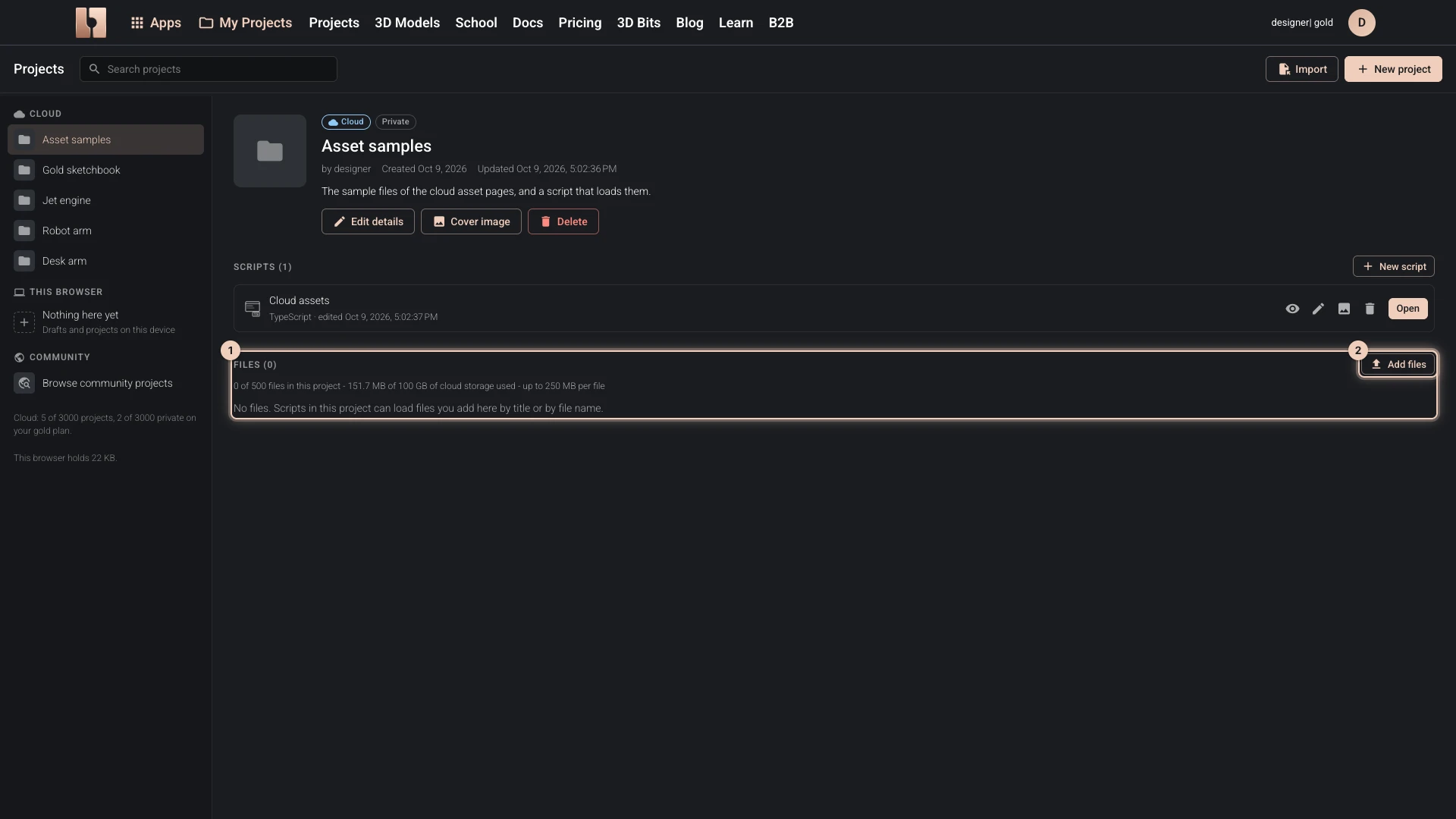
From an editor, click the script's title at the top: the same projects list opens over the editor, where you choose the project the same way.
-
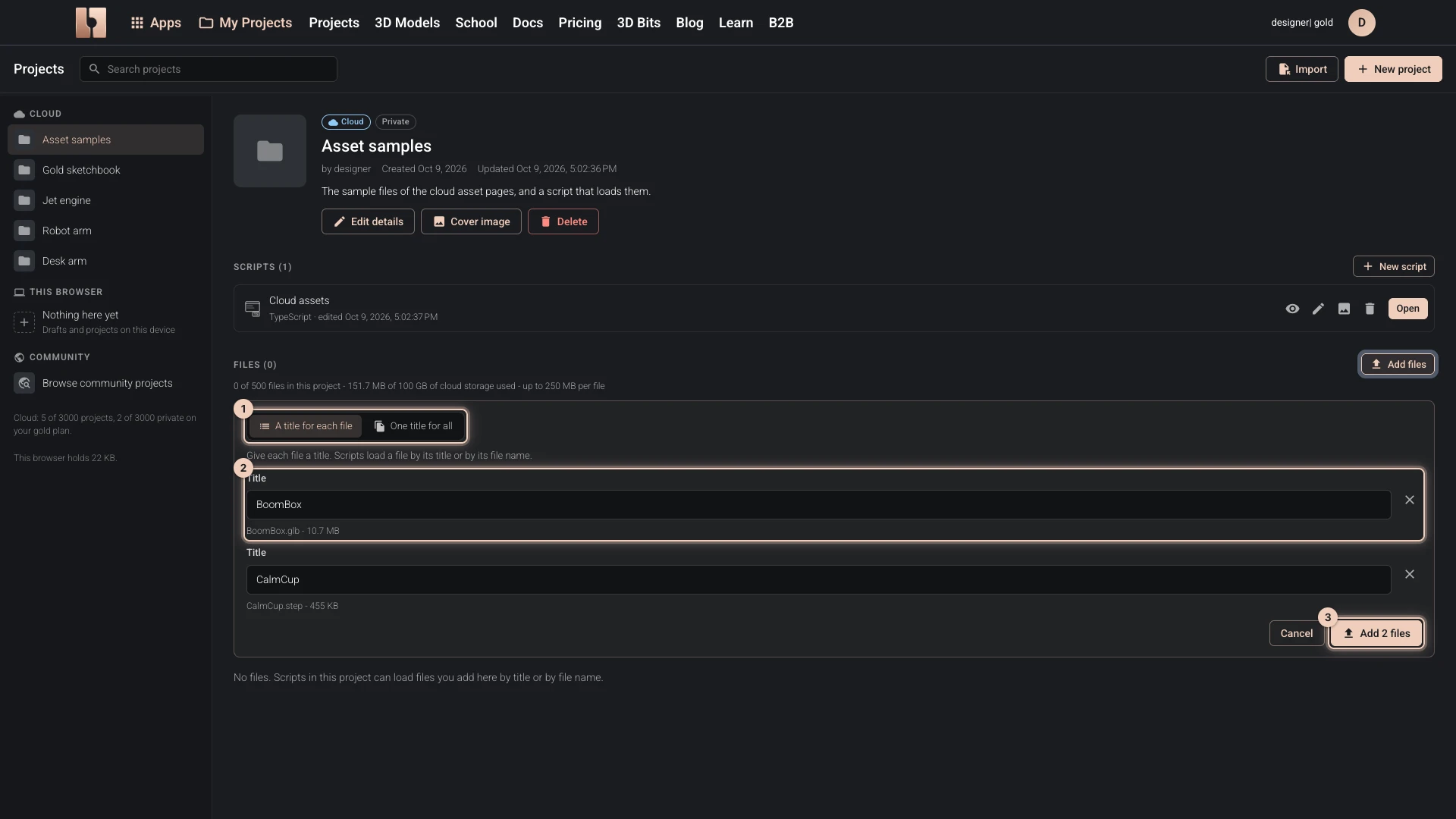
Choose the files. Click Add files and pick
BoomBox.glbandCalmCup.stepwhere you saved them. You can pick several files at once. -
Give them titles. Each file gets a title, which starts as its file name without the extension: BoomBox and CalmCup here. Scripts load a file by its title or by its file name.
- With several files, A title for each file keeps them apart; leave it chosen for this exercise.
- One title for all puts them under one title instead: the get local file component then loads them together as a list, such as the files of a glTF model with its textures, and each can still be loaded alone by its file name. A title that a file of the project already has joins that file the same way, and the form says so under the title.
- A title cannot be the name of another file, and a file name can be in the project only once.
- Leave this file out takes a file off before anything is uploaded.
-
Upload. Click Add 2 files, the button that counts the files you chose. The files upload to the project, and the list shows each one under its title, with its file name and size.
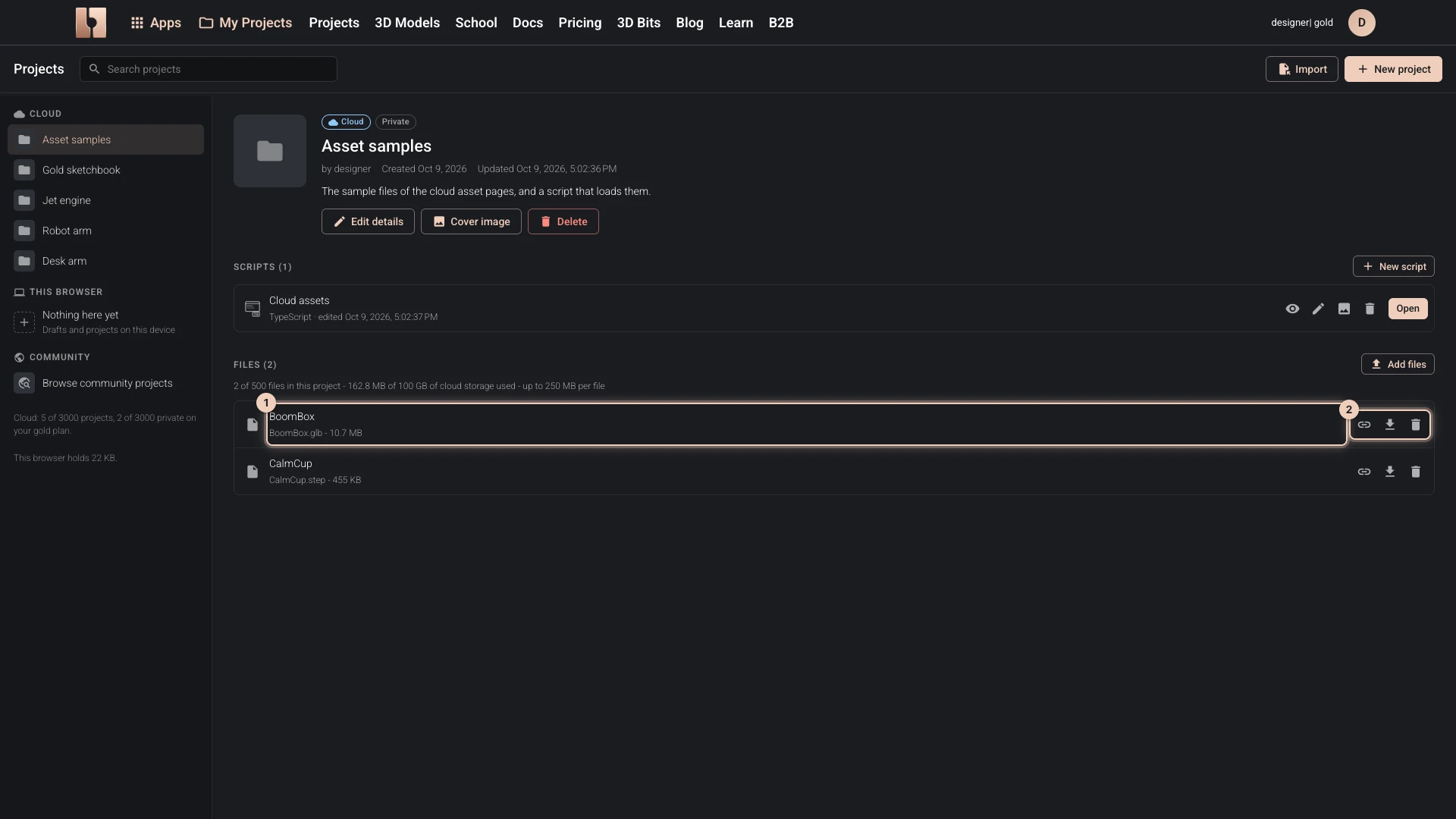
Your cloud assets are now ready to be used by any of the scripts within this specific project! In the following sections, we'll show you how to import and utilize these assets in your Rete, Blockly, and TypeScript scripts.
What your plan allows
Your plan's limits are checked before anything is uploaded: the number of files a project keeps, the size of one file and your cloud storage in all. A file that does not fit says why under its title, and Add files is turned off when the project or your storage is full. Each plan's limits are listed under Pick a Plan.
A cloud project keeps the file types listed in What is an Asset?, and a file name of letters, digits, spaces, _ - ( ) and one extension; rename a file that has other characters before adding it. A project kept in this browser keeps any type of file.
Managing the files
Beside each file:
- Copy the file address copies a link that downloads the file, for use outside the project, such as in a web page of your own or another tool. Anyone you give the link to can download the file.
- Download downloads it.
- Delete removes it from the project once you confirm. Scripts that load it will no longer find it.
Verified against the product in October 2026