Using Cover Images for Your Projects and Scripts
Why a cover matters
A cover image is what people see first: on the community projects, on the project's own page beside its scripts, in search results and in the preview a link shows on social media. A project needs one before it can be shared at all: until it has a cover, Private is its only visibility.
Scripts can have covers of their own. Without one, a script shows a placeholder.
Add a cover
- Take a picture of your work: a screenshot of the model works well (Cmd+Shift+4 on macOS, the Snipping Tool on Windows).
- In My Projects, choose the cloud project.
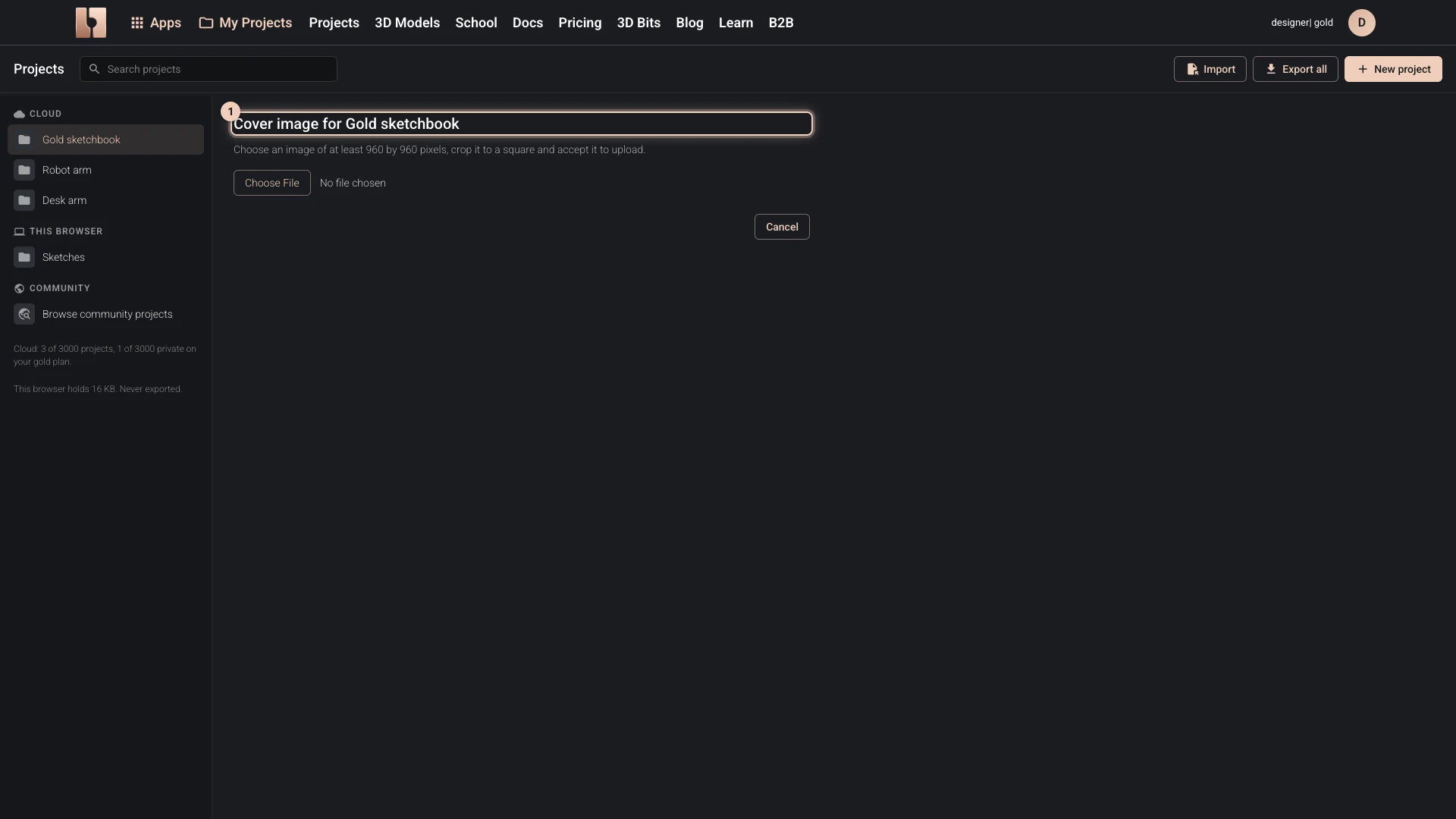
- Choose Cover image for the project, or the image icon on a script's row for that script.
- Pick an image of at least 960 by 960 pixels: PNG, JPEG, WebP, GIF, BMP or AVIF.
- Crop it to the square that shows best and choose Accept.
bitbybit.dev keeps the cover in three sizes, so it stays sharp in the gallery and quick to load. Covers are for cloud projects: a project in this browser has none.
Verified against the product in October 2026