Modules
A module is a graph you can use as a single component: it takes values through its inputs, gives results through its outputs, and hides how it does it. Build a bracket, a pattern or a tidy-up once, then use it wherever you need it.
Define a module
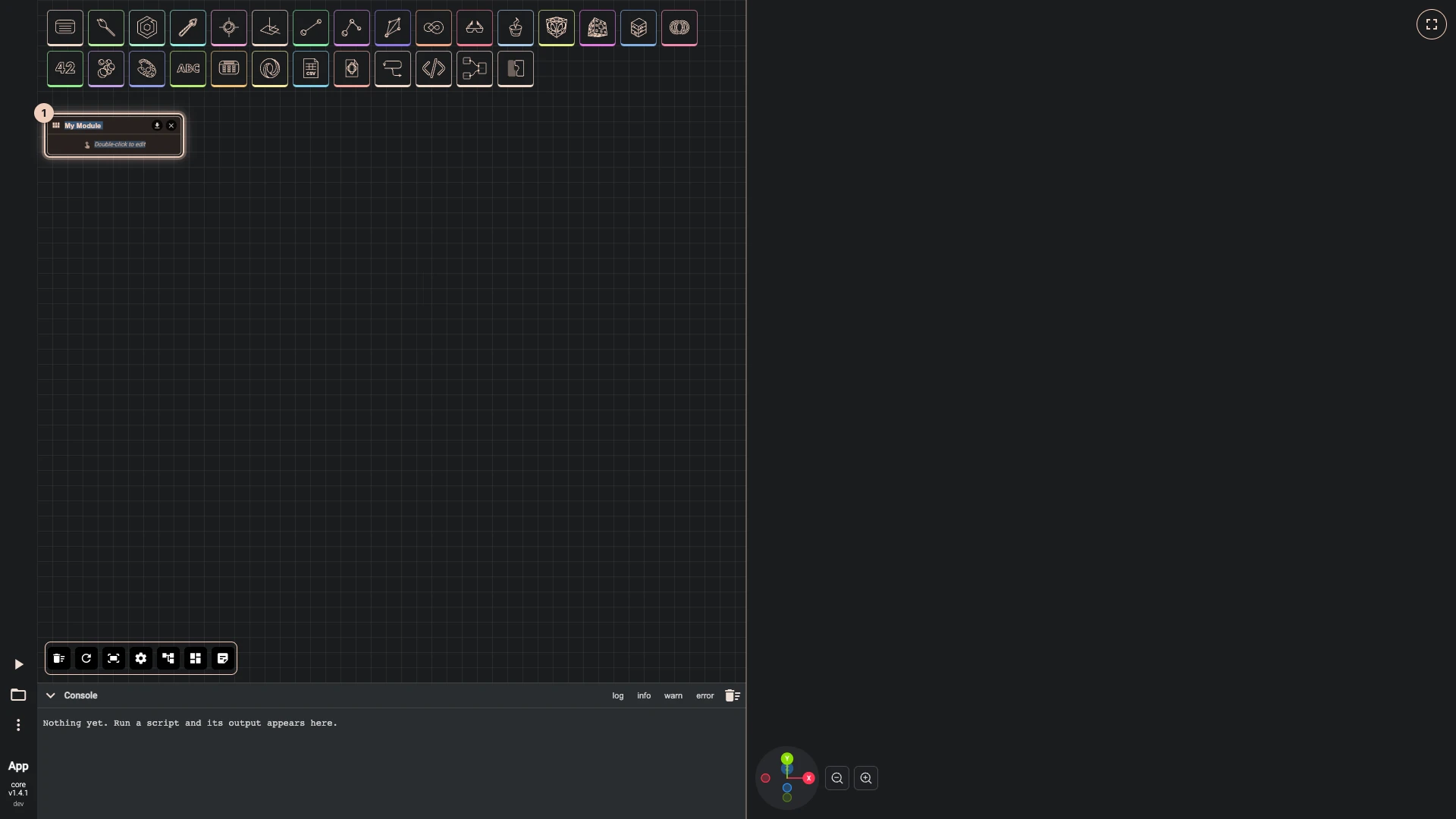
Search for module definition and add Module Definition. The node is the module: name it in its title, here My Module. Its download button saves it to a file, and its cross deletes it.
Build its graph
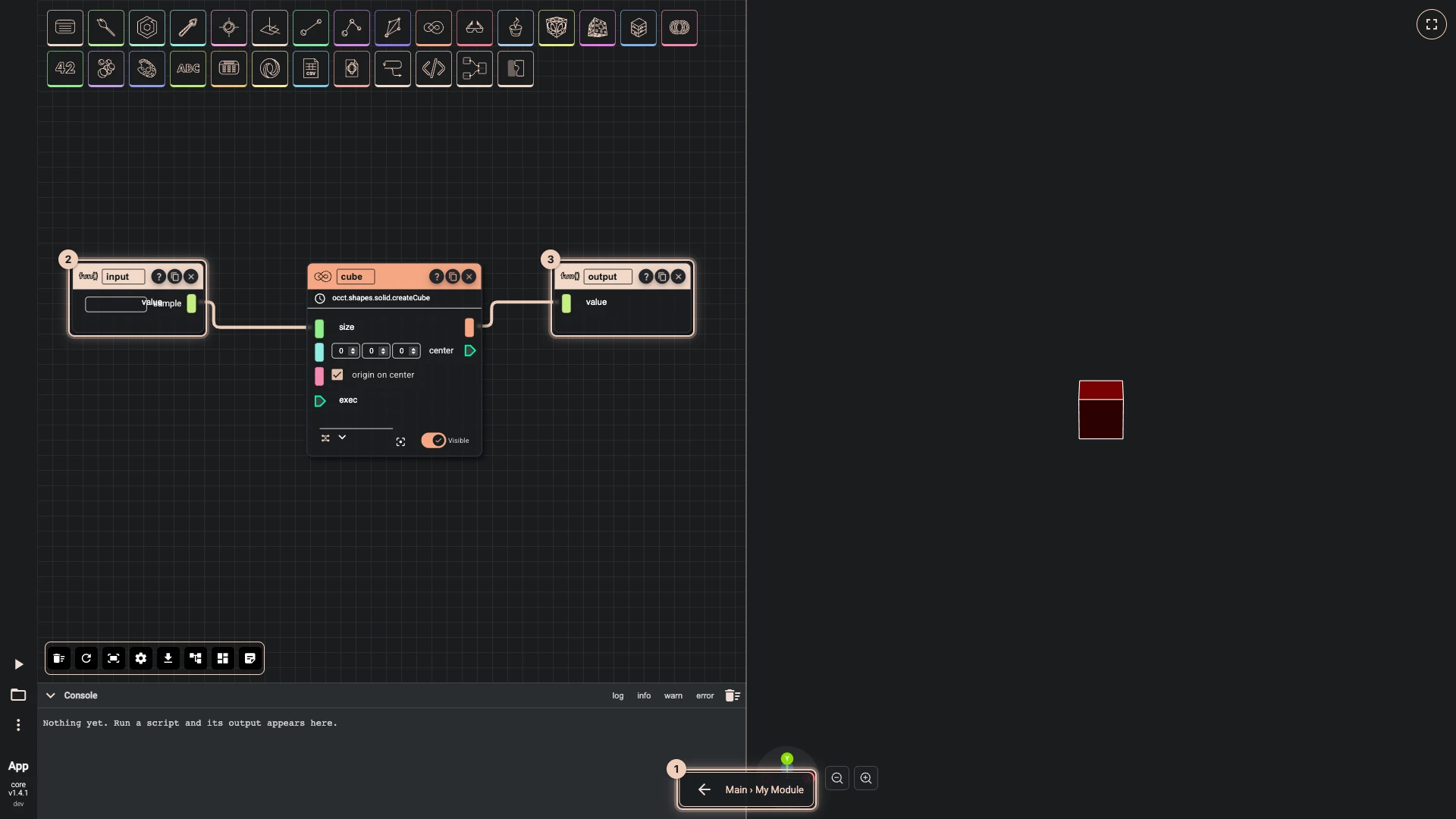
Double-click the definition to go inside. The canvas now holds the module's own graph, and a bar at its foot shows where you are: Main › My Module. A new module starts with a Module Input and a Module Output, named input and output.
- A module input is a value the module takes. Wire it into whatever needs it, here a cube's size.
- A module output is a result the module gives. Wire into it what the module should hand back, here the cube.
- Add more of either for more inputs or outputs, and rename them: their names become the sockets of every instance.
Press the back arrow in the bar, Back to parent, to return to the main canvas.
Use it
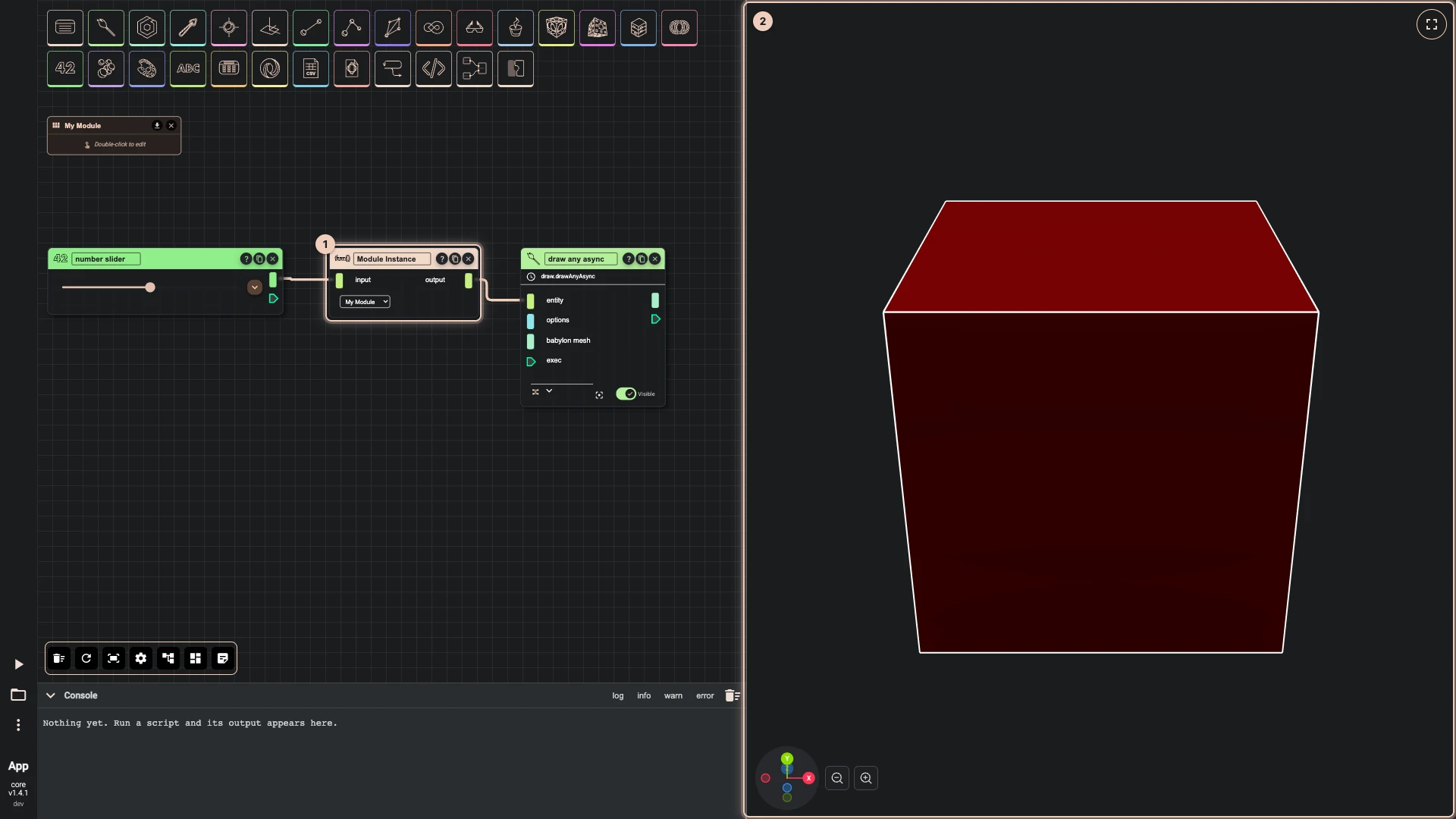
Search for module instance, add Module Instance, and choose the module in its list. The instance takes the module's inputs and outputs as its sockets, under their names. Wire values into it and its results onwards, like any other component. A module draws nothing by itself: wire its output into a component that draws, such as draw any async, to see the result.
Use as many instances as you like; changing the module inside its definition changes every one of them.
Share it
The download button on the definition, or Save module to file in the toolbar while you are inside the module or have its definition selected, saves the module to a file. In another script, More > Import brings it in as a new module definition, ready for instances.
Verified against the product in October 2026