Uploading Local Assets to Browser Storage
Introduction
This section explains how to upload files to the browser asset catalog, which keeps them in this browser for every script you open here, without cloud storage or an account. It is meant for quick tests: catalog files cannot be moved to the cloud, so for files you keep, add them to the project instead.
For this exercise, please download the following sample asset file:
- BoomBox.glb (Click to download)
We will use this BoomBox.glb file to walk through the local asset upload process.
How to Upload a Local Asset
The Assets dialog is the same in Rete, Blockly and TypeScript.
-
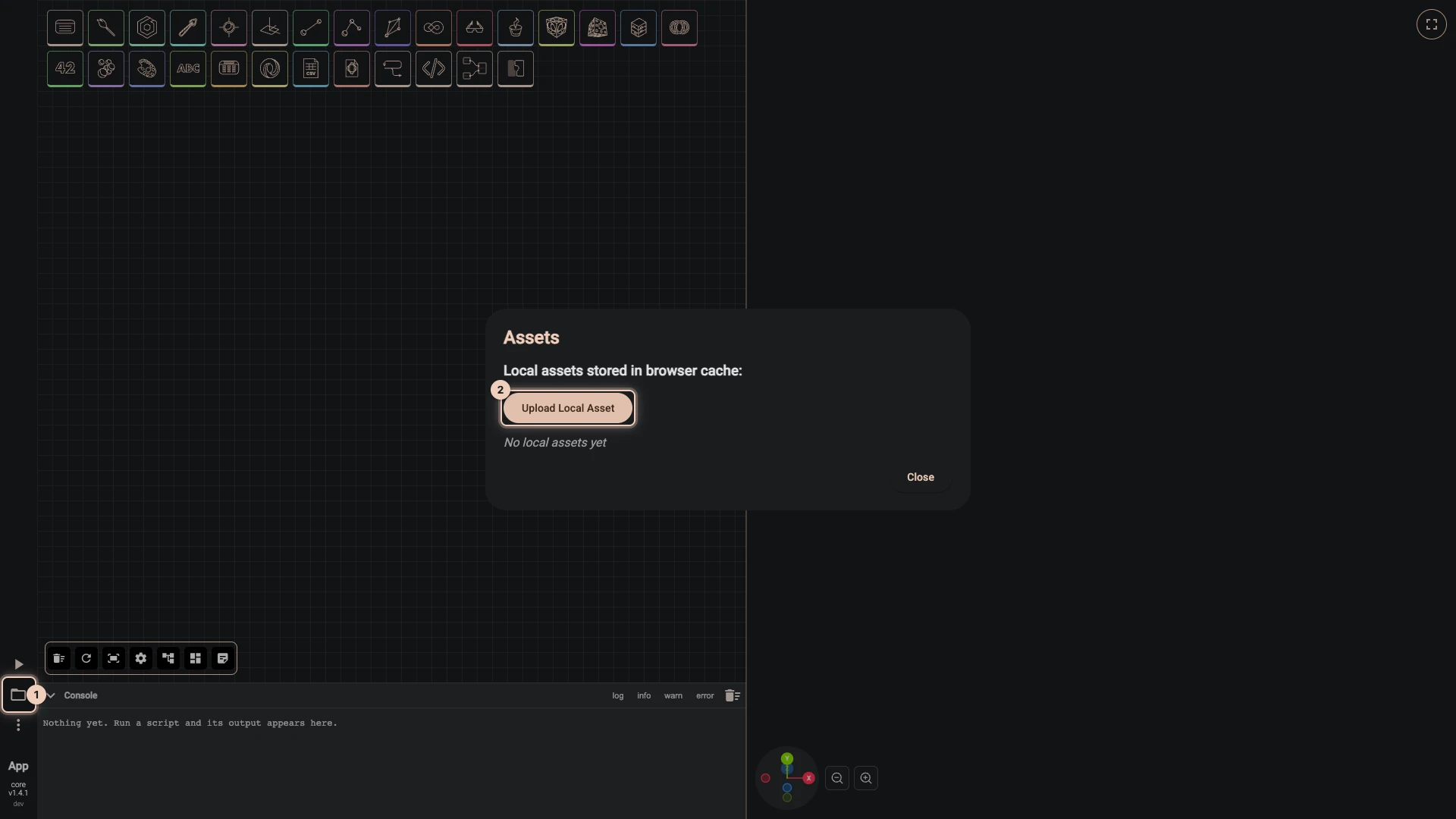
Open the Assets dialog. Click Assets, the folder button at the lower left of the editor. The dialog lists the Local assets stored in browser cache:, none at first.
-
Start an upload. Click Upload Local Asset.
-
Name the asset. Type BoomBox under Asset Name. Scripts find the asset by this name, so it must be one no other local asset has.
-
Choose the file. Click Click to choose files or drop them here and pick
BoomBox.glbwhere you saved it, or drop the file there. It appears below with its size. The allowed formats are listed under the drop area.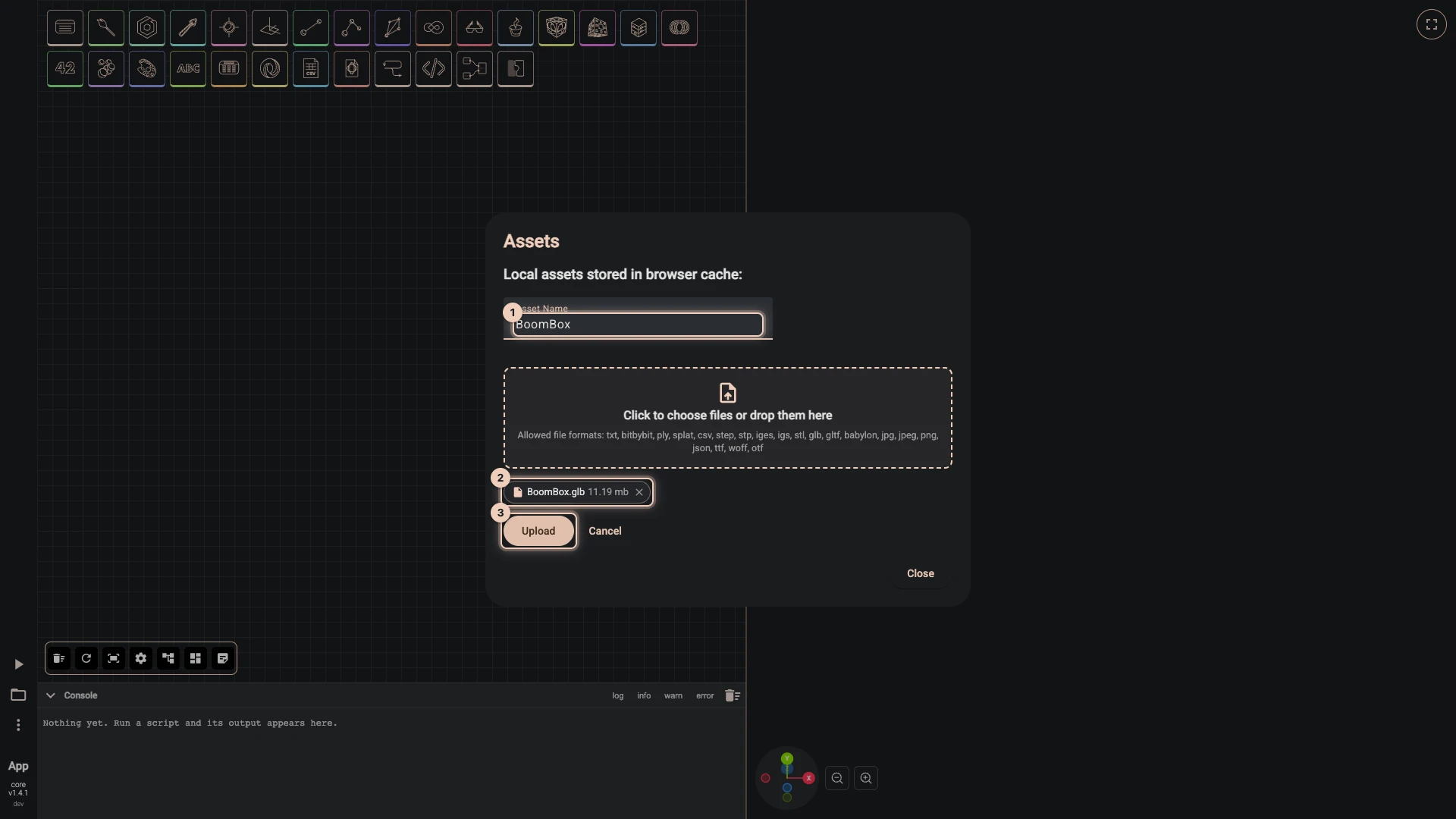
-
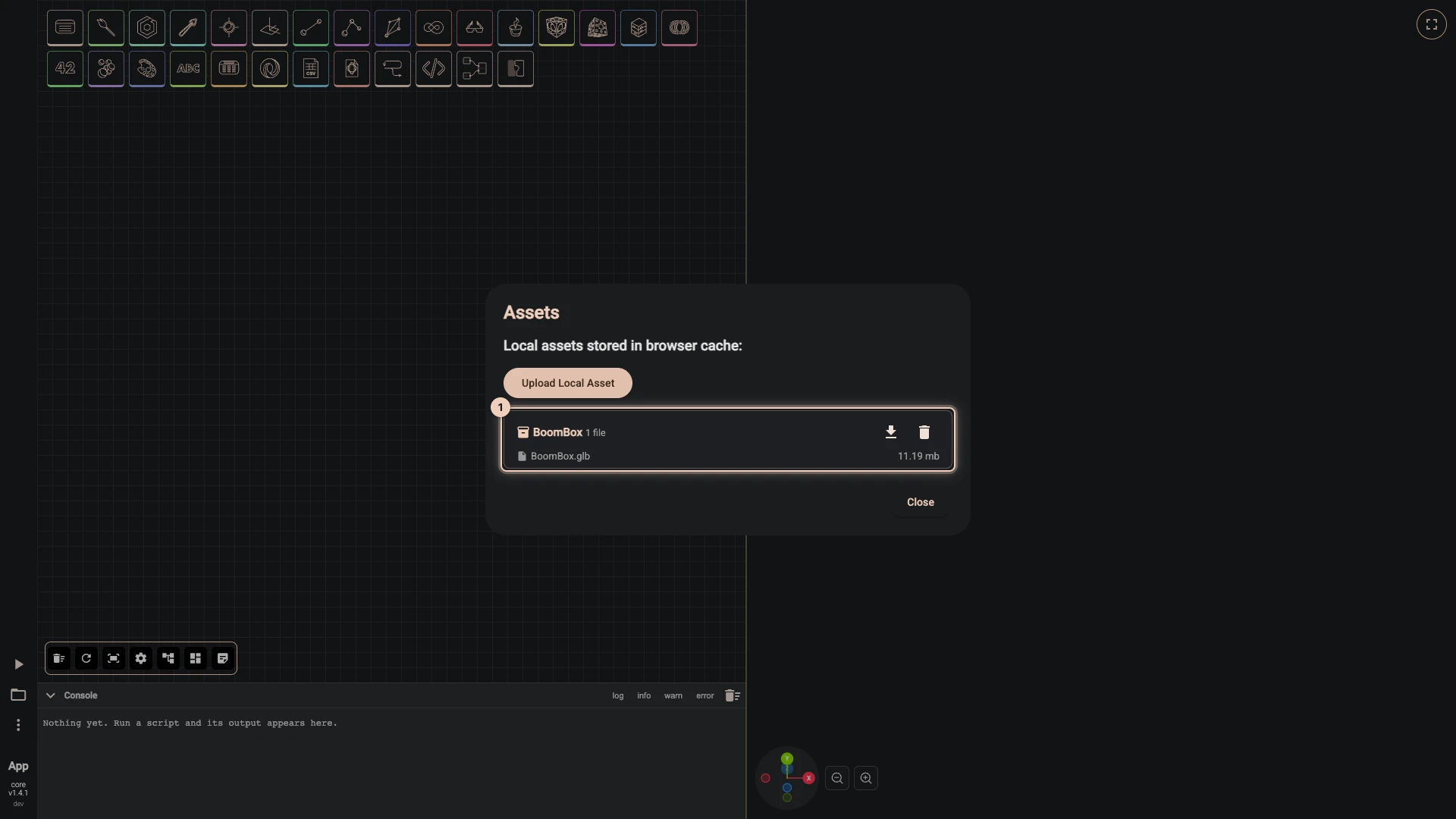
Upload. Click Upload. The file is kept in this browser, and the dialog lists it under its name, with buttons to download it again or delete it.
-
Close the dialog with Close.
Your BoomBox.glb file is now stored locally in your browser and ready to be used in your Bitbybit scripts! While this asset isn't yet visible in your 3D environment, from this point on, you can access it programmatically within your scripts.
Proceed to the other sections of this guide to see how this locally uploaded file can be used in our various editors.
Verified against the product in October 2026