How your work is saved
Every change is saved as you make it. It is written to this browser at once, and to the cloud about three seconds after you stop, or every 15 seconds while you keep working. A large script waits for a longer pause. File > Save (Ctrl+S, ⌘S on macOS) sends it to the cloud straight away.
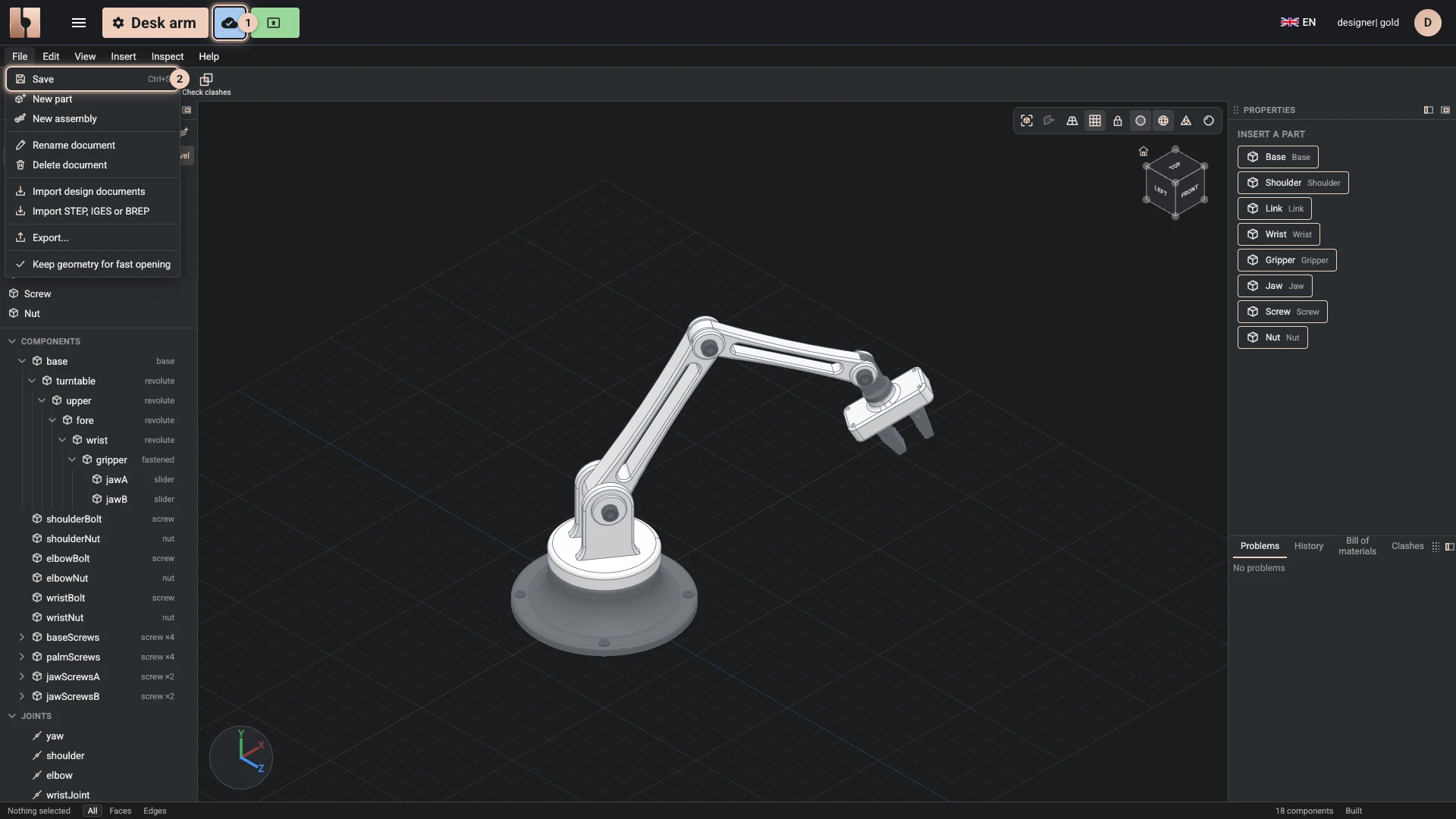
The status beside the title
A mark beside the script's title in the bitbybit.dev header says where your work stands; hover over it for its words, and click it to open the history.
| Status | What it means |
|---|---|
| Saved | Saved in this browser and in the cloud. |
| Saving | On its way to the cloud. |
| Not synced | Saved in this browser; the cloud is tried again on its own. |
| Saved in this browser | The script lives in this browser only. Export it or move it to the cloud to keep a copy elsewhere. |
| Conflict | The script changed somewhere else since you opened it. |
| Read-only | The script is open in another tab, which keeps the right to save. |
History
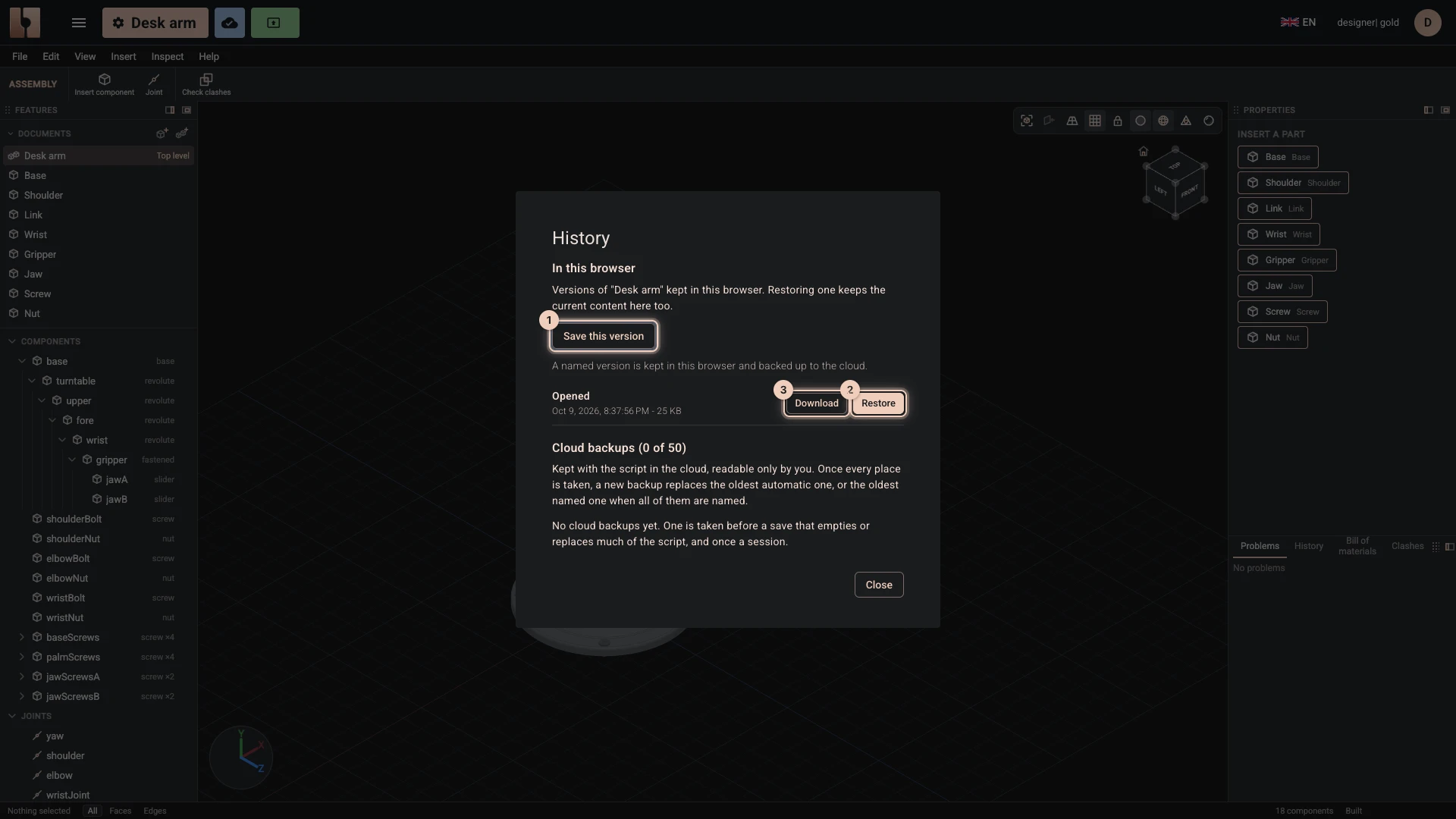
The history keeps versions of the script in this browser: one when it was opened, one every two minutes while you work, and one before a change that removes much of it or replaces it.
- Save this version keeps the current state under a name you give it, here and as a cloud backup.
- Restore brings a version back; the content it replaces is kept in the history too.
- Download saves a version as a file.
A cloud script also keeps cloud backups, readable only by you: one each session, and one before a save that empties or replaces much of the script. A script keeps up to 5 on the free plan, 20 on Silver and 50 on Gold; once every place is taken, a new backup replaces the oldest automatic one.
Move to the cloud
A script in this browser can move to the cloud once you are signed in: choose the cloud icon beside its title (Save to cloud), pick a new or an existing cloud project, and confirm. Its history in this browser comes along.
When the script changed somewhere else
If the same script was saved from another computer or tab, the Designer asks which version to keep: Use the cloud version or Keep this browser's version. The one you do not keep is backed up first.
The Designer's own History tab
The History tab in the Designer's dock is a different list: the changes made in this session, with who made each, which undo follows. The versions above are of the whole script.
Verified against the product in October 2026