Variables and functions
Variables
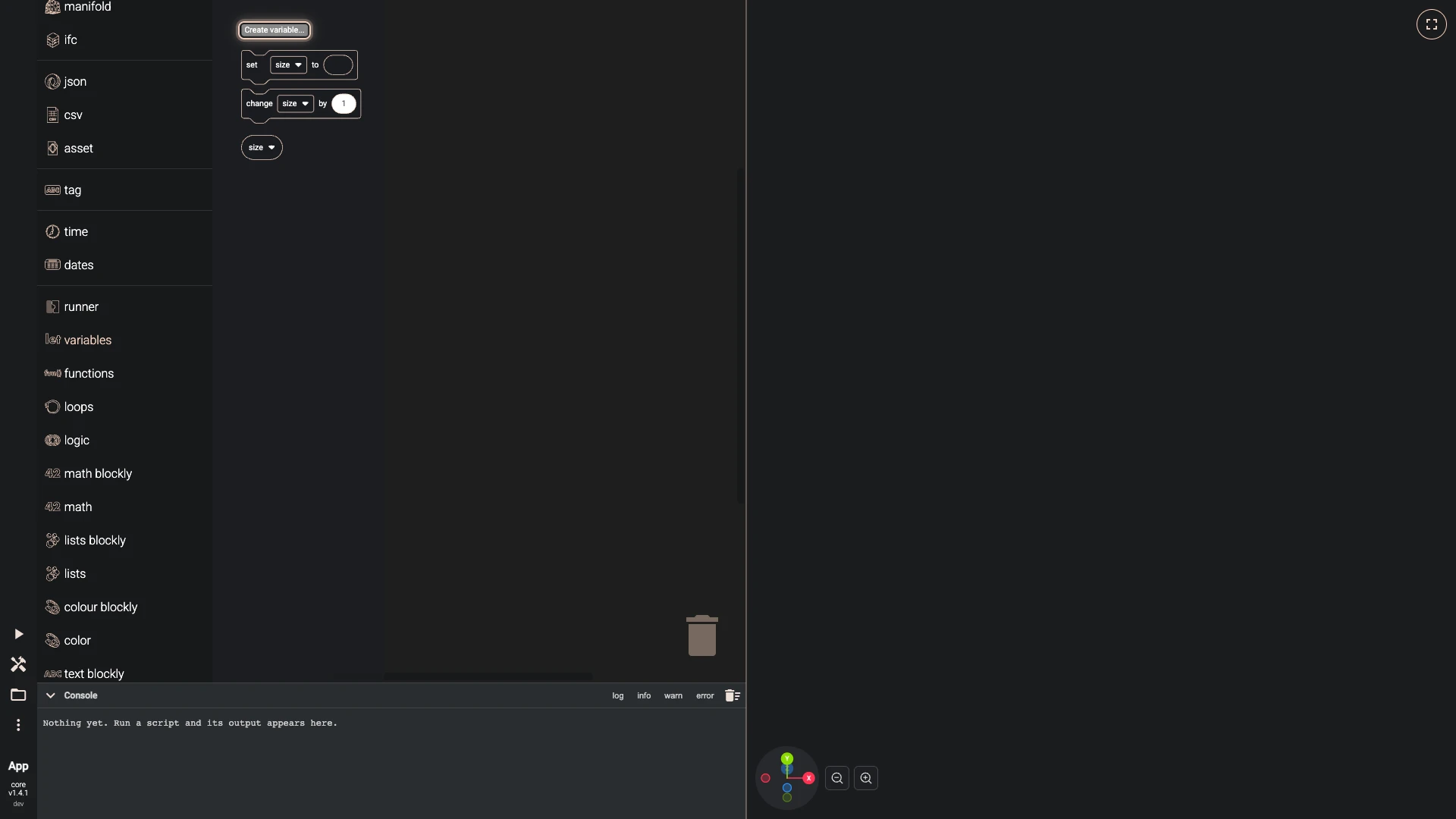
A variable holds a value under a name, so you can set it once and use it in many places, and change the script by changing one block.
- Open variables in the toolbox and press Create variable....
- Type its name and press Create.
- The category now holds its blocks: set … to gives it a value, change … by adds to it, and the block with its name reads it wherever a value is needed.
Stack the set block above the blocks that read the variable, since blocks run from top to bottom. A parametric cube sizes a solid this way, step by step.
Functions
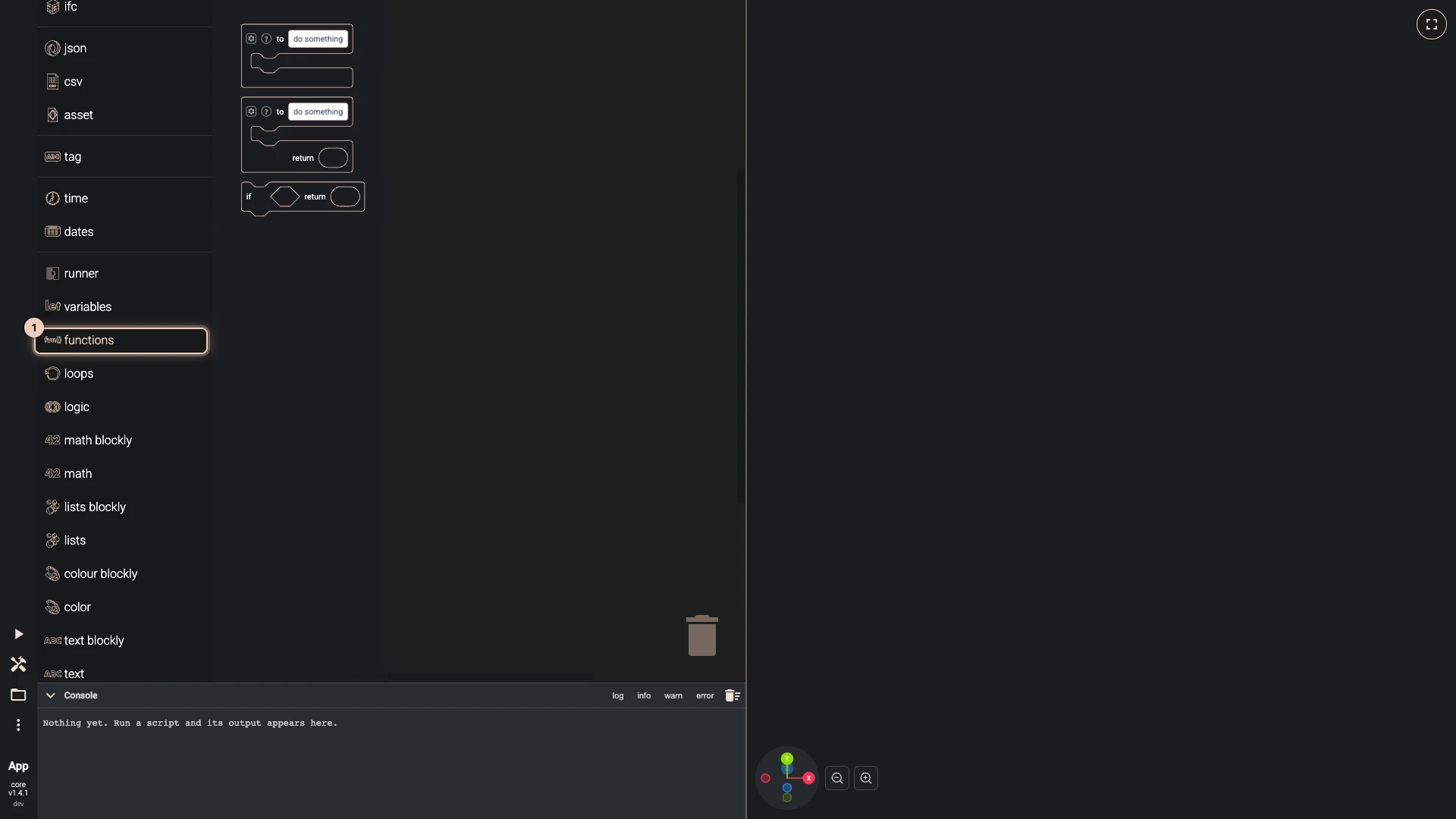
A function wraps a stack of blocks under a name, so you can run it from several places.
- to do something holds blocks that do something; name it by clicking its title.
- to do something … return also gives a value back, plugged into its return input.
Once defined, a function's own block appears in the functions category: use it like any other block. A function can take inputs too: the gear on its definition adds them.
Functions that wait
A block that makes geometry, such as a cylinder, gives its shape a moment later, and any bitbybit block it goes into waits for it. So a function can make shapes, pass them on and return them without waiting itself: the block that receives its result waits for that too.
When the blocks need the value itself, to compute with a shape's centre or count the faces of a solid, put an await block in the set block that keeps it. A function with an await block in it runs as async:
- a call of it as a block of its own waits for it to finish before the next block runs;
- a set block that keeps what it returns waits for it too, so the blocks after it get the value itself;
- plugged anywhere else, its call gives the value a moment later, and the bitbybit block it goes into waits for it, like any shape;
- a function that calls it is async too.
Variables are shared by the whole script, so keep an async function's result with a set block. Then nothing runs while the function waits, and nothing changes the variables it is using.
The drone sorts its lights by side this way: a function awaits each light's centre and keeps the ones on the side it is asked for.
Right-click a function and choose Collapse Block to fold it to one line once it works; a large script reads best with its functions collapsed and its main stacks open.
Verified against the product in October 2026