A Parametric Cube
Parametric means that a shape follows its parameters: change a number and the geometry is rebuilt from it. In Blockly a parameter is often a variable, a named value set once and read wherever it is needed. Here a variable sizes a cube made by OCCT, the CAD kernel behind solids on Bitbybit.
Before you start
Open an empty Blockly editor. If this is your first Blockly script, Hello World shows the basics first.
The steps
-
Make a variable named
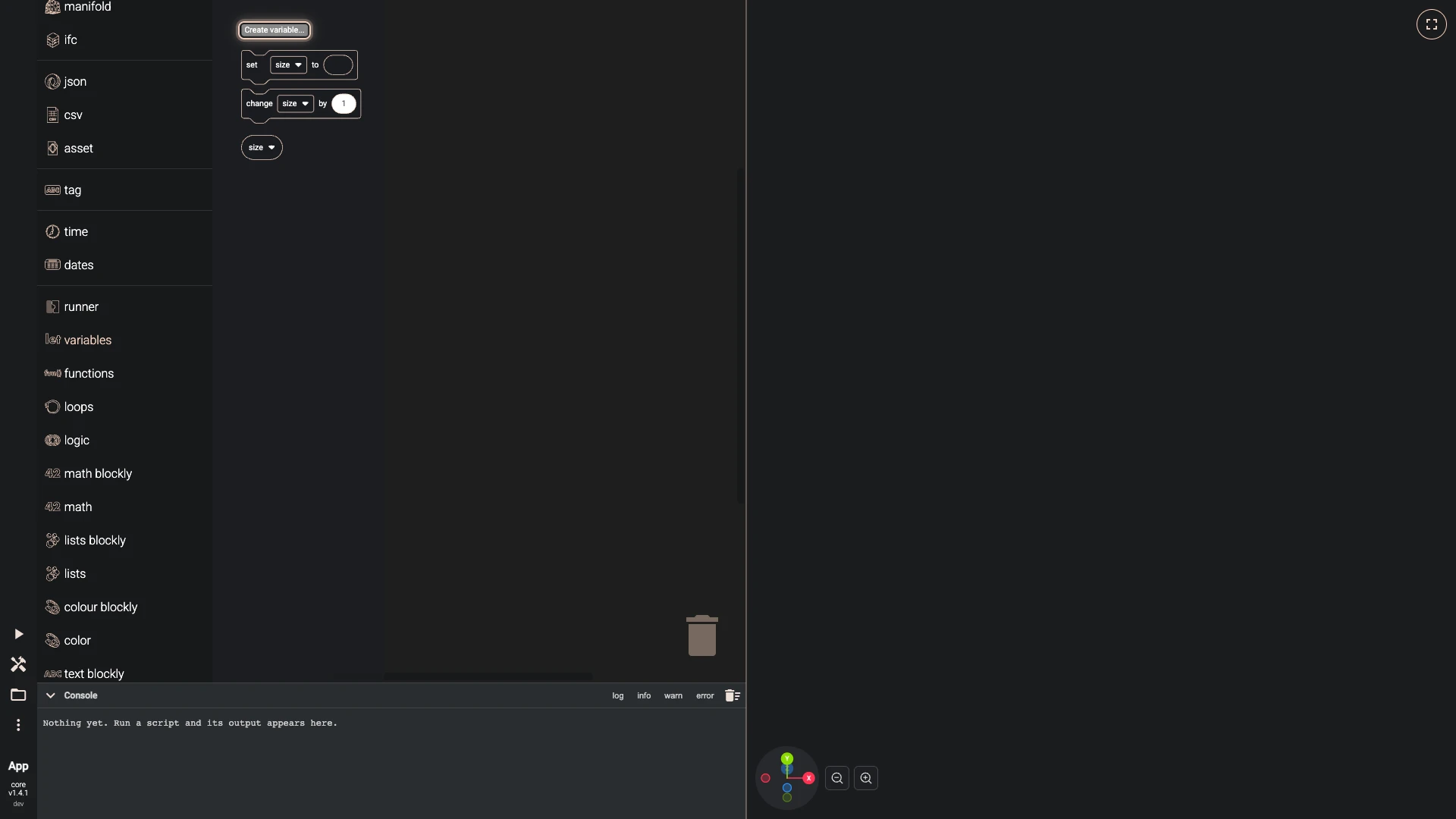
size. Open variables in the toolbox, press Create variable..., typesizeand press Create.A variable is a named value you set once and use anywhere. Making one adds its blocks to the variables category.
-
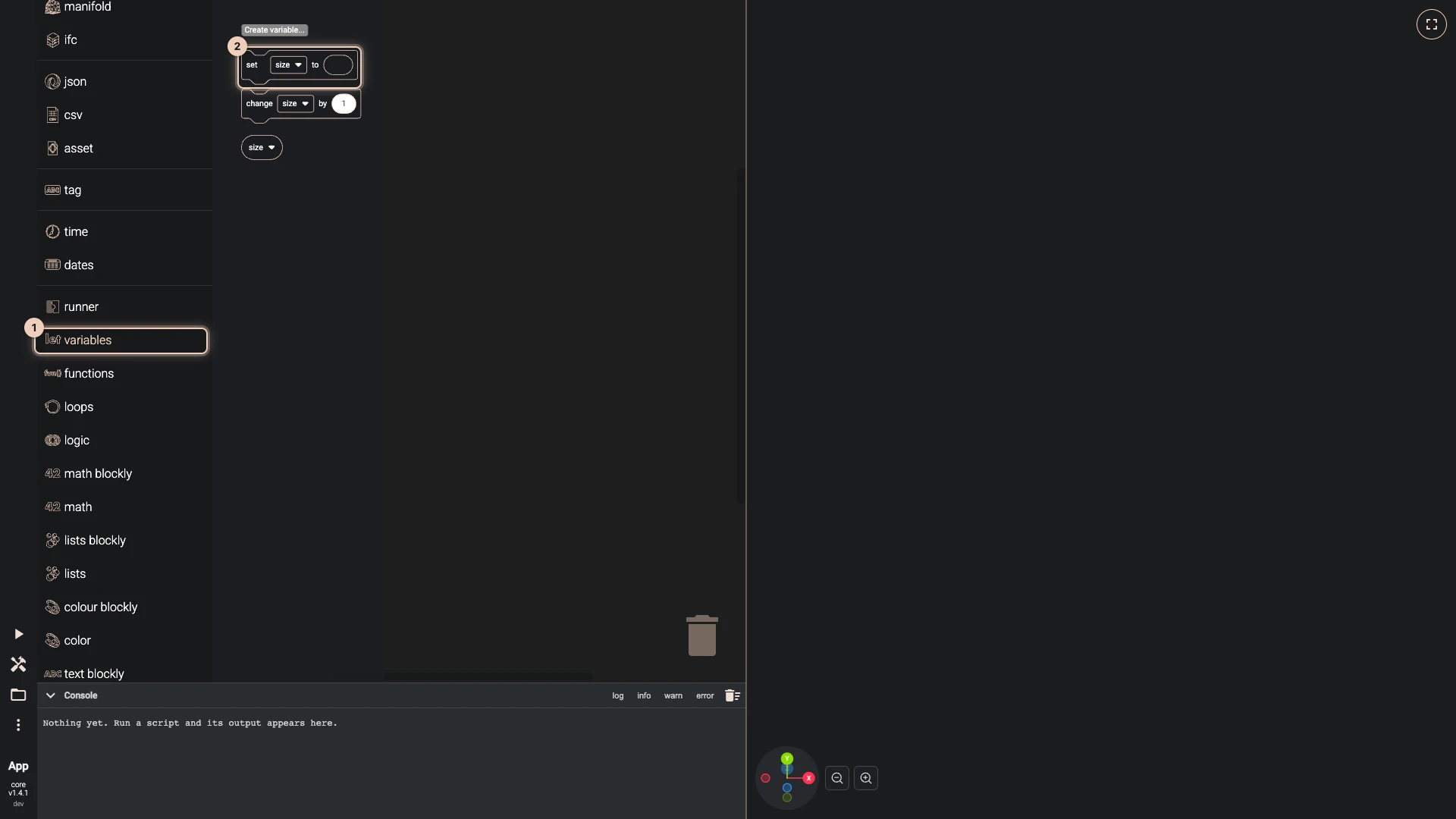
Add set size to. Open variables in the toolbox and drag set size to onto the workspace.
-
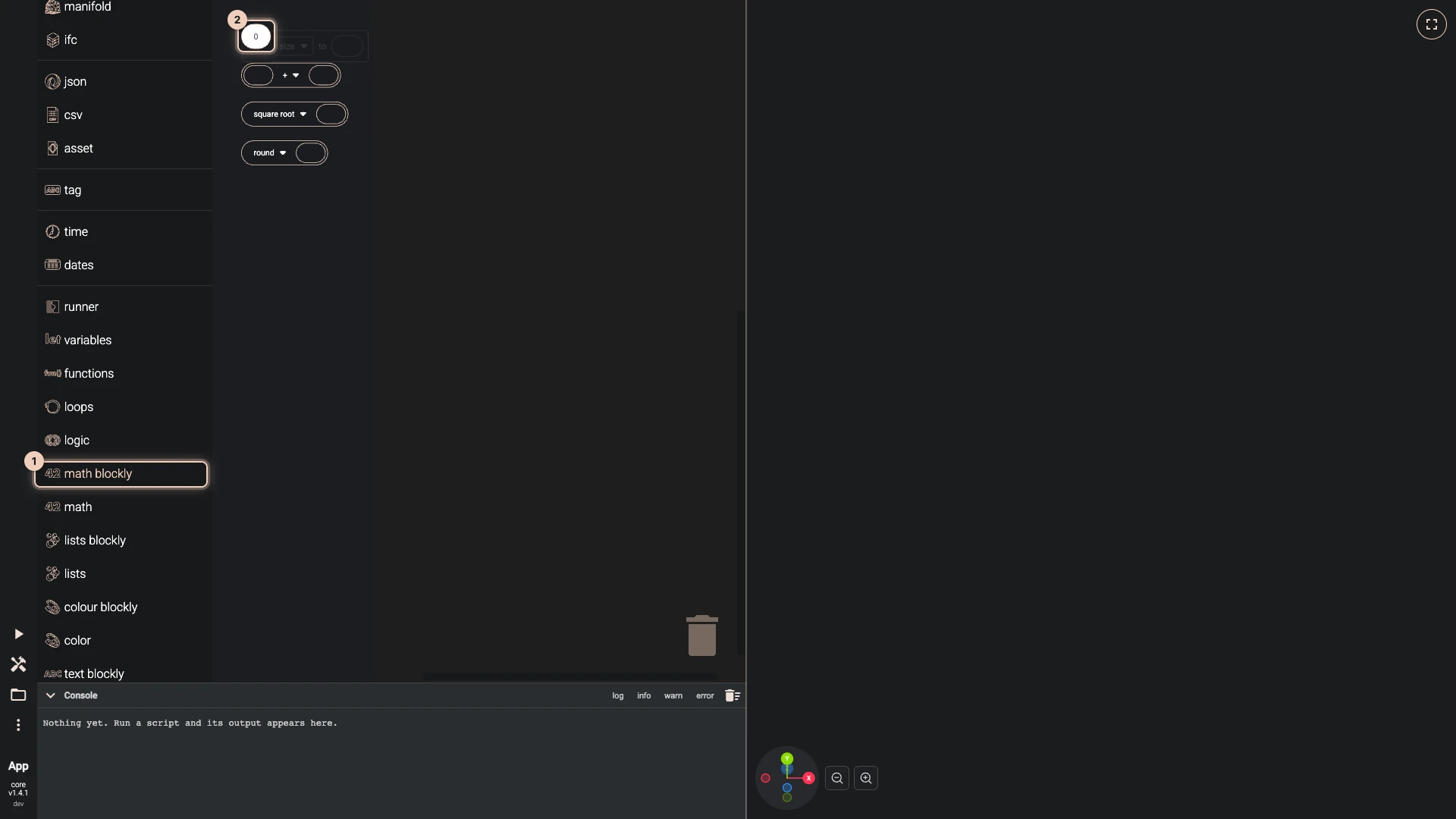
Add number. Open math blockly in the toolbox and drag number onto the workspace.
-
Plug number into the value of set size to. Drag it by its left edge onto that input until it snaps in.
-
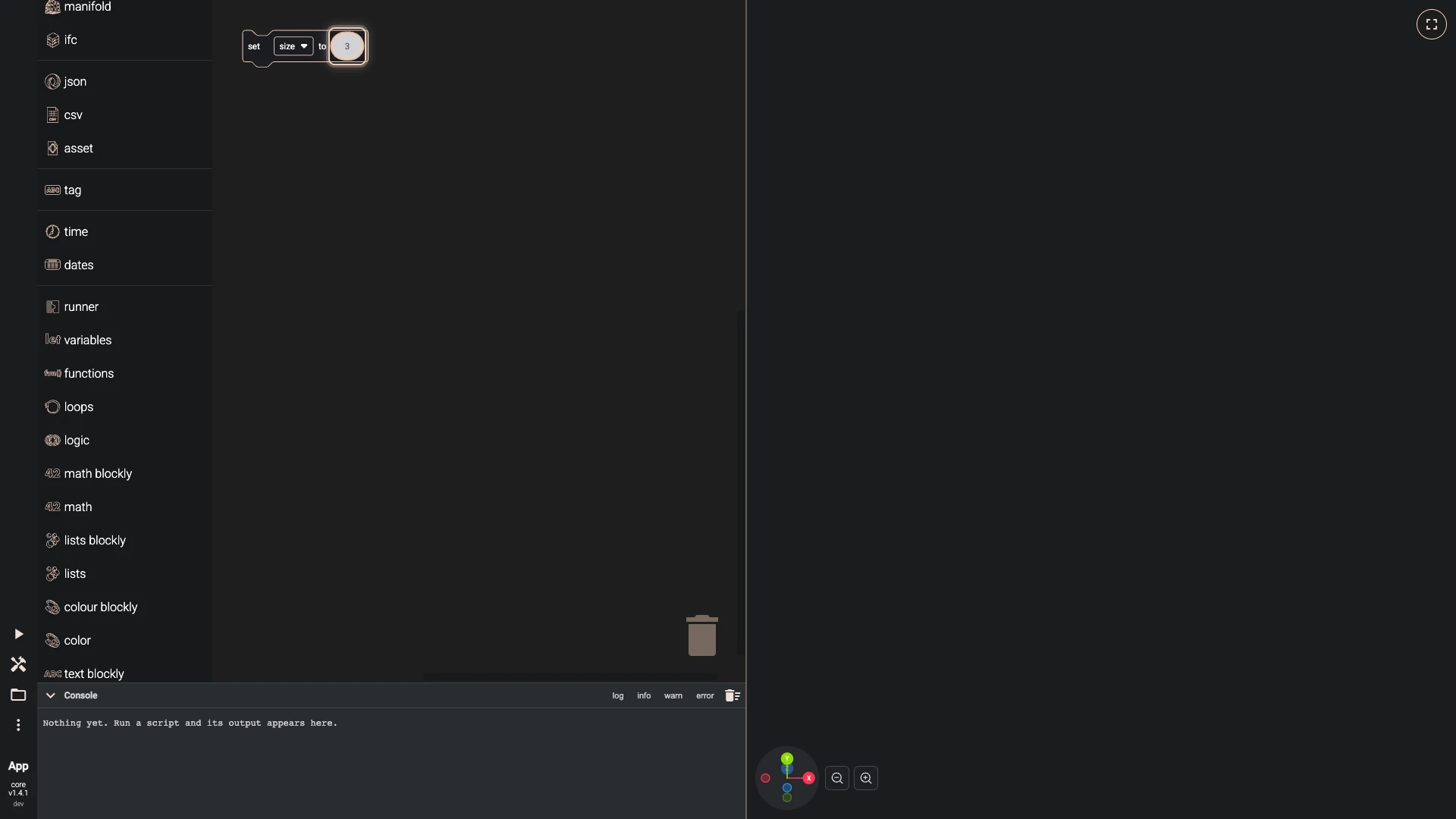
Set number to
3.The variable now holds 3.
-
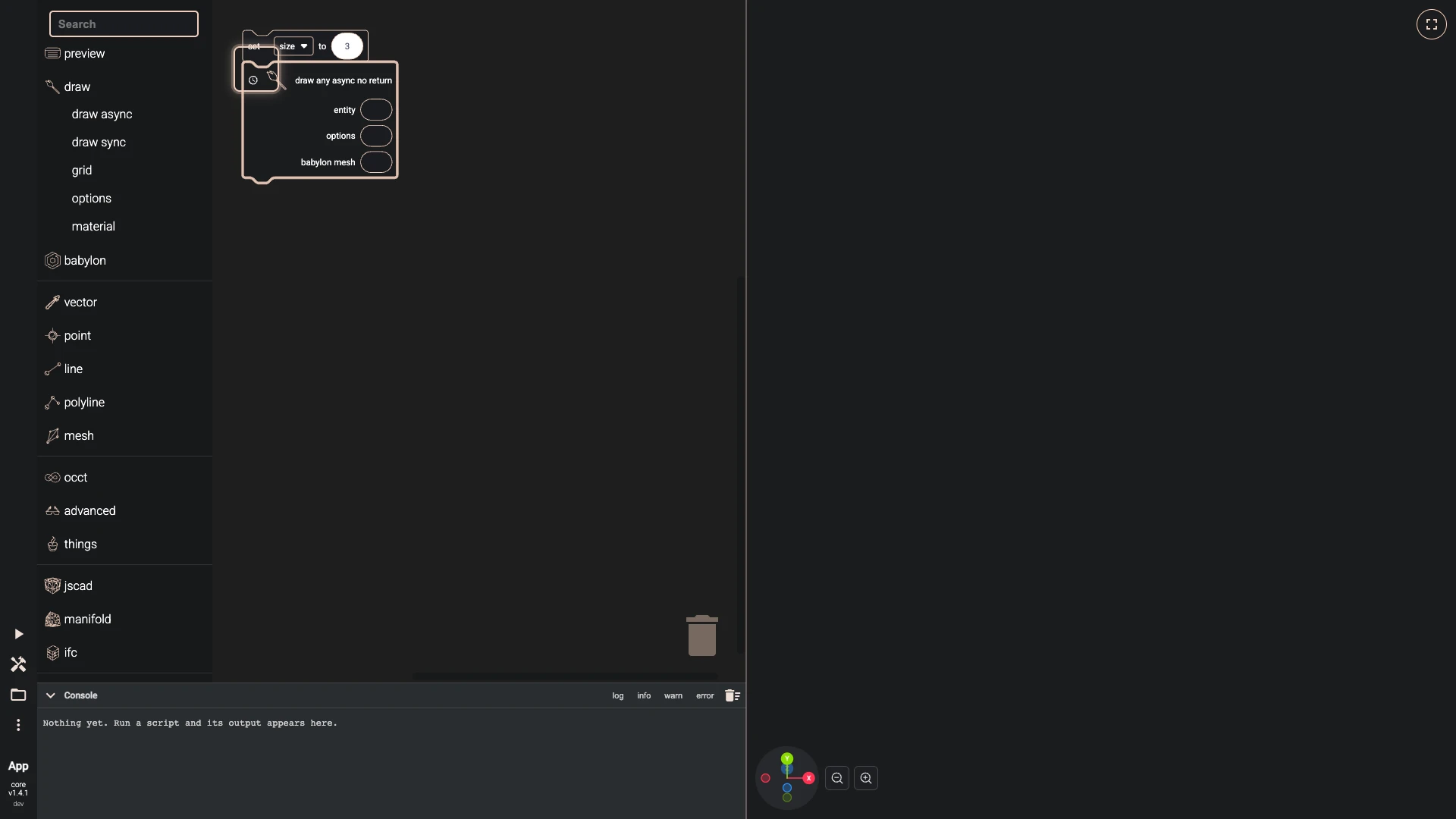
Add draw any async no return. Open draw > draw async in the toolbox and drag draw any async no return onto the workspace.
-
Put draw any async no return under set size to. Drag it below until it snaps on.
Stacked under the variable, the drawing runs after it is set.
-
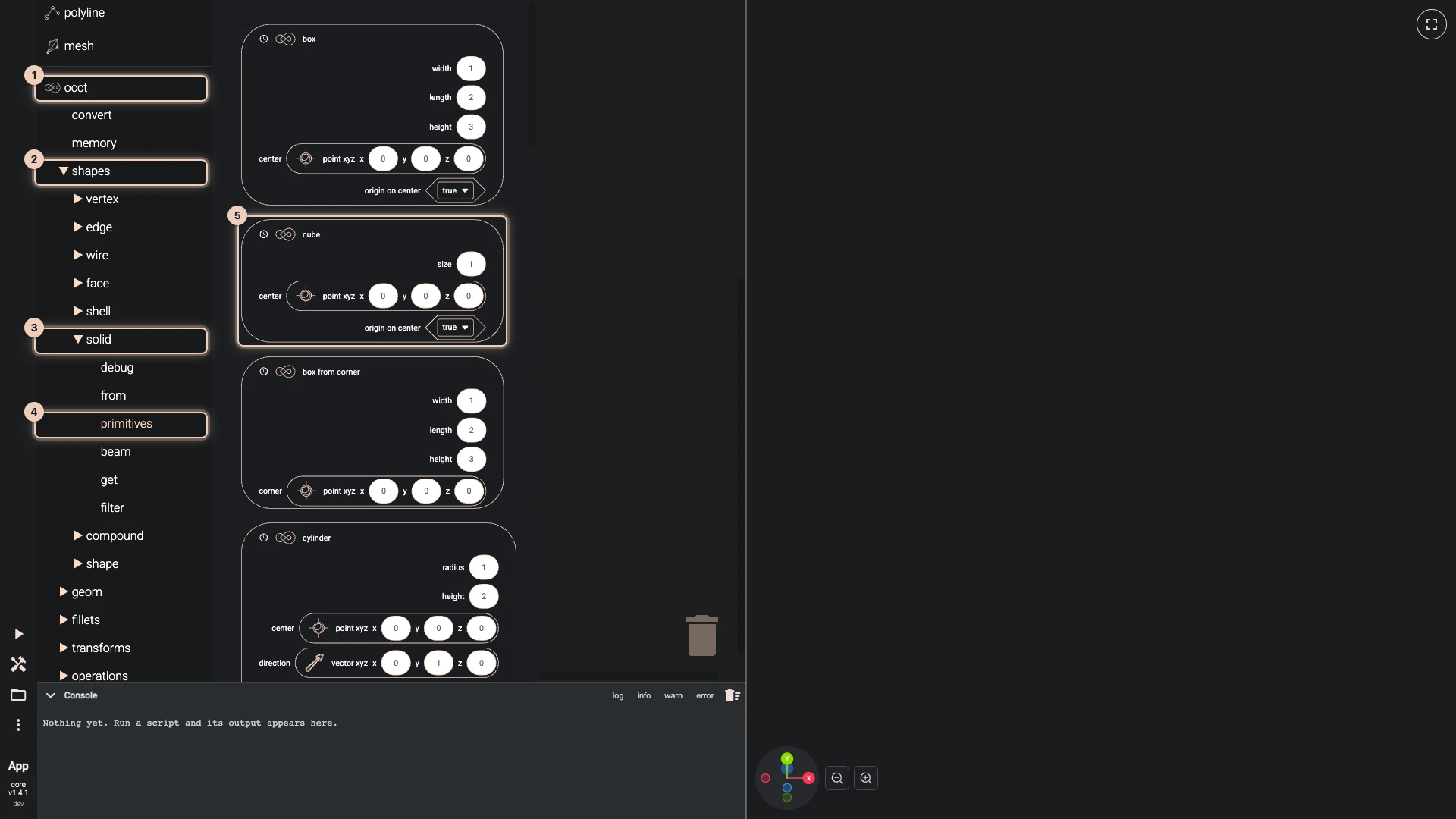
Add cube. Open occt > shapes > solid > primitives in the toolbox and drag cube onto the workspace.
The toolbox follows the API: occt, then shapes, then solid. The cube is a solid made by OCCT, the CAD kernel.
-
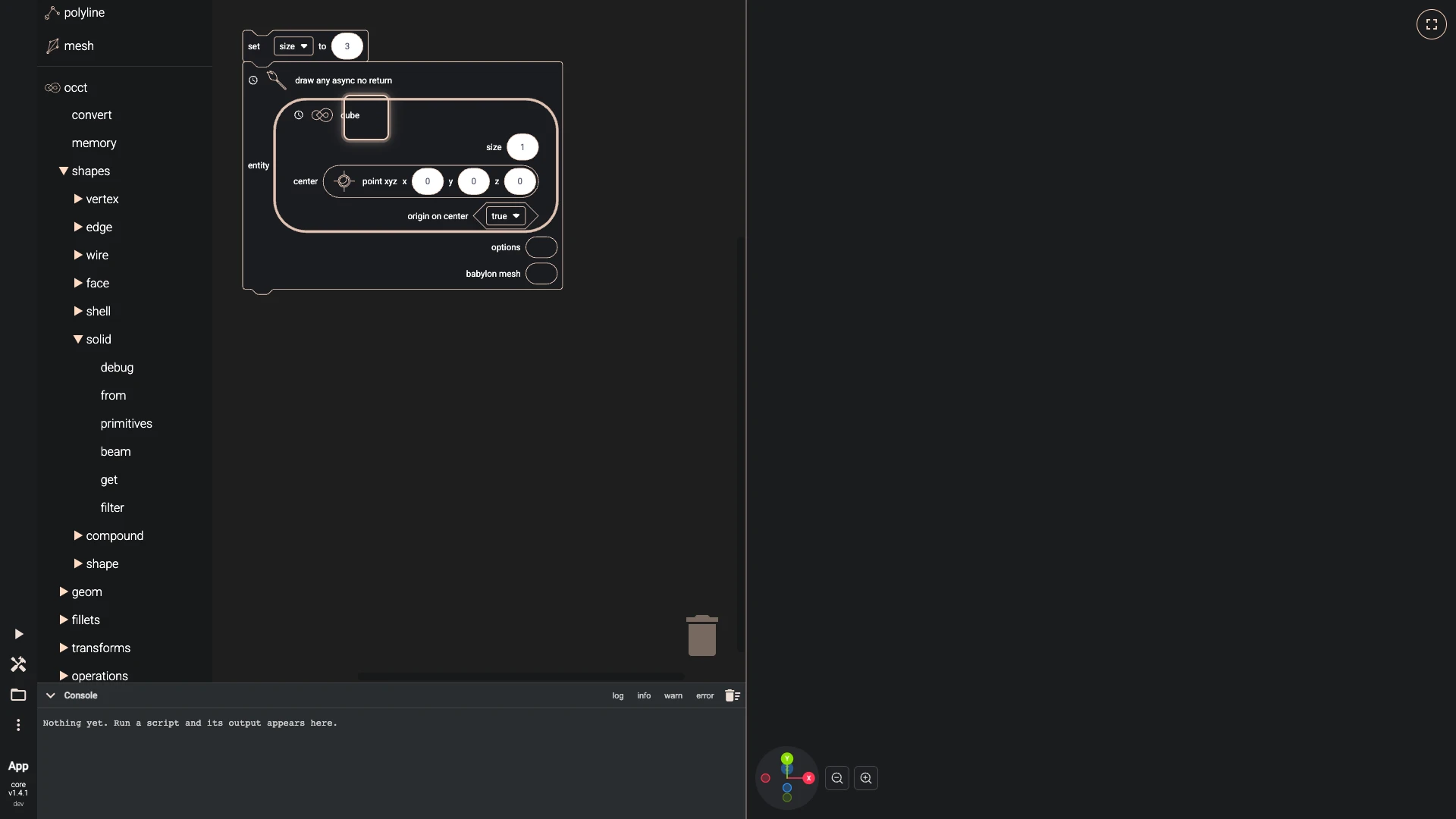
Plug cube into the entity of draw any async no return. Drag it by its left edge onto that input until it snaps in.
-
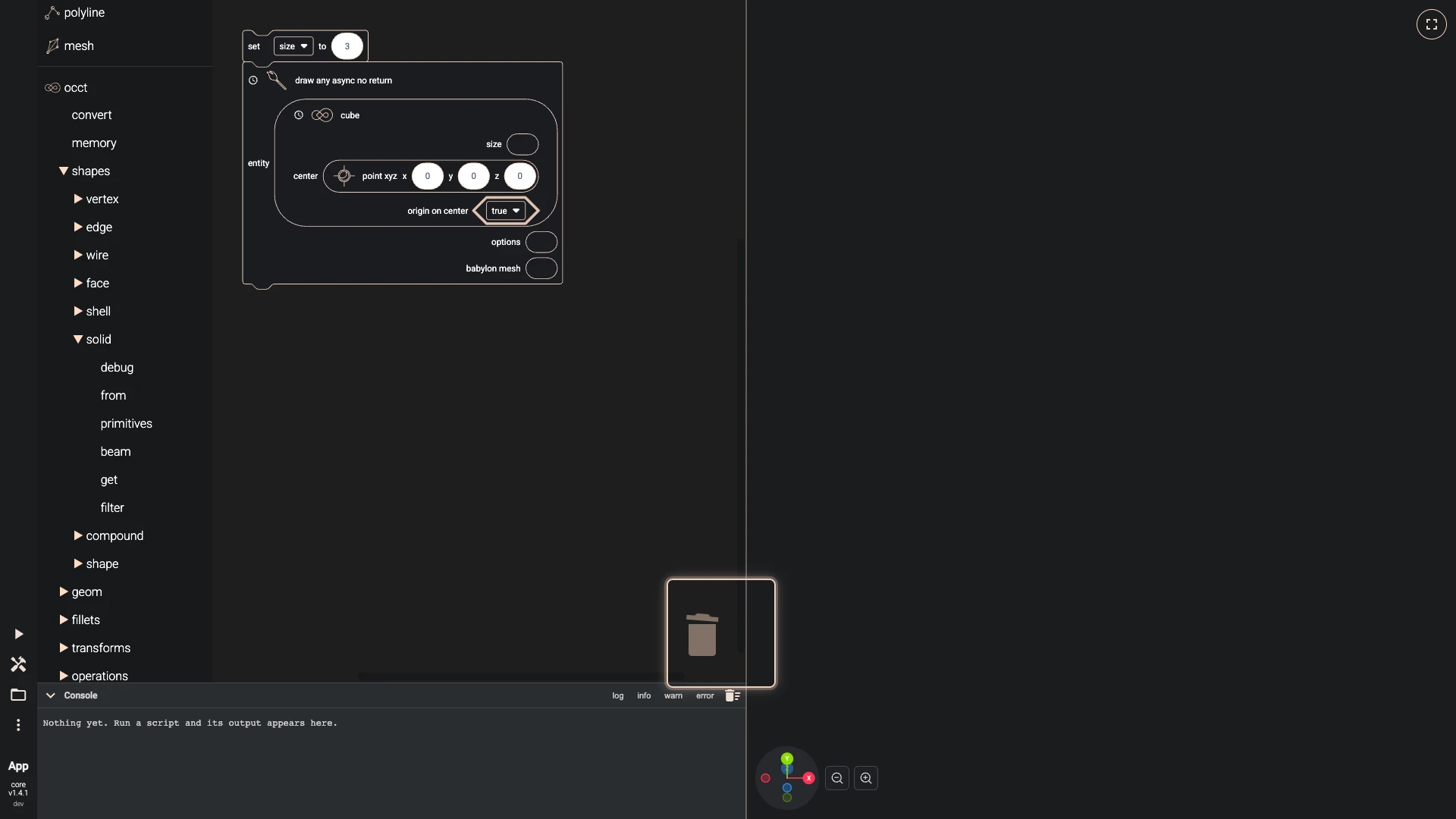
Take the value out of the size of cube. Drag the block out of that input and drop it on the trash can.
Drag the number out of the cube's size and drop it on the trash can: the variable will give the size instead.
-
Add size. Open variables in the toolbox and drag size onto the workspace.
-
Plug size into the size of cube. Drag it by its left edge onto that input until it snaps in.
The cube's size is now whatever the variable holds.
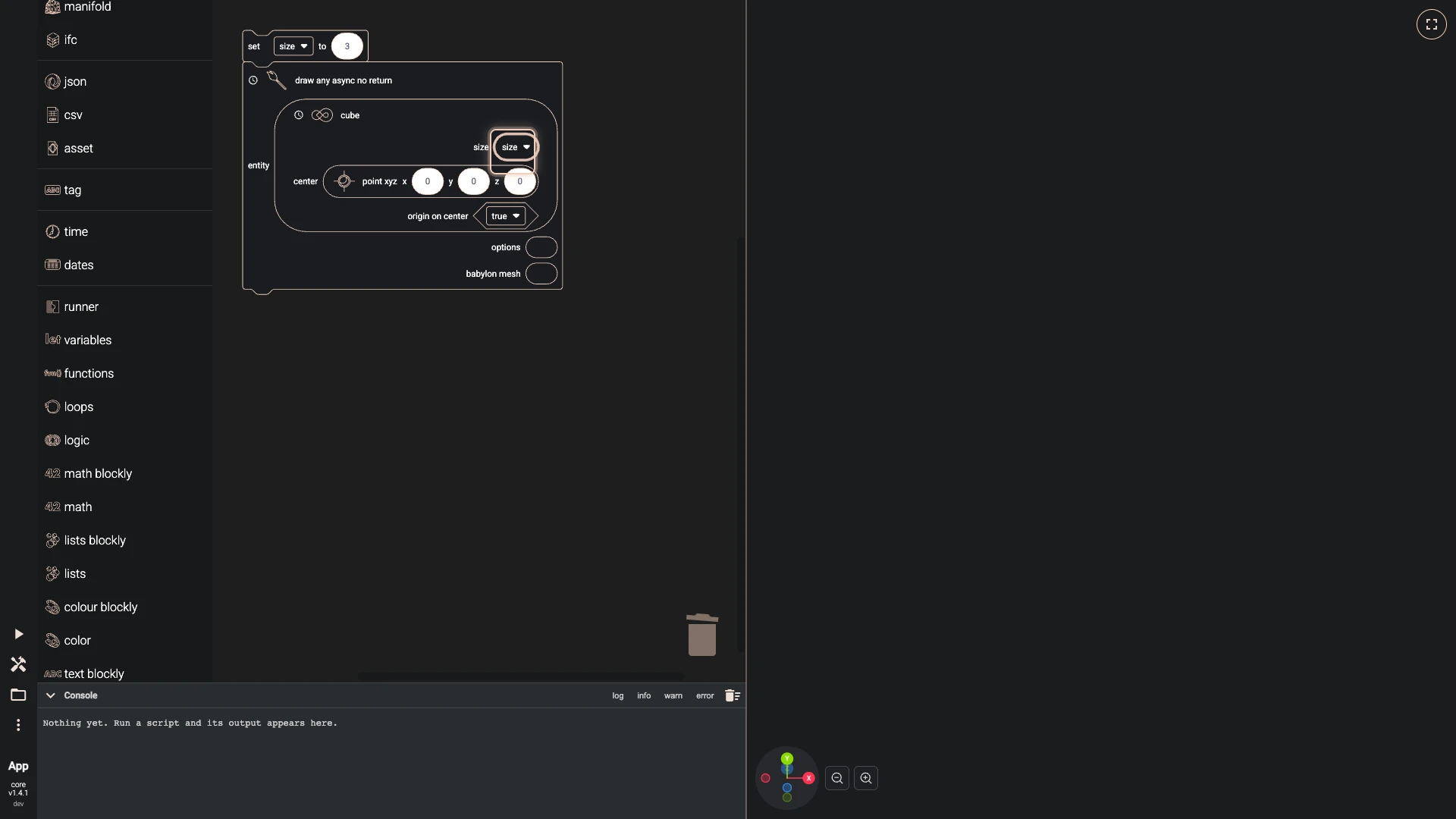
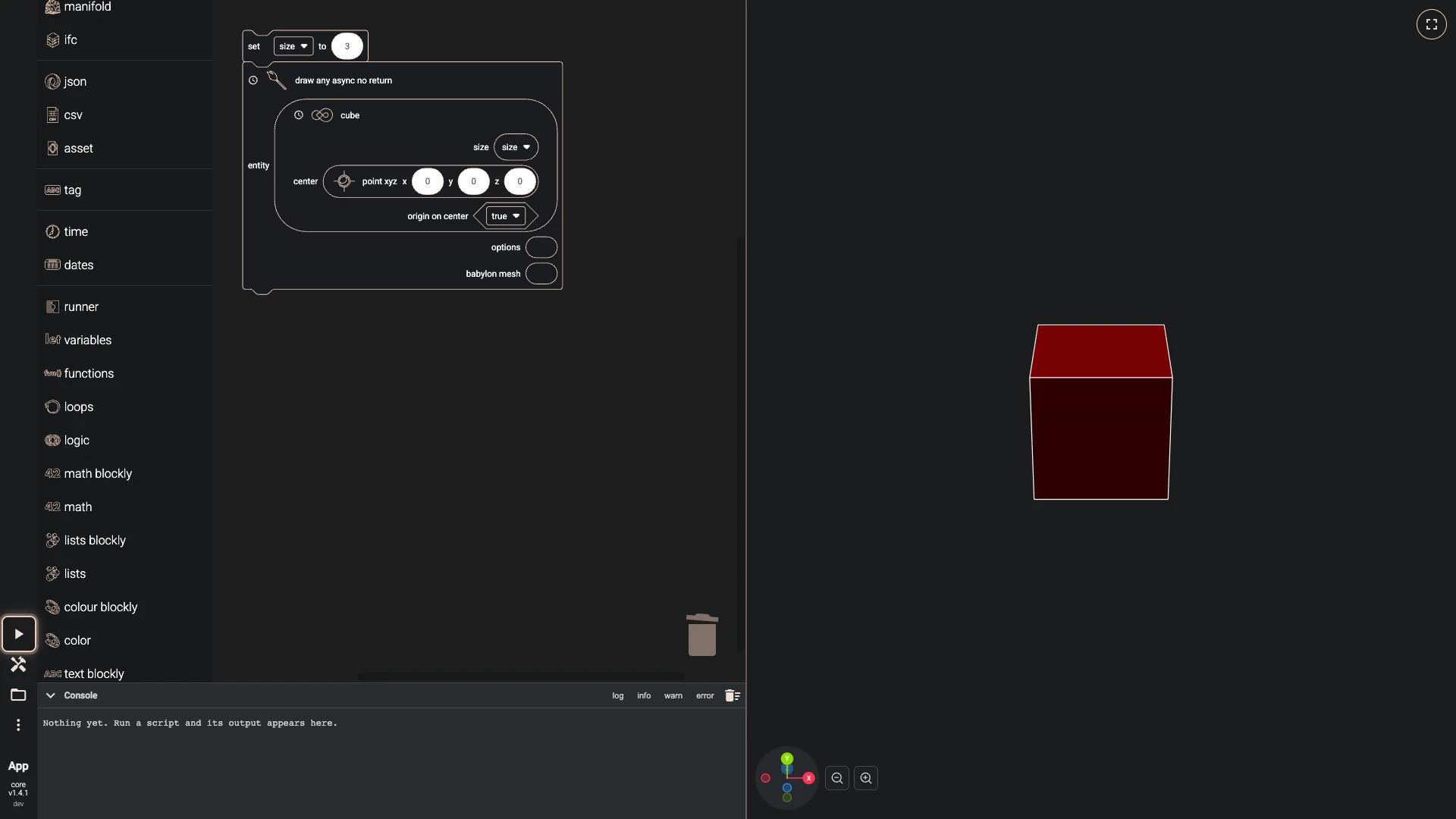
- Run the script. Press Run The Code, the play button at the lower left.
Run it. Change the 3 and run again, and the cube follows: every block that reads size gets the new value.
The finished script
The script these steps build, to run here:


<xml xmlns="https://developers.google.com/blockly/xml"><variables><variable id="size">size</variable></variables><block type="variables_set" x="40" y="40"><field name="VAR" id="size">size</field><value name="VALUE"><block type="math_number"><field name="NUM">3</field></block></value><next><block type="bitbybit.draw.drawAnyAsyncNoReturn"><value name="Entity"><block type="bitbybit.occt.shapes.solid.createCube"><value name="Size"><block type="variables_get"><field name="VAR" id="size">size</field></block></value><value name="Center"><block type="bitbybit.point.pointXYZ"><value name="X"><block type="math_number"><field name="NUM">0</field></block></value><value name="Y"><block type="math_number"><field name="NUM">0</field></block></value><value name="Z"><block type="math_number"><field name="NUM">0</field></block></value></block></value><value name="OriginOnCenter"><block type="logic_boolean"><field name="BOOL">TRUE</field></block></value></block></value></block></next></block></xml>
What you learned
- Variables hold a value under a name: set it with set … to and read it with the variable's own block. Variables and functions has more.
- The toolbox follows the API. The cube sits at occt, shapes, solid, as
bitbybit.occt.shapes.solid.createCubedoes in TypeScript. - The trash can takes any block you drop on it.
Verified against the product in October 2026