Hello World in 3D
The classic first program prints "Hello World". In Blockly the words stand in 3D on a grid. You drag a few blocks from the toolbox, stack them, plug one into another and change its values. Every step shows the editor as it looks after it, and the finished script waits at the end, ready to run on this page.
Before you start
Open an empty Blockly editor in your browser, or start a Blockly script in one of your projects. The tour names every part of the window.
The steps
-
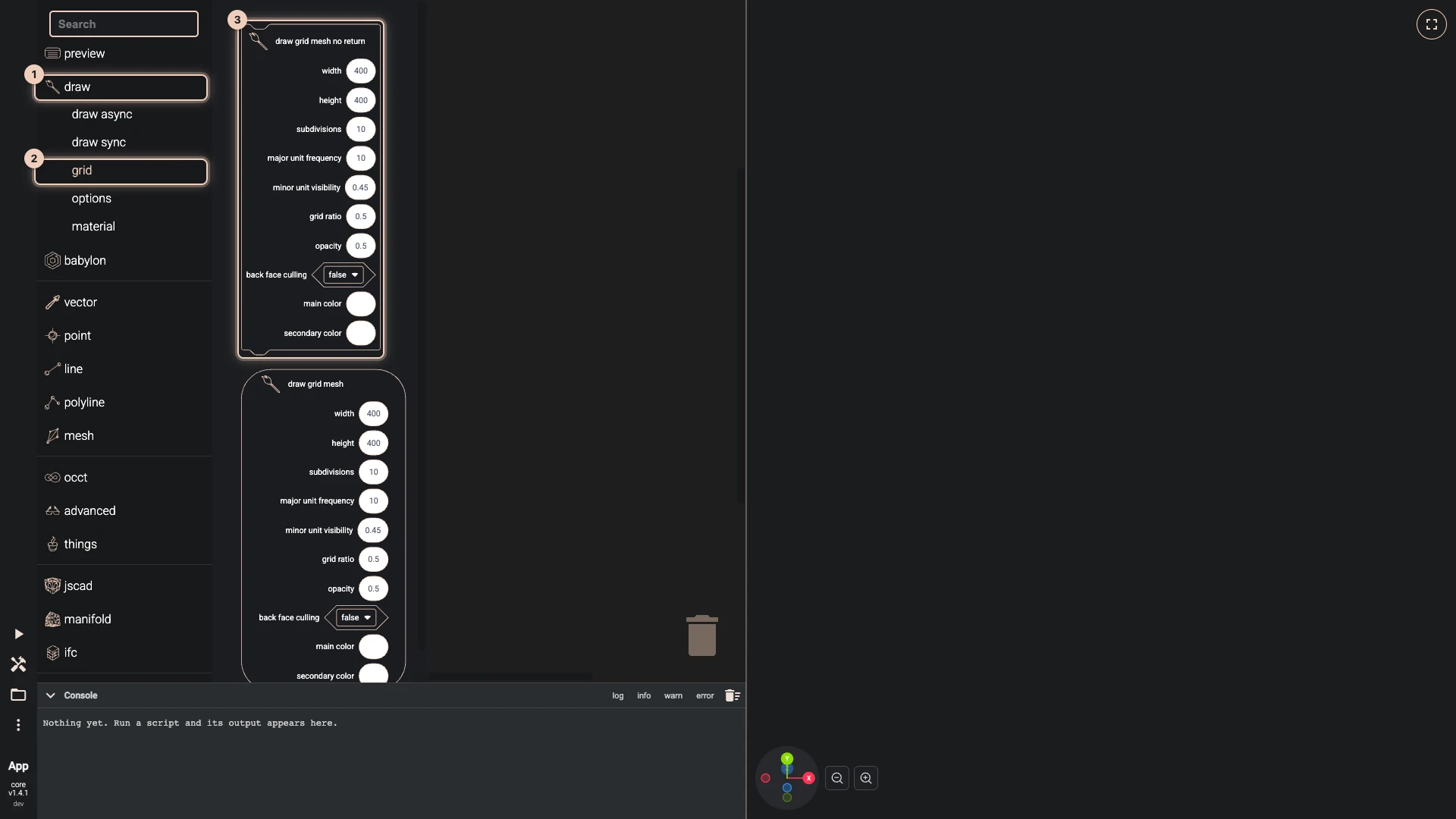
Add draw grid mesh no return. Open draw > grid in the toolbox and drag draw grid mesh no return onto the workspace.
Categories nest: draw opens into grid, draw async and the rest. A block that draws something and gives nothing back has a notch above and below, so it stacks with others.
-
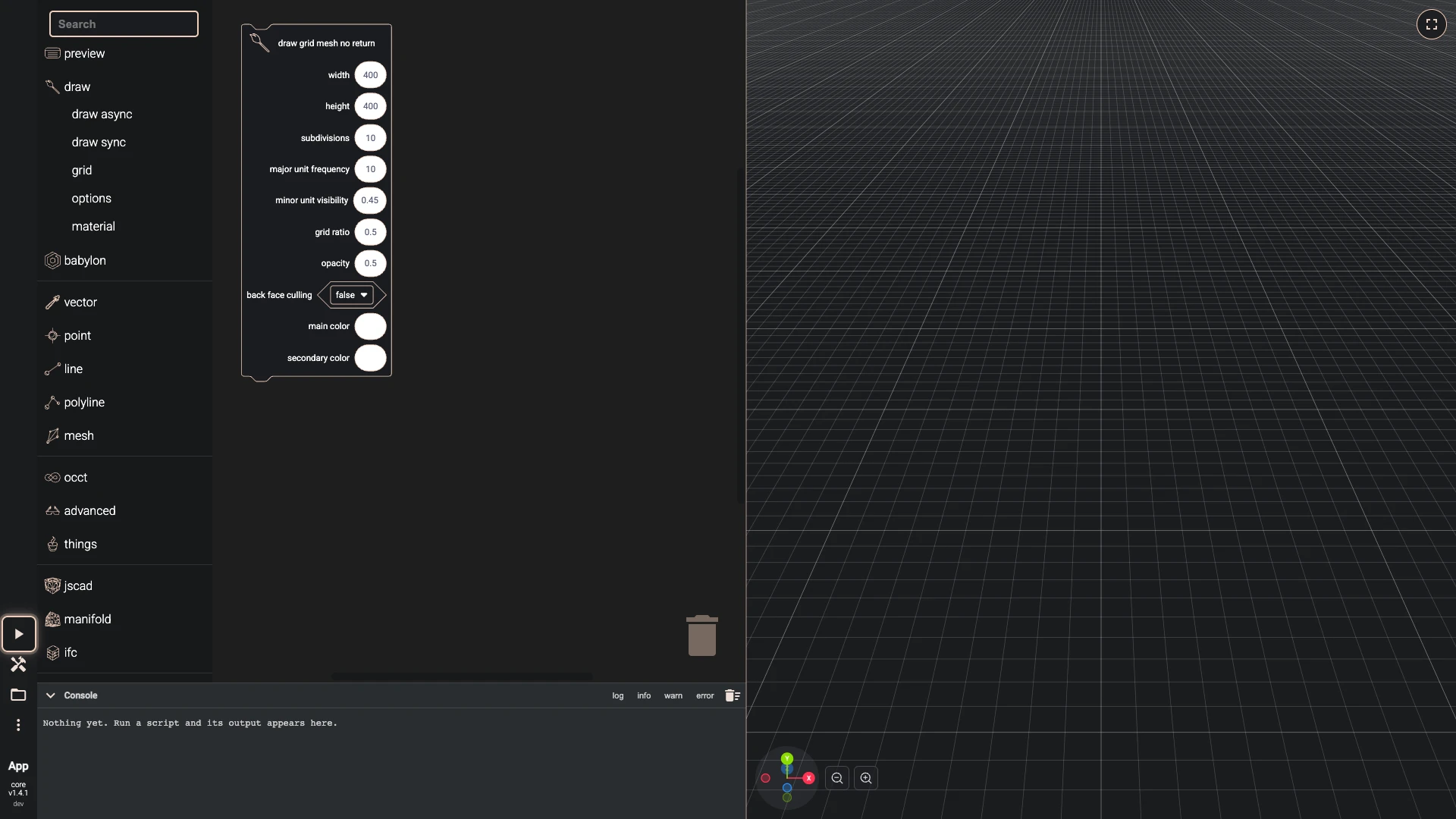
Run the script. Press Run The Code, the play button at the lower left.
Blockly runs only when you ask, so press Run The Code after a change to see it.
-
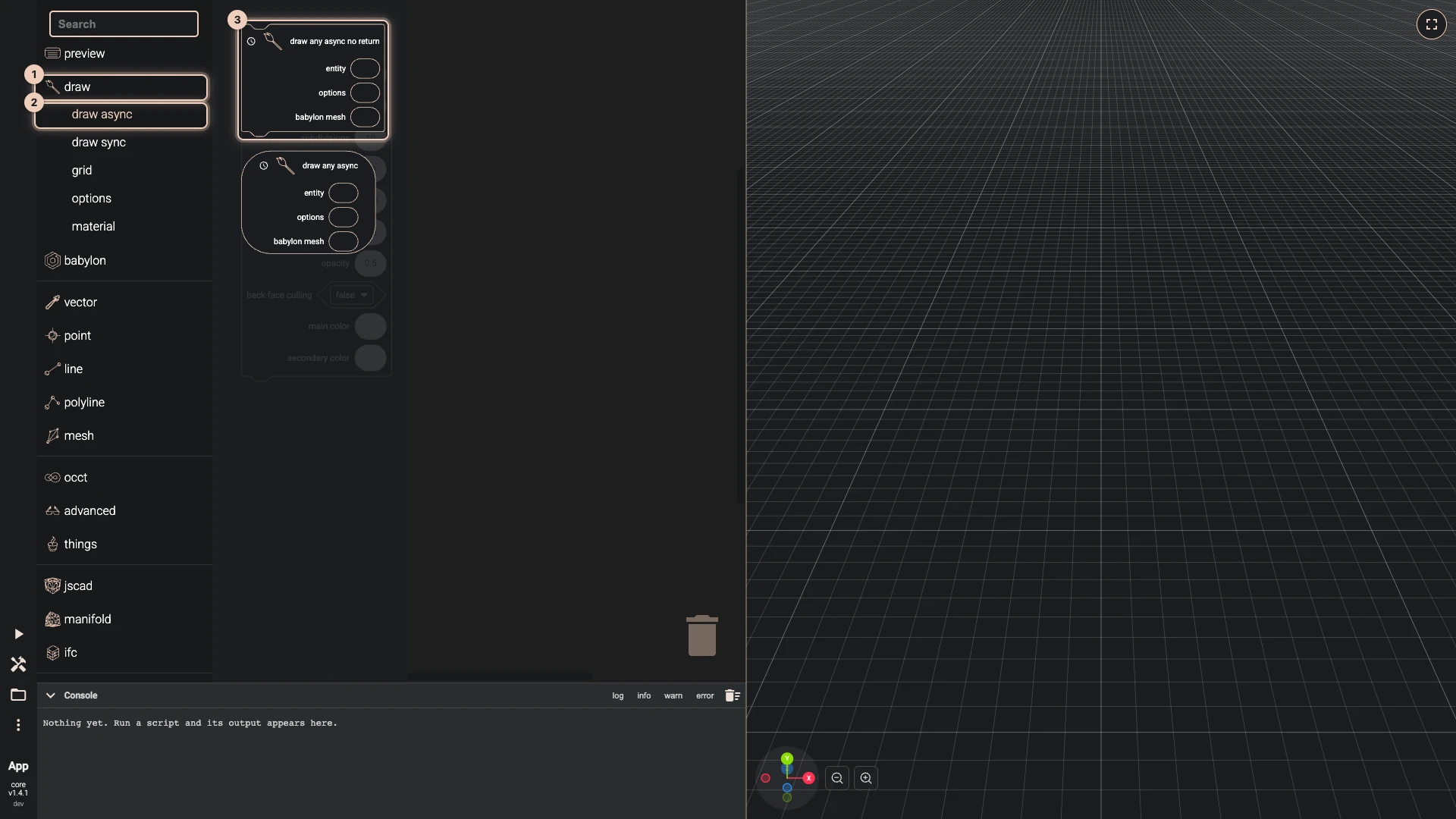
Add draw any async no return. Open draw > draw async in the toolbox and drag draw any async no return onto the workspace.
This block draws whatever is plugged into its entity input.
-
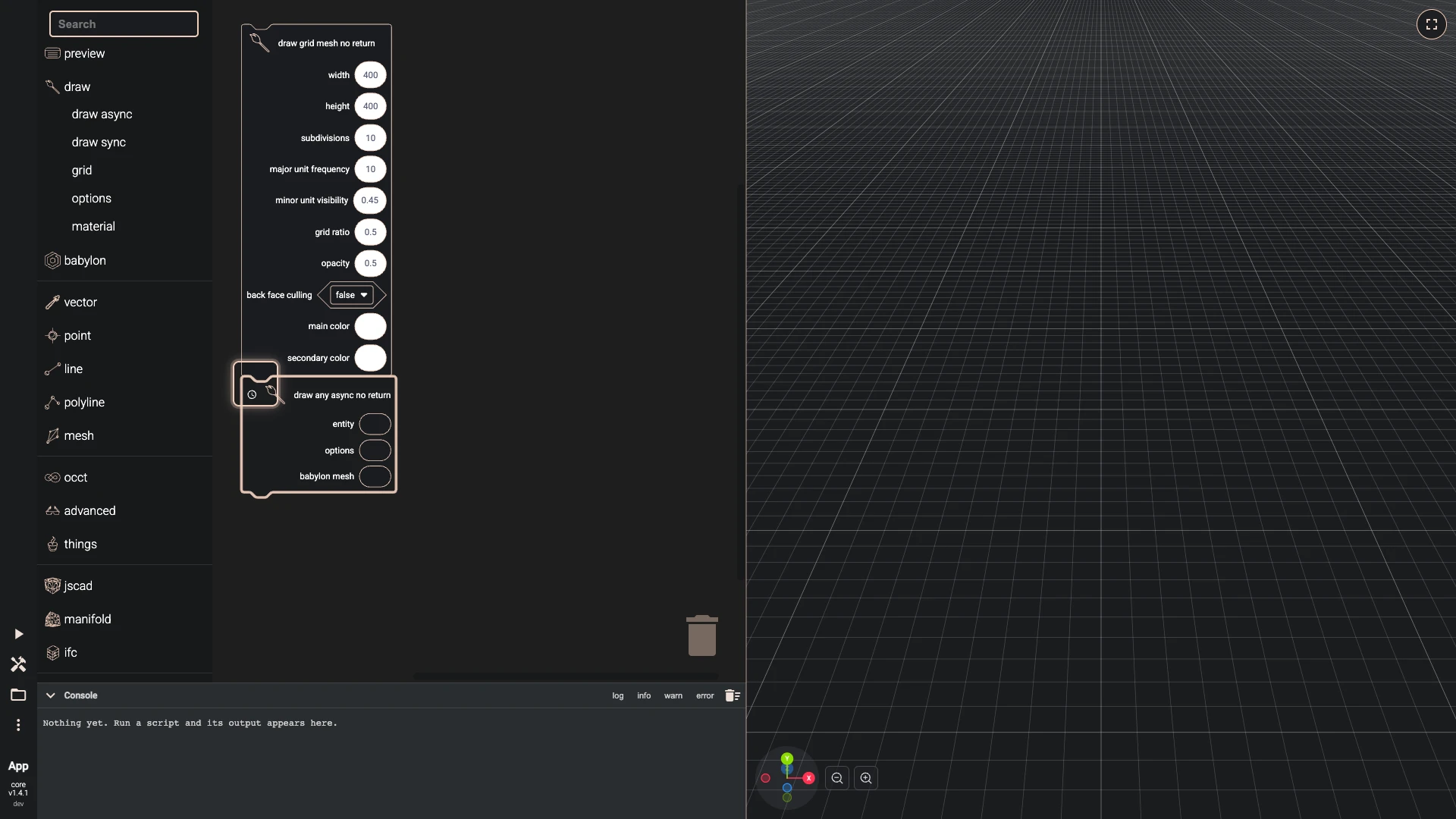
Put draw any async no return under draw grid mesh no return. Drag it below until it snaps on.
Stacked blocks run from top to bottom.
-
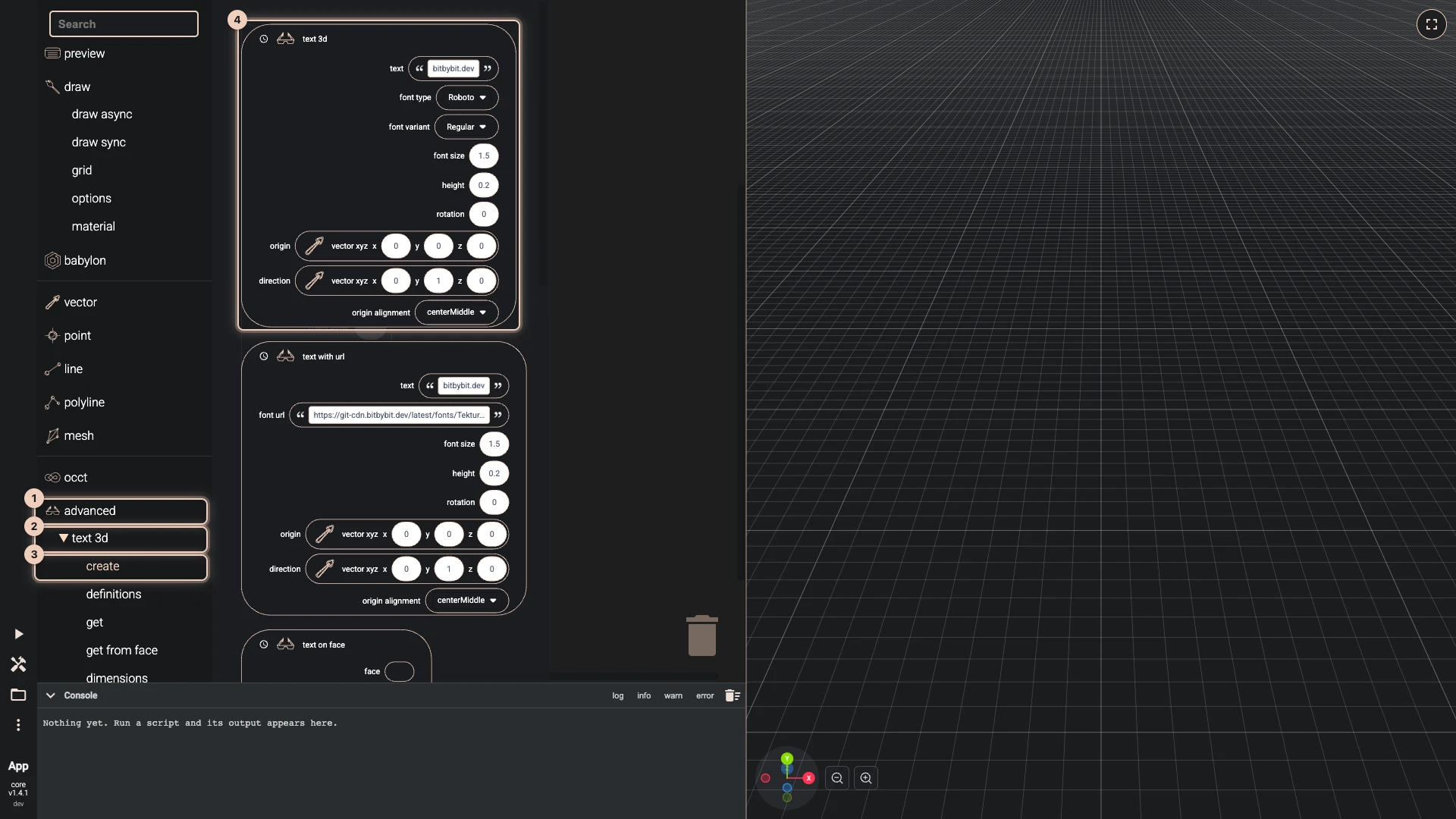
Add text 3d. Open advanced > text 3d > create in the toolbox and drag text 3d onto the workspace.
A block with a tab on its left gives a value back. It comes with a block plugged into every input, holding a value to start from.
-
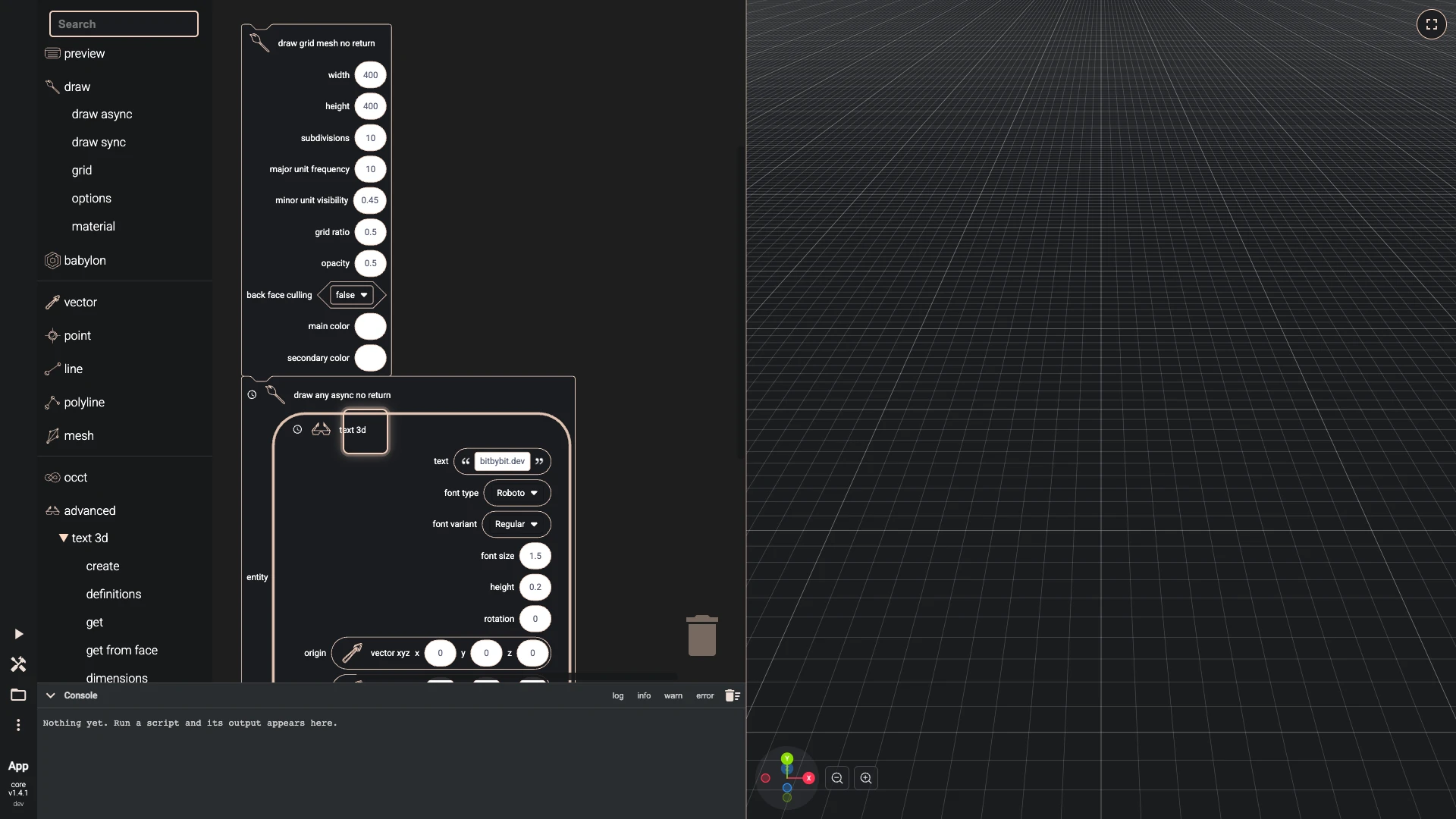
Plug text 3d into the entity of draw any async no return. Drag it by its left edge onto that input until it snaps in.
Drag the block by its left edge until its tab meets the input, and it snaps in.
-
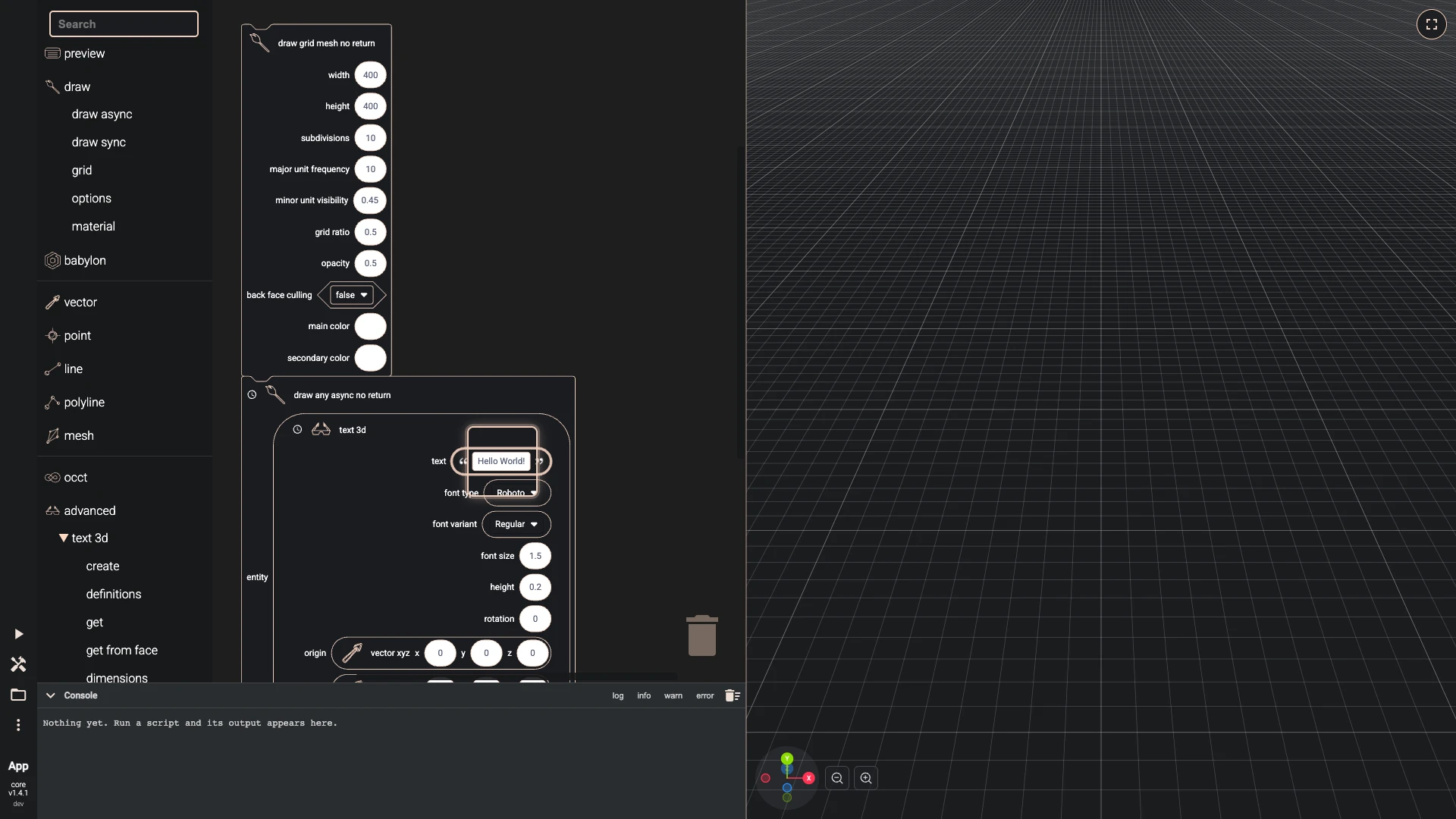
Set the text to
Hello World!on text 3d.Click a value to change it.
-
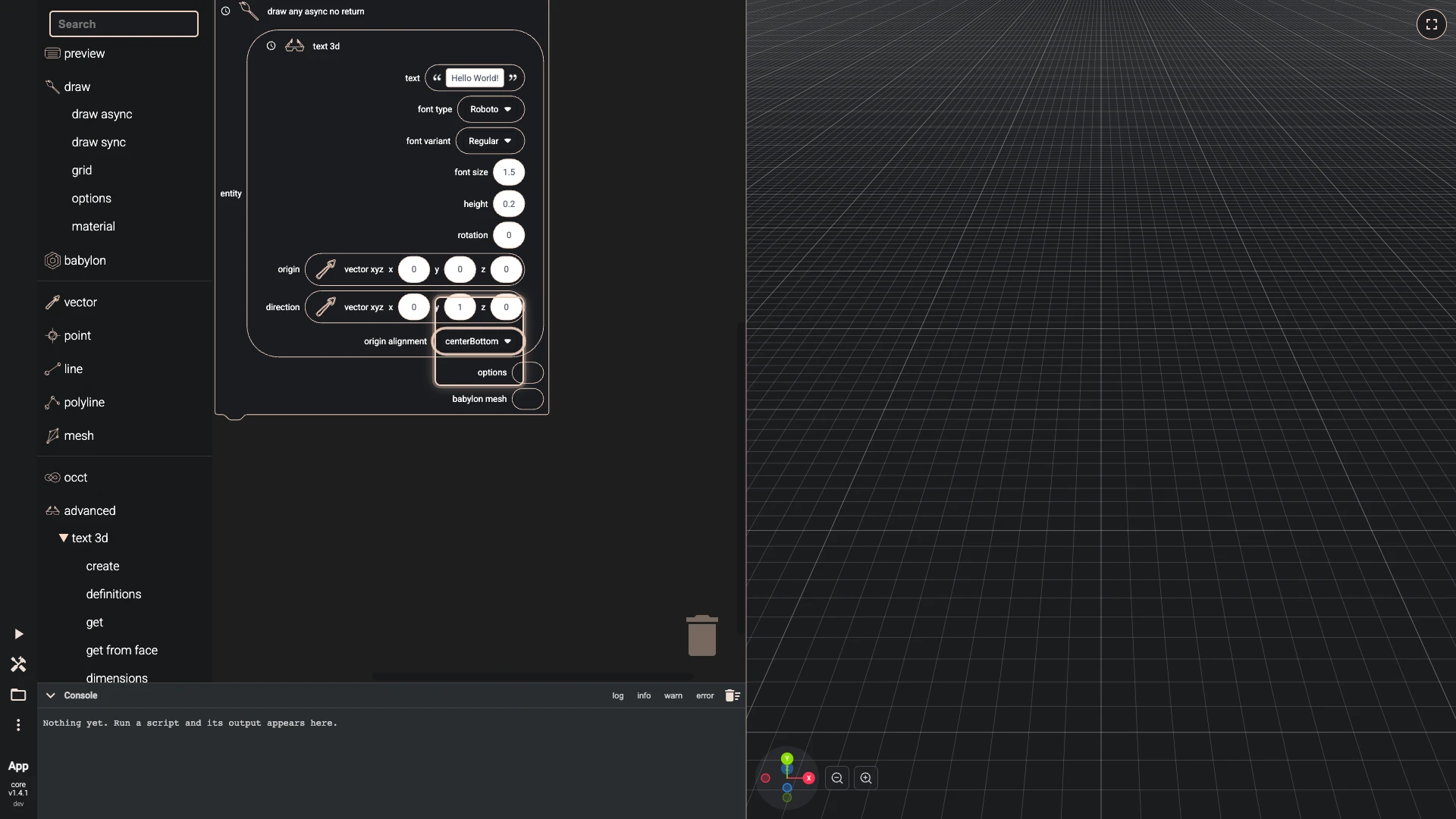
Set the origin alignment to
centerBottomon text 3d.A choice opens a list to pick from.
-
Set the rotation to
-90on text 3d.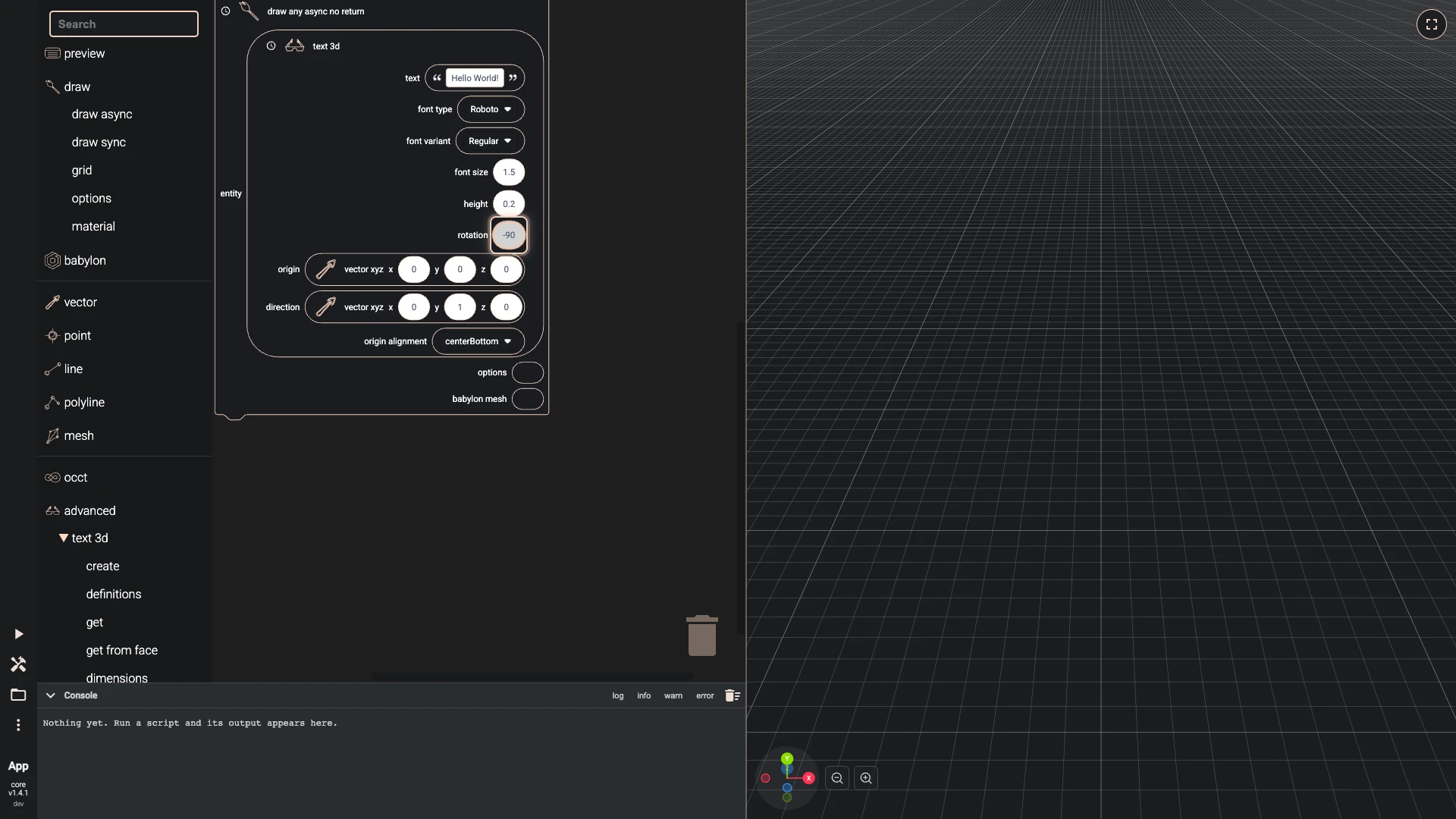
-
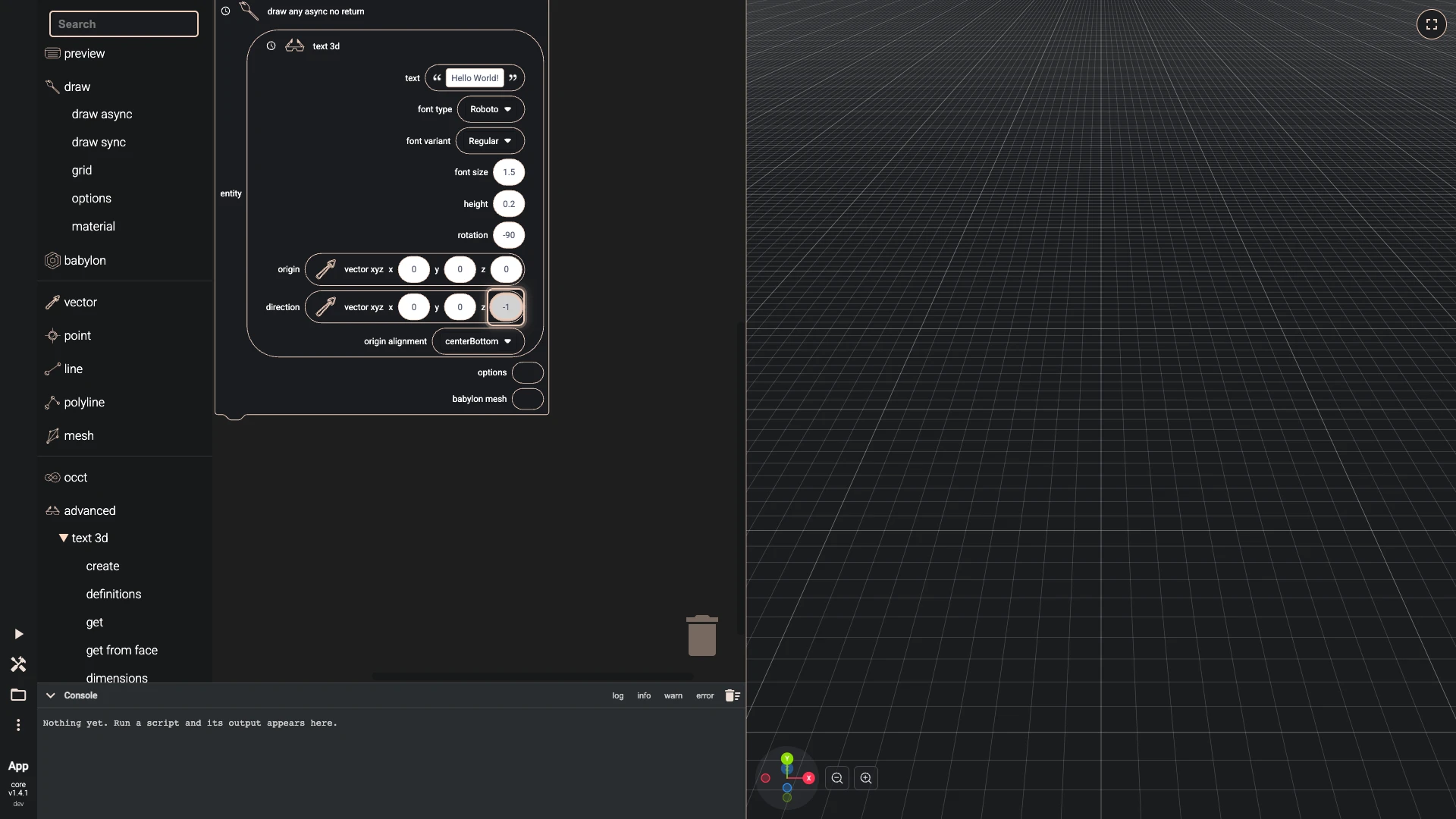
Set the y of the direction to
0on text 3d. -
Set the z of the direction to
-1on text 3d.
The direction is a vector of three numbers: point it towards the default camera.
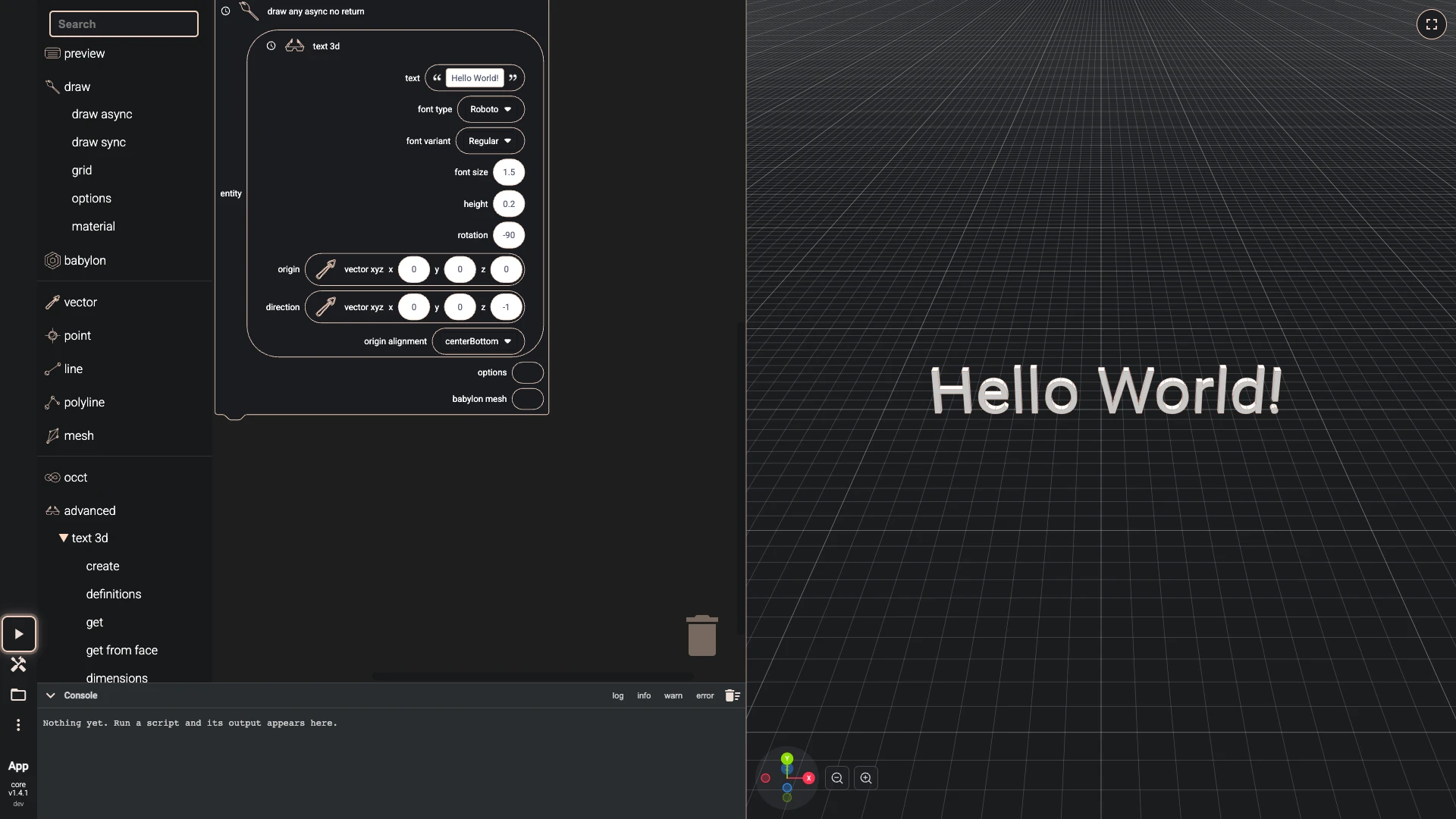
- Run the script. Press Run The Code, the play button at the lower left.
Run the script again, and the words stand on the grid facing you.
The finished script
The script these steps build, to run here:


<xml xmlns="https://developers.google.com/blockly/xml"><block type="bitbybit.draw.drawGridMeshNoReturn" x="40" y="40"><value name="Width"><block type="math_number"><field name="NUM">400</field></block></value><value name="Height"><block type="math_number"><field name="NUM">400</field></block></value><value name="Subdivisions"><block type="math_number"><field name="NUM">10</field></block></value><value name="MajorUnitFrequency"><block type="math_number"><field name="NUM">10</field></block></value><value name="MinorUnitVisibility"><block type="math_number"><field name="NUM">0.45</field></block></value><value name="GridRatio"><block type="math_number"><field name="NUM">0.5</field></block></value><value name="Opacity"><block type="math_number"><field name="NUM">0.5</field></block></value><value name="BackFaceCulling"><block type="logic_boolean"><field name="BOOL">FALSE</field></block></value><value name="MainColor"><block type="colour_picker"><field name="COLOUR">#ffffff</field></block></value><value name="SecondaryColor"><block type="colour_picker"><field name="COLOUR">#ffffff</field></block></value><next><block type="bitbybit.draw.drawAnyAsyncNoReturn"><value name="Entity"><block type="bitbybit.advanced.text3d.create"><value name="Text"><block type="text"><field name="TEXT">Hello World!</field></block></value><value name="FontType"><block type="bitbybit.advanced.text3d.fontsEnum"><field name="bitbybit.advanced.text3d.fontsEnum">'Roboto'</field></block></value><value name="FontVariant"><block type="bitbybit.advanced.text3d.fontVariantsEnum"><field name="bitbybit.advanced.text3d.fontVariantsEnum">'Regular'</field></block></value><value name="FontSize"><block type="math_number"><field name="NUM">1.5</field></block></value><value name="Height"><block type="math_number"><field name="NUM">0.2</field></block></value><value name="Rotation"><block type="math_number"><field name="NUM">-90</field></block></value><value name="Origin"><block type="bitbybit.vector.vectorXYZ"><value name="X"><block type="math_number"><field name="NUM">0</field></block></value><value name="Y"><block type="math_number"><field name="NUM">0</field></block></value><value name="Z"><block type="math_number"><field name="NUM">0</field></block></value></block></value><value name="Direction"><block type="bitbybit.vector.vectorXYZ"><value name="X"><block type="math_number"><field name="NUM">0</field></block></value><value name="Y"><block type="math_number"><field name="NUM">0</field></block></value><value name="Z"><block type="math_number"><field name="NUM">-1</field></block></value></block></value><value name="OriginAlignment"><block type="bitbybit.advanced.text3d.recAlignmentEnum"><field name="bitbybit.advanced.text3d.recAlignmentEnum">'centerBottom'</field></block></value></block></value></block></next></block></xml>
What you learned
- Blocks come from the toolbox, by category or by search. Building a script has more.
- Two shapes of block: one with notches above and below does something and stacks; one with a tab on its left gives a value and plugs into an input.
- Running: Blockly runs when you press Run The Code, so run again after a change.
Next, a parametric cube sizes a solid with a variable.
Verified against the product in October 2026