Working with blocks
A block's menu
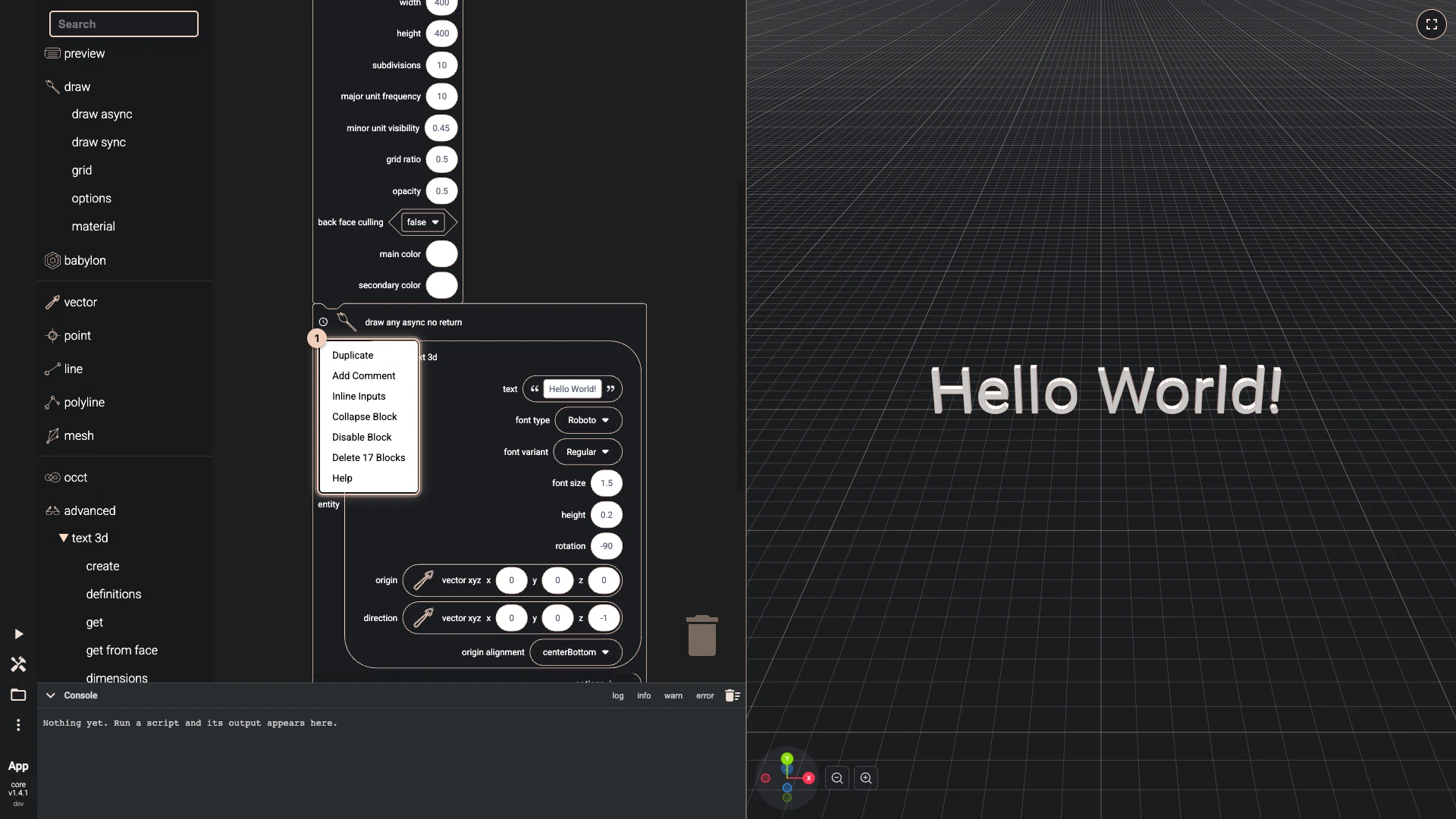
Right-click a block to open its menu:
- Duplicate puts a copy beside it, with the blocks plugged into it.
- Add Comment attaches a note to the block, in a bubble you can open and close; Remove Comment takes it off.
- Inline Inputs draws the inputs in a row instead of down the side, and External Inputs puts them back.
- Collapse Block folds the block and everything in it into one line, to keep a large script readable; Expand Block opens it again.
- Disable Block keeps the block but leaves it out of the run; Enable Block puts it back.
- Delete Block removes it, with the blocks plugged into it.
- Help opens the block's page in the API documentation.
The workspace's menu
Right-click an empty spot of the workspace for what applies to the whole script: Undo and Redo, Clean up Blocks to line the stacks up, Collapse Blocks and Expand Blocks for all of them, and deleting every block.
A block's tip
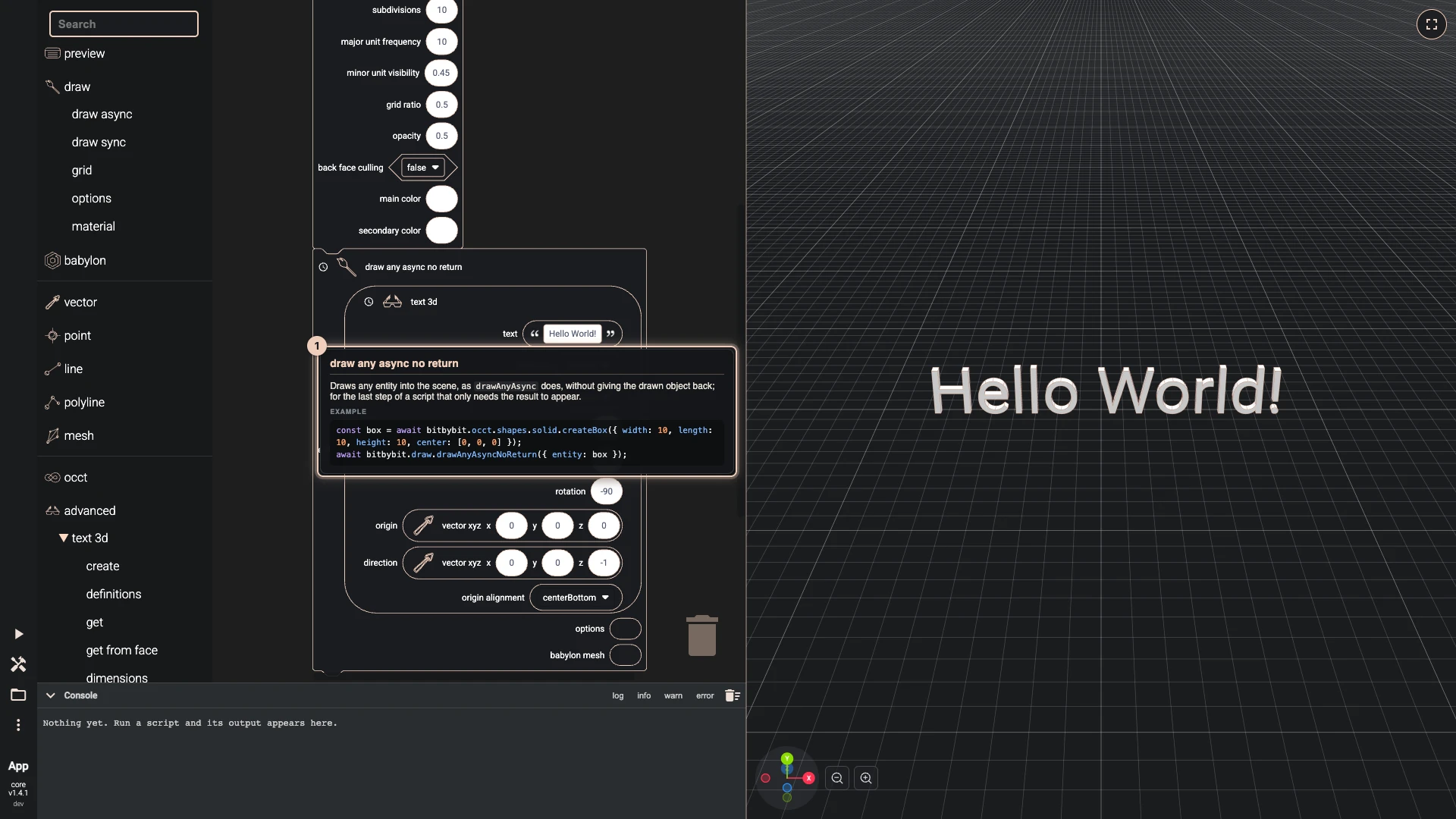
Rest the pointer on a block to read what it does, the path of its function in the API and what it gives back. Rest it on an input's name for what that input expects.
Some blocks carry a warning sign: the block is new and may still change, or it will be removed in a future version. Its tip says which.
When a block fails
A block that cannot compute when the script runs turns brown, and its warning says so; the console shows the error. Finding errors has the details, for Blockly and the other editors.
Verified against the product in October 2026