Configurators Built From Products You Already Sell
Many stores already sell their product in every size and colour, each as a variant with its own SKU, price and stock. A configurator for such a store should not invent prices of its own. It should let the shopper choose, show the product, and put the right variants in the cart at the prices your store already has. That is what a part that picks one of your variants does.
This page builds one on the catamaran from Build the Catamaran Configurator, with an invented store, then covers what the shopper, the cart and the order see, and how to keep it right.
Is this you?
- Every combination you sell is already a variant, with a SKU and a price.
- The configurator's choices map onto those variants' options, such as length and colour.
- Add-ons are products of their own, or variants of one.
If your prices are amounts you set rather than products you stock, start with Setting up pricing instead.
How it fits together
- The configured product carries the configurator. It is a product of its own: a part may not pick from the product the configurator sits on. Its price is the configurator's base price. When every amount comes from the parts, both are 0.
- A part that picks one of your variants stands for each product you sell in combinations. The shopper's choices answer its options, and the cart carries the matching variant at the price Shopify sets for it.
- Linked products cover add-ons sold as single products.
- Product lines charging is what charges a picked variant. It is the default.
Made this way, the configuration contains only your own products, so it follows Shopify's price in every market and country, and nothing in it is a price 3D Bits worked out. Add an amount in the Composer - an option charge, a part price you type, a formula - and that amount does not follow: see Other currencies.
The example store
The store sells the boat's hull in every length and colour but one, and the helm station in three styles. Both are invented for this page.
Catamaran hull, options Length and Colour:
| Length | Colour | SKU | Price |
|---|---|---|---|
| 15 m | Regatta | CAT-15-REG | 1490000 |
| 15 m | Midnight | CAT-15-MID | 1555000 |
| 20 m | Regatta | CAT-20-REG | 4940000 |
| 20 m | Midnight | CAT-20-MID | 5005000 |
| 20 m | Noir | CAT-20-NOI | 5035000 |
| 25 m | Regatta | CAT-25-REG | 8890000 |
| 25 m | Midnight | CAT-25-MID | 8955000 |
| 25 m | Noir | CAT-25-NOI | 8985000 |
There is no 15 m hull in Noir.
Helm station, option Style:
| Style | SKU | Price |
|---|---|---|
| Classic | HELM-CLA | 14000 |
| Ergonomic | HELM-ERG | 26000 |
| Sport | HELM-SPO | 42000 |
Build it
Before you start
- Parts need the Pro plan.
- Create the two products above in Shopify, or use products of your own.
- Create the product the configurator sits on, here called Catamaran, at 0.00. Keep it in Draft until its pricing is live: until then checkout has no rules that refuse it, so anyone with its link could order it for free, and the project's page in the app warns you about exactly that.
- Leave Charging method, in the project's Storefront settings, on Product lines.
- Load chapter 7's file in Composer. It holds the boat and its choices, with no prices yet.
1. Turn pricing on
Open GUI, then Pricing. Turn on Enable pricing and set Base price to 0. The table underneath sets it beside your product's own price, and both are 0.
2. Add the hull
- Open Parts, press Add Part and set Label to Hull.
- Press Pick a variant and pick Catamaran hull in Shopify's product picker. Composer reads its options and variants.
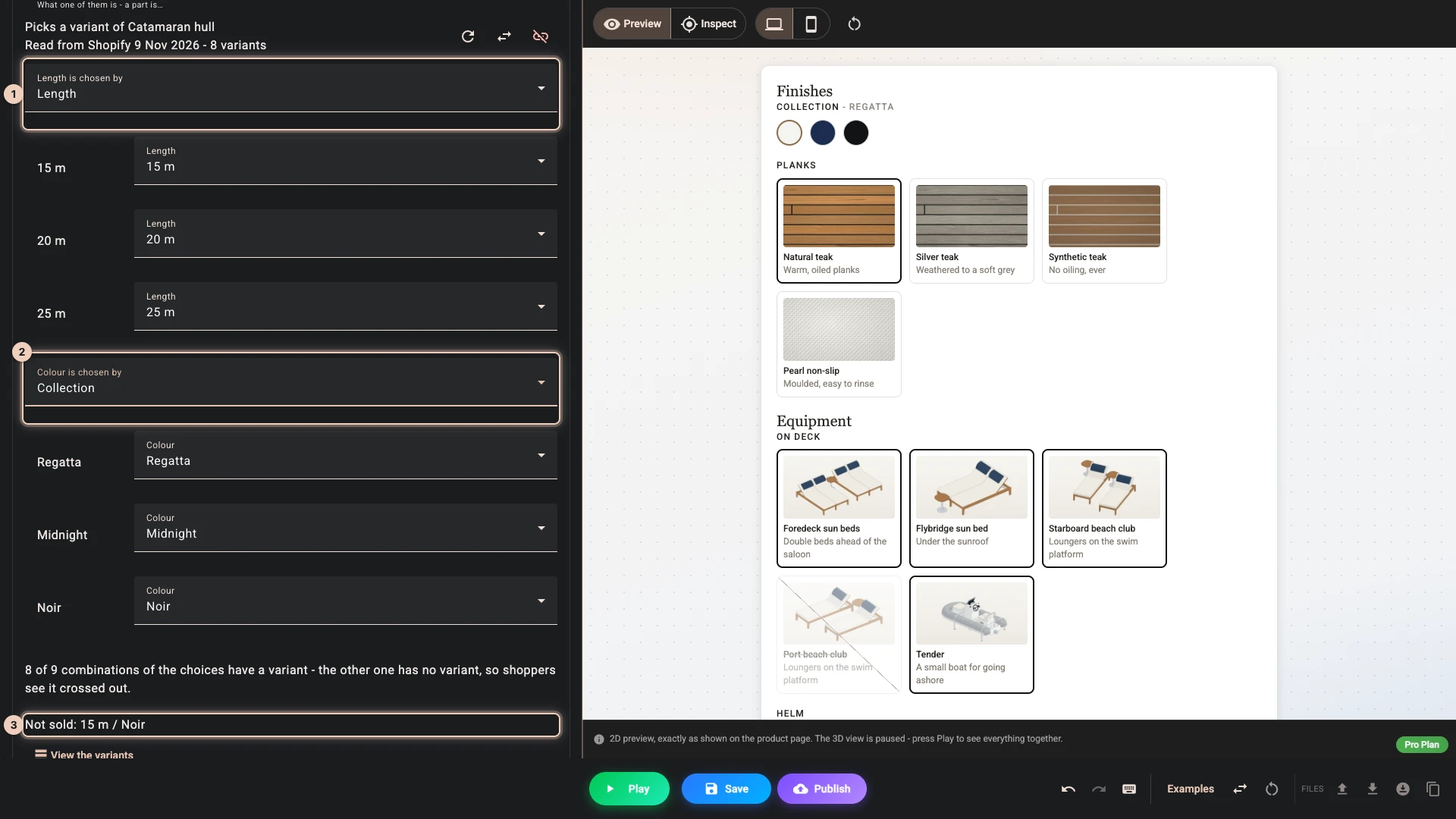
- Length is chosen by the Length control already 1, because the names match, and so is each length. Set Colour to be chosen by Collection 2: the store calls it Colour, the panel calls it Collection. Regatta, Midnight and Noir then match by name.
The line under the matches says that 8 of the 9 combinations have a variant, and names the one that does not 3.
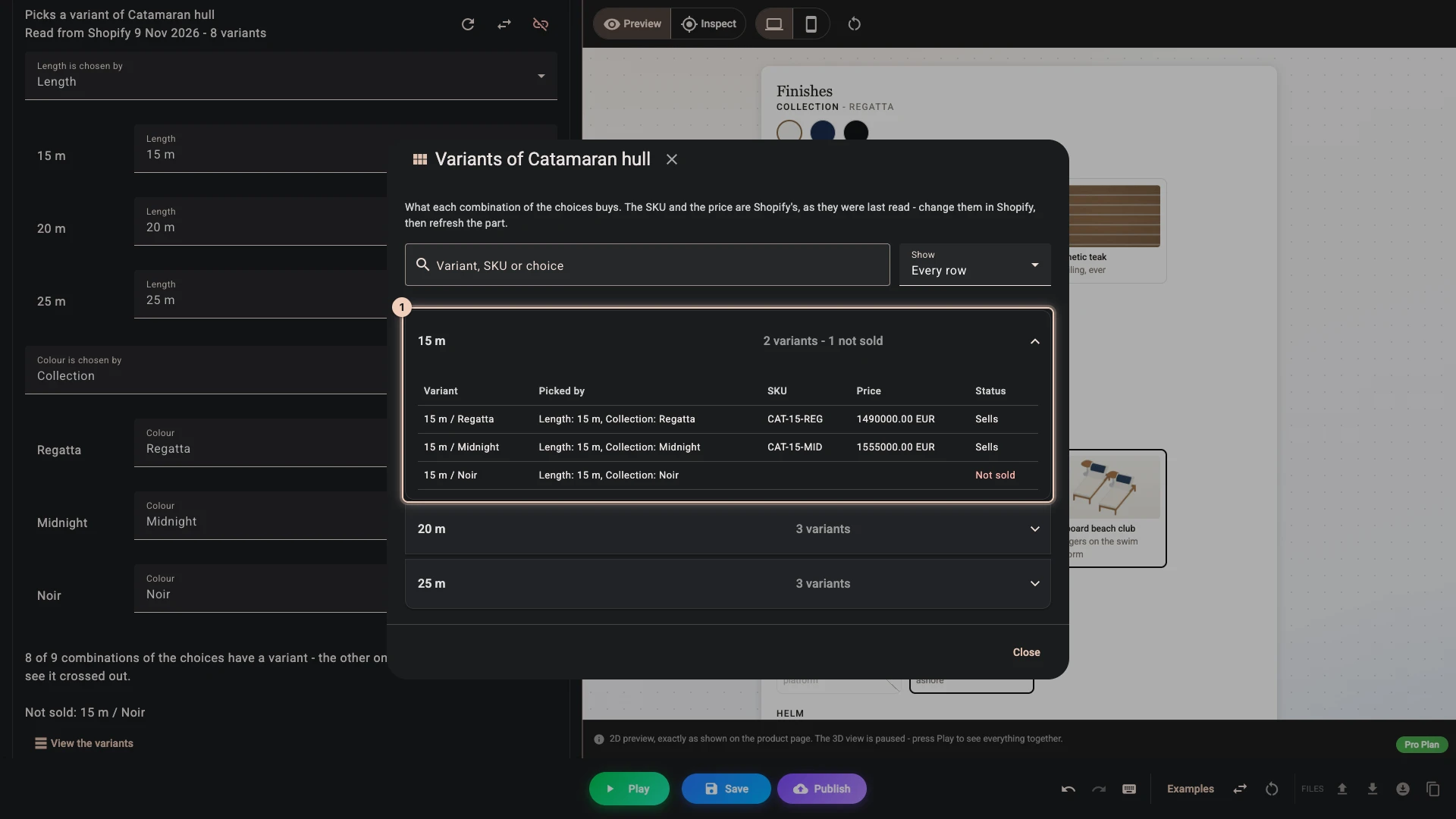
View the variants lists every variant with the choices that pick it, its SKU and its price, grouped by the product's first option. The 15 m group 1 shows the two hulls you sell at that length and the one you do not.
3. Add the helm station
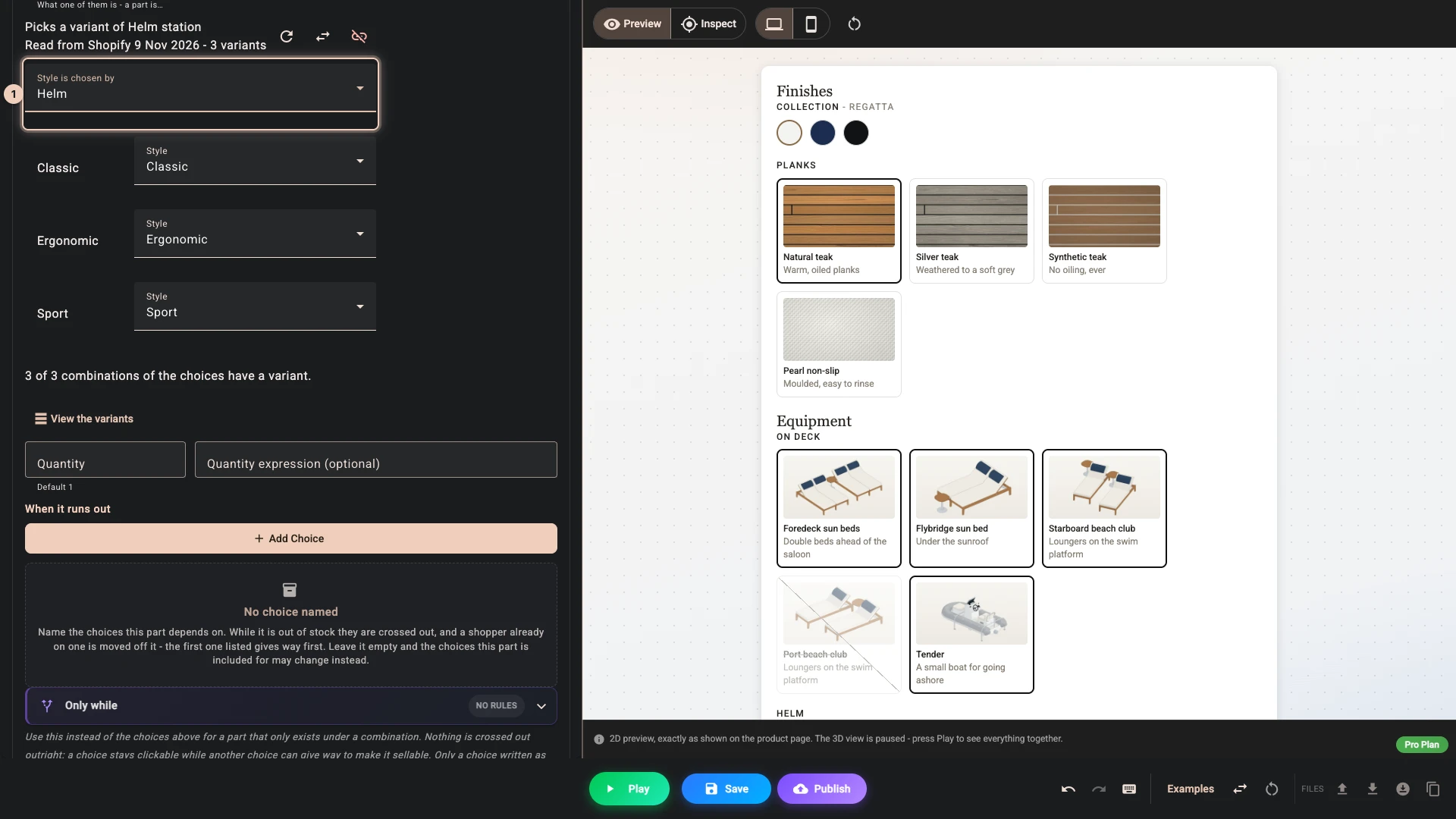
Press Add Part again, set Label to Helm station, press Pick a variant and pick Helm station. Set Style to be chosen by Helm 1. Classic, Ergonomic and Sport match by name, and all 3 combinations have a variant.
4. Show the price
Add a Price element with its breakdown and an Add to cart button under it, both pinned to the bottom of the panel, as steps 7 and 8 of Price it do.
5. Try it
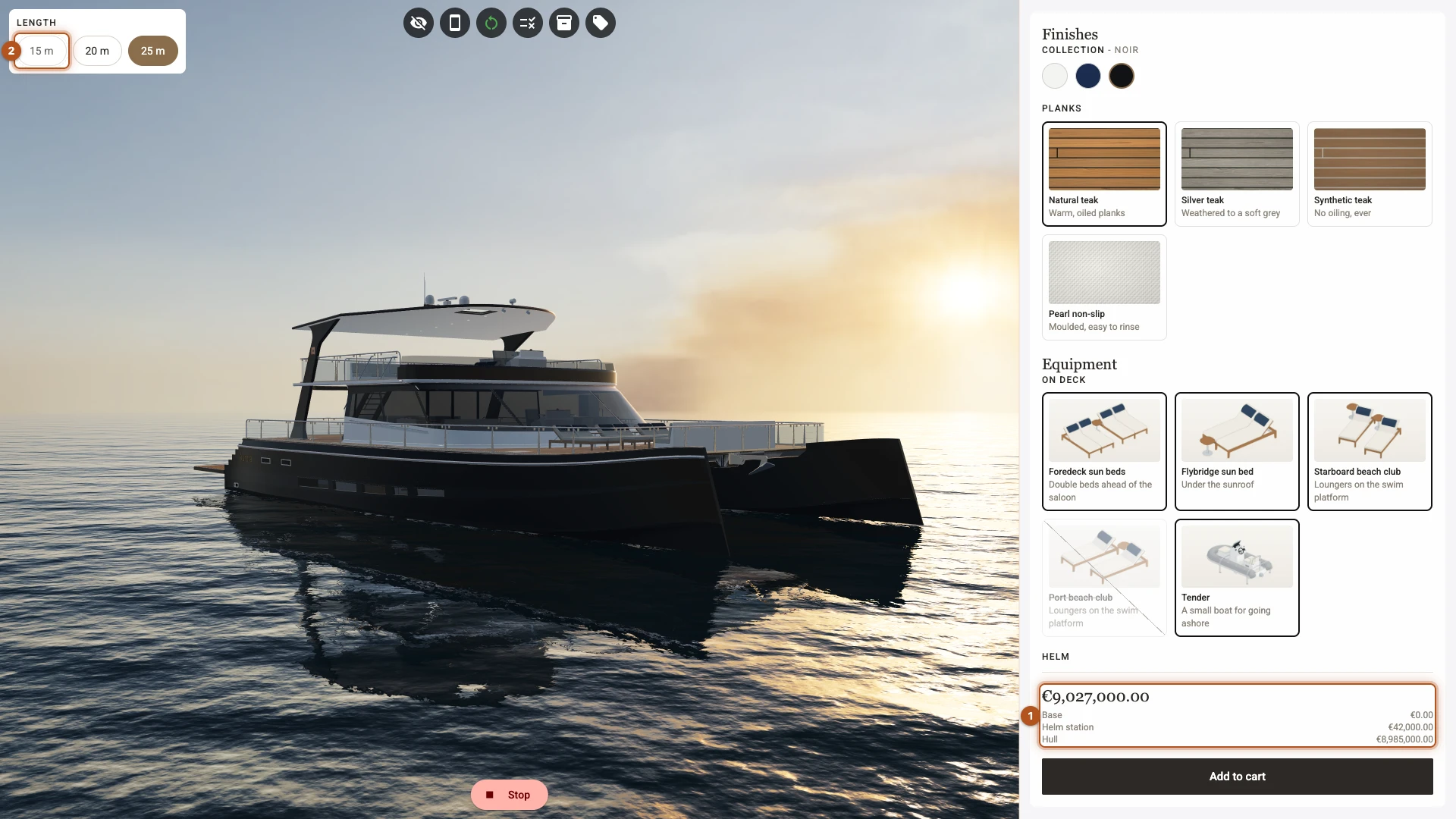
Press Play. The boat opens at 20 m in Regatta with the Sport helm, so the total starts at 4982000: the 20 m Regatta hull at 4940000 and the Sport helm station at 42000. Pick 25 m and Noir, and it comes to 9027000 1, each part on its own line of the breakdown at its variant's price.
With Noir chosen, 15 m is faded 2: its hint says "Not sold with your current choices - picking it changes Collection to Regatta". Pick it, and the collection moves to Regatta, so the shopper lands on a hull you sell, at 1532000.
6. Publish
Publish as Publish it shows. If your variants track stock, turn on Disable options that cannot currently be sold (live catalog) in the Pricing tab first, so a variant that sells out is treated like the combination you never sold. Then make Catamaran active.
What the shopper, the cart and the order see
- In the configurator, the shopper sees each part at its variant's price in Shopify, in their own currency, and the breakdown names each part by its label.
- In the cart there is normally one row: Catamaran with the picked variants combined into it, and the card 3D Bits draws under it, listing the choices. The shopper keeps or removes the row whole.
- On the order, Shopify lists Catamaran and each picked variant as your own product, with its SKU and at Shopify's price, so your team picks what is listed and your stock counts stay right.
- In other markets, each picked variant costs what Shopify says it costs there, price lists and the shopper's country included, because every price in this configuration is Shopify's.
When your catalogue changes
- A variant's price changes: the configurator and checkout follow it at once, with no publish.
- You add a variant: it is not sold until you refresh the part and publish. Publishing warns about it.
- You delete a variant: that combination is treated as not sold. Publishing warns, and a refresh clears it.
- You rename an option or a value: a refresh follows it, and keeps your matches.
Refresh variants from Shopify, above the list of parts, reads every product your parts pick from again in one go. The parts page has the full list.
One product per size
Some stores keep one product per size, each with its own colours and styles. Add one part per product, each picking from its own product, and include each only for its size: under Included when, a match on Length, 25 m, for the 25 m product, and so on. Only the part whose condition holds reaches the cart.
Why not another charging method
- Variant matrix generates variants of its own on the configured product, and cannot charge parts at all.
- Bundled parts cannot charge a part that picks one of your variants, and charges the prices you published rather than Shopify's.
- Single line moves a configuration with such a part to Product lines when you publish.
Charging methods compares them in full.
Limits
- Each picked variant is a cart line of its own, and takes a little more room than other lines. A configuration with up to 25 such parts lets one cart hold 4 configured items, and one with more than 101 does not publish. See How many configured items fit in one cart.
- When your parts can pick more than 500 variants between them, the configurator checks stock only for the variants the shopper's choices pick.
- A part may not pick from the product the configurator sits on, or from a product that is itself configured.
Verified against the product in November 2026