A Parametric Catamaran Configurator for Shopify Ecommerce, Built With 3D Bits

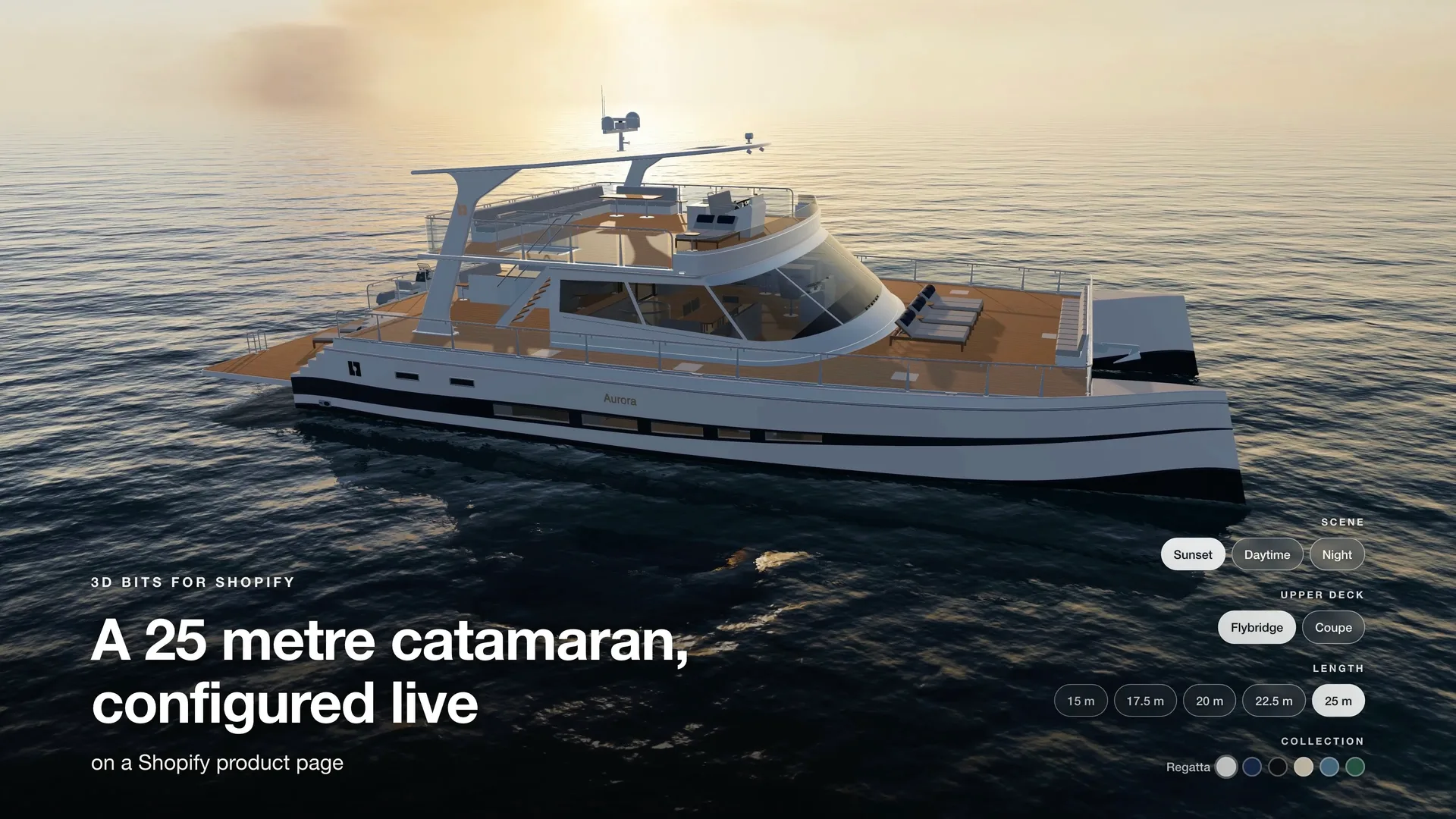
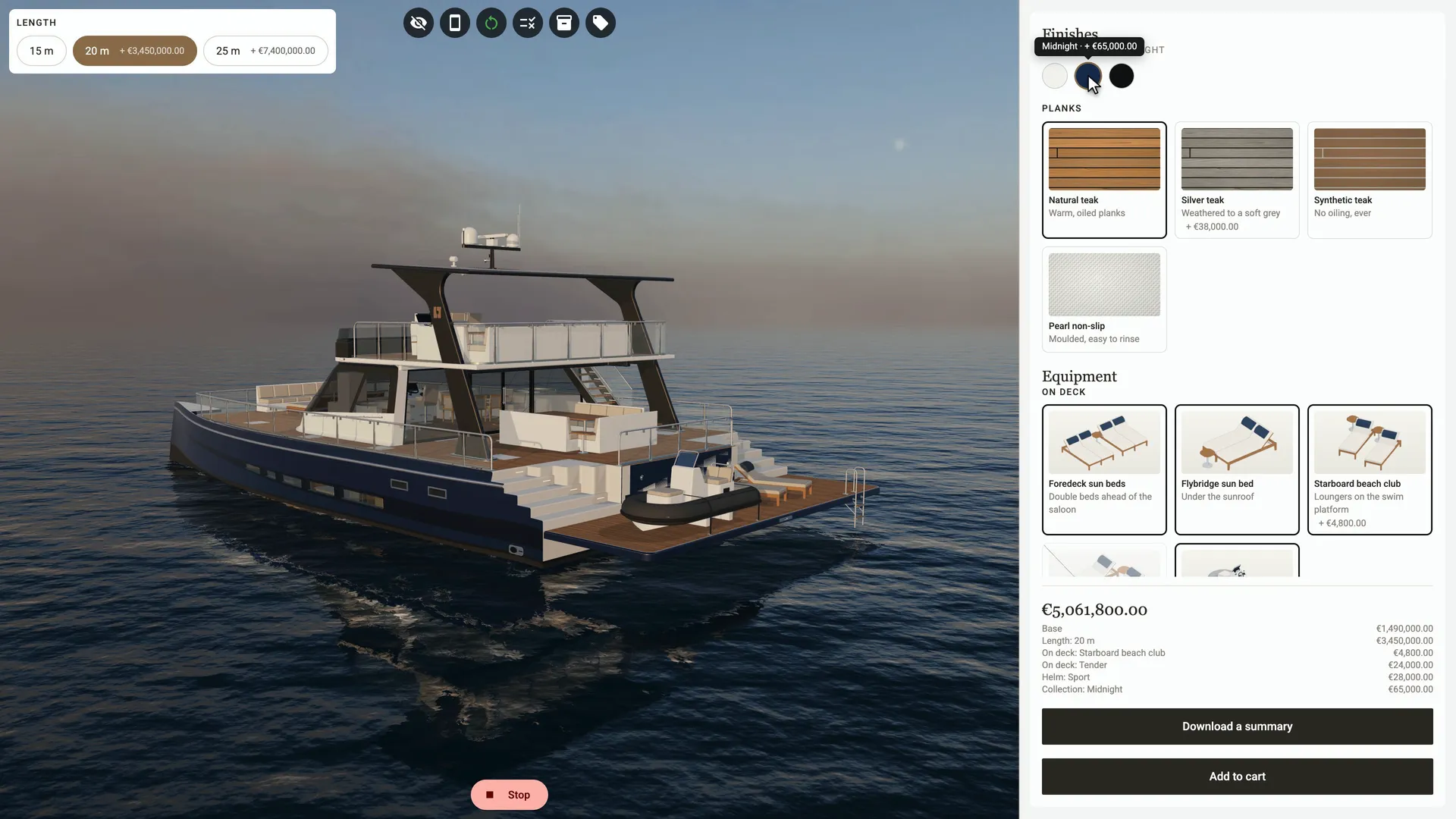
Our new 3D Bits example is a power catamaran. On a Shopify product page, a shopper chooses her length and beam, her upper deck, her colours, her decks and her helm. They add extras, see her at sunset, at night or in a studio, step inside her, and give her a name, written on her hull as they type it. Every choice changes the boat in 3D and is priced as it is made. When they add her to the cart, the order carries a picture of exactly the boat they built.
She is also the boat of our new tutorial, Build the Catamaran Configurator, which builds a configurator like this one with you, chapter by chapter, on your own store.
Watch it
The film shows the configurator on a store's product page, the summary it gives the shopper and the cart, the same configurator on a phone, and a look round it in 3D Bits Composer.
What the shopper can do
- Pick her size. In the film she comes in five lengths from 15 to 25 metres, three beams and two upper decks, a flybridge or a closed coupe. Each one is a model of its own, loaded only when it is chosen.
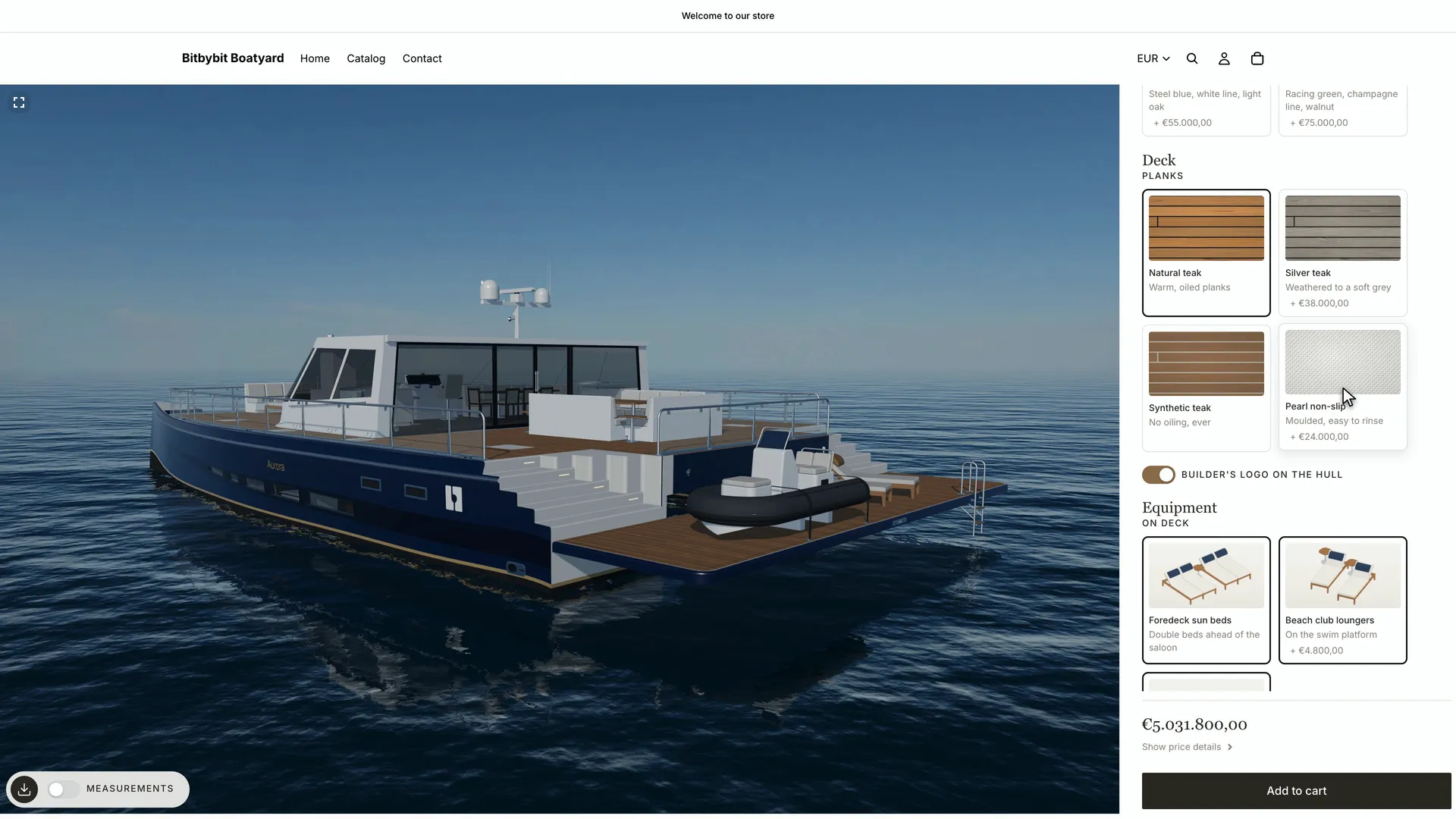
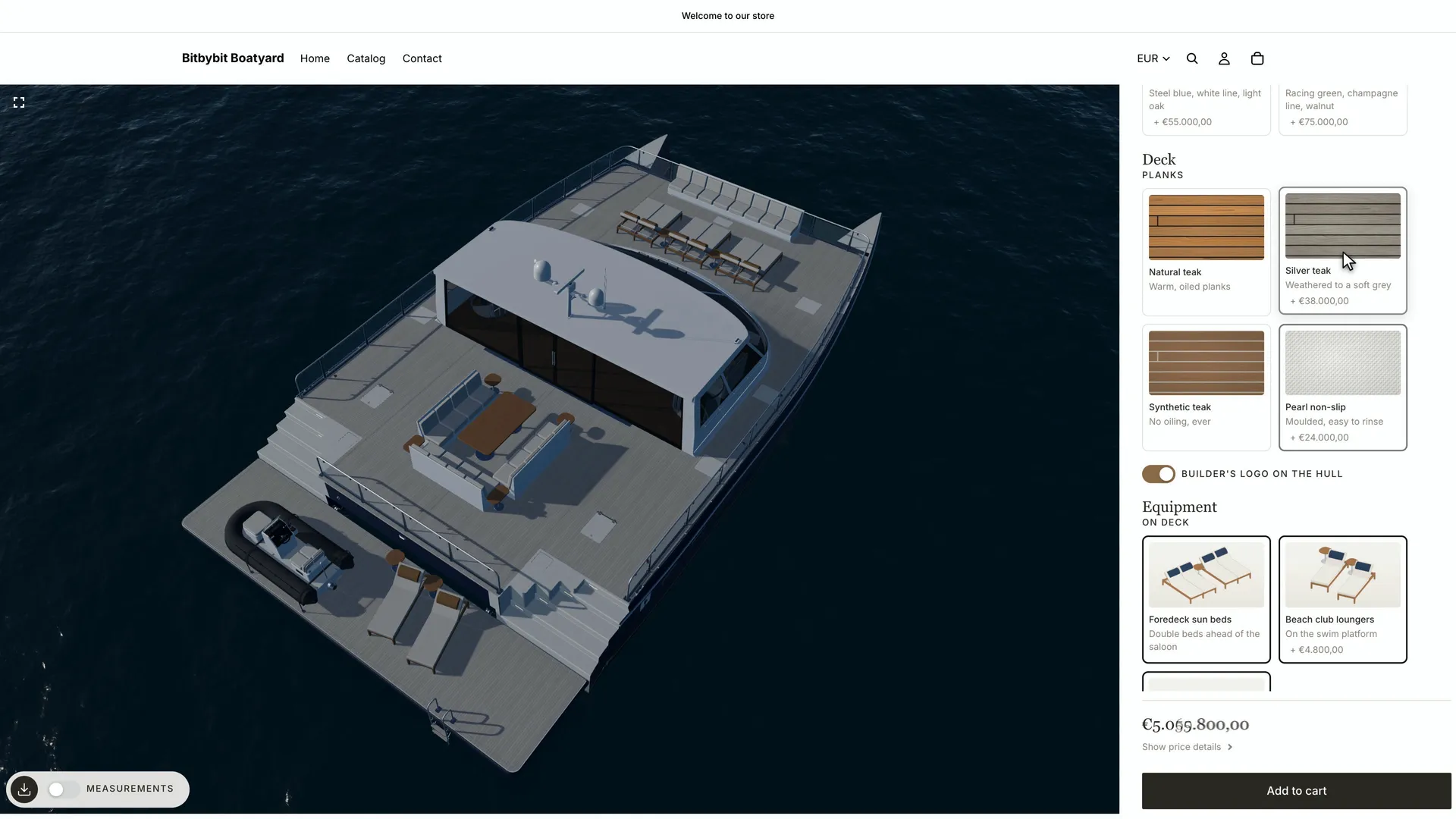
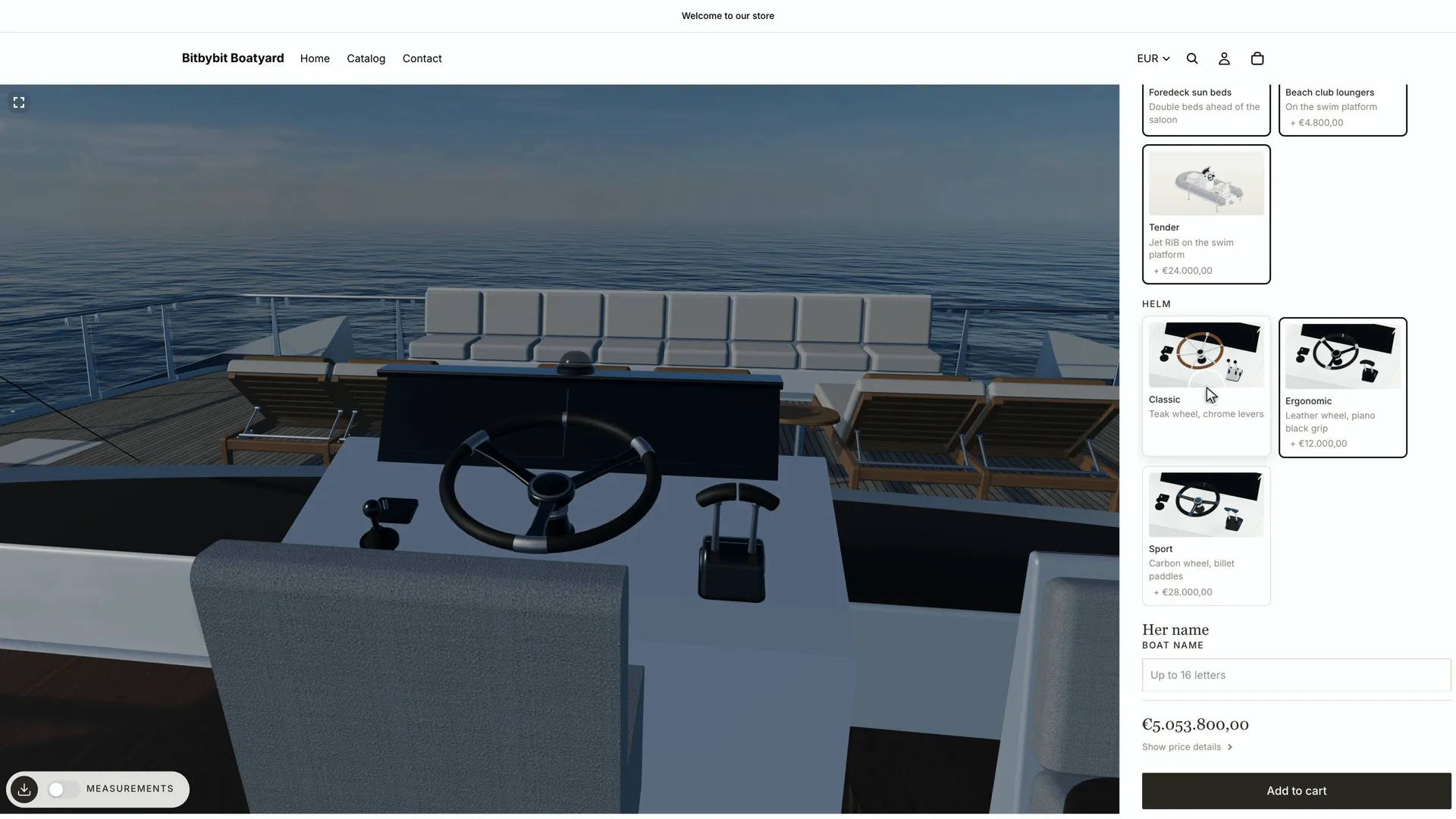
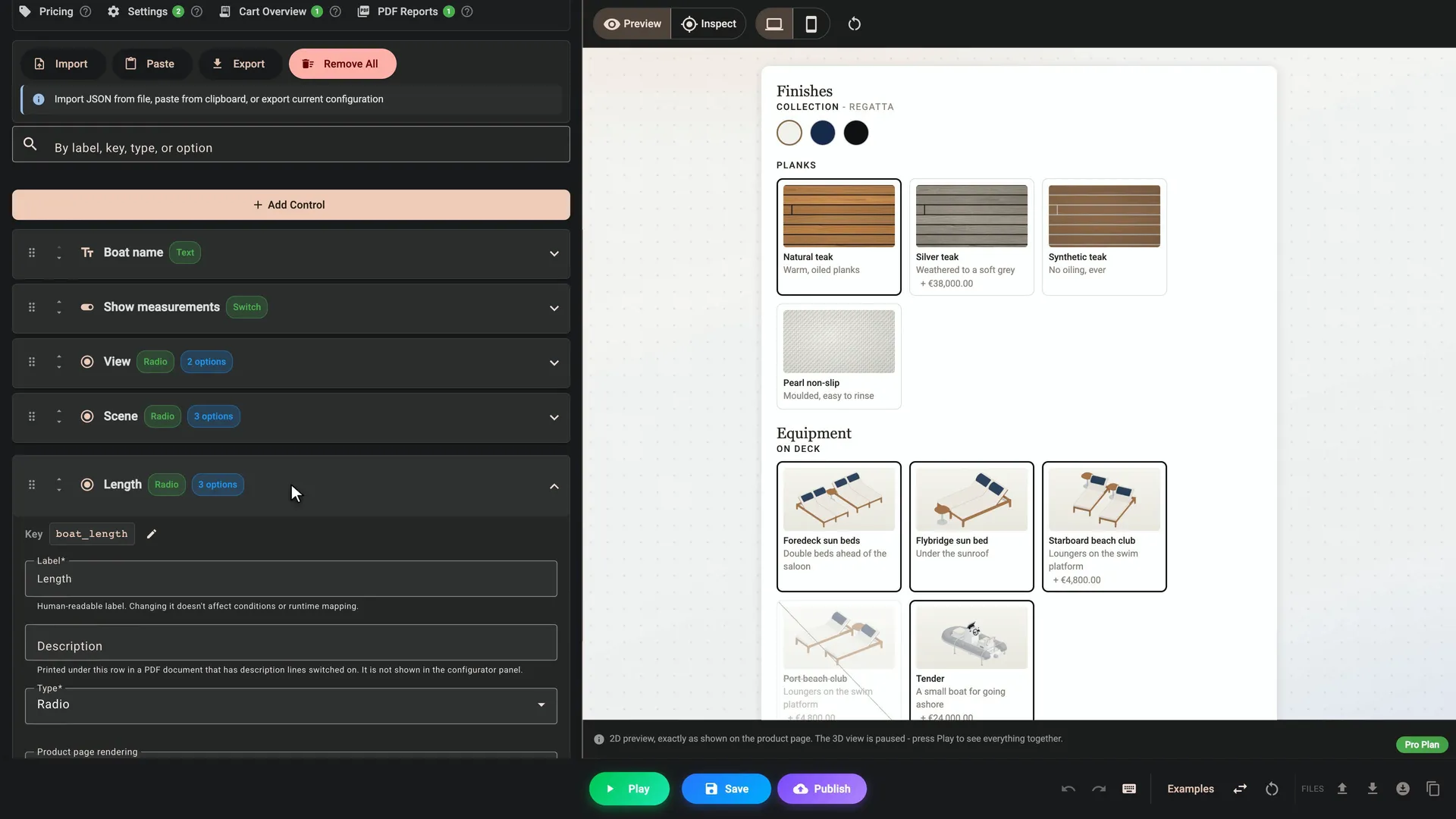
- Choose her finishes. Six colour collections, deck planks shown as picture cards, and three helm styles.
- Add extras. Loungers on the swim platform and a tender, each a real product from the store's catalogue.
- Name her. What the shopper types appears on her hull as they type it.
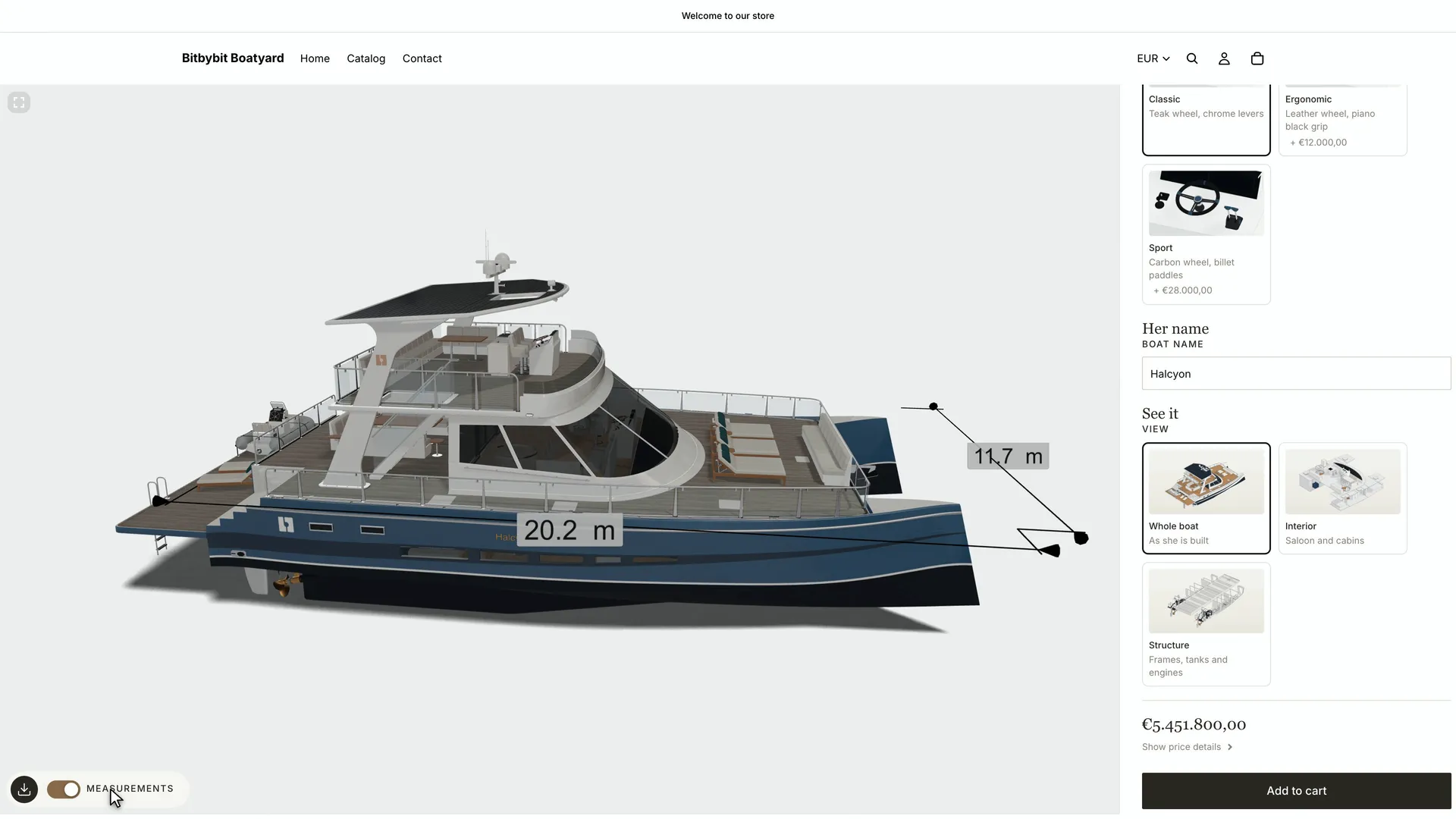
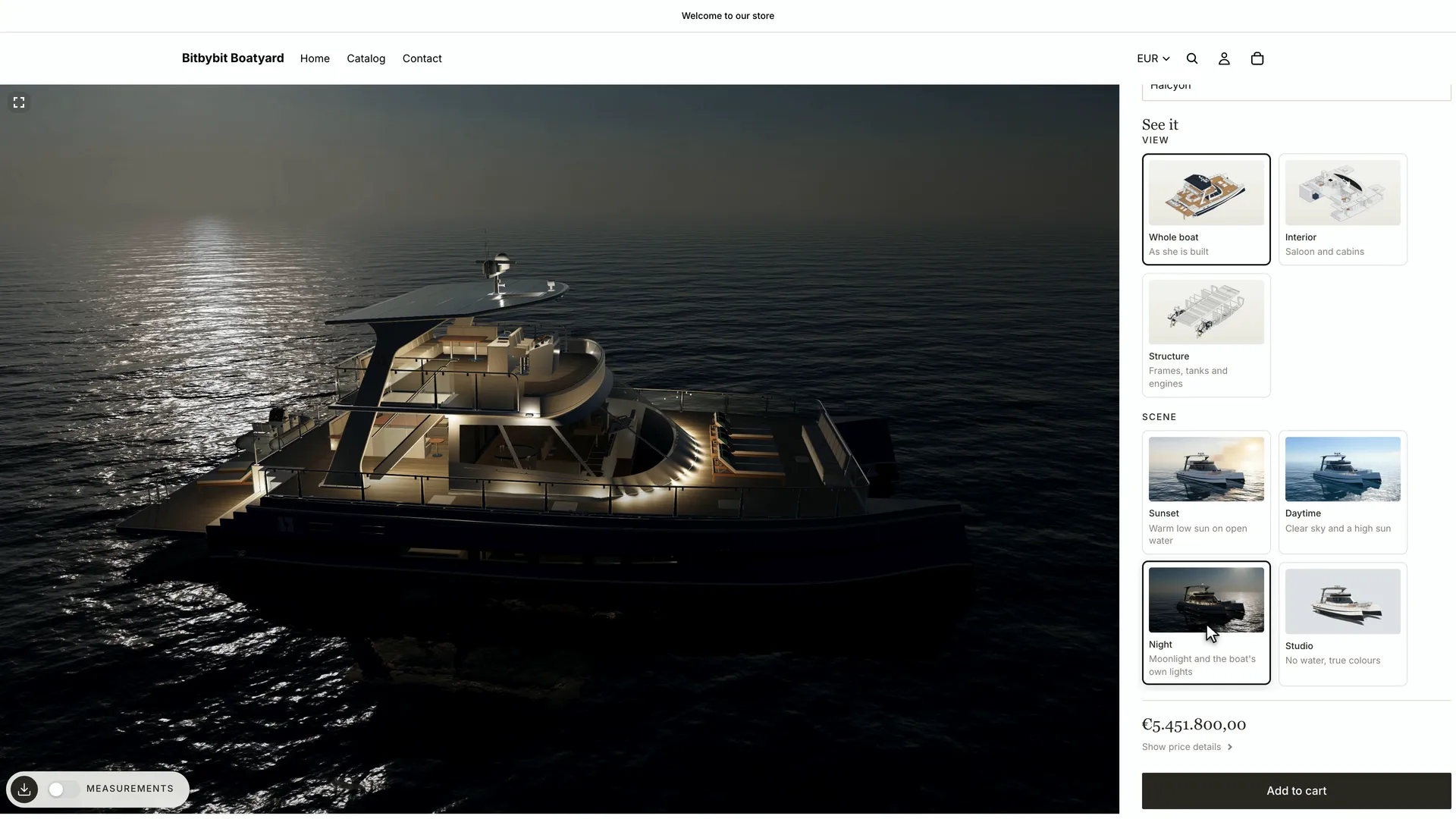
- See her properly. The camera flies to whatever just changed. A scene choice switches between sunset, daylight, night and a plain studio, a view choice shows her interior and her structure, and one switch puts her measurements on screen.
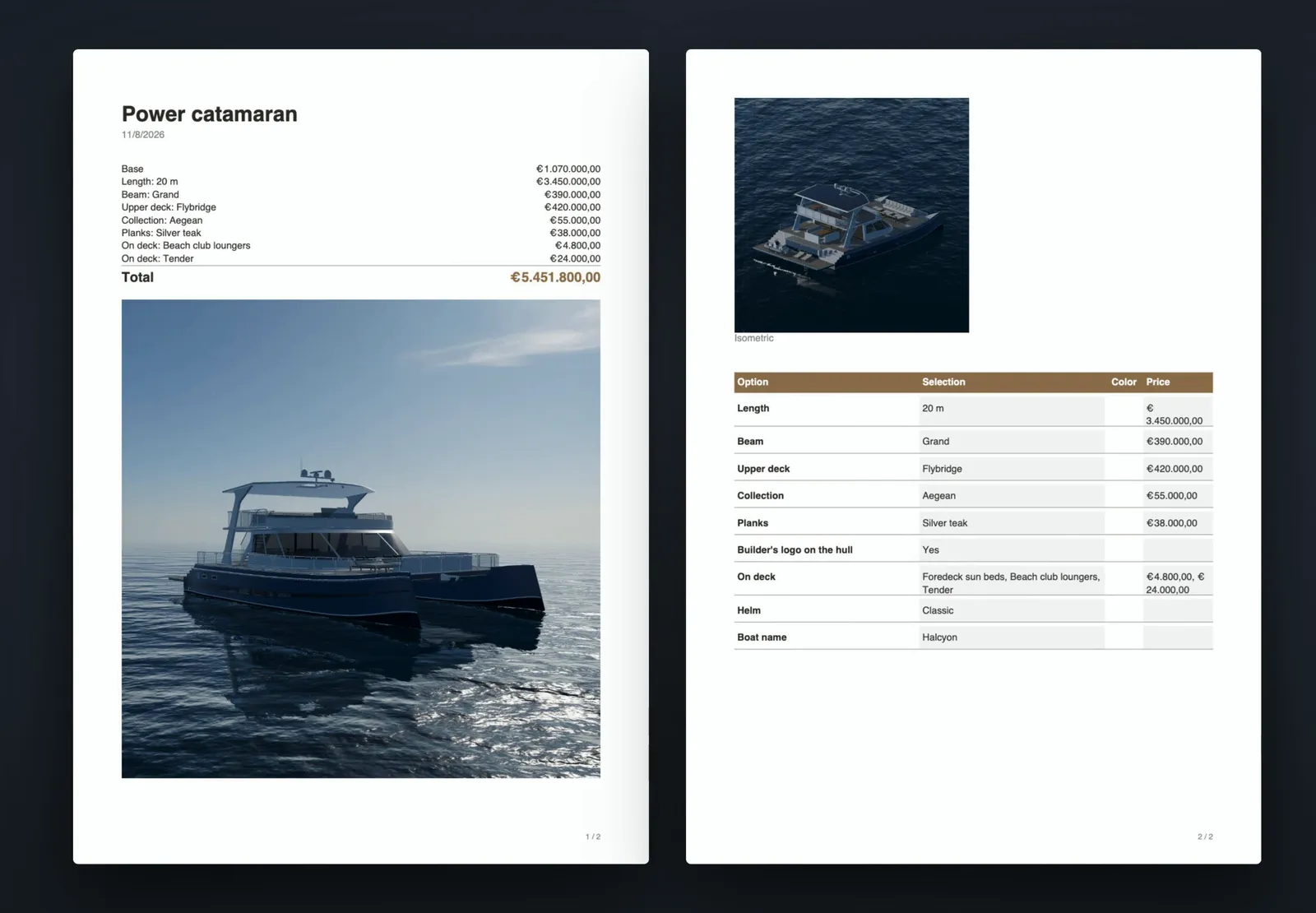
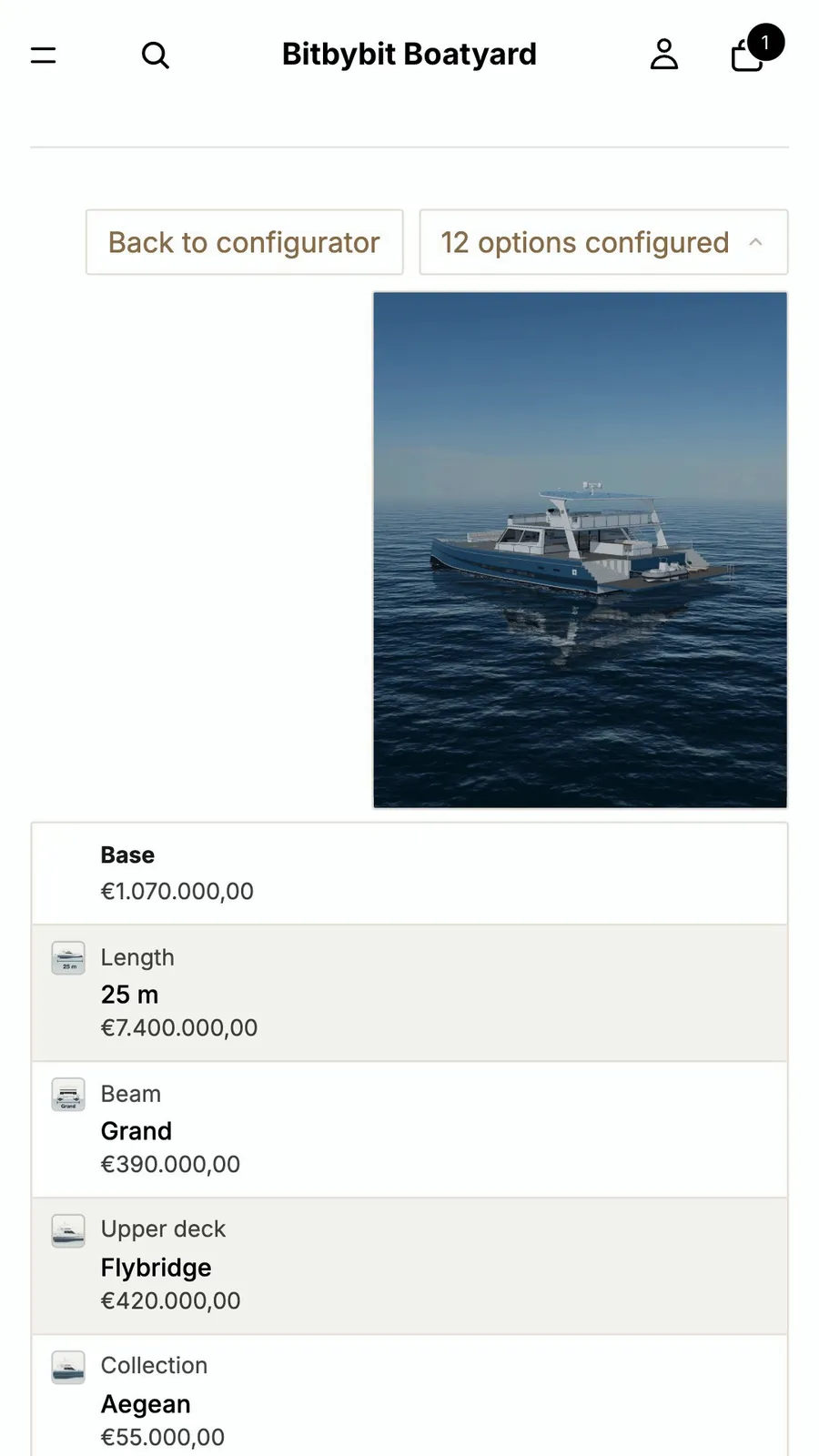
- Know the price. The total and its breakdown follow every choice. The shopper can download a PDF summary of the boat and its price, and Add to cart sends her to the cart with a summary card and a picture of the configured boat.
On the store's product page:
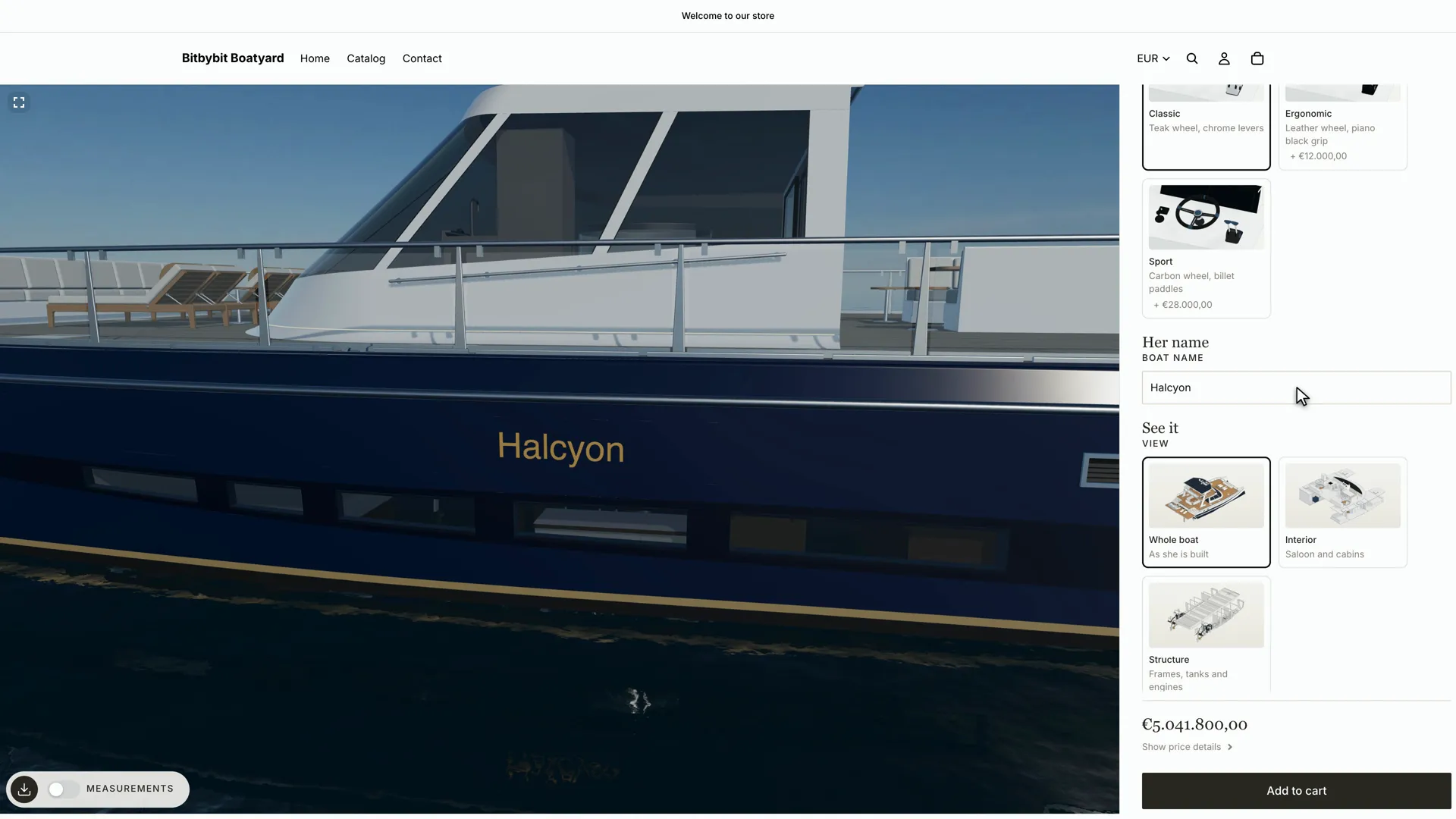
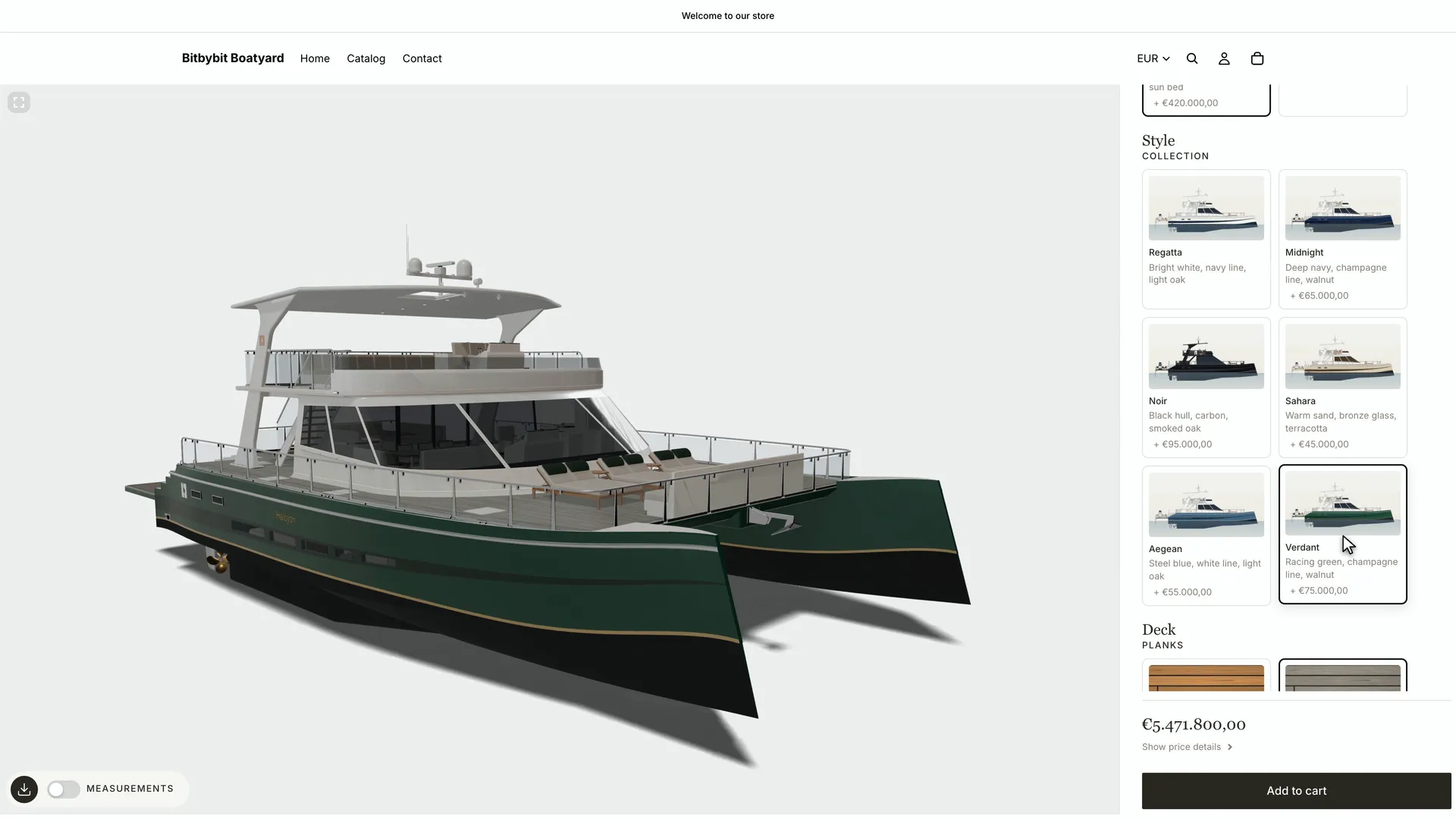
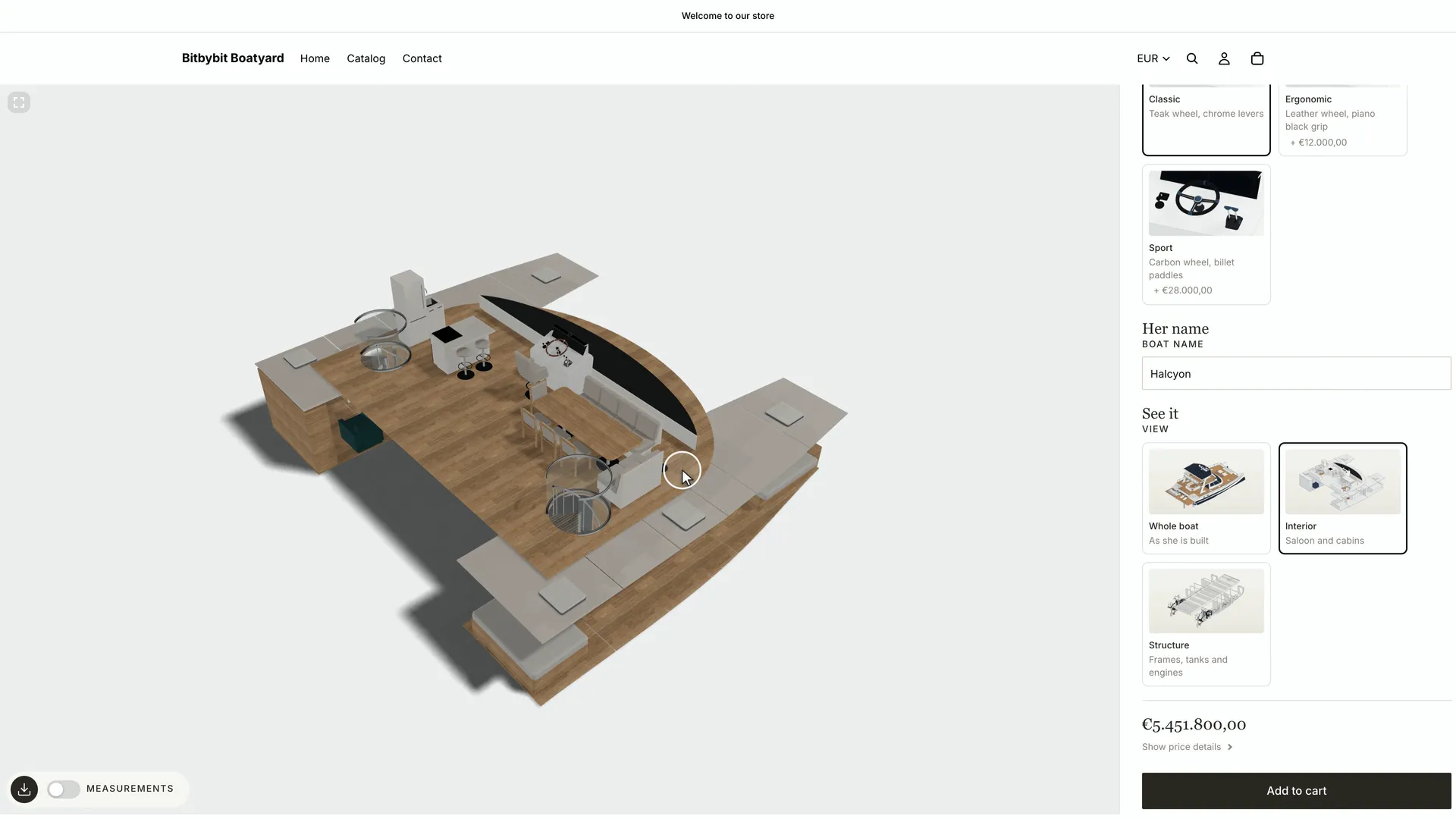
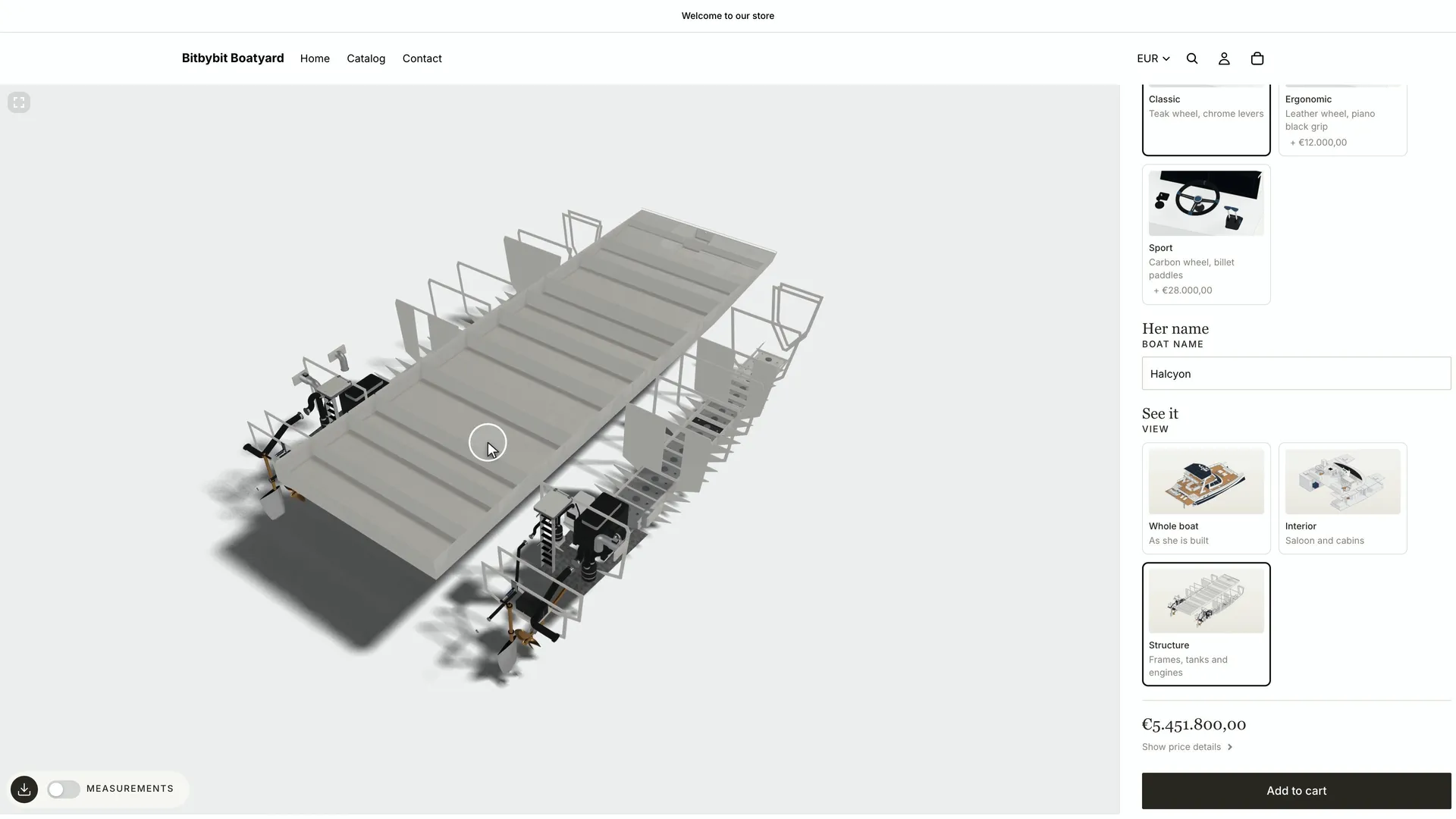
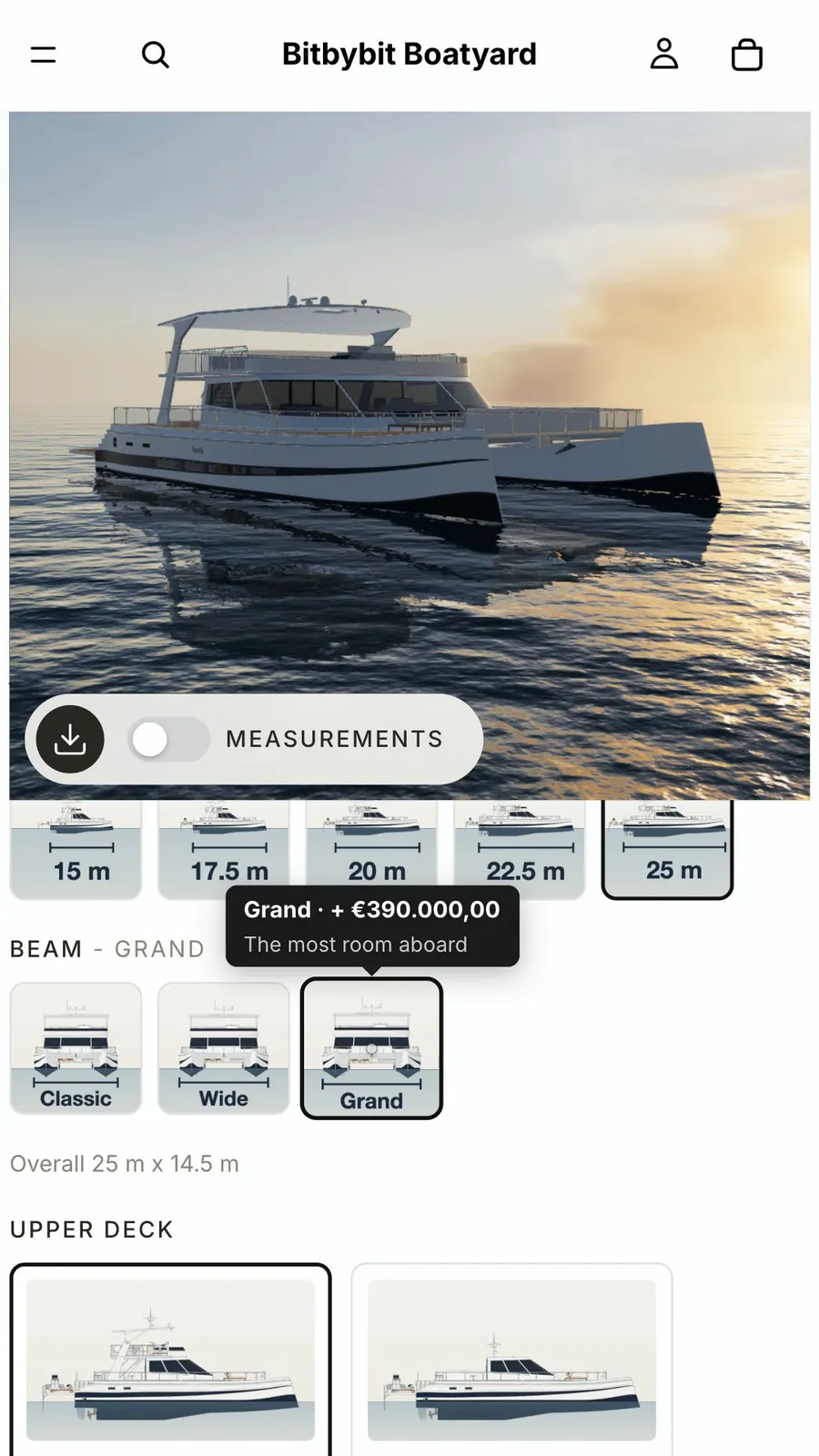
And the same configurator on a phone, with the 3D view pinned on top, through to the cart:
What it is made of
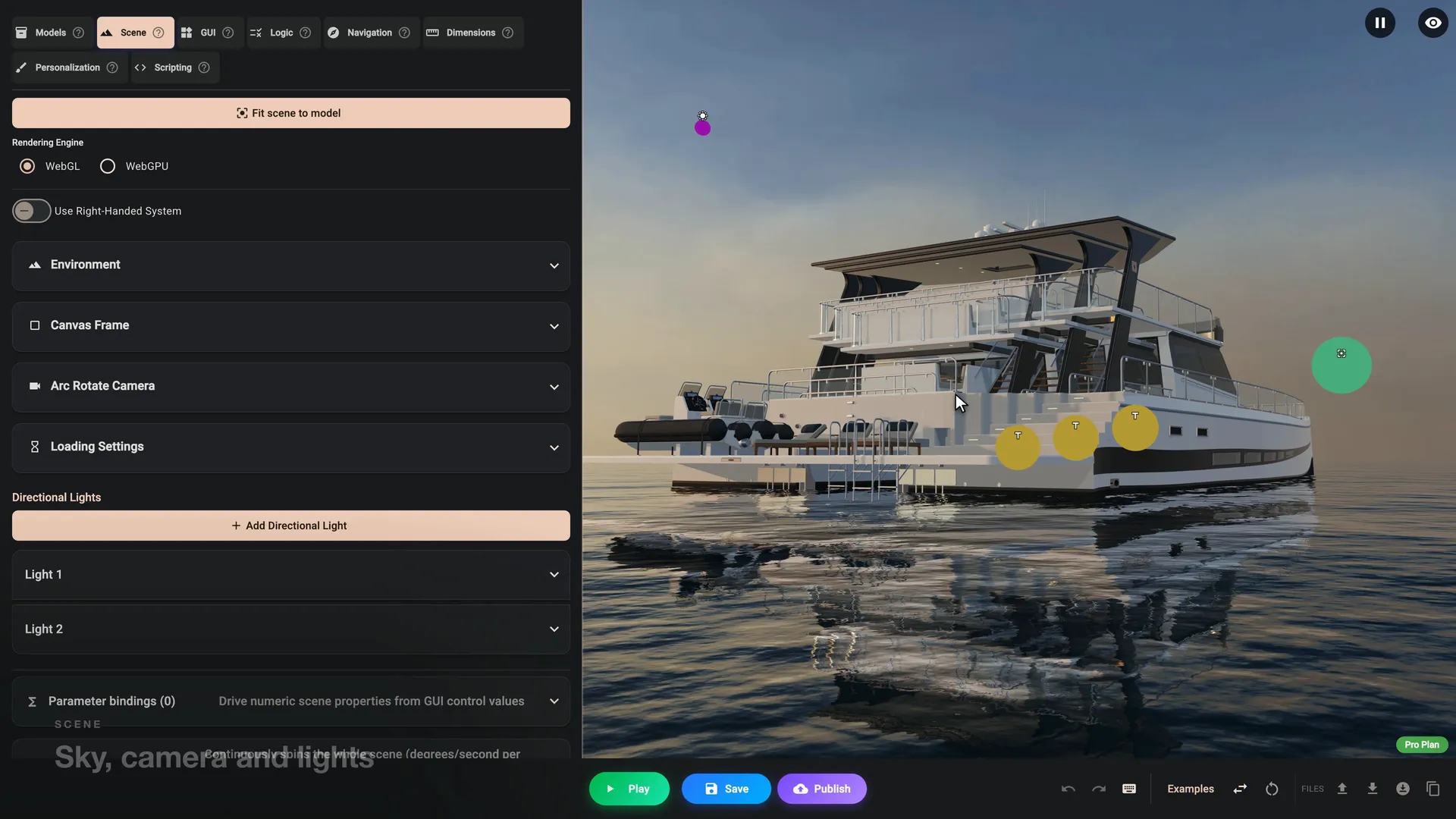
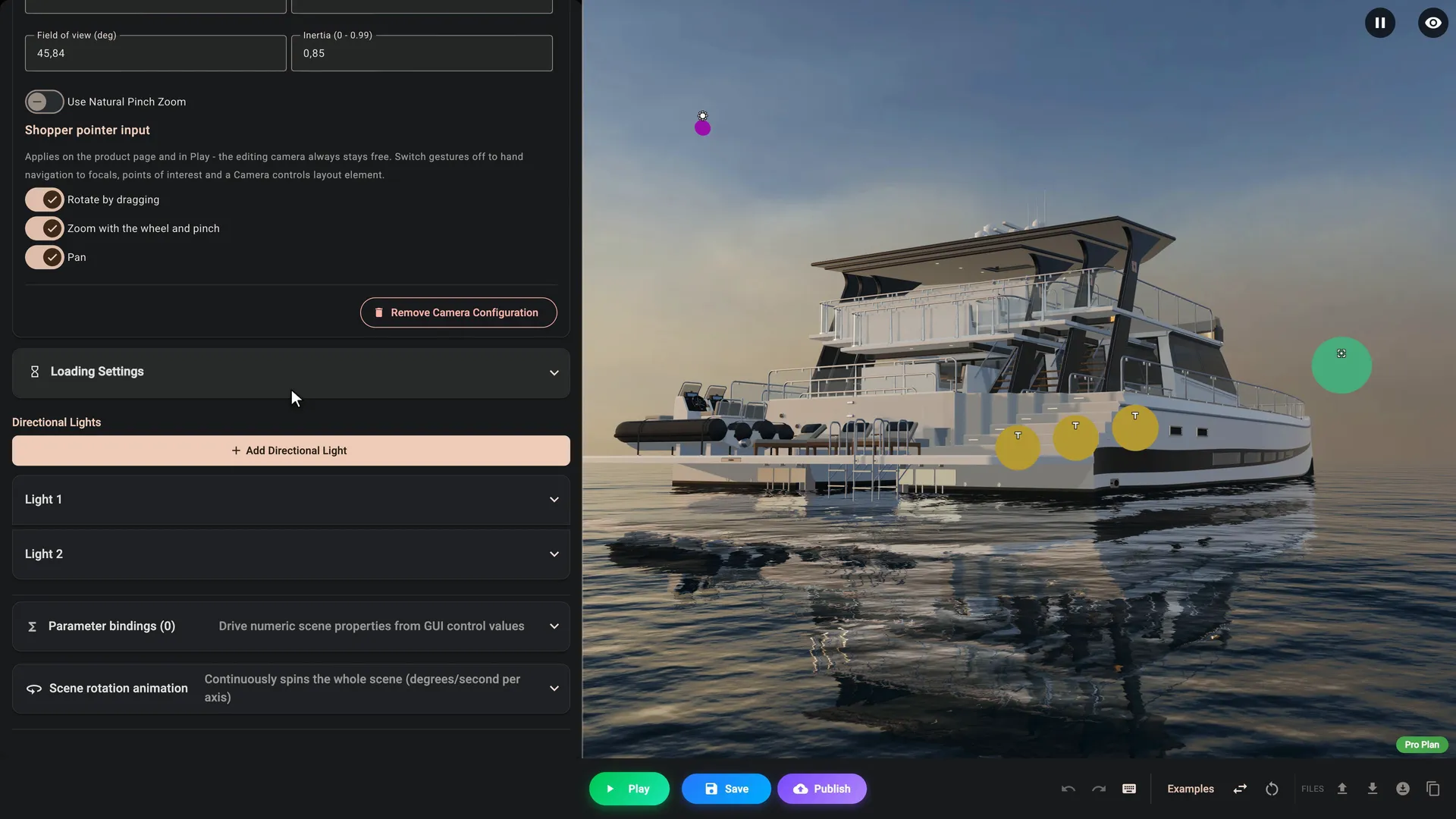
All of it is built in 3D Bits Composer, without writing code: the scene, the options and their prices, the panel's look, and Play, which shows the configurator exactly as shoppers will see it.
The tutorial builds it in nine chapters, and each chapter uses a handful of features:
- Load the boat. Composer frames and lights a model from its size, and Parse Structure lists every part, material and material variant the file holds.
- The surroundings. A sky chosen from picture cards, photographic lighting with a golden-hour look, and open water that reflects the sky and the boat.
- Finishes. Deck planks switch between material variants stored in the file, and the hull's colour collections are set in Composer, with no new file.
- Options and rules. Conditions show and hide parts such as the helms, sun beds and tender, and a logic rule greys out an option that does not fit, with a hint that says why.
- Three sizes. One file per length, each picked by a condition on the whole model and loaded only when it is shown.
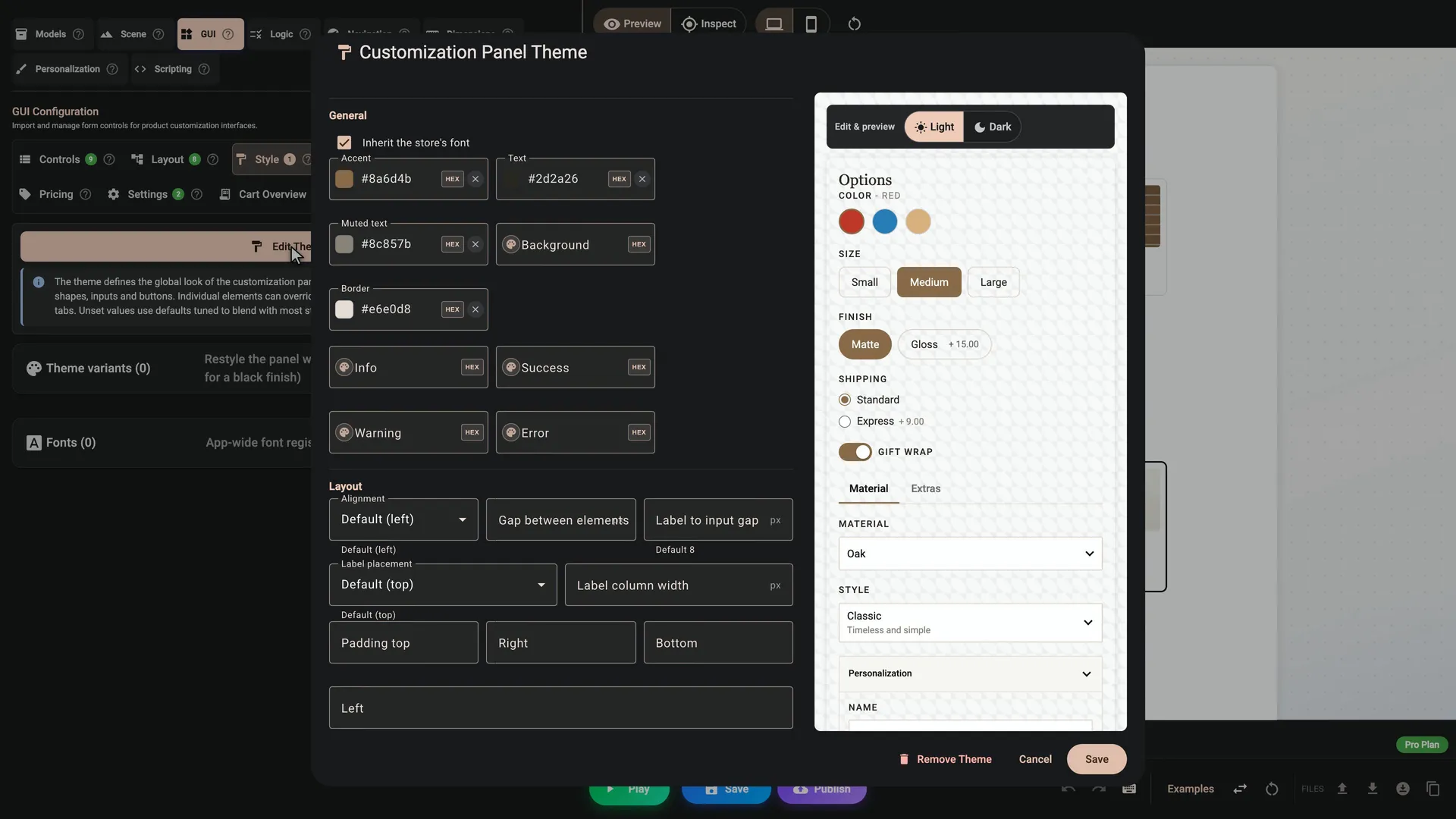
- The panel. Picture cards, swatches and pills, sections, a control placed on the 3D view, and a theme that matches the store.
- Show it off. Scene variants for sunset, daylight and the studio, an interior view, camera framing that follows each choice, measurements behind a switch, and the name on the hull.
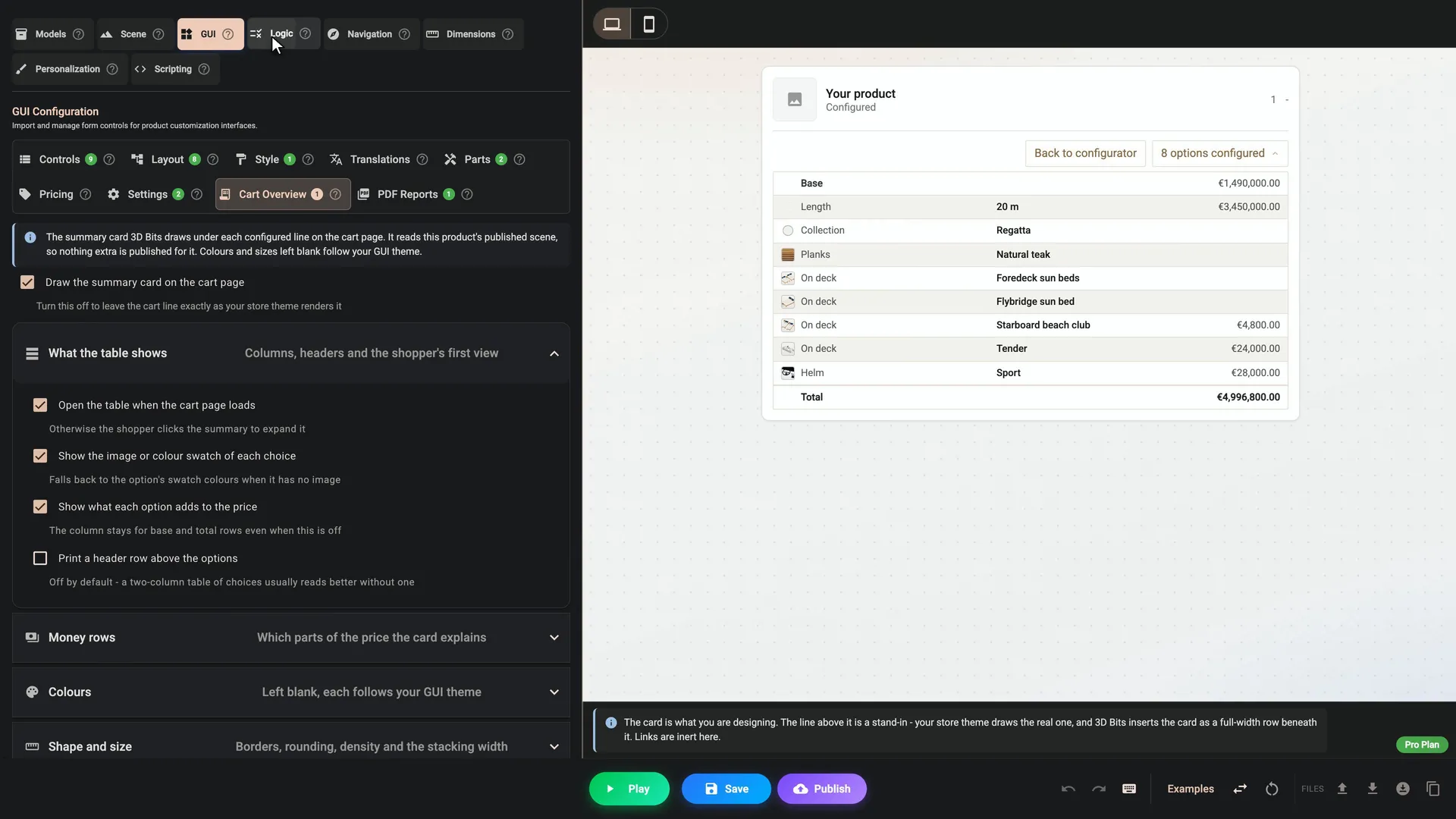
- Price it. Prices on the boat and on each option, extras as linked products, parts recorded for the works order, the cart overview, a picture on the order and the PDF summary.
- Publish it. Composer says what still needs attention before it publishes, 3D is switched on for the store once, and orders come in for review.
Most of this works on every plan. The camera framing and the measurements need Standard, and the name on the hull, linked products, parts and the PDF summary need Pro.
Start with the boat
- Follow the tutorial. Build the Catamaran Configurator starts from a new project in the 3D Bits app. Every chapter starts from the previous chapter's file, so you can begin at any of them, and the finished configurator is there to load at the end.
- Download the boat. The tutorial's download holds the boat in three lengths, 15, 20 and 25 metres, and the pictures its cards use. The boat is a sample for learning 3D Bits: you may follow the tutorial with it, test with it in a development store and share it with credit, under CC BY-NC 4.0. You may not use it commercially, and the Bitbybit logo on it is not part of that licence.
- Open it in Composer. Once you are past Composer's start screen, press Examples in its bottom bar and pick Catamaran configurator. It holds the tutorial's configurator up to the panel, so you can look round a working setup before you build your own. Loading an example replaces the configuration you have open, so save your own work first.
Your own product
A configurator like this is a project, and how big a project depends on your product. The model needs the parts your options change split into named groups, every size needs the same names, and the rules and prices have to be settled before they can be built. What to Expect says where the time goes, and the tutorial shows each piece in the order you would build it.
How the boat itself was designed, in two numbers and 25 sizes, is in its own post.
If you would like help with your product, write to [email protected]. To try it on your store, install 3D Bits from the Shopify App Store.