A Parametric Cube
Parametric means that a shape follows its parameters: change a number and the geometry is rebuilt from it. In Rete a parameter is just another component whose output is wired into an input. Here a number slider sizes a cube made by OCCT, the CAD kernel behind solids on Bitbybit.
Before you start
Open an empty Rete editor. If this is your first Rete script, Hello World shows the basics first.
The steps
-
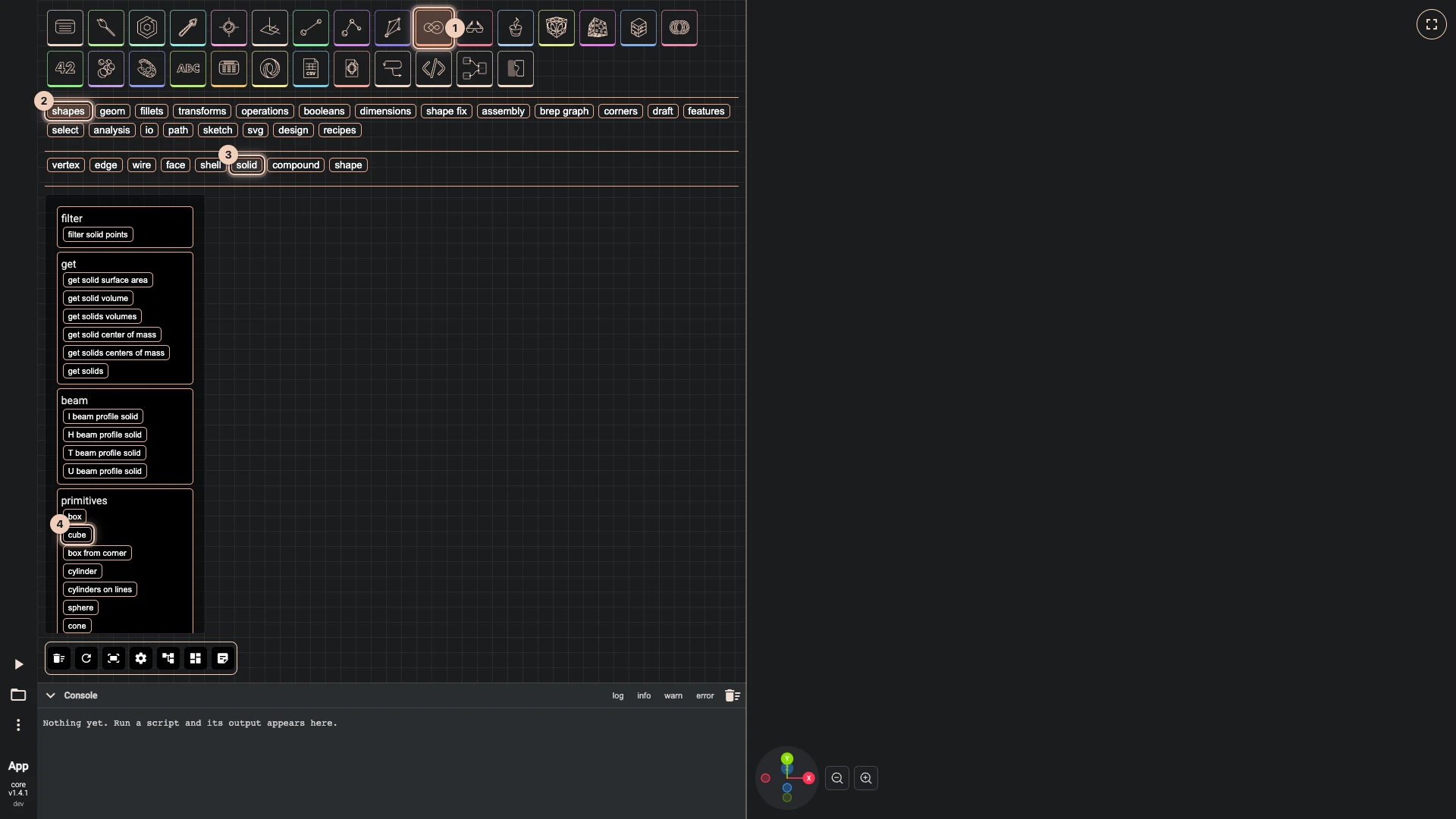
Add cube from the palette. Open occt > shapes > solid along the top of the canvas and click cube under primitives.
The palette follows the API: occt, then shapes, then solid. Cube sits among the primitives. Its path, occt.shapes.solid.createCube, is printed on the node and links to its documentation.
-
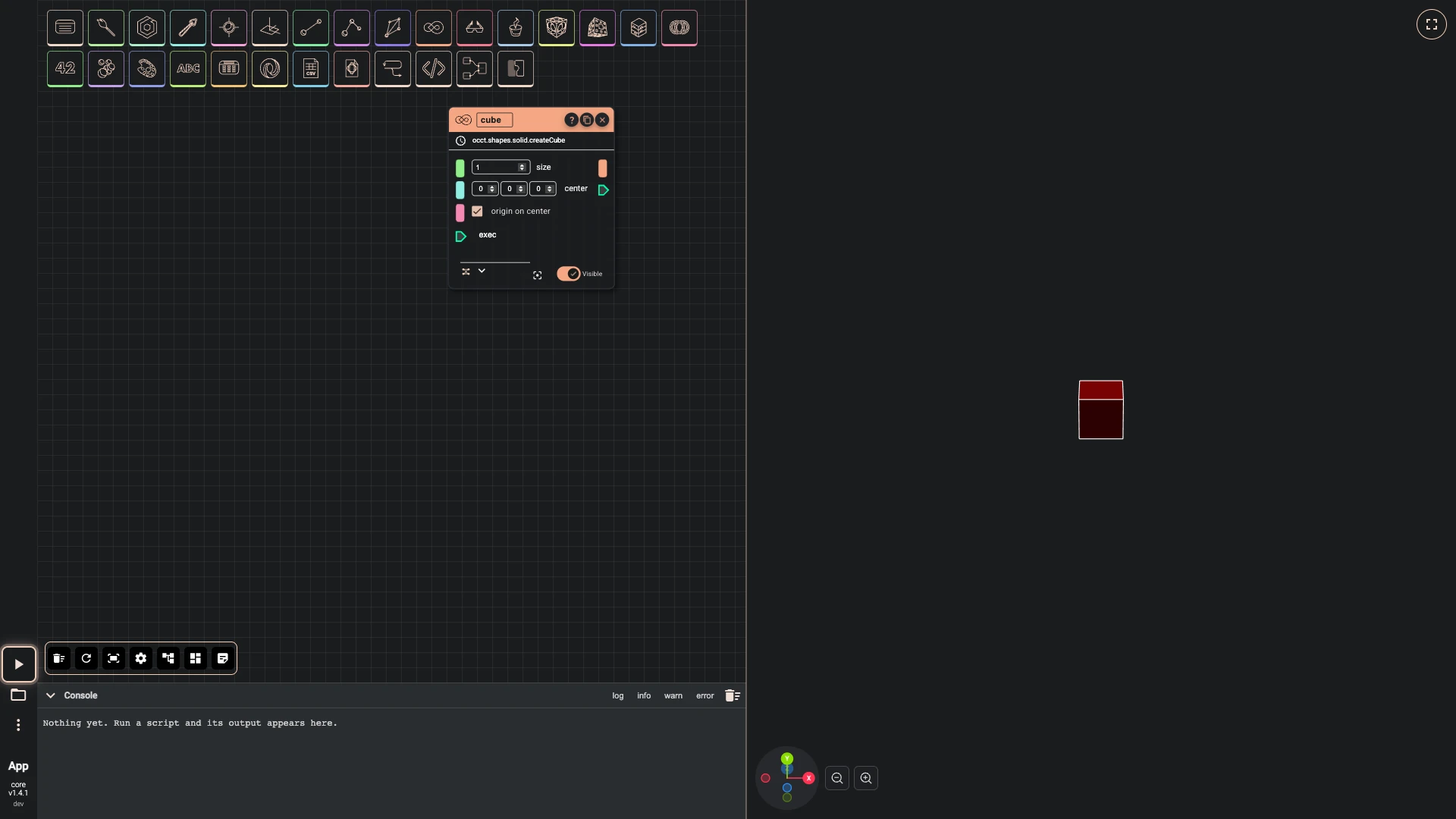
Run the script. Press Run The Code, the play button at the lower left.
Run the script once. The cube is a solid made by OCCT, the CAD kernel, and Rete draws it for you.
-
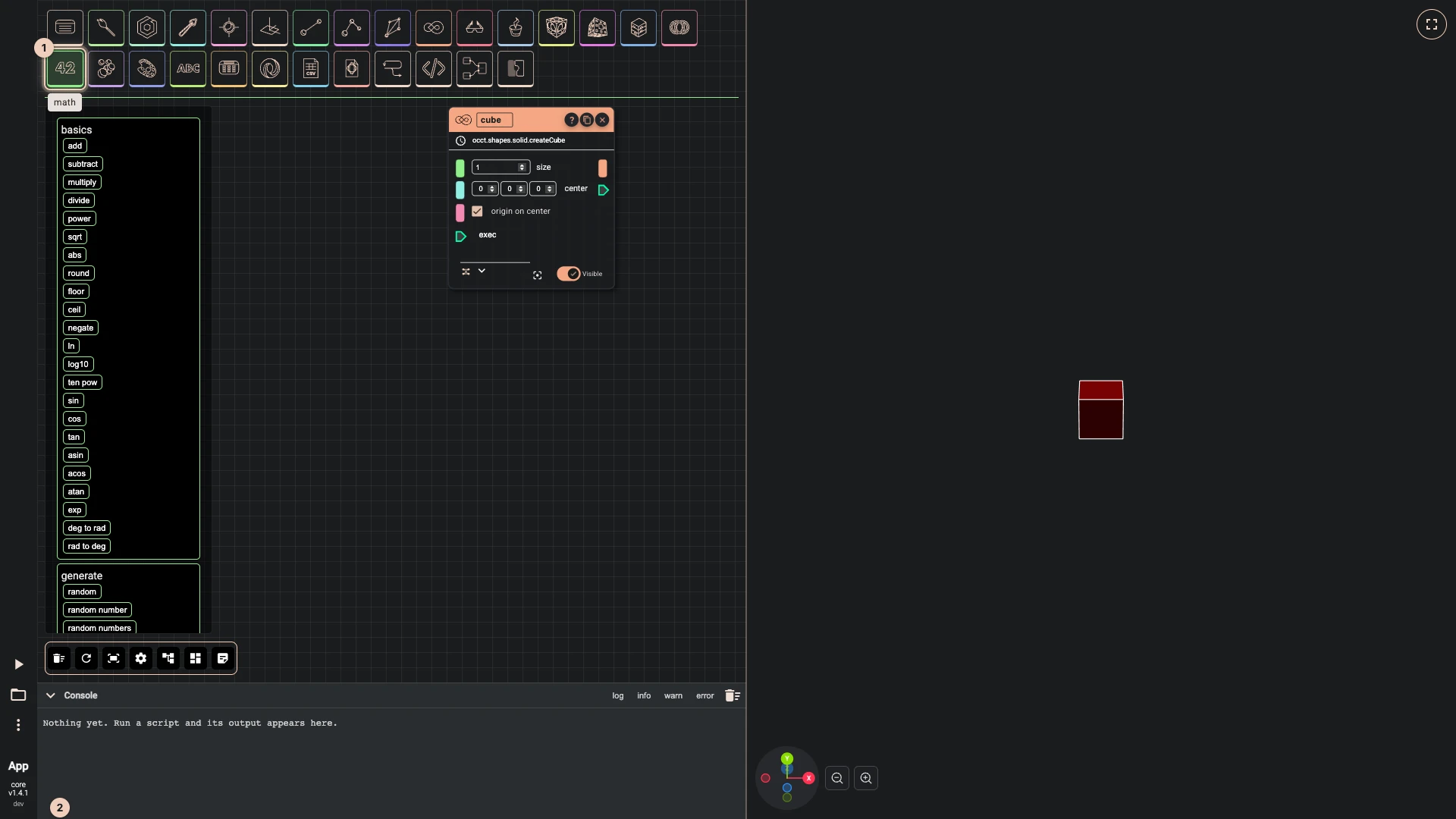
Add number slider from the palette. Open math along the top of the canvas and click number slider under create.
A number slider gives a value you can drag. It starts at 5, between 0 and 10.
-
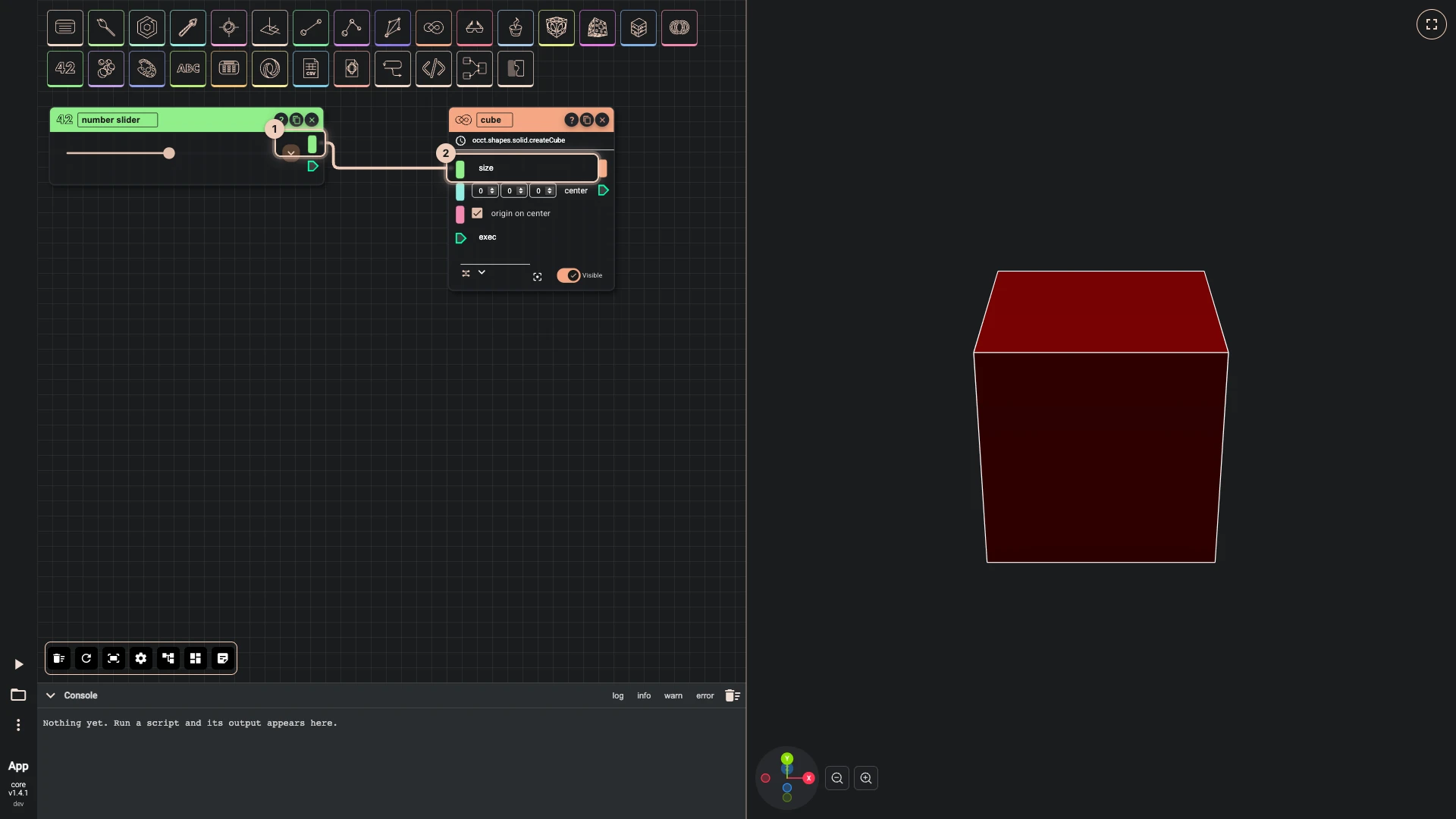
Connect number slider to the size of cube. Drag from the output on the right of number slider to the size input of cube.
Wire the slider's output into the cube's size. The cube takes the slider's 5 at once.
-
Set number to
2.5on number slider.Drag the slider, or focus it and use the arrow keys: the cube follows every value, because its size now comes from the slider.
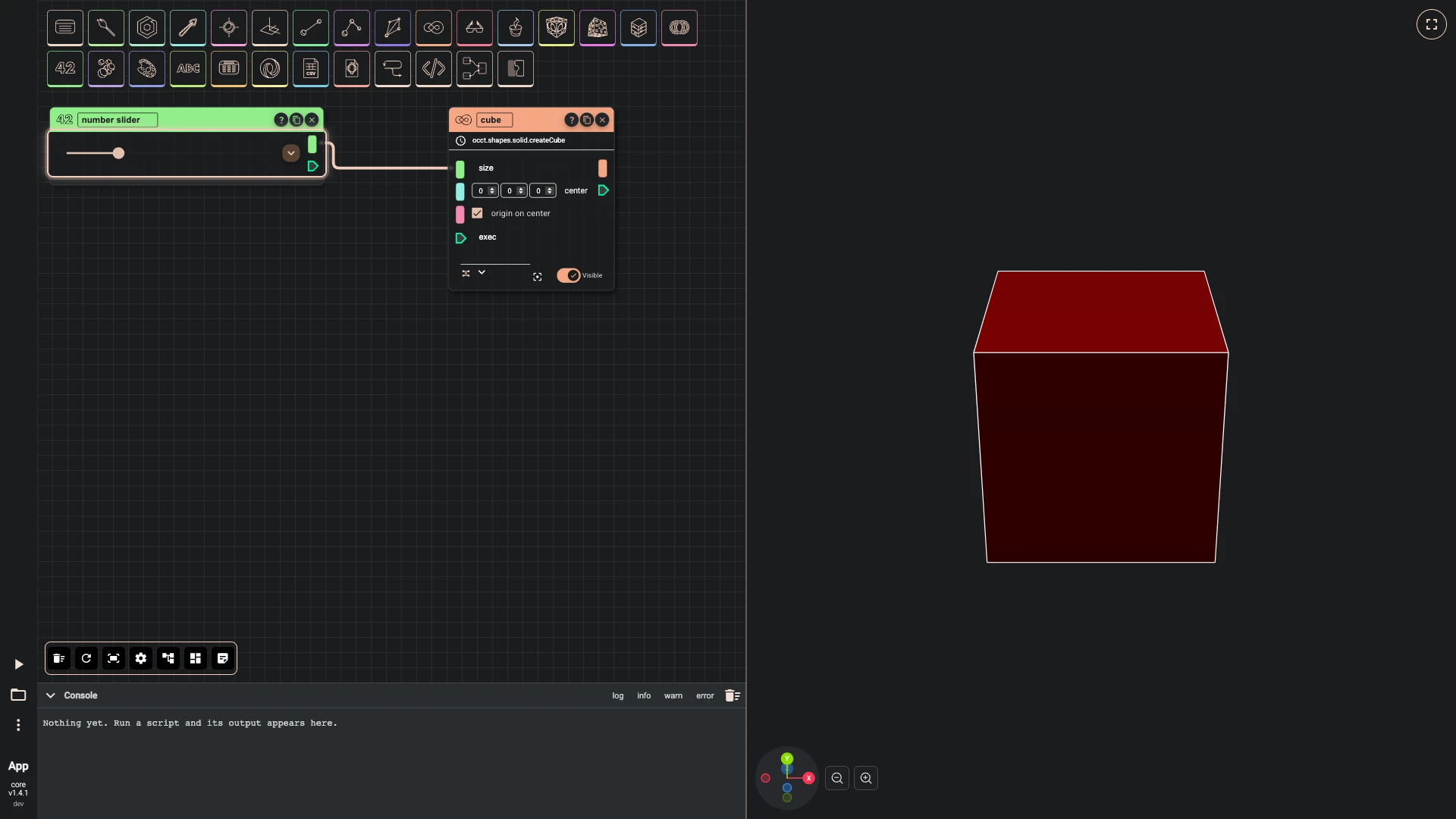
The finished script
The script these steps build, to run here:


{
  "id": "rete-v2-json",
  "nodes": {
    "cube": {
      "id": "cube",
      "name": "bitbybit.occt.shapes.solid.createCube",
      "customName": "cube",
      "async": true,
      "drawable": true,
      "data": {
        "genericNodeData": {
          "hide": false,
          "oneOnOne": false,
          "flatten": 0,
          "forceExecution": false
        },
        "size": 1,
        "center": [
          0,
          0,
          0
        ],
        "originOnCenter": true
      },
      "inputs": {
        "size": {
          "connections": [
            {
              "node": "slider",
              "output": "result",
              "data": {}
            }
          ]
        }
      },
      "position": [
        700,
        140
      ]
    },
    "slider": {
      "id": "slider",
      "name": "bitbybit.math.numberSlider",
      "customName": "number slider",
      "async": false,
      "drawable": false,
      "data": {
        "options": {},
        "number": 2.5
      },
      "inputs": {},
      "position": [
        20,
        140
      ]
    }
  },
  "modules": {}
}
What you learned
- The palette follows the API. A component's path on the node, such as
occt.shapes.solid.createCube, is where it sits in the palette and what you call from TypeScript. - A wire makes a parameter. Any output that fits can drive an input; the editor refuses a wire that does not fit and says why (Nodes, wires and values).
- Sliders have limits. Open the slider's options (⌄) to change its minimum, maximum and step.
Verified against the product in October 2026