Run a Designer document on CAD Cloud
A part modelled in the Designer is a design document: its parameters, its features and its parts, written as JSON.
CAD Cloud builds that document with occt.design.build, the operation the Designer builds it with, and the values of
its parameters can change on every call. One document becomes a STEP file for every size a customer orders, without
opening the Designer again.
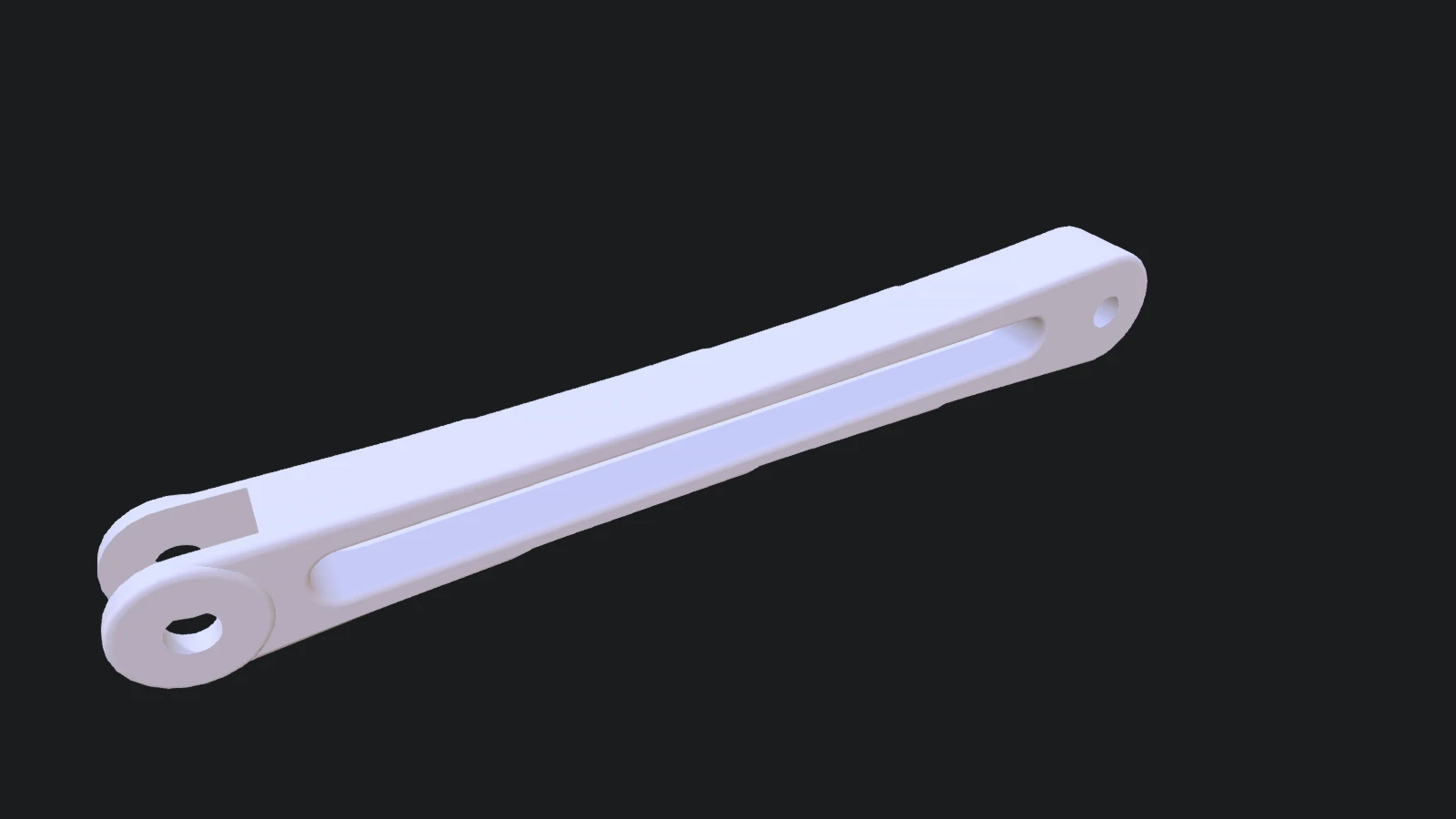
The picture is the link of the Designer's desk arm, built on CAD Cloud at 220 mm instead of the 160 mm the document holds.
What you need
- A design document. In the Designer, open a part and run
Export design document: it saves the document as
<name>.design.json. To follow along without one, download the link that the desk arm tutorial models, and save it aslink.design.json:
- A CAD Cloud API key in
BITBYBIT_API_KEY, Node.js 22.18 or newer, and a folder with@bitbybit-dev/cad-cloud-sdkinstalled and"type": "module"in itspackage.json, as in the first tutorial.
The script
Save it as design-to-step.ts beside the document and run node design-to-step.ts link.design.json.
import { readFileSync, writeFileSync } from "node:fs";
import { BitbybitClient } from "@bitbybit-dev/cad-cloud-sdk";

const apiKey = process.env["BITBYBIT_API_KEY"];
if (!apiKey) throw new Error("Set BITBYBIT_API_KEY to your CAD Cloud API key");
const baseUrl = process.env["BITBYBIT_API_URL"];
const client = new BitbybitClient(baseUrl ? { apiKey, baseUrl } : { apiKey });

const documentFile = process.argv[2] ?? "link.design.json";
const document: unknown = JSON.parse(readFileSync(documentFile, "utf8"));
const parameters = { length: 220 };

const { downloads } = await client.cad.pipelineAndPoll({
    steps: [{ operation: "occt.design.build", params: { document, parameters } }],
    outputs: { formats: ["step", "json"] },
});

const names: Readonly<Record<string, string>> = { step: documentFile.replace(/\.design\.json$/, ".step"), result: "build-report.json" };
for (const download of downloads) {
    const name = names[download.format];
    if (name === undefined) continue;
    writeFileSync(name, Buffer.from(await (await fetch(download.downloadUrl)).arrayBuffer()));
    console.log(`saved ${name}`);
}

const report = JSON.parse(readFileSync("build-report.json", "utf8")) as { parts: { name: string }[]; parameters: Record<string, unknown>; issues: unknown[] };
console.log(`built ${report.parts.map((part) => part.name).join(", ")} with ${JSON.stringify(report.parameters)}`);
for (const issue of report.issues) console.log(issue);
It saves link.step and build-report.json, and prints what it built:
built Link with {"gap":14,"hub":16,"length":220,"tip":13,"width":22}.
How it works
One step builds the document
The pipeline has a single step, occt.design.build, which takes:
document: the design document as the Designer exported it;parameters: values that replace the document's parameters of the same names, here the link'slength. The other parameters keep the document's values;configuration, which the script leaves out: the id of one of the document's configurations, whose values are used first and whichparametersthen override.
Every feature is rebuilt from the document with the new values, so everything that depends on length follows it:
the link's far pivot moves from 160 to 220 mm.
What comes back
stepwrites the document's parts as STEP, each part a product under its name in the document, hereLink.jsonwrites the build's report: each feature's status, the issues the build found (none here), the parameter values it used, and each part with its connectors, the frames the Designer's joints attach to.
The script names each download by its format and leaves the task's own metadata, as in the batch tutorial.
An assembly
An assembly document places parts of other documents, so its build also needs those documents, passed as
documents beside document, each with the id the assembly names it by.
Or build it in Studio
Studio's Designs screen runs the same build without a script. Drop design documents on it, or a whole Designer
project (.bitbybit), which carries all its documents. An assembly needs the documents it places, so drop them with
it, or drop the project.
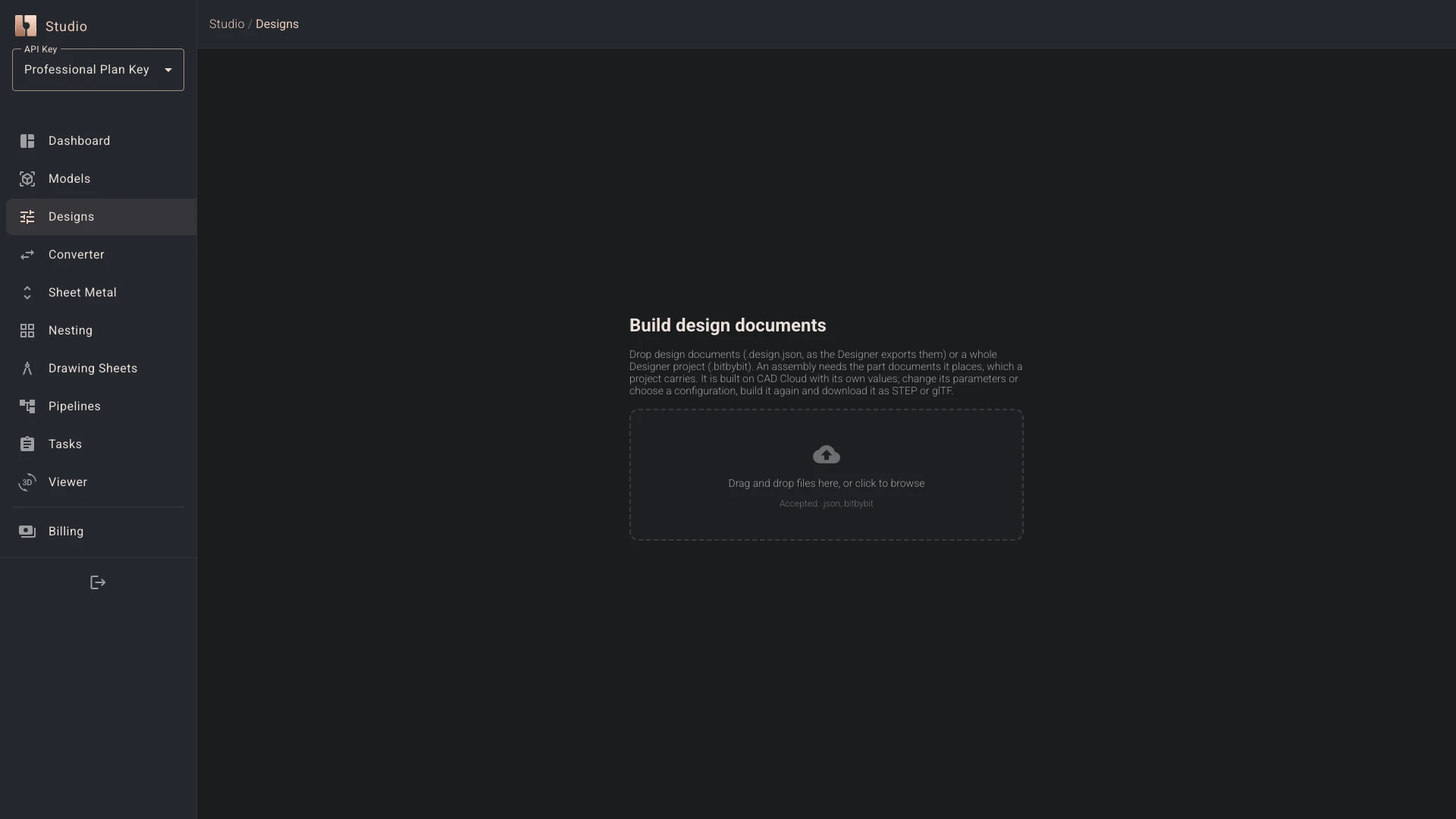
The build starts as soon as the files are read, with the document's own values. A project or several documents open on their top assembly, the one no other assembly places, and Document picks another to build. Beside the result:
- Configuration picks one of the document's configurations: its values fill the fields and the document is built with them at once;
- a field for each parameter, holding the value the build used, which refuses a value outside the range the document allows; a parameter the document computes from others shows its formula under an empty field, and stays computed while the field is empty;
- Build again builds with the configuration and the values you changed;
- the parts the build made, each counted as often as the assembly places it, then either Every feature built. or, under Problems, each feature that failed or was skipped with its reasons, and the issues the build found;
- STEP, glTF and Report download the parts and the build's report, and Open the task shows the task behind them.
A document that imports files, such as the STEP file an import starts from or a script's code, cannot be built here: the design document does not carry them, and the screen names the files instead.
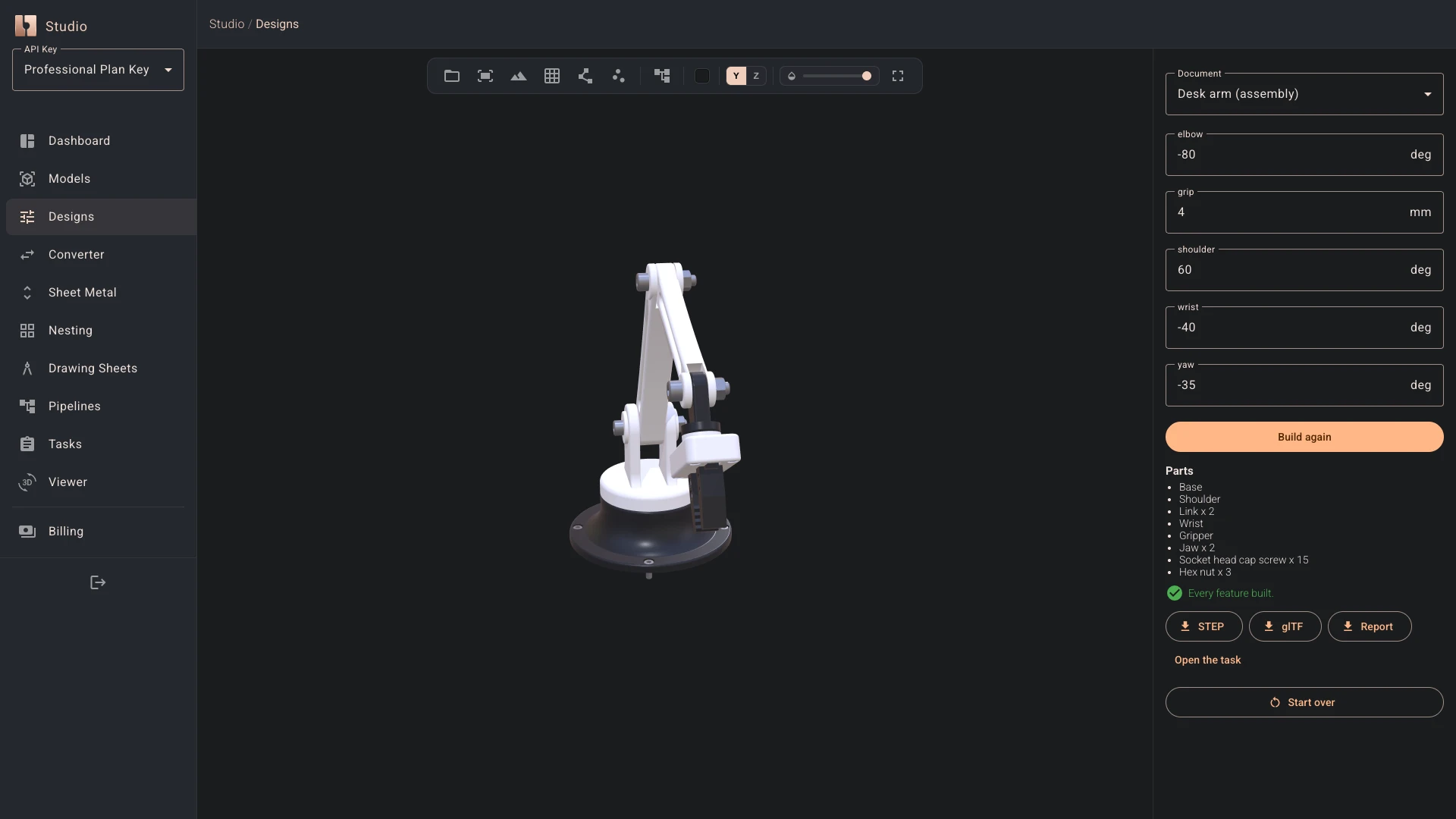
Here the desk arm's Designer project was dropped, and Studio built the whole arm from the documents in it.
Next
- Pipelines shows how to put more steps after the build.
- From a parametric bracket to a cut file sends a STEP file on to the sheet-metal unfold and the nesting.