The Interface
Composer is a split screen. Your settings are on the left, your product is on the right, and the buttons that save and publish run along the bottom.
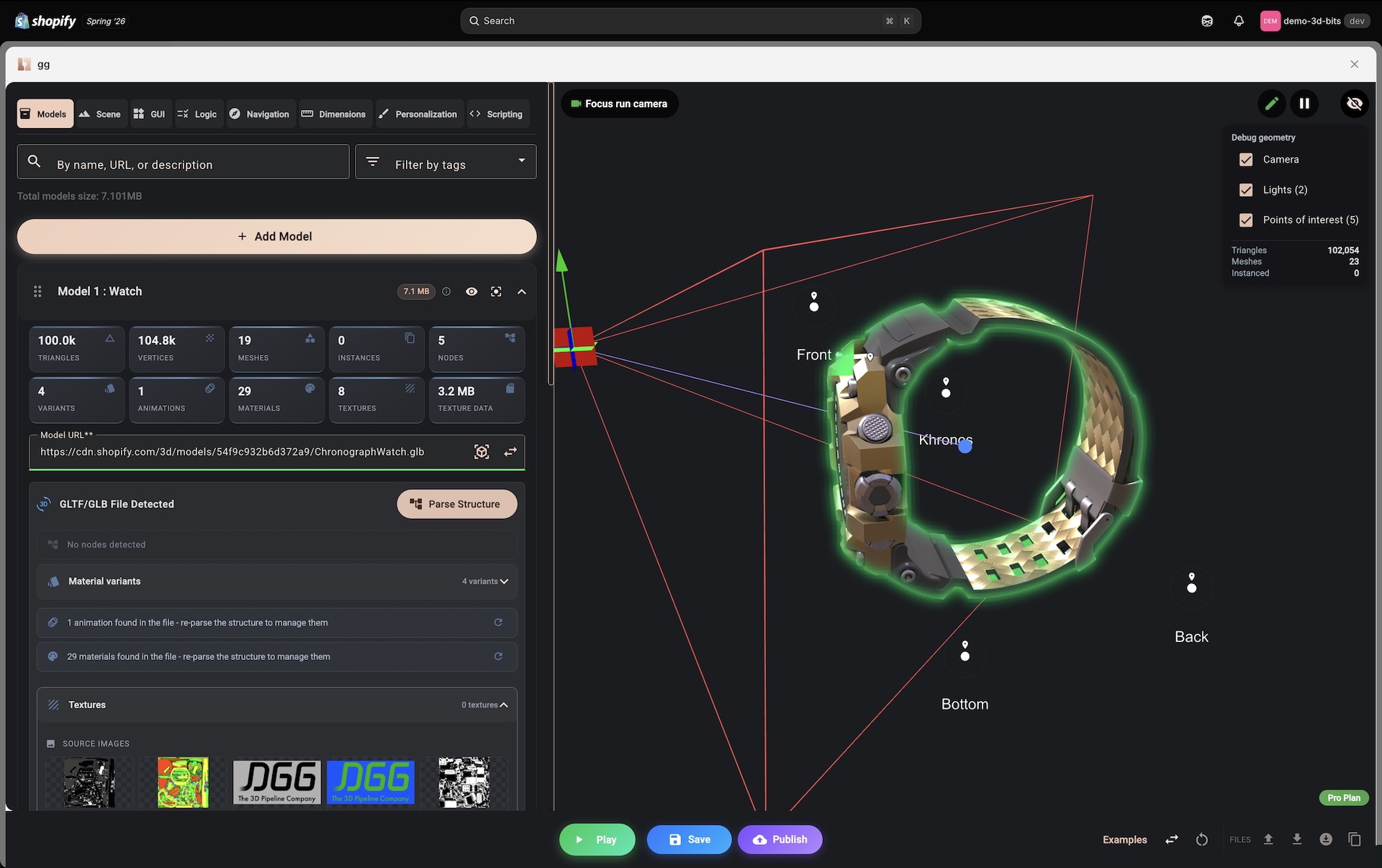
You can drag the divider between the two halves if you want more room for one or the other. It stops at roughly a fifth of the width either way, so neither half can be squeezed out entirely.
The left half
A row of section buttons across the top: Models, Scene, GUI, Logic, Navigation, Dimensions, Personalisation, Scripting. Clicking one changes what the panel below shows.
Sections not included in your plan carry a small premium badge, and hovering the button tells you which plans include it. Clicking one does not open it - it opens an Upgrade Required dialog that names your current plan, the plans the feature needs, and links to the plan comparison. Navigation, Dimensions and Scripting need Standard or Pro; Personalisation needs Pro.
Some sections have their own sub-tabs. GUI has nine, and they run in this order:
| Sub-tab | What it holds | Plan |
|---|---|---|
| Controls | the questions you ask the shopper | all plans |
| Layout | how the panel is arranged | all plans |
| Style | the panel's theme, theme variants and fonts | all plans |
| Translations | the same panel in another language | all plans |
| Parts | what the configured product is made of | Pro |
| Pricing | the base price, formulas and how it charges | all plans |
| Settings | the order snapshot and the shareable configuration link | all plans |
| Cart Overview | what the shopper chose, summarised under the cart line | all plans |
| PDF Reports | the documents generated from a configuration | Pro |
Each sub-tab shows a count, so you can see at a glance how much you have set up. Parts and PDF Reports behave like a gated section: on a plan that does not include them, clicking opens the same upgrade dialog rather than the tab.
Every section button and every sub-tab has a small documentation link beside it, which opens the page for that part of the editor.
If you are looking for the panels, fittings and hardware a configured product is made of, that is the Parts tab, not the Controls tab.
The right half
Normally the live 3D view. It updates as you edit, so changing a colour or moving a light shows immediately rather than after a reload.
It swaps to a different view when that is more useful:
- The GUI section replaces the 3D view with a live preview of the options panel itself. Its toolbar has a Preview / Inspect pair - Preview lets you use the panel as a shopper would, Inspect outlines whatever you point at and double-click jumps to that element's settings in the editor. Next to it are desktop and mobile widths, a language toggle once you have added translations, and a button that resets every value to its default. The 3D view is paused while this pane is up.
- The PDF Reports sub-tab replaces it with a preview of the document, showing the page count, a Regenerate button and a download for the preview file.
Two things tell you the 3D view is not showing what you meant:
- Needs attention appears over the view when a field in the editor is invalid. It carries a count, opens a list with one entry per problem, and the arrow beside it walks through them in turn.
- Preview paused while the configuration cannot be built. replaces the view entirely when nothing can be assembled from the form. It carries its own Fix these to resume the preview list.
Editing versus playing
There are two modes, and knowing which you are in explains most surprises.
Edit mode is for building. You can click things in the 3D view to select them, drag them with the on-screen handles, and hide anything temporarily to get at what is behind it. What you are looking at is the authoring scene rather than the shopper's, and several behaviours deliberately do not run in it - Variants covers which ones and how to preview them.
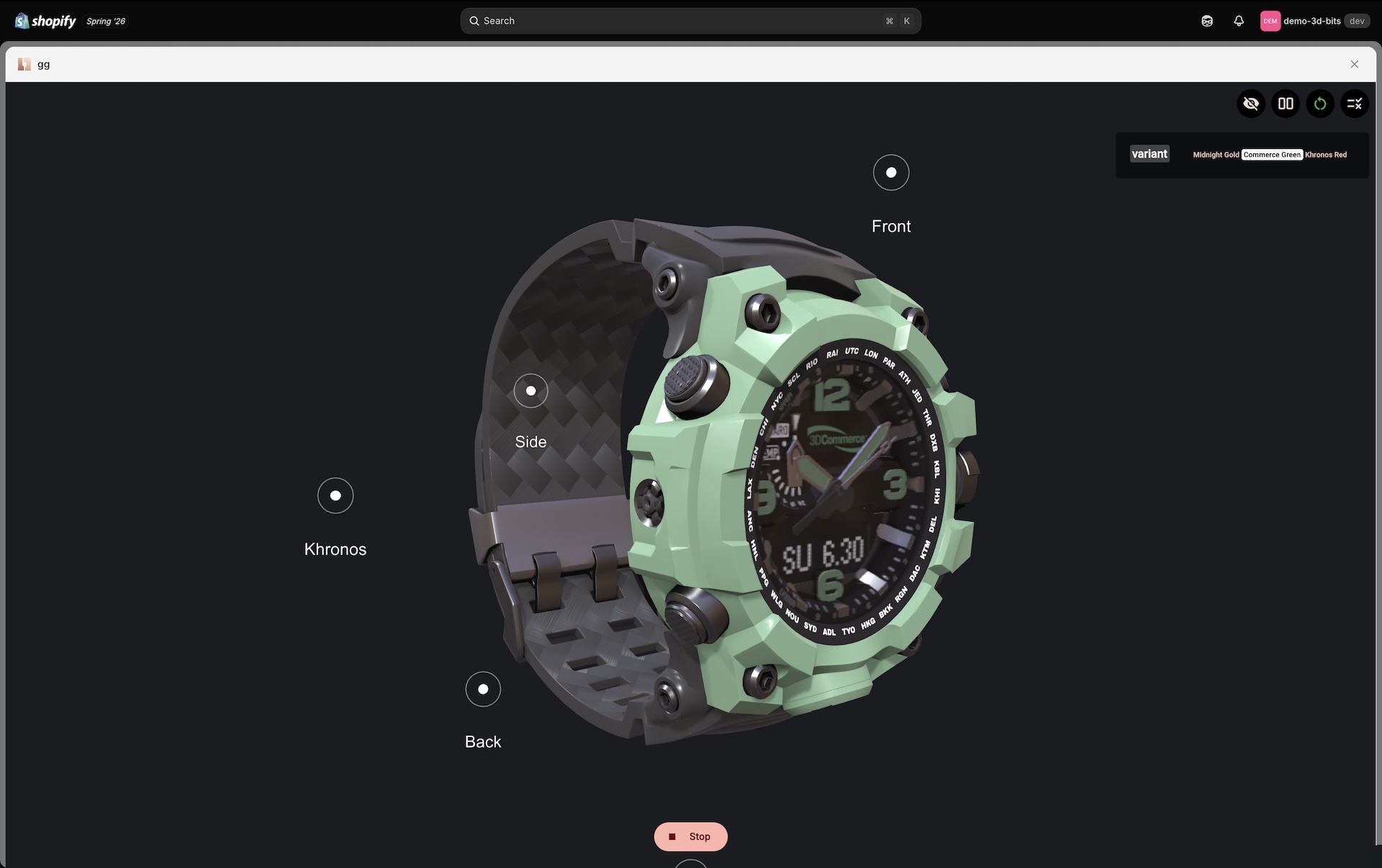
Play mode, which you enter with the Play button, is your shopper's view. It takes over the whole window: the settings panel and the bottom bar go away, and a Stop button appears over the view. Composer rebuilds the scene from the configuration as it currently stands, so the options panel, the logic, the prices and the camera moves behave as they will on the product page.
Play has its own small toolbar in the corner of the view:
- show or hide the options panel
- switch between the panel overlaid on the canvas and a split view beside it
- Reset all options to their default values
- Show active logic, which lists the rules currently firing
Play continues from the selections you made last time rather than starting fresh, which is exactly why that Reset button is there - press it when you want to see the configurator as a first-time visitor does.
Stop returns you to editing, and so does the Esc key.
Moving things by hand
Composer has no gizmo toggle buttons. Instead, clicking into a position, rotation or scale field brings up the matching on-screen handles for that thing, and dragging them writes the numbers back into the field.
It works the other way too. Clicking an object in the 3D view selects it, jumps the panel to its settings and outlines the field group you are now dragging.
The buttons along the bottom
Play and Stop switch modes.
Save stores your work in the project. Composer also saves on its own shortly after you stop typing, but pressing Save is worth doing before you step away. See Saving and Publishing.
Publish sends the configurator to your linked products, which is the separate deliberate step that makes changes public.
Save and Publish are only there when Composer was opened from a project. Opened from the app's own Composer entry it has no project behind it, so both are absent - along with the pickers that reach into your store. See What Composer Is.
Undo and Redo step through your changes to the configuration. They cover the configuration itself, not what you have selected, hidden or highlighted in the editor, and they never reach back past the moment a different configuration was loaded.
The keyboard button opens the shortcut list below.
Examples loads a prepared configuration you can pull apart to see how it was done. A good way to learn a feature you have not used.
Loading an example, or importing a file, swaps out the whole configuration and starts the undo history again - Undo will not bring your own work back. Save first if there is anything in the project you want to keep.
Swap UI switches between the form and the raw JSON view. The JSON view is a text editor over the same configuration, useful for reading or pasting a whole block at once. It refuses in both directions when it would lose your work: out of the form while a field is invalid, because there is nothing valid to generate, and back into the form while the JSON will not parse.
Reset Scene rebuilds the 3D view from scratch, which is the thing to try if the preview gets into a strange state.
Files is a label in front of four buttons, always visible: import a scene configuration or project file, download the scene configuration, download a project file that also carries your editor state, and copy the configuration to the clipboard.
There is also a badge showing which plan you are on.
When an edit seems to do nothing
The most common cause is a form error somewhere in the editor. If any field is invalid, Composer will not assemble the configuration, so the live preview pauses and saving, publishing and downloading have nothing to work with.
Nothing fails quietly, though. Every button you press yourself either does its job or says why it cannot, in a message that names the action and how many problems are in the way - "Cannot publish - the configuration has 3 problems. Fix them and try again." The one exception is the automatic save, which has no button behind it and would be shouting at you while you type; it shows a small crossed-out sync icon in the bottom bar instead, and hovering it says what is blocking it.
Four different bars can appear, and they are not interchangeable:
| Bar | Where | What it means |
|---|---|---|
| Needs attention | over the 3D view | invalid form fields - the direct cause of a paused preview |
| Setup problems | bottom bar | things the schema cannot see: references to controls that no longer exist, effects on the wrong trigger, and rules that will block publishing |
| Blocking Publish | bottom bar | the configuration was rejected outright - publishing is refused until these are fixed |
| Fix in UI | bottom bar, JSON view only | schema errors in the text you are editing |
Fix in UI appears only while you are in the JSON view. In the normal form view the same problems reach you through the other three. Every bar opens a list, and picking an entry takes you to the field it is about. See Troubleshooting if you get stuck.
Keyboard shortcuts
The keyboard button in the bottom bar shows this list at any time. On a Mac, use Cmd wherever the table says Ctrl.
| Shortcut | Does |
|---|---|
Ctrl + Z | Undo the last change |
Ctrl + Shift + Z, or Ctrl + Y | Redo the change you undid |
Ctrl + S | Save to your project |
Ctrl + J | Swap between the form and the JSON view |
Ctrl + Enter | Play the scene as a shopper sees it |
Esc | Stop Play, or leave the full-width preview |
Ctrl + Alt + F | Toggle the full-width preview |
Alt + 1 to Alt + 8 | Go to a section, numbered in the order the buttons are listed |
? or F1 | Show the shortcut list |
While your cursor is in a text field, undo, redo and the help key stand down so the browser's own undo can revert the characters you just typed. Save still reaches through. The JSON view is a text editor, so it keeps its own undo, redo and find keys too.
A note on browsers
Composer is a desktop tool. It works in any current browser, and it wants a reasonably sized screen because you are looking at a settings panel and a 3D view side by side. Building on a phone is not realistic.