Drawing Sheets From STEP Files With Bitbybit CAD Cloud

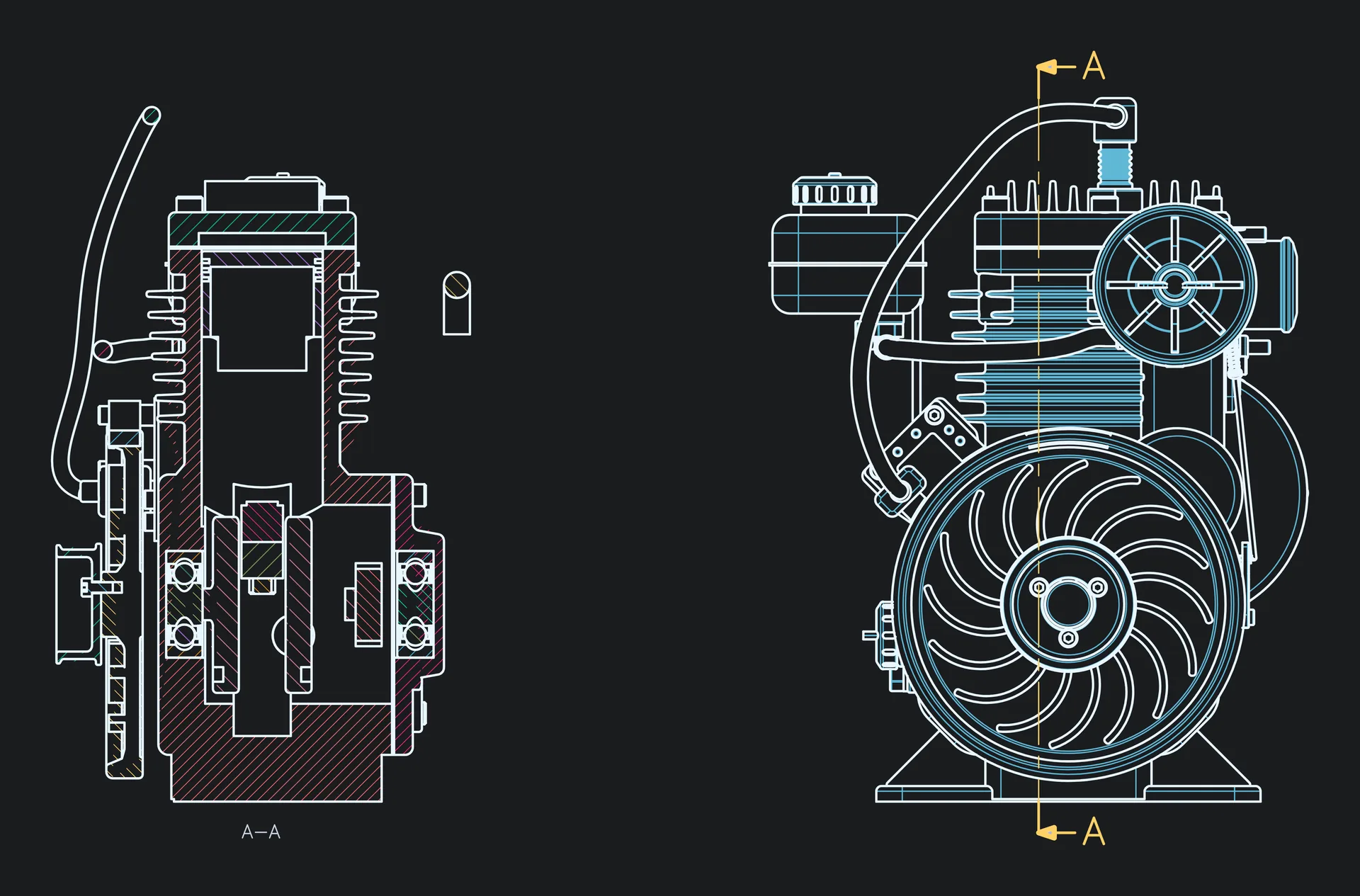
A 3D model is where a part begins, but the workshop works from a drawing. Bitbybit CAD Cloud now draws one for you: send a STEP file of a part or a whole assembly, and get back drawing sheets as PDF, DXF and SVG.
Drawing sheets are one of the Pro algorithms of CAD Cloud. They run on our servers, they have no open-source counterpart, and a sheet is a single call over plain HTTP.
What a sheet holds
The views are placed and lined up with each other on a standard sheet at a standard scale. The lines are the model's own edges, so a circle stays a circle. Sections are cut where you ask and hatched part by part. The title block follows ISO 7200, and a sheet can also carry:
- overall sizes and dimensions
- hole tables, with a tag on each hole
- a parts list, with balloons pointing at the parts
- a sheet-metal part's flat pattern, with its bend table
- the dimensions and notes an AP242 STEP file stores
The model we drew
To show it on something real, we drew a single-cylinder engine: one STEP file of 113 parts, from the block and crankshaft to the bearings, the piston, the valves and the screws that hold them.
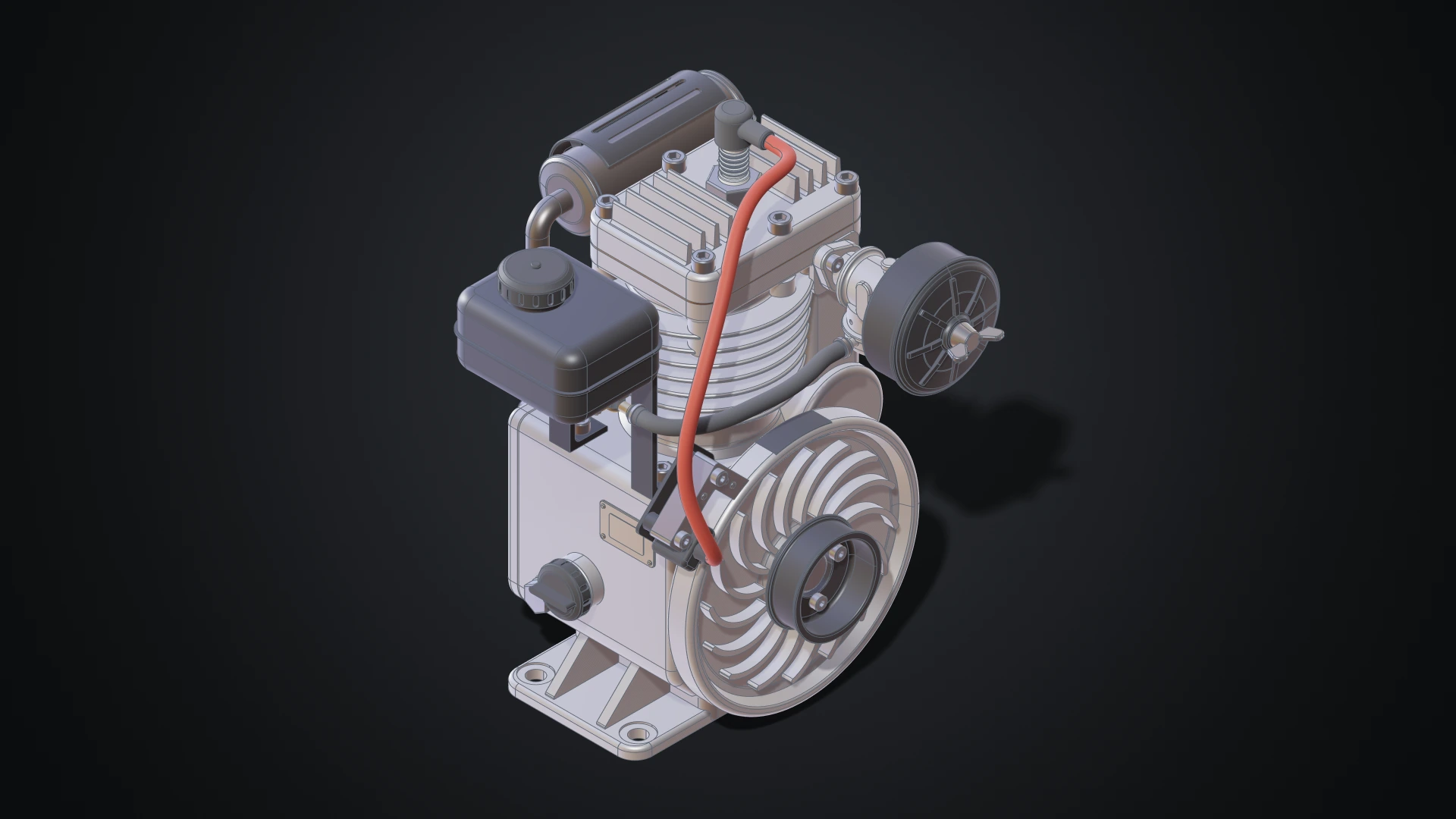
The engine is one of our Designer showcases. You can open the single-cylinder engine on bitbybit.dev and turn it around in 3D.
The sheet CAD Cloud drew
First, CAD Cloud's inspect call read the file, proposed a plan and offered three places to cut a section, each with the number of parts it passes through. We took the cut along the cylinder, asked for an A2 sheet with a parts list and a hatch spacing of 1.5 mm, and drew it.
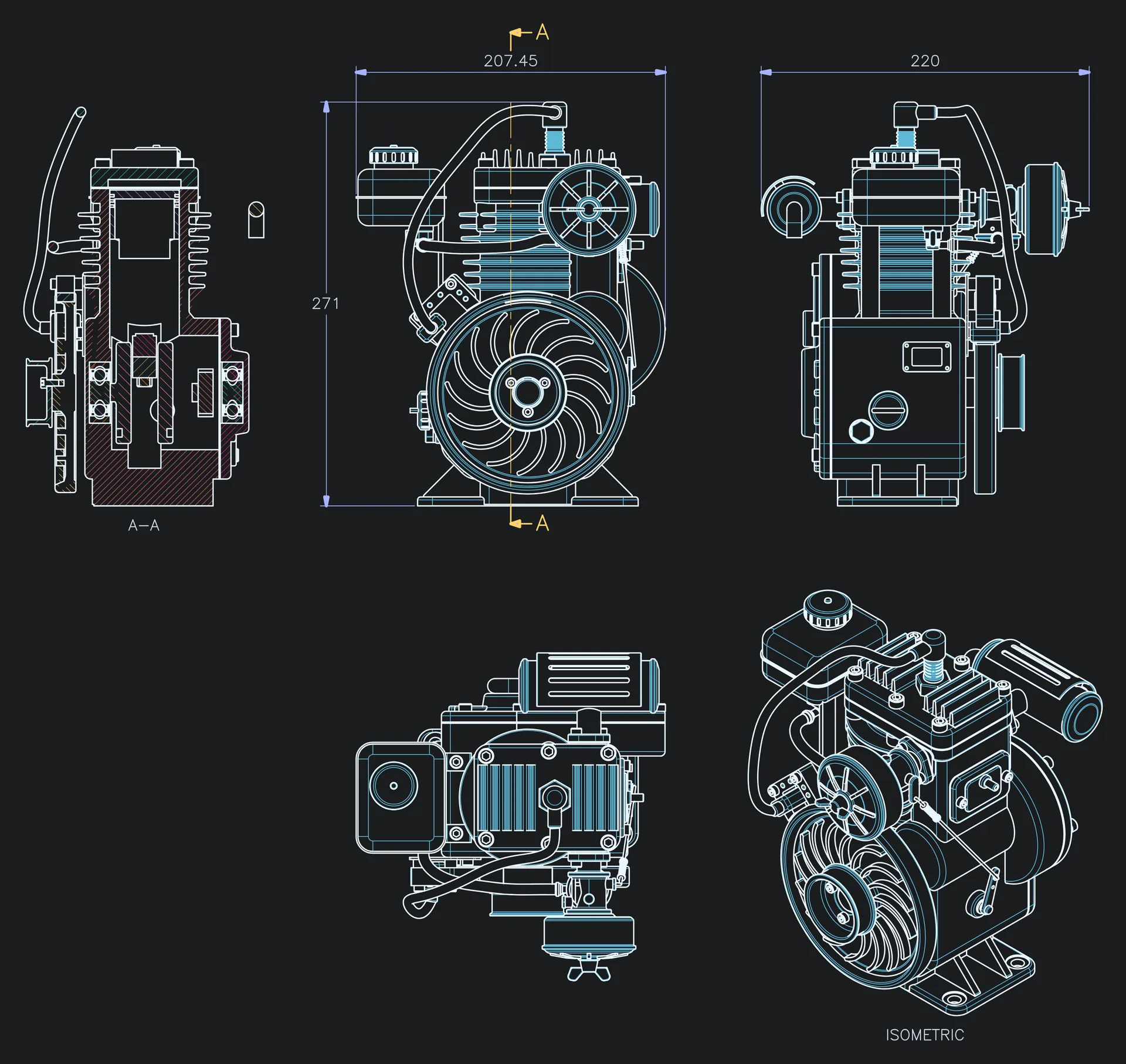
The sheet came back at 1:2 with front, top and left views, section A-A, an isometric view, the overall sizes and the title block filled in from the plan. The picture shows its views, cropped from the A2 sheet without its frame and title block. The parts list, 54 different parts in all, came back as a second sheet of the set.
Sections and hatching
Every part a section cuts is hatched. A part is hatched alike wherever it is cut, and parts that touch take different hatches, so they read apart. In section A-A at the top of this post, the block, the crankshaft, the bearings and the head each have their own.
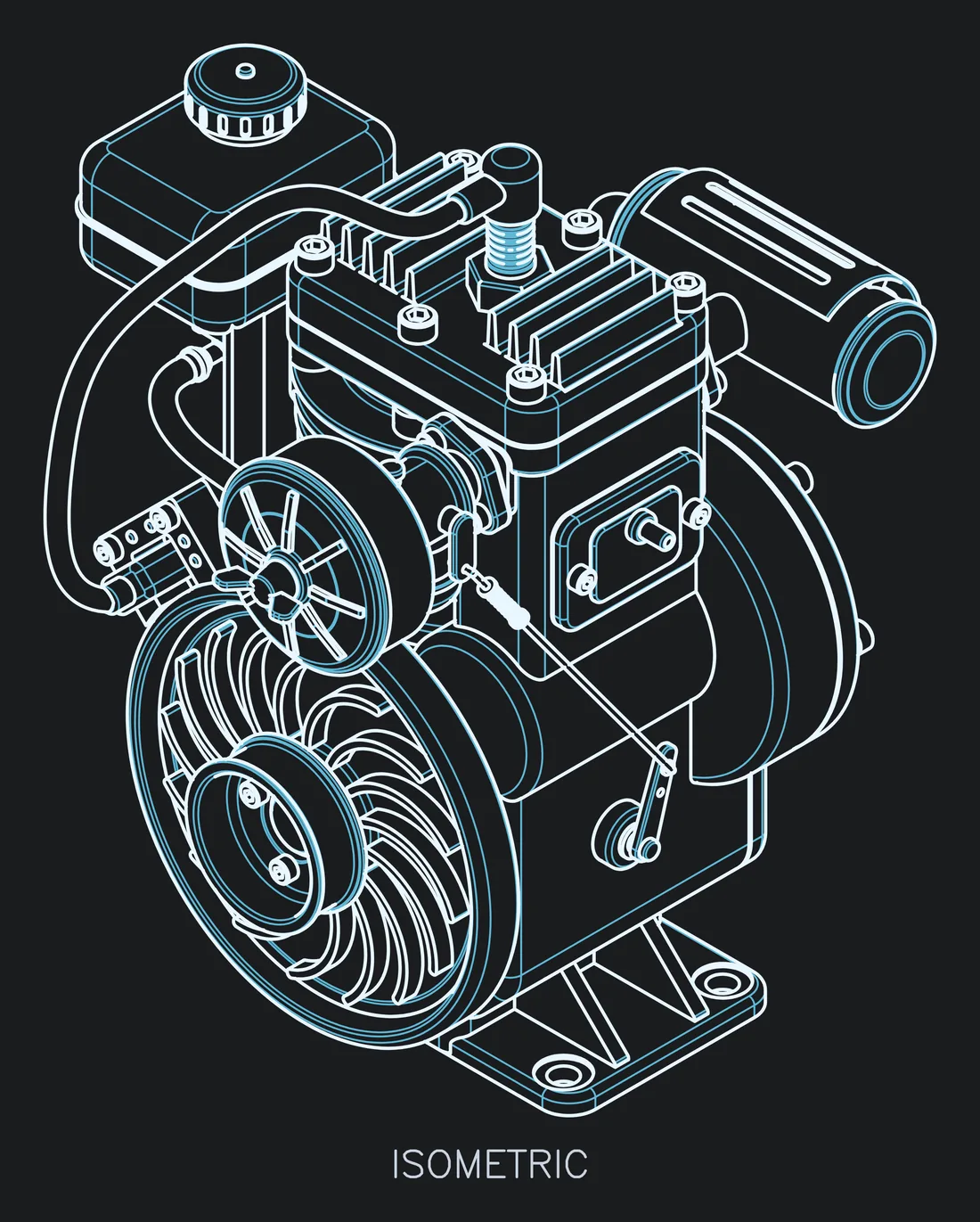
The isometric view from the same sheet: all 113 parts, the edges that face you drawn and the hidden ones left out.
CAD Cloud writes its sheets as a workshop prints them, black lines on white. For this page we recoloured the SVG it returned: light lines on the blog's own background, thinner hatch lines, and each part's hatch in a colour of its own. The geometry, the hatches and the text are exactly as drawn.
Planning a sheet
The plan behind a sheet is a short JSON document. Every setting in it has a default, so a request with nothing but a file already draws a sheet. Sections are never chosen for you: the inspect call proposes candidates, and adding one's frame to the plan draws it.
In Bitbybit Studio, the drawing page does the same with a few clicks. It keeps the sheets it has drawn in your browser, so drawing a set again asks CAD Cloud only for the sheets it does not already hold.
Drawing sheets describes every setting, from sheet sizes and scales to sections, tables and continuation sheets.
Try it
Every plan's API key can call every route, the Pro algorithms included; the plans differ in compute minutes, server speed and file sizes. Start in Bitbybit Studio, or read the CAD Cloud API overview to call it from your own code. Drawing sheets pair well with sheet-metal unfolding and nesting: a drawing set of a sheet-metal part can carry its flat pattern on a sheet of its own.
Want to talk through a workflow of your own? Reach out to us.