Nesting
Nesting lays copies of flat parts out on sheets of stock so that as little material as possible is wasted, ready for a laser, plasma, waterjet or router. CAD Cloud nests the parts' true shapes, curves and holes included: a small part can sit inside the hole of a larger one. It is one of the Pro algorithms that run only on CAD Cloud.
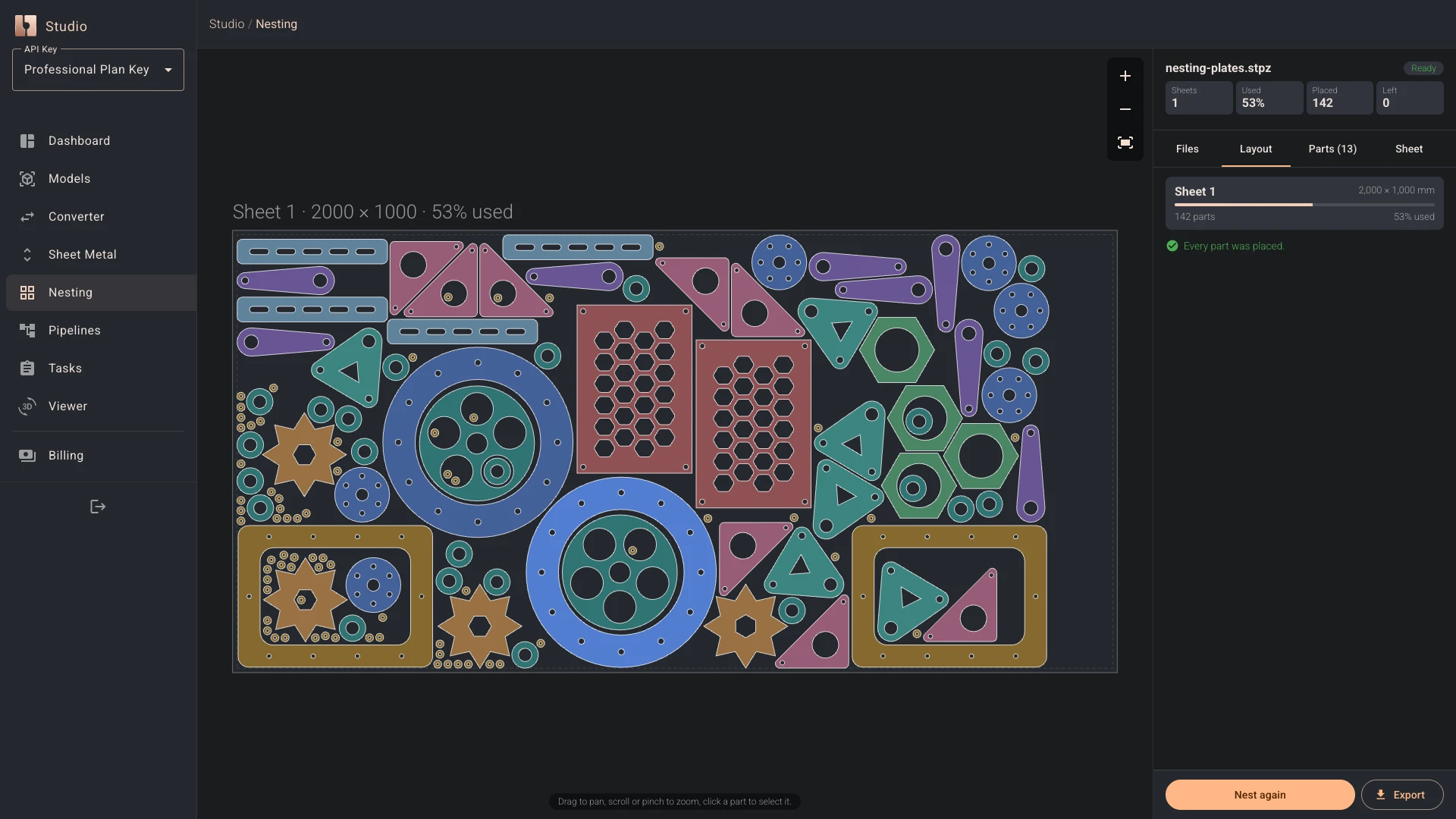
The picture is the plates template from the input templates: thirteen plates, 142 copies in all, on one 2000 x 1000 mm sheet, the washers and small plates placed inside the rings and frames.
Download the plates that nest inside each other template, a compressed STEP file (294 KB) Download every nesting template, each with its request and the scripts that run it (309 KB)What a part is
You send STEP files (.step, .stp, or gzip-compressed .stpz), at most 50 and 200 MB together. A part is anything
flat: a planar face, coplanar faces such as an unfolded sheet-metal part, a plate solid, or a drawing of closed wires.
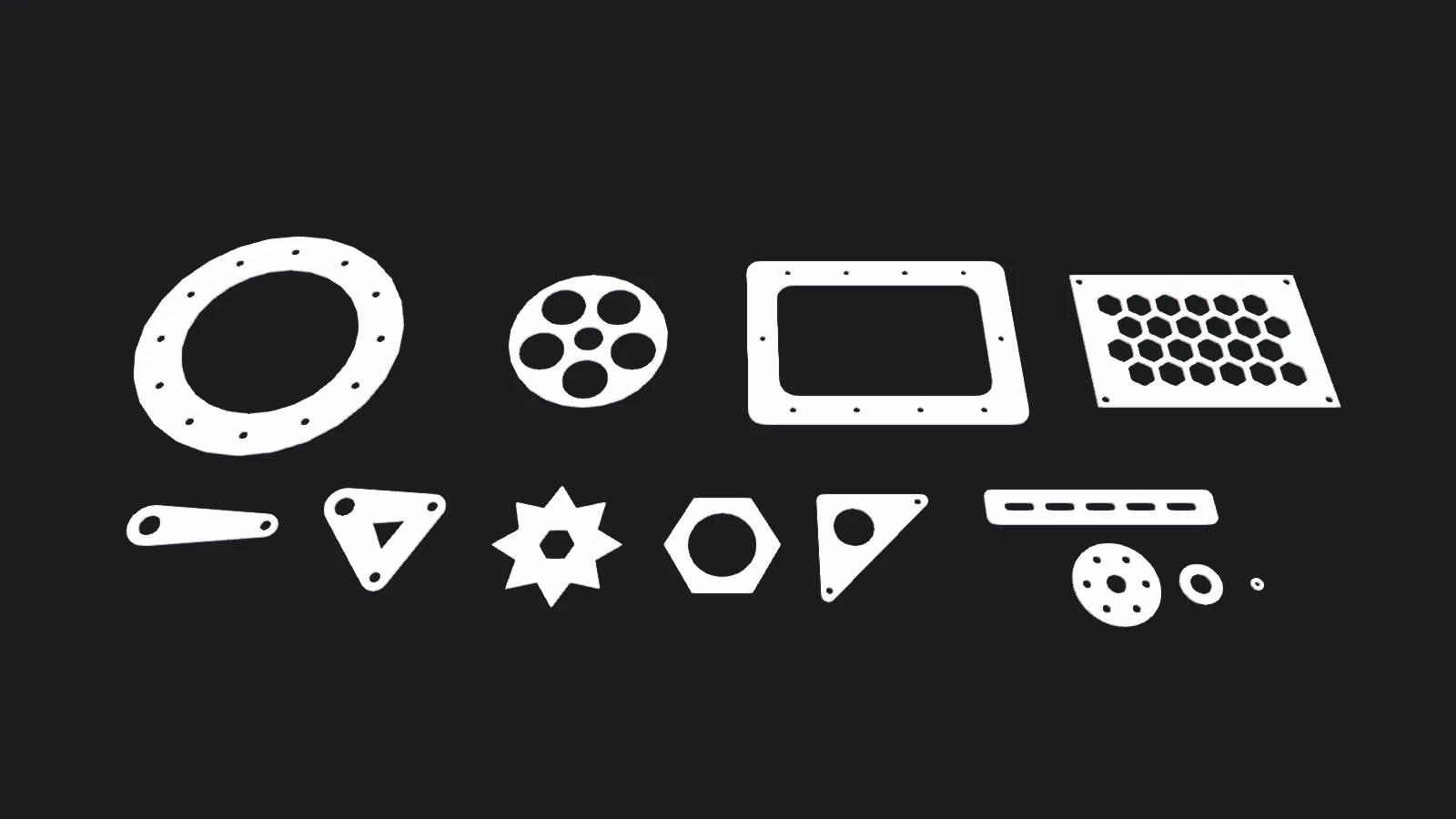
The plates template's file holds one of each of its thirteen plates, as they were modelled. Its request asks for 142 copies of them, and the nesting places them on the sheet.
Parts are read file after file, as each file's product structure gives them:
- every placement of a part in an assembly is a part, and a file with no assembly is its one part;
- within a part, every solid is a part of its own, in the order they sit, and whatever else it holds stays one part after them (an unfolded flat pattern with its bend lines, a drawing's outline with its holes);
- a part with no edge is skipped.
A plate's thickness does not matter to the layout: its outline and its holes do. Lengths are millimetres. A file whose
header names the wrong unit, as some exporters write a model drawn in metres under a millimetre header, is read right with
fileUnit. The DXF and SVG cut files can be written in inches instead: see the cut files' unit.
In Studio
- Open Nesting and drop your STEP files on it, or choose Start from a template and Plates that nest inside each other.
- The parts are read and nested at once, on a sheet sized for them.
- Set the stock and the gaps in the Sheet tab and each part's copies in the Parts tab, then choose Nest again.
Layout lists every sheet with the parts on it and how much of it they use. Export downloads the cut paths as DXF or SVG, and the other formats below. The unit of the DXF and the SVG is chosen beside it, under Cut files in, and applies from the next Nest again; the menu names the unit each cut file of the layout shown was written in.
The routes
| Route | What it does |
|---|---|
POST /api/v1/cad/pro/nesting/nest | Nests the parts and writes the nested sheets |
POST /api/v1/cad/pro/nesting/inspect | Reads the parts as nesting would, without nesting them: each part's file, kind, outline size, area and cut length, or why it cannot be nested |
Both take the uploaded files as stepFileIds, start a task and answer with its taskId. They need an API key with the
cad scope. Inspect first when a file comes from somewhere new: it shows how many parts the file gives and in what
order, which is the order options.parts follows.
A request
This is the request the small nesting template ships with: three plates, two, four and six copies of them.
<your uploaded file> stands for the fileId the upload gave you.
{
    "stepFileIds": ["<your uploaded file>"],
    "options": {
        "sheets": [{ "width": 1000, "height": 500 }],
        "parts": [{ "quantity": 2 }, { "quantity": 4 }, { "quantity": 6 }],
        "spacing": 5,
        "margin": 10,
        "seed": 1,
        "evaluationBudget": 3000,
        "timeBudgetSeconds": 60
    },
    "outputs": { "formats": ["dxf", "svg", "outlines"] }
}
Stock
options.sheets lists what you nest onto, either:
- sheets: up to 100 kinds of rectangle, each a
widthand aheight, with aquantitywhen you have only so many and acostper sheet. Without costs, the stock that wastes least is opened first; - or one strip:
{ "strip": true, "height": 1250 }, a roll or bar of that width whose length is open. The nesting makes the length as short as it can.
Each part
options.parts[i] belongs to the i-th part over all files. An entry may be null, and parts past the end of the list
take the defaults.
| Option | What it does | Default |
|---|---|---|
quantity | How many copies to place; 0 leaves the part out | 1 |
rotations | How the part may turn: { "mode": "fixed", "angles": [0, 180] } for a grain direction, { "mode": "step", "step": 45 } for steps that divide 360, or { "mode": "free" } | steps of 90 degrees |
allowFlip | Whether the part may be turned over: a half turn about an axis in its plane, never a mirror | false |
priority | Parts of higher priority are placed first, so they are the last left off when stock runs out | 0 |
xDirection | The direction in the part's plane that a turn of 0 lays along the sheet's x axis | the part as drawn |
All copies together stay within 100,000, over at most 5,000 parts.
The search
| Option | What it does | Default |
|---|---|---|
spacing | The least distance between any two parts, measured on their true shapes | 0, where parts that tile exactly may touch |
margin | The band along each sheet's edges that no part enters | 0 |
timeBudgetSeconds | How long the search may run; the best layout found by then is returned | 10, at most 120 |
evaluationBudget | Stop after this many placements are tried; 0 means no limit | no limit |
seed | The seed of the search's random choices | 1 |
tolerance | How far the straight chords that stand in for curved edges may stray from them; the spacing still holds on the true curves | 0.1 |
Repeatable layouts. A search stopped by time depends on how fast the server ran, so two runs can differ. Give an
evaluationBudget that the search reaches well inside its time budget, and the same seed gives the same layout every
time. The report's run.reproducible says whether it did. Every template's request is set up this way.
Outputs
| Format | What you get |
|---|---|
dxf | An AutoCAD 2000 drawing in millimetres, or in outputs.unit: the sheets' outlines on layer SHEETS, the parts' cut paths on layer PARTS, every arc, ellipse and spline exact |
svg | The same drawing as an SVG file in the same unit, each layer a group |
outlines | The same cut paths as JSON, in millimetres, each copy in its sheet's frame and named by its placement, for drawing the layout yourself |
step or stpz | Each used sheet one part, holding its placed parts and its outline |
gltf | The nested sheets as glTF, the default |
decomposed-mesh | The placed parts triangulated, as JSON |
Give step or stpz, not both. A dxf or svg too large to write is left out while every other format is still
written, and the task's metadata says why under outputsLeftOut.
The cut files' unit
outputs.unit sets the unit the DXF and SVG cut files are written in: mm (the default), cm, m or in. For a shop
whose cutting software works in inches:
"outputs": { "formats": ["dxf", "svg"], "unit": "in" }
The drawing is scaled into the unit and each file states it, so the software opens it at its true size: the DXF in its
header ($INSUNITS), the SVG in its width and height. A part 254 mm wide is 10 units wide in an inch DXF. SVG has no
metre, so an SVG in metres gives its width and height in centimetres.
The unit changes those two files only:
stepandstpzstay in millimetres. A STEP file states its unit in its header, and CAD programs convert it on import.gltfanddecomposed-meshare written as without it.- The
outlinesJSON, the report and every length in the request stay in millimetres.
The nesting report
The task's metadata result is the report:
sheets: every used sheet, its stock, how many parts it holds and how much of it they fill (utilization);placements: every copy placed, with its sheet, position, angle, whether it was turned over, its box on the sheet and the matrix that moves the input part there;parts: each part as read, with its kind, size, area, cut length, number of loops, and how many copies were placed;left: copies that were not placed and why: the part's own problem,tooLargeForAnySheet,noStockLeft,timeBudgetorverificationFailed;totals: sheets used, parts placed and left, the part and sheet areas, the cost, the cut length and the number of pierces;run: the seed, how many placements were tried, how long it took and whether it is reproducible.
Run it
The template download holds the request with two scripts that send it, run.sh (curl and jq) and
run.ts (the TypeScript SDK): each uploads the file, sends the request, waits for the task and saves every result
beside it. Every request option is in the API reference.
Nesting also runs inside a pipeline, as an occtPro.nesting.nest step on shapes the pipeline made, so parts can be
modelled and nested in one call. Pipelines shows how a pipeline is put together.
To unfold bent sheet-metal parts and nest their flat patterns in one call, use Sheet-metal unfold.